
You are here:
Monitor Important Metrics with the CRM Analytics Watchlist
The CRM Analytics Watchlist gives users the advantage of capturing and tracking up to 20 KPIs across different dashboards, plus historical trending. No more switching between dashboards to see what has changed, and track your metrics all in one place.
Required Editions
| Available in Salesforce Classic and Lightning Experience. |
| Available with CRM Analytics, which is available for an extra cost in Enterprise, Performance, and Unlimited Editions. Also available in Developer Edition. |
| User Permissions Needed | |
|---|---|
| To manage a watchlist: | Use CRM Analytics |

Note Enable Dashboard Views must be on
to use Watchlists. The feature is enabled by default. Review the referenced document for more
information about the feature.
-
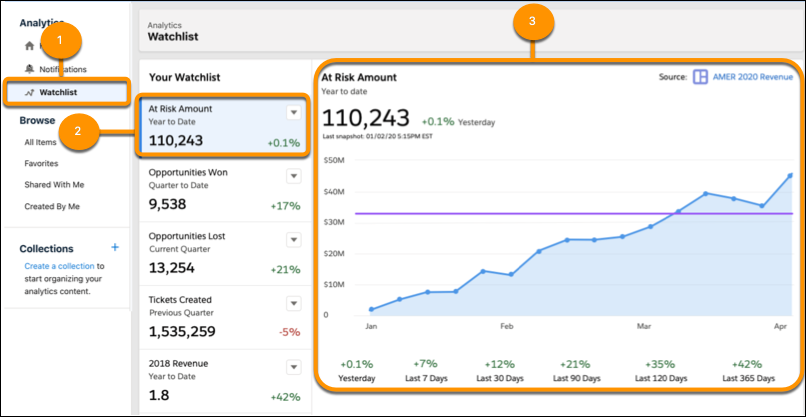
Access the Watchlist. The Watchlist (1) is located on the CRM Analytics Home page where you
get a full, personalized list of metrics. Click any metric to view its values (2), and timeline
chart (3).
-
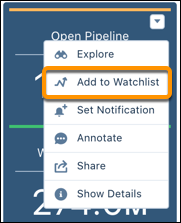
Add a dashboard item to the Watchlist. Each user can save up to 20 metrics to their
Watchlist.
- Open the dashboard that contains the item to watch.
- Locate the item’s dashboard widget.
- Click the widget dropdown menu and click Add to Watchlist.
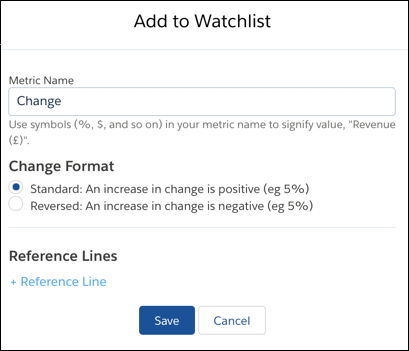
- Type in name for the Watchlist metric.
- Under Change Format, click the radio button to define how changes are tracked.
- Click Save.
-
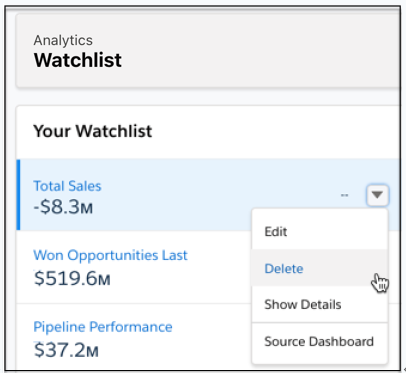
Delete a Watchlist metric. You have the control to remove metrics from the Watchlist when
they’re no longer needed.
- On the Watchlist, click the metric dropdown menu.
- Click Delete from the menu.
-
Click Delete on the confirmation screen.
-
Edit a Watchlist metric. Watchlist metric properties can be modified at any time.
- On the Watchlist, click the metric dropdown menu.
- Click Edit from the menu.
- Make changes to the metric.
- Click Save.
-
Get item information from a Watchlist. Watchlist metrics also include last snapshot date,
snapshot frequency, date metric was added, and source dashboard.
- On the Watchlist, click the metric dropdown menu.
- Click Show Details from the menu.
- Click the X to close the Show Details window when finished.
-
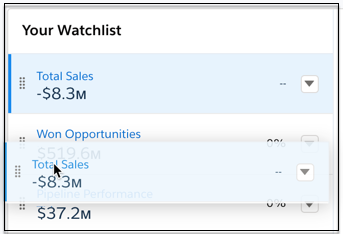
Changing metric order. You can organize Watchlist metrics in any desired order. This is
especially useful when viewing metrics from My Analytics.
- Click the Watchlist tab from CRM Analytics home.
- Click Change Order at the bottom of the metrics listing.
- Click and hold a metric, and drag it to its new position.
- Release the metric.
- Click Save.
Manage and Track Your Metrics: Tips, Limits, and Limitations
Add and monitor dashboard items on the Watchlist while keeping these tips and limitations in mind.
-
Watchlist metrics can only come from dashboards you have access to.
-
The Watchlist can only display an item’s metric value starting from the time it was added.
-
If access to a dashboard is lost, then restored, your metric remains on the Watchlist but it doesn’t fill in any gaps.
Did this article solve your issue?
Let us know so we can improve!
