
You are here:
Configurations
Follow these configuration steps to use the Salesforce Consent Data Model to manage and respect consent preferences in Marketing Cloud Engagement.
Connect Consent Data to Engagement
- Synchronize consent related objects to Engagement
via Marketing Cloud Connect. To ensure correct data extension mapping,
synchronize objects in this order.
- Contact and User
- Business Brand, Data Use Purpose, and Individual
- Contact Point Email, Contact Point Phone, and Contact Point Address
- Contact Point Consent and Contact Point Type Consent
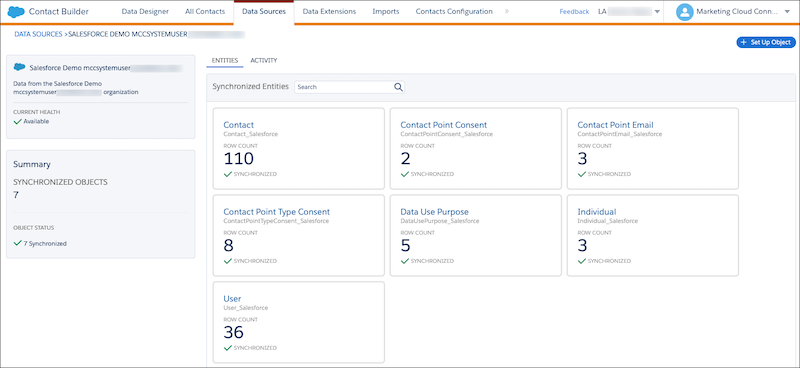
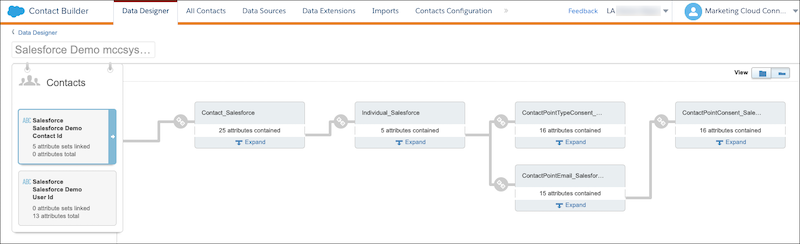
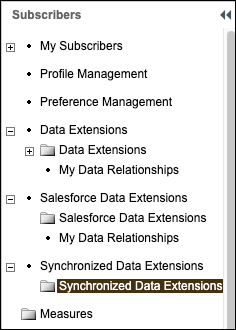
Your synchronized data appears in your local Synchronized Data Extension folder.
Connecting Consent Data to Subscribers in Engagement
- Create a query that joins the subscriber’s contact ID with contact point consent
records using Brand as a filter. For
example:
Select c.Id, c.Email, cp.EmailAddress, cpc.Name, cpc.PrivacyConsentStatus From Contact_Salesforce c Join Individual_Salesforce i On c.IndividualId = i.Id Join ContactPointEmail_Salesforce cp On i.Id = cp.ParentId Join ContactPointConsent_Salesforce cpc On cp.Id = cpc.ContactPointId - After the query is created, determine how to make the information available
according to your business requirements for marketing use cases. For example:
- Update or create an automation in Automation Studio, and run these queries on a schedule.
- Write query results to a data extension in a shared folder, and make the folder available to the required child Business Units for marketing activities.
- If necessary, write additional queries or parameters that include the Data Use Purpose record.
Retrieving Changes to Subscriber Status in Engagement

Identify related consent objects in core and update privacy preferences. The specific consent objects affected vary depending on how the unsubscribe was received and how the customer manages consent. If a customer only manages consent by contact point type consent, then that is the only object impacted by the unsubscribe action in Engagement.
- Use
ReasonUnsubto determine the consent object impacted. The default values are:- Spam Complaint
- Unsubscribed from list details on subscriber properties dialog
- Unsubscribed by ExactTarget RMM service based on subscriber Leave or Reply email
- Unsubscribed by the Engagement RMM service based on subscriber Leave or Reply email
- Unsubscribed by subscriber edit API call
- Unsubscribed from the Subscription Center
- Unsubscribed via Import
- Create an invocable action that executes the API to retrieve the SubscriberStatusEvent.
Use complex filter parts, and include the date since the last batch execution. For example:
<Filter xsi:type="par:ComplexFilterPart" xmlns:par="http://exacttarget.com/wsdl/partnerAPI">
   <LeftOperand xsi:type="par:SimpleFilterPart">
      <Property>CurrentStatus</Property>
      <SimpleOperator>equals</SimpleOperator>
      <Value>Unsubscribed</Value>
   </LeftOperand>
   <LogicalOperator>AND</LogicalOperator>
   <RightOperand xsi:type="par:SimpleFilterPart">
      <Property>CreatedDate</Property>
      <SimpleOperator>greaterThan</SimpleOperator>
      <DateValue>2011-04-07T19:58:33.434707Z</DateValue>
   </RightOperand>
</Filter>
To filter on a specific ReasonUnsub value, change the filter to use a different SimpleOperators. For example:
<Filter xsi:type="par:ComplexFilterPart" xmlns:par="http://exacttarget.com/wsdl/partnerAPI"> <LeftOperand xsi:type="par:SimpleFilterPart"> <Property>ReasonUnsub</Property> <SimpleOperator>like</SimpleOperator> <Value>Unsubscribed</Value> </LeftOperand> <LogicalOperator>AND</LogicalOperator> <RightOperand xsi:type="par:SimpleFilterPart"> <Property>CreatedDate</Property> <SimpleOperator>greaterThan</SimpleOperator> <DateValue>2022-01-01T19:58:33.434707Z</DateValue> </RightOperand> </Filter> - To retrieve unsubscribe events from Engagement for the last 24 hours using an
API call, create a schedule-triggered flow.
- Pick a date and time for the first run of the flow.
- To run the flow every 24 hours, schedule the flow to run daily.
- Create a scheduled-triggered flow to perform weekly refreshes that review all
subscribers with an unsubscribed status in the All Subscribers list.
An invocable action can perform the work for both executions by allowing the primary invocable method to accept multiple dates to act as a date range using a filter. For example:
<Filter xsi:type="par:ComplexFilterPart" xmlns:par="http://exacttarget.com/wsdl/partnerAPI">
   <LeftOperand xsi:type="par:SimpleFilterPart">
      <Property>CurrentStatus</Property>
      <SimpleOperator>equals</SimpleOperator>
      <Value>Held</Value>
   </LeftOperand>
   <LogicalOperator>AND</LogicalOperator>
   <RightOperand xsi:type="par:SimpleFilterPart">
      <Property>CreatedDate</Property>
      <SimpleOperator>between</SimpleOperator>
      <DateValue>2009-01-01T19:58:33.434707Z</DateValue>
      <DateValue>2010-04-07T19:58:33.434707Z</DateValue>
   </RightOperand>
</Filter>

|
Review earlier steps in this solution. |
