
You are here:
Guidelines for Logging Email from Outlook and Gmail to Salesforce
Keep your opportunities moving and your teammates up to date with your latest communications. Log email messages to Salesforce people, contacts, leads, and other records.
Required Editions
| Available in: Salesforce Classic and Lightning Experience |
| Available with Sales Cloud, Service Cloud, and Lightning Platform in: Essentials, Group, Professional, Enterprise, Performance, Unlimited, and Developer Editions |
Inbound Email
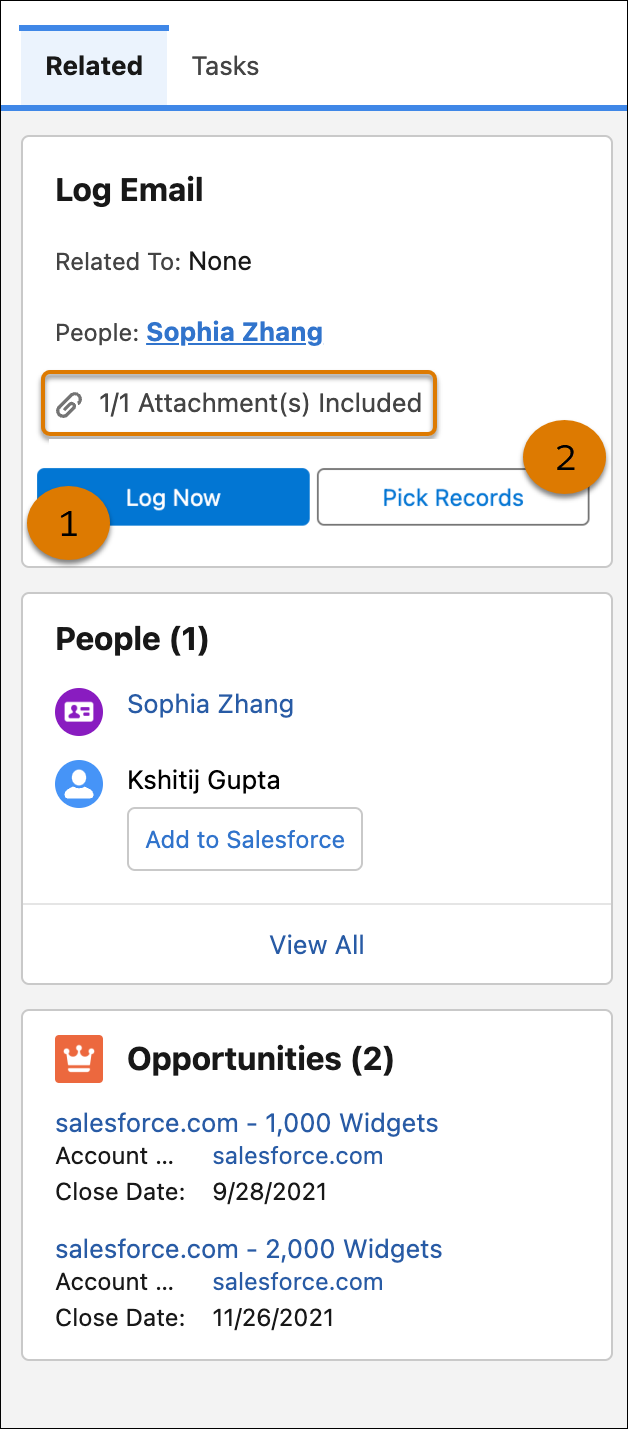
When suggested objects are found, Salesforce proposes which people and records to associate the email with. If you agree with the suggestions, click Log Now. To choose your own associations click Pick Record and select the records that you want to relate the email or event to in Salesforce. You can also log the email to one other record type, such as an account or opportunity.
To log the email to other records that don’t show in the related records list, use Search.

Sorting options for recommendations vary depending on the object. For example, the contact and lead suggestions begin with any matched contacts or leads, and then recipients who didn’t match a record. For lists of suggested users, standard users are listed first, followed by contacts, leads, and other people records such as community users.
Outbound Email
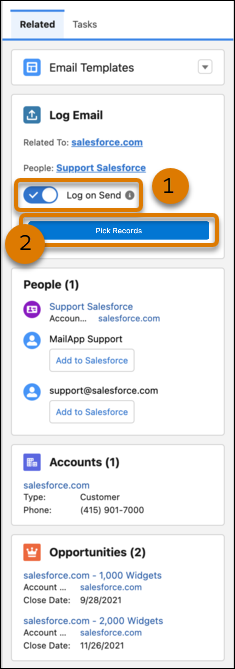
When composing an email, select Log on Send (1). When suggested objects are found, Salesforce proposes which people and records to associate the email with when it’s sent. To make changes, click Pick Records (2) and add or remove people and other records before sending the email.

Logging Email Attachments
Email attachments are added as files in Salesforce. Your Salesforce setup determines where you can find the attachments. When emails are logged as tasks, attachments are available in the Files section of the Salesforce Email page layout. When emails are logged as email messages, find the files in the Attachments section of the Salesforce email. If you’re not sure how emails are logged, check with your Salesforce admin.
The Log Email on Send page in the Outlook integration doesn’t have an option to include attachments like the log email page for reading email does. To log attachments automatically when using Log Email on Send, click the Always save email attachments setting in your My Email to Salesforce settings. If this option isn’t selected, attachments in emails sent using Log Email on Send aren’t automatically included with the logged email. To log email attachments manually from emails in your Sent folder, select the Include Attachments option.
Logging Emails from Shared Folders (Outlook Only)
In Outlook, you can log email to Salesforce from a shared folder such as info@company.com. On the Salesforce record, the logged email event indicates it was logged from your Salesforce user, not from the shared folder.
Logging Fields and Statuses
When you log an email from your inbox, it’s logged as Read. When you log an outbound email, it’s logged to the selected Salesforce records as Sent. Outbound emails include emails logged from the Sent folder, the Log Email on Send option, or from the Reminder to Log pane.
If an email contains multiple addresses, the first matching alphabetical contact is included as the name on the activity on the Salesforce record.
Sharing Emails with Einstein Activity Capture
If you have a Share option instead of a Log Email option, you’re set up to use Einstein Activity Capture. Einstein Activity Capture automatically logs emails and events to related Salesforce records.
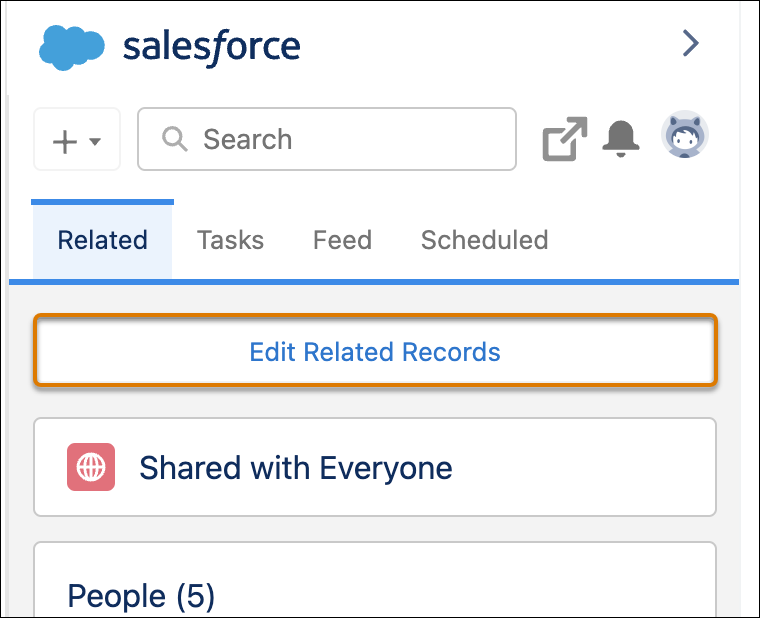
If you’re part of an Einstein Activity Capture configuration that is set to automatically capture emails, you can’t manually log emails or events from the integration. However, you can click Edit Related Records to update the automatically created relationships between the email and Salesforce records from Outlook and Gmail.
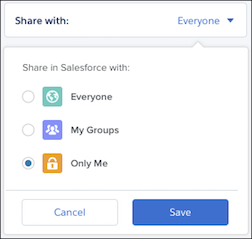
Your Activity Sharing settings determine whether emails and events are shared with other users or kept private. You can update your default sharing setting in your personal settings in Salesforce.
