You are here:
Customize Embedded Chat Labels
Create your own custom labels and manage the label language for your Embedded Chat deployment.
Required Editions
| View supported editions. |
| User Permissions Needed | |
|---|---|
| To set up Embedded Chat: | Customize Application AND Modify Metadata |

Legacy Chat will be retired on February 14, 2026. To avoid service interruptions to your end users, switch to enhanced Chat (formerly Messaging for In-App and Web). Enhanced Chat offers many of the legacy Chat features that you love plus asynchronous conversations that can be picked back up at any time. Learn about migrating in Help and Trailhead.
Custom labels are created within an individual deployment. Each Chat State has a set of default labels to customize your support needs and to match your website’s tone.
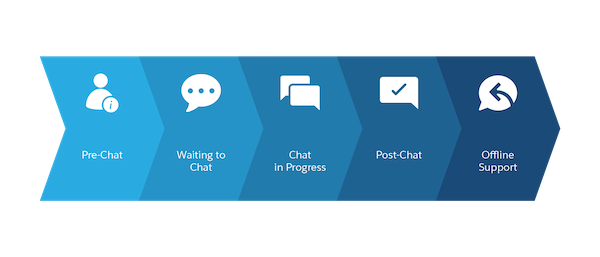
Also, a General section covers labels that appear throughout the chat process. To create your custom labels, follow these steps:
- From Setup, in the Quick Find box, enter Embedded Service, and then select Embedded Service Deployments.
- To select the Embedded Service deployment that you want to work with, click the arrow next to the deployment name, and then select View.
- Click Edit next to Chat Settings.
- In the Additional branding section, click Edit.
-
Click the Labels tab. Organized by Chat State, each Label Group
focuses on a step in the chat window for the state.
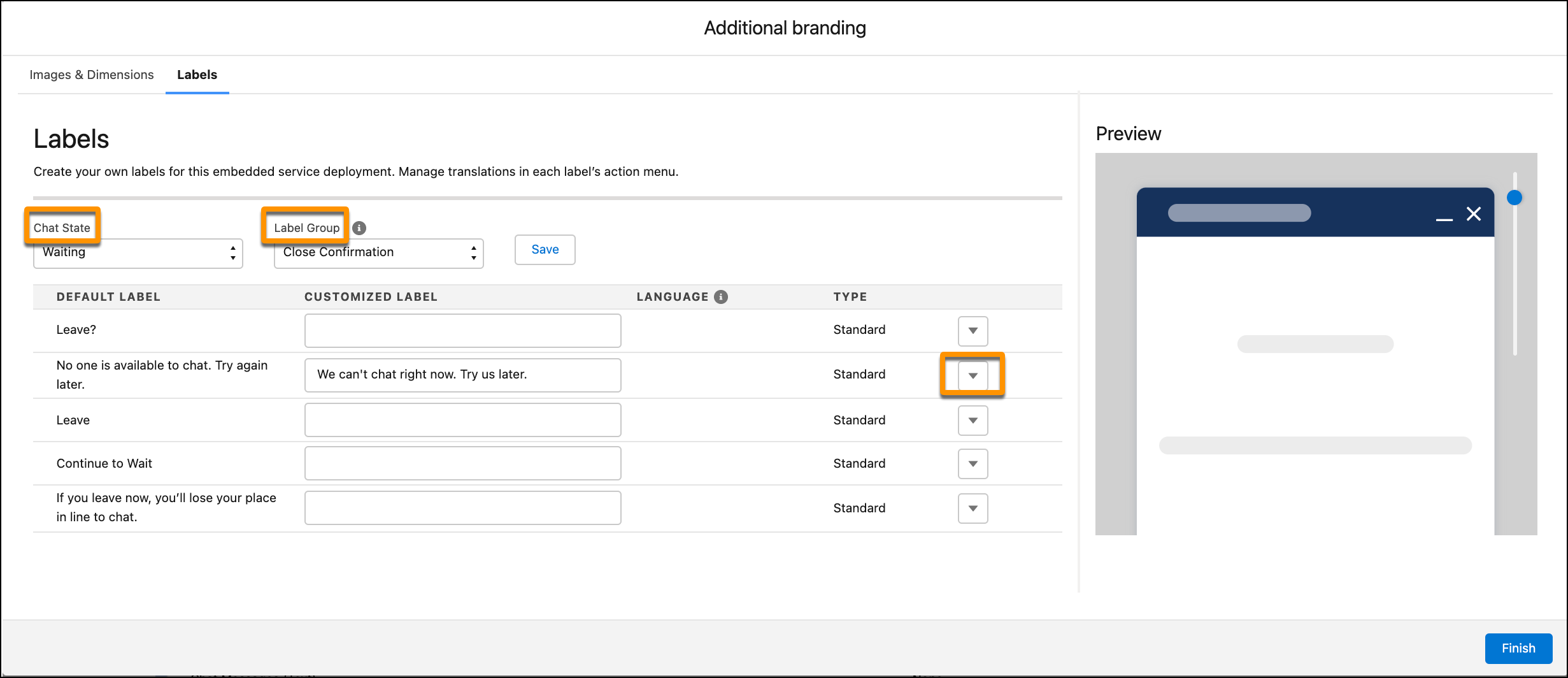
- Select your Chat State and Label Group to create custom labels.
- Under Customized Label, enter new labels for your embedded component. The preview highlights where the selected label appears in the chat window.
- Save your customized labels before moving to another Chat State or Label Group.
-
To close the window, click Finish.
Important Some labels appear in multiple Chat States, so what you change can be reflected in other Label Groups. To return labels to the default choice, use the arrow at the end of each line.
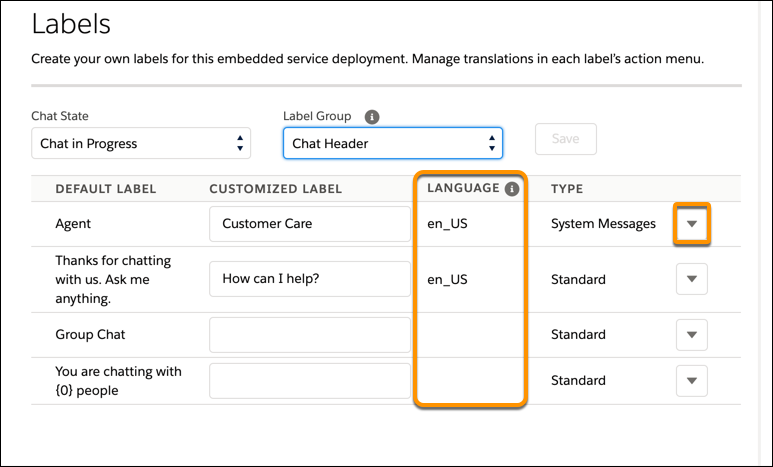
The Language column indicates the language that each customized label was originally written in. To reset your customized labels, click the arrow next to the label type. Then select Reset to Default.