
Mass Quick Action Considerations
Review these guidelines and considerations before setting up and using mass quick actions in list views.
Required Editions
| Available in: Lightning Experience |
| Available in: Essentials, Personal, Group, Enterprise, Performance, Unlimited, Developer, and Professional Editions |
Setting Up a Mass Quick Action
- Mass quick actions are available only in Lightning Experience apps, including apps with standard and console navigation.
- You can configure mass quick actions for related lists. Custom quick actions for related lists aren’t supported.
- You can’t perform mass quick actions in Experience Cloud sites, or on notes or users.
- You can’t use Tooling API, AppExchange, and Changesets to add mass quick actions to an object’s list view button layout.
- Set up Create a Record or Update a Record quick actions for the object referenced in a related list, not the parent object. For example, to add a mass quick action to the Opportunities related list on the Account record detail page, create a quick action on the Opportunity object.
- If you want to set up predefined field values for a quick action, we recommend
not including those fields on the quick action’s layout.
If a predefined field value is included in the quick action’s layout, it’s only updated if the user manually selects it. If a predefined field value isn’t included in the quick action’s layout, the predefined value is updated, but the user isn’t notified of the change. The Fields to update section includes only predefined field values that are specified in the layout.
Using a Mass Quick Action
- When using a mass quick action, only the fields you manually modify are changed. Some fields show a default value, but changes aren’t made unless you manually select them. The Fields to update section shows the changes you’re making.
- You can’t undo changes performed by a mass quick action—so be careful when making your changes.
- In list views, you can use mass actions in both table view and split view. Mass actions in split view use the same logic as mass actions in table view.
- Mass quick actions on the related list don't work on the parent record. They work directly on the selected records within the related list. A user must select one or more target records to be used on the quick action
- If you use a mass quick action to update only one record, the Fields to update section isn’t displayed.
- List views in split view and related lists have checkboxes to select records only if a mass action is available.
- Mass quick actions aren't available on the Salesforce mobile app. The action button might be visible on the mobile app, but it doesn't make any changes.

This mass quick action updates the owner on cases. The Case Owner field displays Awesome Admin because the user modified this field. The Status field displays New because that was the value of all the selected records. The changes to make are listed in the Fields to update section.
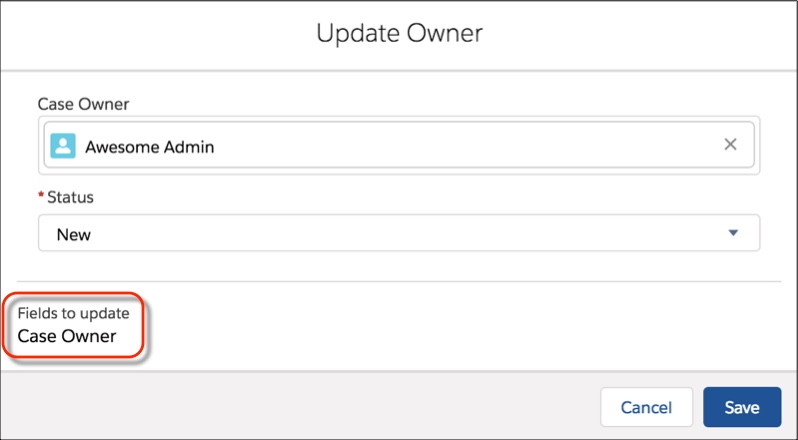
If the selected records have different statuses, such as one is set to New and one is set to Escalated, the Status field shows None.
