
You are here:
Lifecycle of a Messaging Session in Service Cloud
Learn how Salesforce tracks messaging sessions, from the first message to the last. Understanding session status transitions helps you route and monitor inquiries effectively.
Required Editions
| View supported editions. | |
 This article applies to:
|
Enhanced In-App Chat, Enhanced Web Chat, Enhanced WhatsApp, Standard and Enhanced Facebook Messenger, Standard and Enhanced SMS, Enhanced Apple Messages for Business, Enhanced LINE, and Bring Your Own Channel |
A messaging session’s participants can include a messaging user—also known as the customer—and a service rep, an Agentforce agent, an Einstein bot, or a combination of them. A session’s possible starting statuses, ending statuses, and status transitions depend on several factors:
- The platform type of the associated Messaging channel (standard or enhanced)
- Who initiated the session (the customer or the business)
- The type of channel , such as SMS or Enhanced Chat
Enhanced Messaging Sessions (Customer-Initiated)
Review possible status transitions for messaging sessions that customers initiate in Enhanced Messaging and Enhanced Chat channels.

Review these special behaviors.
- In Enhanced Messaging and Enhanced Chat channels, you can set a time limit for customer inactivity after which a session’s status automatically updates to Inactive.
- The automatic status update from Inactive to Ended can take about 30 hours.
Enhanced Messaging Sessions (Business-Initiated)
Review possible status transitions for messaging sessions initiated by service reps in Enhanced Messaging and Enhanced In-App Chat channels. Reps can’t initiate sessions in Enhanced Web Chat channels.
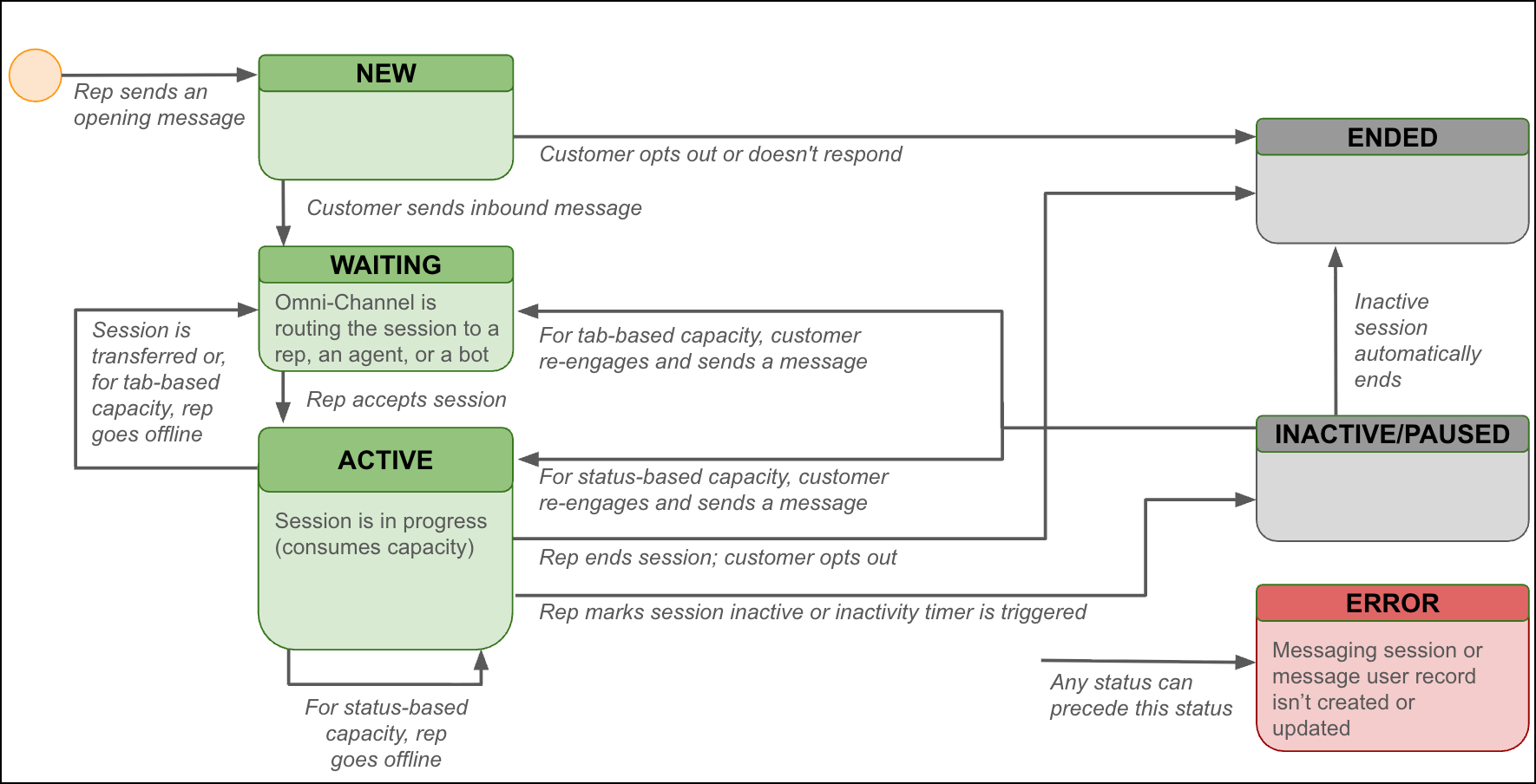
While this diagram shows possible status transitions in enhanced messaging sessions initiated by service reps, automated message notifications work a bit differently. When a flow sends an automated message like a delivery notification, the message is captured in a single messaging session with an unchanging status of Ended, unless the flow action is configured to keep the session open for 48 hours.
The automatic status update from Inactive to Ended can take about 30 hours.
Standard Messaging Sessions (Customer-Initiated)
Review possible status transitions for messaging sessions that customers initiate in standard Messaging channels.

Standard Messaging Sessions (Business-Initiated)
Review possible status transitions for messaging sessions initiated by service reps in standard Messaging channels.

While this diagram shows possible status transitions in standard messaging sessions initiated by service reps, automated message notifications work a bit differently. When a process or flow sends an automated message like a delivery notification, the message is captured in a single messaging session with an unchanging status of Ended.
Messaging Session Statuses
- New
- The messaging session was created. This status occurs when a service rep sends an opening message.
- Waiting
- An inbound messaging session is being routed or transferred, or a service rep
initiated a messaging session and awaits the customer’s response. These actions can
cause a session’s status to change to Waiting.
- A customer creates a messaging session by sending a message.
- A service rep transfers an active messaging session.
- A service rep creates a messaging session by sending a message.
- A service rep goes offline during an active messaging session (applies only for tab-based capacity models).
- After a messaging session is marked inactive, the customer resumes the conversation by sending a message.
- Active
- The messaging session is in progress. This status occurs when a service rep or bot accepts an inbound messaging session, or a customer responds in a business-initiated messaging session.
- Consent
- (Enhanced Messaging and Enhanced Chat channels only) The messaging user sends only consent keywords (opt-in, double opt-in, or help keywords) in the messaging session. For example, the messaging user has responded Start to agree to receive messages about new products, but hasn’t sent a unique inquiry that requires the attention of a bot or service rep. The Consent status value helps you design routing flows that exclude consent-related messaging sessions from routing.
- Inactive
- (Enhanced Messaging and Enhanced Chat channels only) A previously active messaging user received a message, but stopped responding before their issue was resolved. Service reps can mark a session inactive by selecting Mark Inactive next to the End Chat option. If a tab-based capacity model is used, reps can also close the session tab and select No Customer Response. You can automatically mark sessions inactive if the customer doesn’t respond within a specified time period.
- Marking a session inactive frees up the service rep's capacity, and also serves as a way to put the messaging user on hold. With tab-based capacity, if the messaging user sends a message after a session is marked inactive, the session status updates to Waiting and the session is rerouted to the next available rep. With status-based capacity, the same rep continues helping the customer. Inactive sessions switch to the Ended status after approximately 30 hours.
- Error
- (Enhanced Messaging and Enhanced Chat channels only) Salesforce fails to create or update a messaging session or a messaging user record. Misconfigured triggers or field requirements on the Messaging Session or Messaging User objects can cause errors. Salesforce tracks these failed messaging sessions and their error reasons in the Error Reason field on the Messaging Session object.
- If the same issue caused the messaging user’s previous messaging session to end in an error, Salesforce updates the previous session’s Last Modified Date field instead of logging a new failed session.
- Ended
- The messaging user is no longer communicating with a service rep. Possible reasons for
this status include:
- The messaging user opted out of receiving messages in the channel.
- The service rep closed the messaging session tab and ended the session.
- A flow sent an automated message in a new session, and the flow action isn’t configured to keep the session open for 48 hours.
- The session was inactive for more than 30 hours.
- A service rep initiated the messaging session, and the customer didn’t respond within 24 hours for a standard channel or 48 hours for an enhanced channel.
It’s up to you to define when a session ends. For example, let your support team know when it’s appropriate to inactivate a session rather than ending it. A service rep can begin a new messaging session with a messaging user only after the user’s previous session has ended with a status of Ended or Error.
Messaging sessions with a status of Ended or Error can be deleted. Sessions can’t be mass-deleted, but you can delete individual sessions on the session record page.
- Ending or Inactivating Messaging Sessions Automatically
In certain circumstances, a messaging session’s status can automatically change to Inactive or Ended. Learn when and how these automatic updates occur. - Automated Session Expiry and Inactivity Handling for Enhanced Chat
Inactivity in Enhanced Chat is handled differently depending on certain timeout settings and whether a service representative, bot, or Agentforce Service agent is involved in the conversation.
