
Integrate Pay Now with Field Service Appointment Assistant
Create a flow that easily enables your customers to pay for services through a provided link, eliminating the need to contact customer services.
Required Editions
| Available in: Lightning Experience |
| The Field Service core features, managed package, and mobile app are available in Enterprise, Unlimited, and Developer Editions. |
| Salesforce Payments is available in Enterprise and Unlimited Editions. |
| Salesforce Payments and Pay Now licenses are required. |
| User Permissions Needed | |
|---|---|
| To open, edit, or create a flow in Flow Builder: | Manage Flow |
Before you begin, complete these steps.
- Set up Salesforce Payments.
- Set up Salesforce Pay Now.
Set up a flow that sends customers a payment link.
- From Setup, in the Quick Find box, enter Process Automation, and then select Flows.
- Click New Flow.
-
Select what triggers the flow. For example, set up a flow that’s triggered when the status
of a Work Order changes to Completed.
To track the payment’s intent, we recommend connecting the triggered object, in this example Work Order, to the Payment Link object.
-
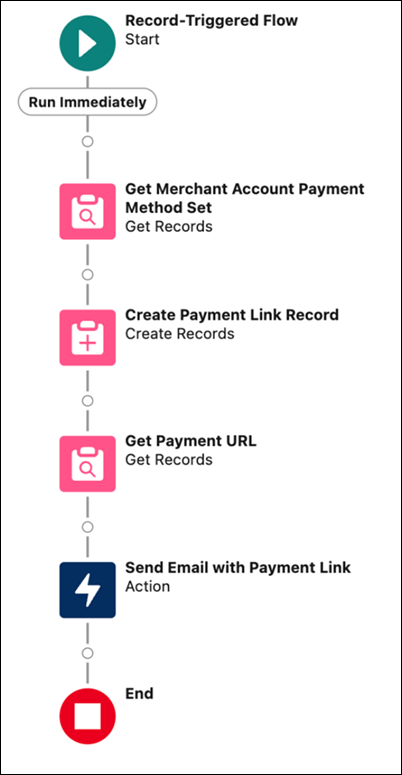
Add an element that gets the Merchant Account Payment Method Set record. If multiple
records exist, make sure that only one is retrieved. For example, get the last modified
record.
Only the last modified Merchant Account Payment Method Set that isn’t deleted and has a Payment Method Set Key is fetched. If multiple Merchant Account Payment Method Set records are active, set up the component to fetch the correct one.
-
Add an element that creates a payment link record.
- Determine where the amount is taken from. In our example, it can be taken from the Total Amount field on the work order.
- Use the Merchant Account Payment Method Set as the payment method set ID.
- Set the status to Active.
- Set the Usage Type to Single Use.
-
Enter the connected object, for example, Work Order ID.
To track the payment’s intent and the links generated to collect payment, we recommend adding a connection between the Payment Link object and the relevant object, in our example, the Work Order.
- Add an element that sends the customer an email or an SMS that includes the Payment URL field from the Payment Link object.
Here’s an example of what the flow looks like.
Did this article solve your issue?
Let us know so we can improve!
