
Set Up Pre-Work Brief for Field Service Mobile Workers
Show mobile workers a brief that uses generative AI to tell them everything they need to know about their upcoming work order.
Required Editions
| Available in: Lightning Experience |
Available in: Enterprise, Performance, and Unlimited Editions with the Einstein for Field Service add-on or the Agentforce for Field Service add-on. Also available in Einstein 1 Field Service Edition. To purchase the Einstein for Field Service add-on or the Agentforce for Field Service add-on, contact your Salesforce account executive. |
| Available on the Field Service mobile app for Android and iOS for users with the Field Service Mobile license. Also available for Experience Site users using the Field Service mobile app. |
| Setup for Einstein generative AI is available in Lightning Experience. |
| The Field Service core features and managed package are available in Enterprise, Performance, Unlimited, and Developer Editions. |
| User Permissions Needed | |
|---|---|
| To build and manage Pre-Work Brief: | Customize Application |
| To create and assign permission sets: | Manage Profiles and Permission Sets |
- Pre-Work Brief and Your Data
The default prompt for Pre-Work Brief uses your data to add context and personalization to your prompt. You can modify this data by editing the flow or the prompt.
Configure Pre-Work Brief
-
Activate the prompt.
- From Setup, in the Quick Find box, enter Einstein Generative AI, and then select Prompt Builder.
- Click New Prompt Template.
- For Prompt Template Type, select Field Service Pre-Work Brief.
- Enter a name. The API name is populated for you.
- Save your template.
- For Resource, select Flows, and then select Field Service Mobile: Generate Pre-Work Brief or Field Service Mobile: Modifiable Pre-Work Brief.
-
To see a preview of the brief that mobile workers see, for Work Order, enter a work
order ID, and click Preview.
In the Resolution pane, you can see the prompt that generates the brief. In the Response pane, you can see the brief that the mobile worker sees. If you want to make any changes, see Modify the Brief.
- Save and activate the prompt template.
-
If the Pre-Work Brief flow doesn’t run, check the fields used in the flow.
- Review the list of objects and fields used in the flow. See Pre-Work Brief and Your Data.
- From Setup, go to the Object Manager tab.
- Select one of the objects that the brief uses.
- Click Fields & Relationships.
- Check that all of the fields that the brief uses exist in your Salesforce org. If any of the fields don’t exist, delete them from the flow.
- Select one of the fields that the brief uses.
- Click Set Field-Level Security.
- Mark the required profiles as Visible.
- Save your changes and repeat the process for the remaining fields in the required objects.
- Give mobile workers permission to access these fields.
-
Add the Pre-Work Brief Prompt Template ID field to the page layout.
- From Object Manager, open the Work Order object.
- Click Page Layouts and open the layout that’s assigned to the mobile workers.
- Add the Pre-Work Brief Prompt Template ID field to the layout.
- Save your changes.
- Open the layout that’s assigned to the admin user and add the Pre-Work Brief Prompt Template ID field to the layout.
- Save your changes.
- From the Work Order object, click Fields & Relationships.
- Click Pre-Work Brief Prompt Template ID.
- Click Set Field-Level Security.
- For the profile of the user who is assigning prompt templates, select Visible.
-
In the work order, enter the ID of the prompt template in the Pre-Work Brief Prompt
Template ID field. To find the ID, from Prompt Builder, open the prompt template and look at
the URL. The ID is located after the phrase EinsteinPromptStudio. For example, if the URL is
https://testcom98.test1.my.pc-rnd.salesforce-setup.com/lightning/setup/EinsteinPromptStudio/0hfSG000001SUFVYA4/edit?c__versionId=3vNSG0000000g8v2AA,
the ID is 0hfSG000001SUFVYA4.
 Note Instead of manually filling in the Pre-Work Brief Prompt Template ID field for every work order, set up flows to fill in the field for you. See Flow Builder.
 -
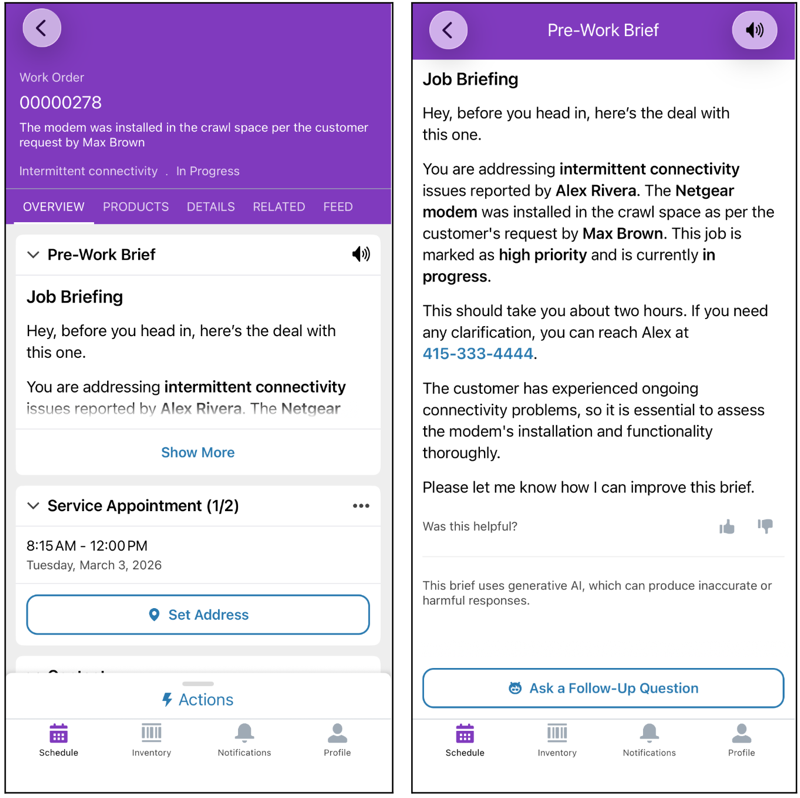
Ask your mobile workers to pay attention to the brief in the Overview tab of each
work order in the Field Service mobile app.
The brief is generated the first time that the mobile worker views the work order when they’re connected to the internet. The brief is regenerated if the mobile worker opens the work order after 24 hours has passed from when the brief was previously generated.
Mobile workers can also provide feedback about the brief.
Modify the Brief
- From Setup, in the Quick Find box, enter Process Automation, and then select Flows.
- Select the Field Service Mobile: Generate Pre-Work Brief flow template.
- Click Save As to create your own version of the flow.
-
Add, modify, or remove elements from the flow. For example, you can make these
changes.
- Modify the Serialize Pre-Work Brief Records action to include additional objects that are required for your business needs.
- Add fields to the Get Contacts element.
- Add an element for a custom field that’s used in your Salesforce org.
-
To modify the prompt, from the flow, open the Add Pre-Work Brief Prompt Instructions
element. Remove instructions that aren’t relevant to you, or add instructions according to
your business needs. For example, consider adding one of these instructions.
- Make sure that the brief is no longer than 200 words.
- Present the brief in bullet points.
Note- Add examples for what you expect the brief to look like.
- Avoid telling the prompt to always include a specific field. If the value is missing, generative AI can hallucinate and give you inaccurate results.
-
Connect the prompt template to your version of the flow.
- From Setup, in the Quick Find box, enter Einstein Generative AI, and then select Prompt Builder.
- Click New Prompt Template.
- For Prompt Template Type, select Field Service Pre-Work Brief.
- Enter a name. The API name is populated for you.
- Save your template.
- For Resource, select Flows, and then select the flow that you created.
- To show a preview of the brief that mobile workers see, for Work Order, enter a work order ID.
- Save and activate the prompt template.
- In the work order, for Prompt Template, enter the prompt template ID. To find the ID, from Prompt Builder, open the prompt template and look at the URL. The ID is located after the phrase EinsteinPromptStudio. For example, if the URL is https://testcom98.test1.my.pc-rnd.salesforce-setup.com/lightning/setup/EinsteinPromptStudio/0hfSG000001SUFVYA4/edit?c__versionId=3vNSG0000000g8v2AA, the ID is 0hfSG000001SUFVYA4
-
If you have various scenarios to address, set up more than one variation of the flow. For
example, to create a different type of brief for emergency appointments:
- Save another version of the flow and make your changes.
- From Prompt Builder, create a prompt template for emergency appointments. For Resource, select the flow that you created for emergency appointments.
- In the work order, for Prompt Template, enter the emergency appointments prompt template ID.
Note This tool uses generative AI, which is known to include inaccurate or
harmful responses. Before using, review the output for accuracy and safety. You assume
responsibility for the output when making business decisions.
Did this article solve your issue?
Let us know so we can improve!
