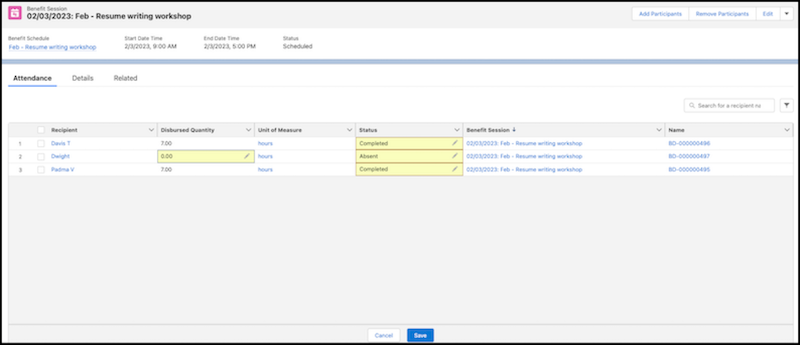
Track the attendance status and disbursed quantity of benefits for participants from
the Attendance tab on a benefit session record. Salesforce updates these benefit session values
in the corresponding benefit disbursement records. Track attendance in the field with the
Salesforce mobile app.
Required Editions
Available in: Education Cloud, Nonprofit Cloud, and Public Sector Solutions. View edition
availability.
User Permissions
Needed
To track attendance:
Advanced Program Management permission set
OR
Education Cloud Full Access permission set
Note To use benefit-specific fields when you track attendance, work
with your Salesforce admin to create a field set to relate to the benefit. See View Additional Benefit Disbursal Fields.
From the App Launcher, find and select Benefit Sessions.
Select a benefit session, and then click Attendance.
To update the attendance for one participant, in the Disbursement Status column for the
attendee, click , and then select a different status.
To update multiple participants to the same attendance status, perform these
steps.
Select the participants.
If the recipient column is blank, specify an Account or Contact. If your
organization doesn’t use Accounts or Contacts as the recipient, use the Benefit
Disbursement field set. Add a lookup field for Program Enrollment or the object
representing your recipient.
In the Disbursement Status column, click , and then select the status.
Review the Disbursed Quantity values, and if necessary, update them to reflect the
actual quantity of the benefit that the participant received, based on their status.
Salesforce pre-populates this field with the amount in the Default Benefit Quantity field
on the benefit schedule.
For example, if a participant attended 4 out of 8 hours of a benefit session, update
the disbursed quantity to 4.
Save your changes.
You can also track attendance in the field, in real-time, by using the Salesforce
mobile app. Simply open the Program Management app to search for the benefit sessions and
attendance information.
We use three kinds of cookies on our websites: required, functional, and advertising. You can choose whether functional and advertising cookies apply. Click on the different cookie categories to find out more about each category and to change the default settings.
Privacy Statement
Required Cookies
Always Active
Required cookies are necessary for basic website functionality. Some examples include: session cookies needed to transmit the website, authentication cookies, and security cookies.
Functional Cookies
Functional cookies enhance functions, performance, and services on the website. Some examples include: cookies used to analyze site traffic, cookies used for market research, and cookies used to display advertising that is not directed to a particular individual.
Advertising Cookies
Advertising cookies track activity across websites in order to understand a viewer’s interests, and direct them specific marketing. Some examples include: cookies used for remarketing, or interest-based advertising.