
You are here:
Amend Assets with the Managed Asset Viewer
To meet changing customer needs and optimize revenue, use the asset lifecycle amendment action to modify products your customers purchased. The Managed Asset viewer on your Account or Contract page initiates these changes directly within the asset lifecycle.
Required Editions
| Available in: Lightning Experience |
| Available in: Enterprise, Unlimited, and Developer Editions of Revenue Cloud where Transaction Management is enabled |
| User Permissions Needed | |
|---|---|
| To amend assets: | InitiateAmendment API permission set AND Sales Rep persona permissions |
Before you amend an asset that has a derived price, we recommend you refresh your decision tables. Also, when derived pricing is enabled for amendments, the Net Unit Price of the derived product is not displayed in the amendment, however the total line amount will be accurate.
Prerequisites
Before you begin:
- Add the Managed Asset Viewer component to your preferred page layouts, such as the Account page layout.
- Add the Assets related list to the Account or Contracts page to show the Managed Assets list.
- To complete asset amendments in Managed Assets, add the component to the Contracts page layout.
- Select a pricing source for the amendment on the asset record to price positive quantity amendment orders.
- Refresh your decision tables before amending an asset that has a derived price.

Important
- When you use the Contracts page layout, the system automatically adds the contract number to the amendment quote or order.
- If an asset has a future-dated amend, renew, or cancel transaction, you can’t initiate a transaction with an earlier start date.
- While you can change quantities for termed subscriptions, you can’t change the subscription end date during an amendment.
- If an amendment contains a negative delta quantity, the system calculates the total price based on prior asset sale prices by using a Last In First Out (LIFO) strategy for multiple prior transactions.
- For derived products, the amendment doesn’t show the Net Unit Price, but the total line amount remains accurate.
Amend Assets
- From the App Launcher, find and select Accounts.
- In Accounts List View, select an account name.
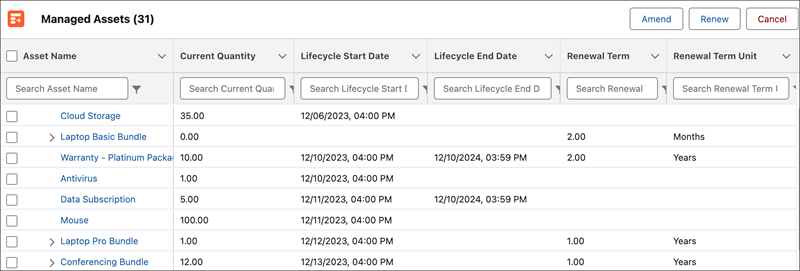
- Under Managed Assets, select the checkbox in the Asset Name column for the asset that you want to update. For bundled assets, select the parent asset instead of the child asset.
- Select Amend.
-
Select the amendment date by using the calendar and click
Submit.
The transaction system creates an amendment quote or order based on your default flow and copies asset attribute values to line item attribute values.
 Note Deactivated product attributes don’t affect existing quote line item, order product, or asset attributes.
 -
Update the quantity.
You can’t reduce the quantity to less than the original asset quantity.
- Add assets to the amendment quote if needed.
- Review your amendment request and save your changes.

Example
Did this article solve your issue?
Let us know so we can improve!
