
You are here:
Global Search Box
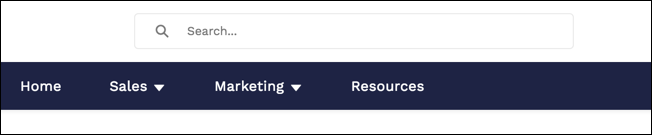
The Global Search Box component lets you expose global search in your Experience Builder site. Let your users search for any object available to them.
Autocomplete search results are based on the most recently used objects and records by the user, the same as global search in your org. The search accounts for partially matching terms and non-adjacent terms.
-
Select the Global Search Box component in the page
you’re configuring.
In the Partner Central template, for example, this box is on the Home page.
-
In the property editor, configure the properties
for the component.
Property Details Placeholder Text for Search Field Specify the text that appears in the search box. The default text is Search... Objects in Autocomplete Results Click Add to add searchable Salesforce objects to your site’s autocomplete results. To edit an object, click the object name. In the edit window, you can change to another type of object and you can mark the object as Publicly available. To select a different object type, click the object name and select from the list. To make results of that object type available to guest users, select Publicly available. Maximum Autocomplete Results Enter the maximum number of autocomplete results displayed to the user during a search. The default is 5.

With global search from your internal org, you can get uneven results when searching for a site User record. Here’s why and what you can do about it. Each site has a unique network ID. When you create a site user through , the new User record is assigned to a site's network ID.
Global search looks for records in the internal org, which has a different network ID than the site. A global search doesn't search inside sites. Since the User record is associated with a site network ID, global search doesn't return results for that record.
The workaround is to create User records in the internal org, and then associate the records to a site. You can associate an internal User record to a site by linking the internal record to a Contact record. After you forge the link, you can find the User record through global search. The User record's network ID is now associated with the internal org.
