
You are here:
Admissions Connect Components
Admissions Connect comes with custom components that are used in the Lightning record pages provided with Admissions Connect. Some components are available in Lightning App Builder as well as Experience Builder. Use this article as reference when creating new pages or if you want to know more about the components.
- Admissions Connect Component Overview
Use this table as reference when creating new pages, or to know more about the components. - Applicant Application Header
This component lets applicants submit their Application and view record and status details. You can’t customize the component to show other fields. The Submit Application button shows when the Application Status field is not specified, Started, or Incomplete. If the status is any other value, including custom ones, applicants don’t see the button. - Applicant Application Viewer
This component lets applicants view their Application requirements in a portal. It provides a similar look and feel as the Reviewer Application Reader, with a navigation region to scan the list of requirements and a main region that provides a single scrollable view. - Application Checklist
This component gives users an at-a-glance overview of an Application and provides quick access to review and verify requirements. A progress bar shows the overall completion of the requirements. The Completed Required Items and Total Required Items fields on the Action Plan record determine the progress. Only required items count towards completion. You can refresh the component at any time. - Application Material Type JSON Configuration
This component lets administrators specify the JSON data shown for an Application Material Type record, if using imported Common App data. - Application Response Details
This component lets users view data the applicant provided on their application. This same data is displayed in the Reviewer Application Reader. However, this component displays only Action Plan Items that are Tasks, it doesn't display Document Checklist Items. The component’s search lets you find specific fields, including fields in tables for child records and JSON fields. Sections with search matches are auto-expanded. - Document Checklist Item Preview
This component provides a preview of the file attached to a Document Checklist Item record. When a new version of the file is uploaded, the preview refreshes. - Reviewer Application Reader
This component provides a reading experience for application reviewers. The navigation region lets you quickly see the overall progress and scan the list of requirements for the application. The main region provides a single scrollable view to display Action Plans and Action Plan Items—the data and documents—associated with an Application. - Reviewer Feedback
This component provides a place for application reviewers to enter comments about an application and make their Admissions Recommendation. A reviewer's recommendation and comments are saved automatically while they’re reviewing the application. This allows reviewers to make a preliminary recommendation without submitting. After a reviewer submits a recommendation, the component updates with their selection and can’t be edited again. - Reviewer Management
This component lets users view and manage Application Reviews for an Application. At-a-glance, the component shows the reviewers assigned to an Application and the status of each review. Users with the correct permissions can click Manage to assign Users and Queues. Optionally, you can notify users of new assignments. - Reviewer Snapshot
This component shows an application’s review status and final admissions decision. Users can see how many reviews are assigned and how many of those are completed. When a user is assigned a review, the component displays their current review status. When a final admissions decision is made, the component is updated.
Admissions Connect Component Overview
Use this table as reference when creating new pages, or to know more about the components.
| Supported Record Page | Component Name | Available In |
|---|---|---|
| Application | Admissions Connect Components | Experience Builder* |
| Application | Admissions Connect Components | Experience Builder* |
| Application | Admissions Connect Components | Lightning App Builder |
| Application | Admissions Connect Components | Lightning App Builder |
| Application and Application Review | Admissions Connect Components | Lightning App Builder and Experience Builder In Experience Builder, the component is supported on the Application page only. |
| Application | Admissions Connect Components | Lightning App Builder |
| Application Review | Admissions Connect Components | Lightning App Builder and Experience Builder |
| Application Review | Admissions Connect Components | Lightning App Builder and Experience Builder |
| Application Material Type | Admissions Connect Components | Lightning App Builder |
| Document Checklist Item | Admissions Connect Components | Lightning App Builder |

Applicant Application Header
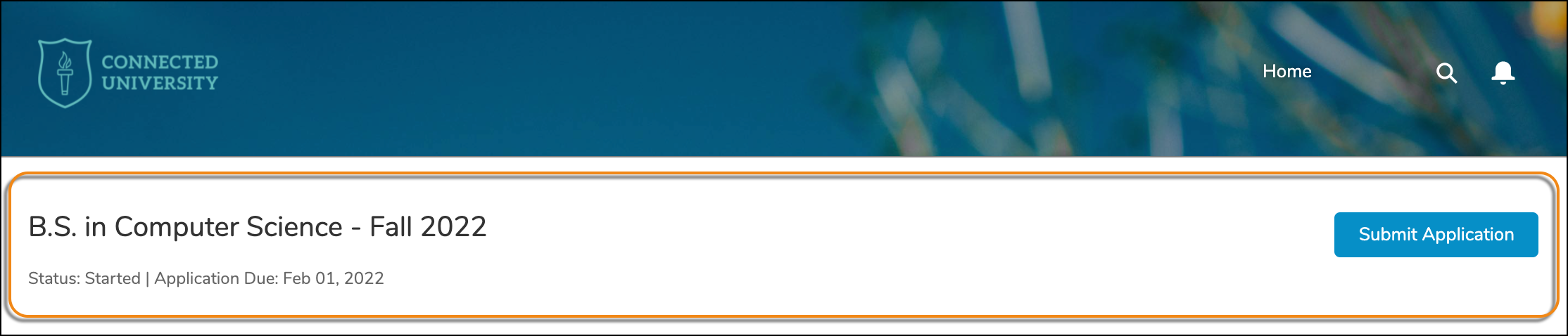
This component lets applicants submit their Application and view record and status details. You can’t customize the component to show other fields. The Submit Application button shows when the Application Status field is not specified, Started, or Incomplete. If the status is any other value, including custom ones, applicants don’t see the button.
If you’ve configured a submission window with the Open Date and Due Date fields on the Application object, applicants can submit their Application only during the window.
This component includes a Status for Submission property that automatically updates the Application Status when an application is submitted to a custom value.
For details about application submission, see Plan Your Applicant Experience and Verify Your Applicant Portal Setup.
Applicant Application Viewer
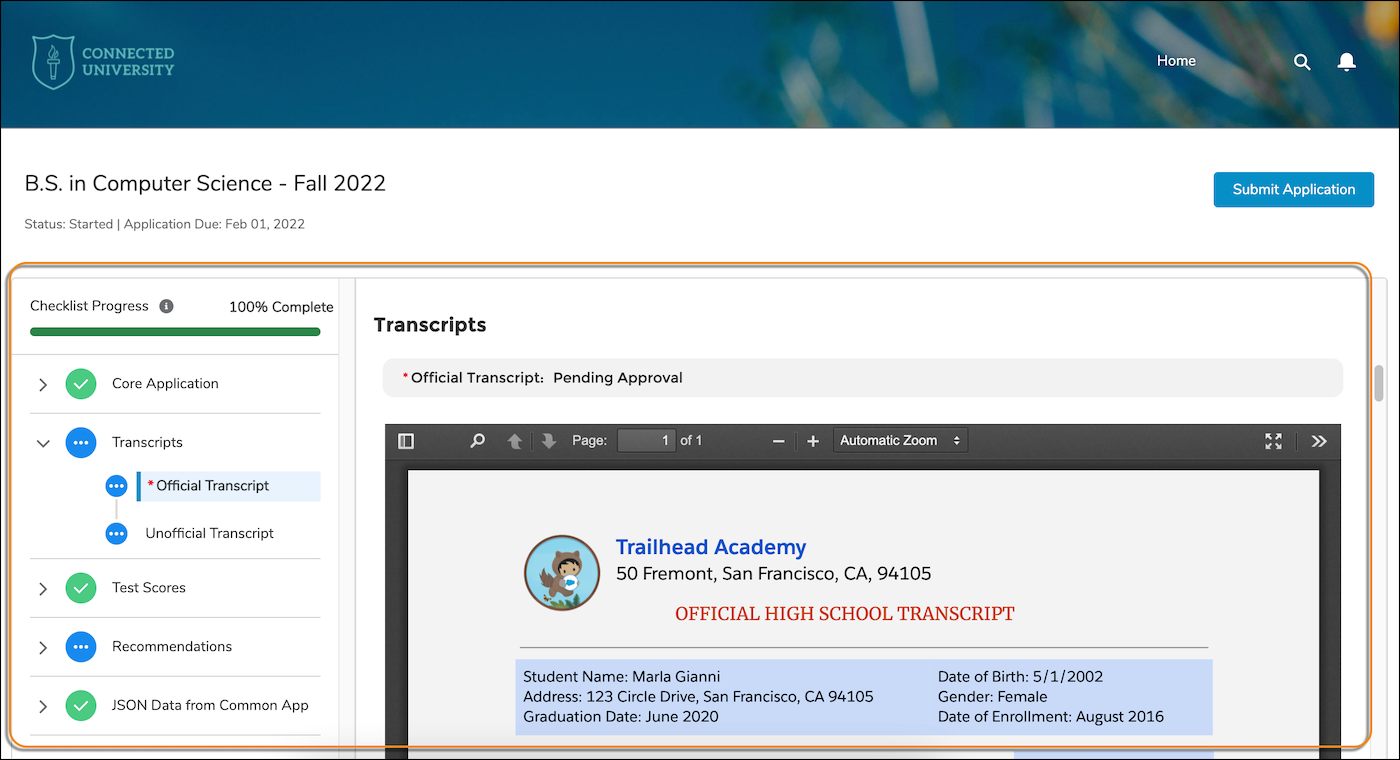
This component lets applicants view their Application requirements in a portal. It provides a similar look and feel as the Reviewer Application Reader, with a navigation region to scan the list of requirements and a main region that provides a single scrollable view.
-
On desktop, applicants see a navigation region that lets them scan the list of requirements and a main region that provides a single scrollable view of the entire application.
-
On mobile devices, there’s no scrollable view of requirements. The navigation region shows by default and applicants open requirements one at a time. In addition, rejected items that are required show in a carousel at the top of the page. Applicants can even use the device’s camera to submit pictures of application documents.
Application Material Mapping records determine which Action Plan Items show up in the navigation and whether or not the content for an Action Plan Item gets displayed in the portal. In addition, the mapping records control custom messaging that applicants see, such as instructions for submitting a requirement or information about why the contents are hidden. For more information, see Set Up Application Requirements and Action Plans.
To give applicants additional transparency, if a document is rejected, the applicant sees the Rejection Comment in the portal, too.
Application Checklist
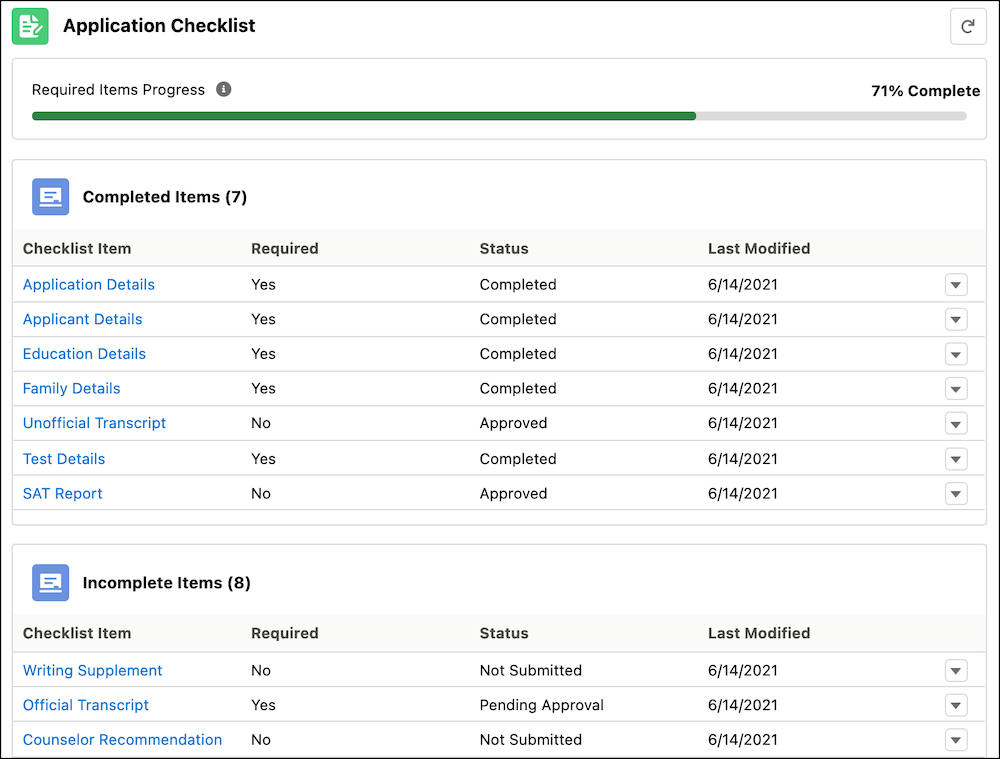
This component gives users an at-a-glance overview of an Application and provides quick access to review and verify requirements. A progress bar shows the overall completion of the requirements. The Completed Required Items and Total Required Items fields on the Action Plan record determine the progress. Only required items count towards completion. You can refresh the component at any time.
All Action Plan Tasks and Document Checklist Items initially appear in the Incomplete Application Checklist Items list. When the Task’s Status field is Completed or the Document Checklist Item’s Status field is Accepted, the items move to the Completed Application Checklist Items list.
IsAccepted__c) field is true. Setting the Status field to Accepted automatically sets Accepted to true.When a user clicks on the requirement name in the Checklist Item column, a preview of the document or data displays. If a document's file type isn’t supported or there’s an error, the preview displays a blank space instead. To update an item’s status, users can click the View Record link in the dropdown menu for the row. If users have the necessary permissions, they see buttons to accept or reject documents in the preview window. For detailed permission information, see Set Up Quick Document Verification.
The Application Checklist is provided by default on the Application page for Admissions Connect.
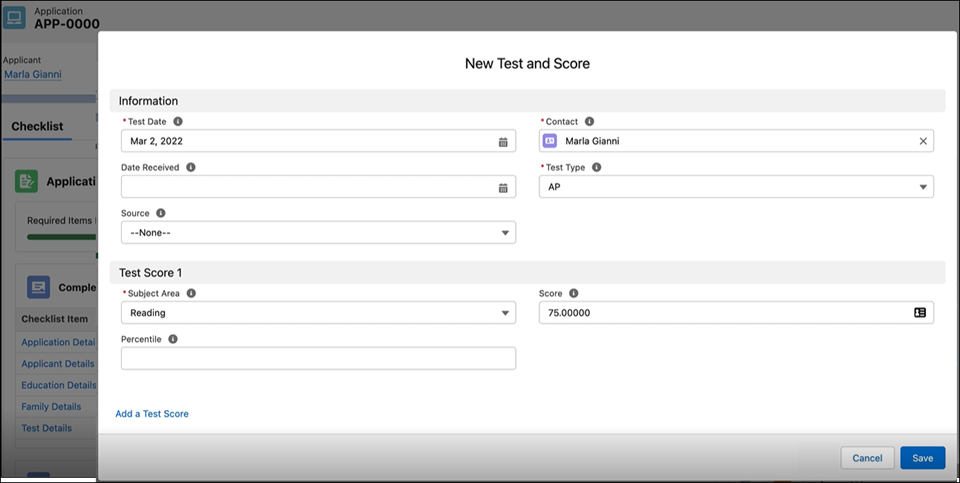
The Application Checklist also includes Test details. With the necessary permissions, users can create new Tests and associated Test Scores. When a user saves the Test and Test Score records, Admissions Connect updates the Checklist component.
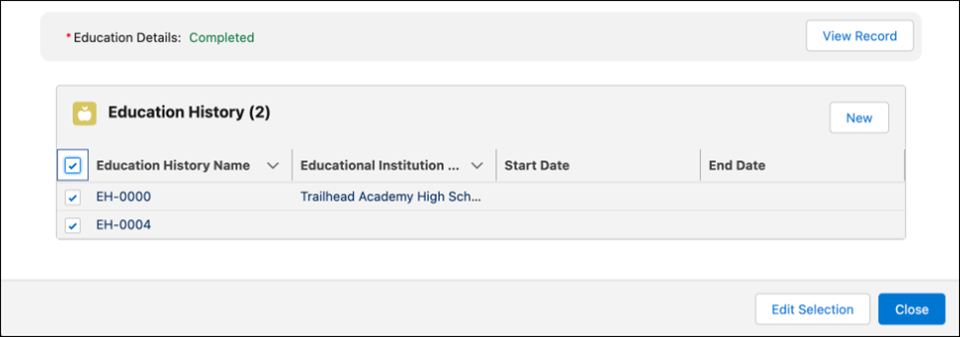
From the Application Checklist, users can navigate through new Education History records and edit existing ones. When creating a new Education History record, the Contact ID of the applicant is pre-populated. The footer and its respective buttons change based on whether the user edits all or a selection of records in the list. Plus, the Application Checklist component refreshes after the changes are saved.
Application Material Type JSON Configuration
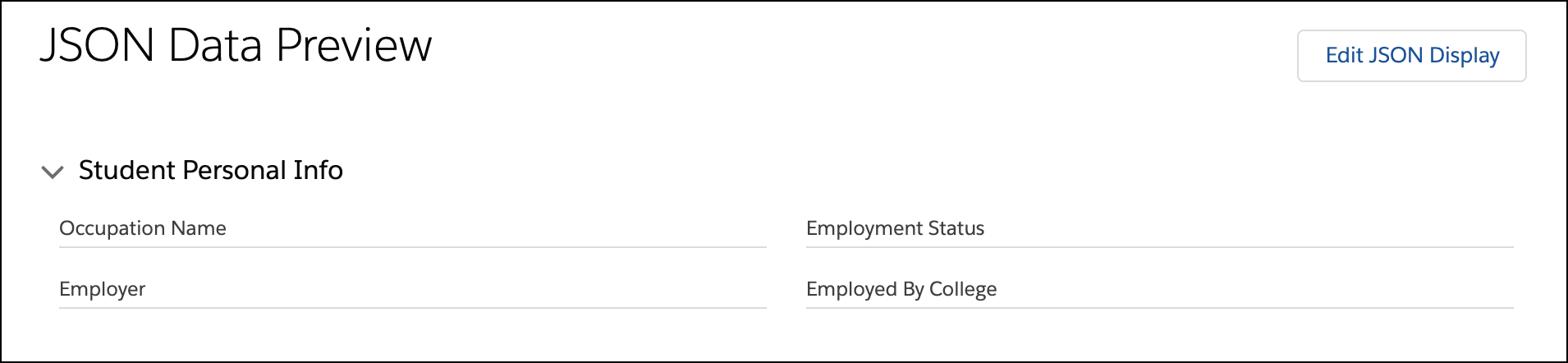
This component lets administrators specify the JSON data shown for an Application Material Type record, if using imported Common App data.
This component is provided by default on the Application Material Type page for Admissions Connect. It can’t be added to any other record page and is shown only when configuring an Application Material Type record for the Application JSON, Contact JSON, or Education History JSON fields.
Application Response Details
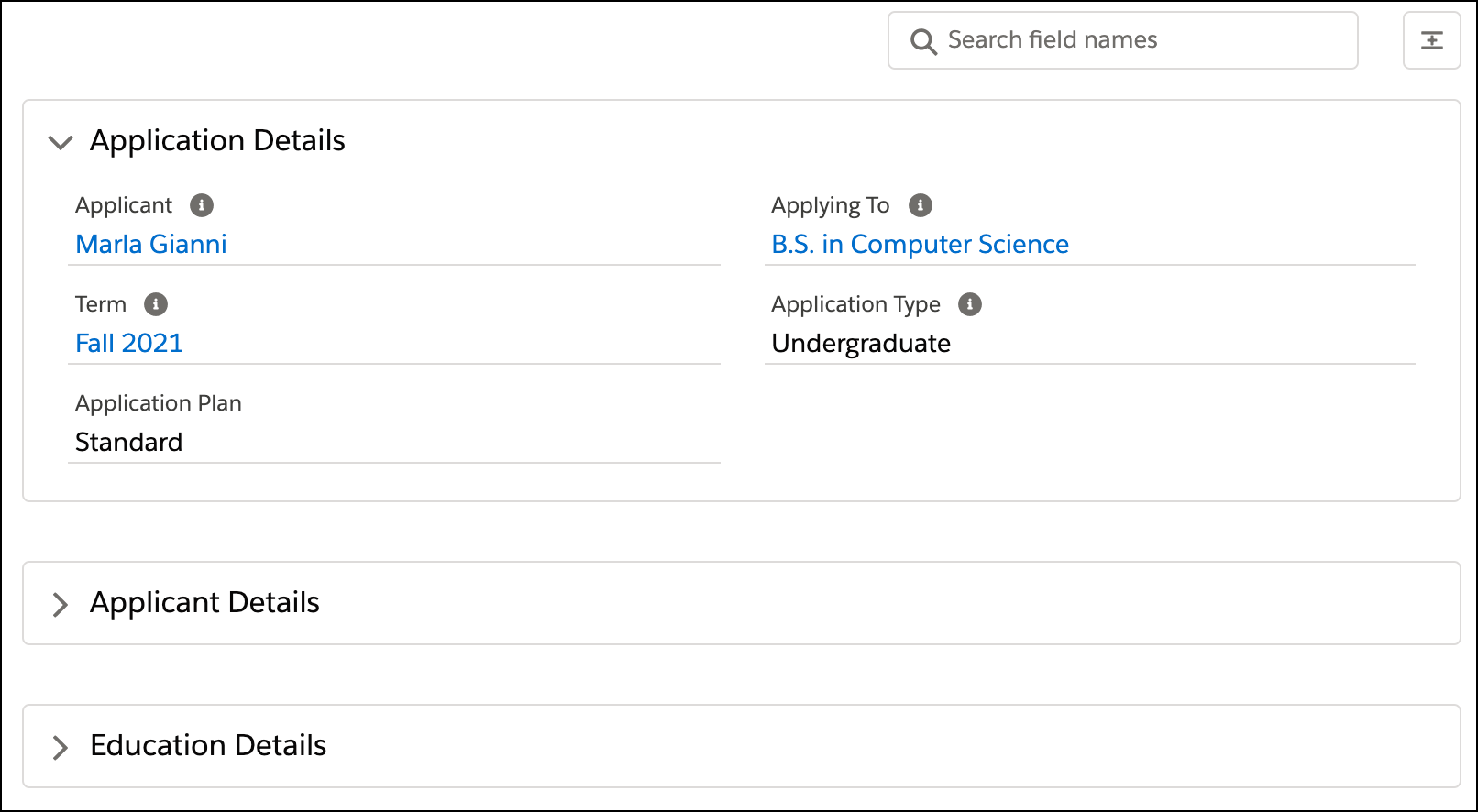
This component lets users view data the applicant provided on their application. This same data is displayed in the Reviewer Application Reader. However, this component displays only Action Plan Items that are Tasks, it doesn't display Document Checklist Items. The component’s search lets you find specific fields, including fields in tables for child records and JSON fields. Sections with search matches are auto-expanded.
This component is provided by default on the Application page for Admissions Connect. The component is nested in a Tab component with the tab label Applicant Responses.
Document Checklist Item Preview
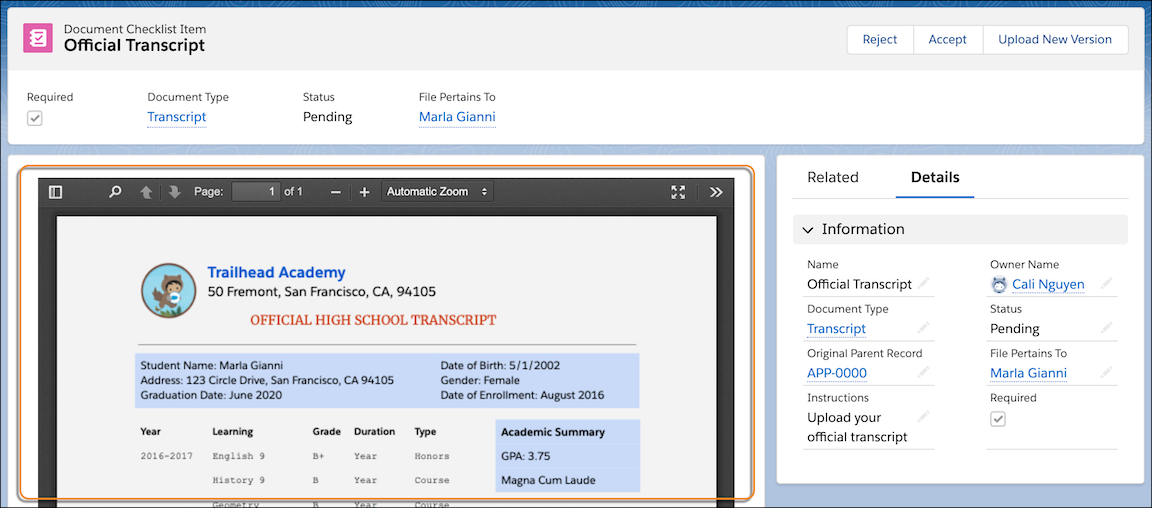
This component provides a preview of the file attached to a Document Checklist Item record. When a new version of the file is uploaded, the preview refreshes.
This is provided by default on the Document Checklist Item page for Admissions Connect and can’t be added to any other record page. The Admissions Connect - Refresh Record platform event and the ContentVersionChangeEvent_TDTM Apex class power the preview’s refresh when new documents are uploaded. For more information, see Admissions Connect Apex Class Descriptions.
Reviewer Application Reader
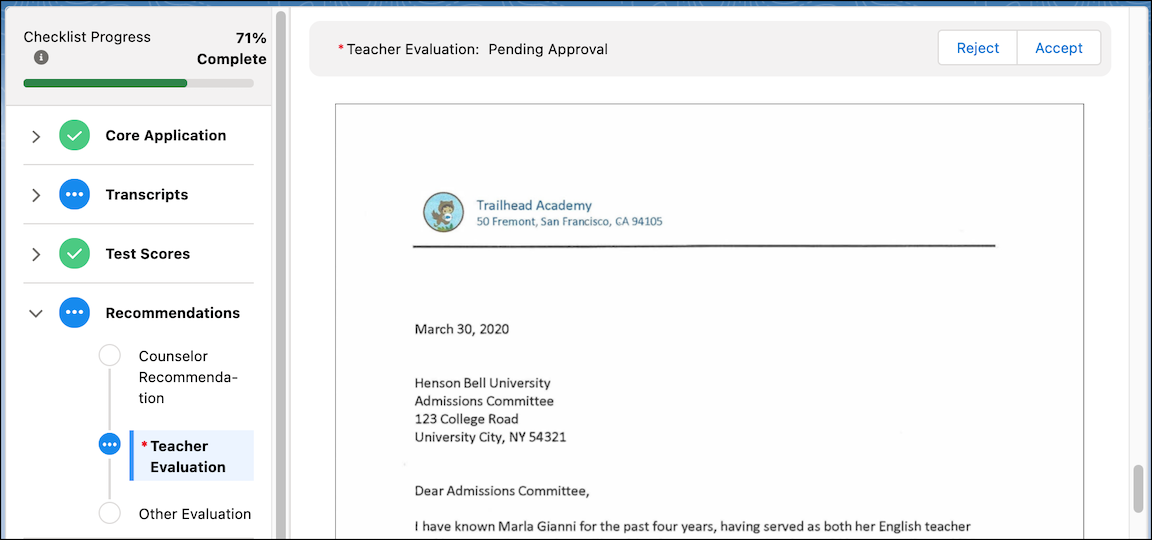
This component provides a reading experience for application reviewers. The navigation region lets you quickly see the overall progress and scan the list of requirements for the application. The main region provides a single scrollable view to display Action Plans and Action Plan Items—the data and documents—associated with an Application.
This component includes a built-in PDF viewer with tools to help users focus, rotate pages, skip to the first or last page, zoom, and even see a document outline if there is one. Explore the toolbar to see what else you can do. Just keep in mind that these tools are available to PDF files only.
If users have the necessary permissions, they see buttons to accept or reject documents in the main region. For detailed permission information, see Set Up Quick Document Verification.
This component is provided by default on the Application Review page for Admissions Connect.
Reviewer Feedback
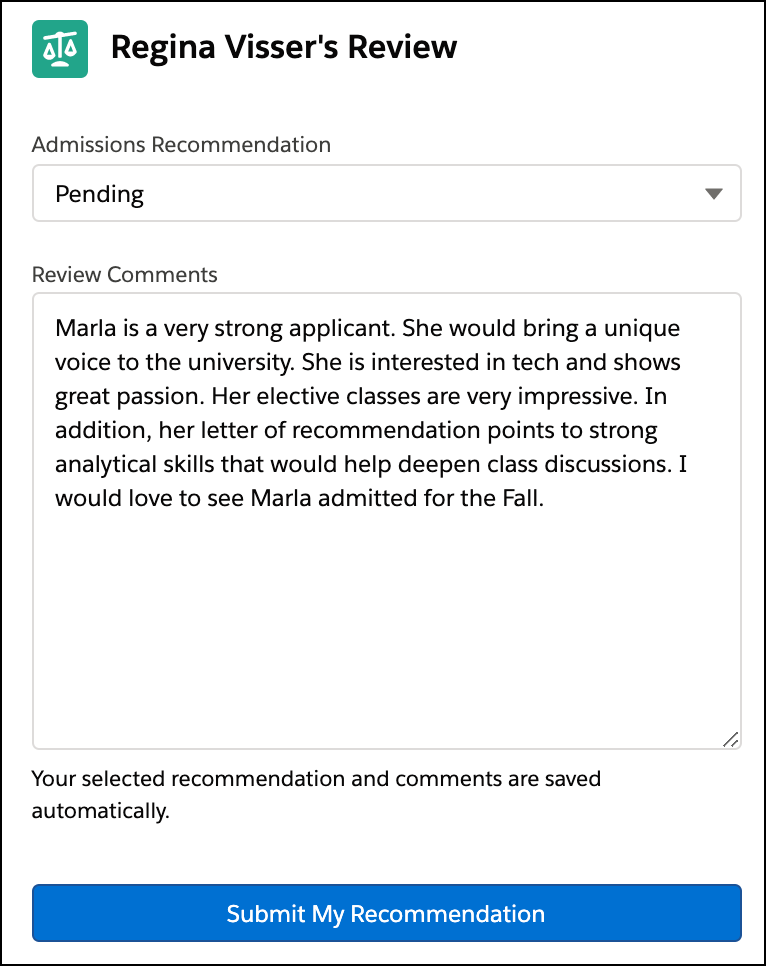
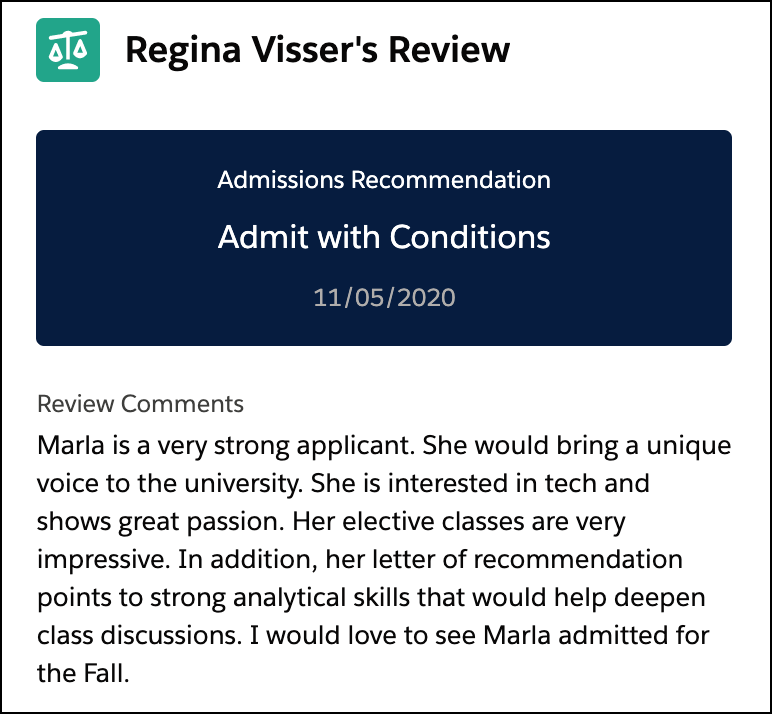
This component provides a place for application reviewers to enter comments about an application and make their Admissions Recommendation. A reviewer's recommendation and comments are saved automatically while they’re reviewing the application. This allows reviewers to make a preliminary recommendation without submitting. After a reviewer submits a recommendation, the component updates with their selection and can’t be edited again.
You can customize the component to display custom feedback questions, see Set Up Reviewer Feedback Questions.
This component is provided by default on the Application Review page for Admissions Connect.
|
|
Reviewer Management
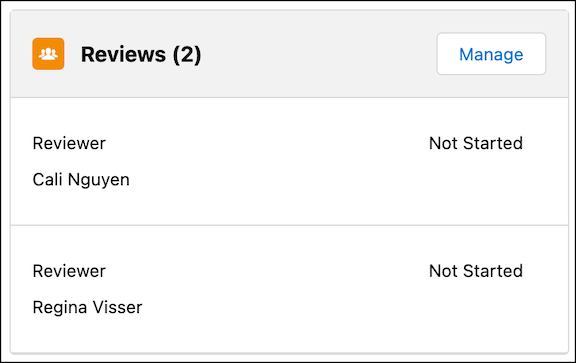
This component lets users view and manage Application Reviews for an Application. At-a-glance, the component shows the reviewers assigned to an Application and the status of each review. Users with the correct permissions can click Manage to assign Users and Queues. Optionally, you can notify users of new assignments.
For more details about the component and the permissions required to manage Application Reviews, see Set Up Staff to Assign a Reviewer Manually.
This component is provided by default on the Application and Application Review pages for Admissions Connect.
Reviewer Snapshot
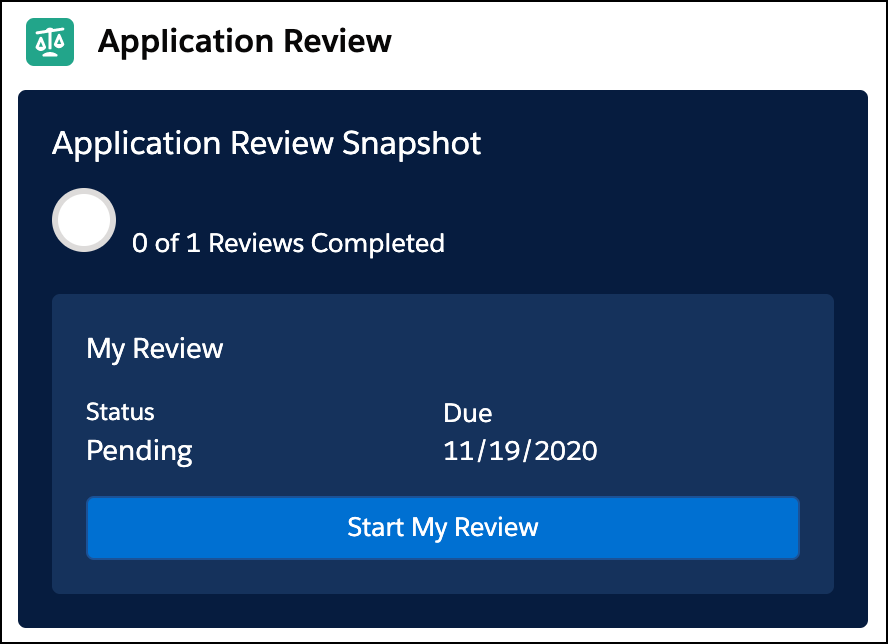
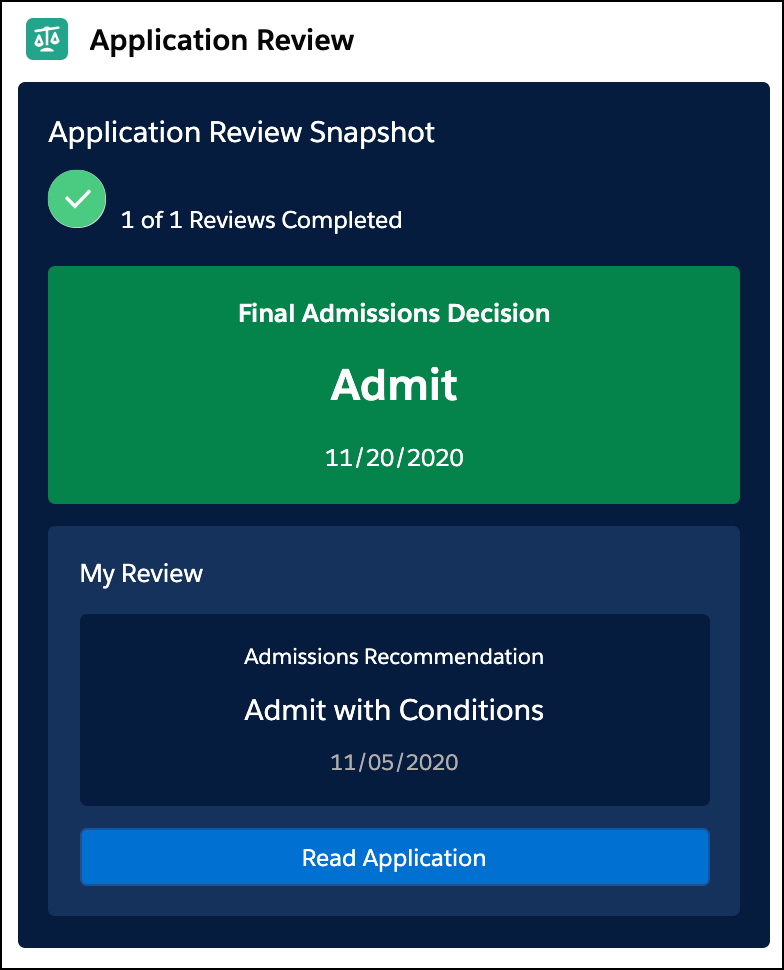
This component shows an application’s review status and final admissions decision. Users can see how many reviews are assigned and how many of those are completed. When a user is assigned a review, the component displays their current review status. When a final admissions decision is made, the component is updated.
This component is provided by default on the Application page for Admissions Connect.
|
|
