
You are here:
Build Out an Admissions Connect Portal
Every portal is different. It’s up to you and your admissions staff to decide what works best for your reviewers and applicants. When building your portal, refer to the Admissions Connect Components reference for a list of components that are supported in Experience Builder.
See Admissions Connect Components.

- Add Applications to an Applicant Portal
When adding Applications to an applicant portal, consider these recommendations. If you used the applicant portal template that we provided, some steps are done for you. - Add Application Reviews to a Reviewer Portal
When adding Application Reviews to a reviewer portal, consider some recommendations.
Add Applications to an Applicant Portal
When adding Applications to an applicant portal, consider these recommendations. If you used the applicant portal template that we provided, some steps are done for you.
If applicants are likely to have only a single Application for a given Term or school year, make sure that applicants can easily access their Application record from the Home page. For example, include a navigation item that goes directly to the Application detail page.
If applicants are likely to have multiple Applications for a given Term or school year, include a list of Applications for the applicant on your Home page, or add a navigation item that goes to a page with the Application list view.
If you include a list of Applications on the Home page, edit the Application page and your portal settings to ensure that applicants don’t see the Assign Reviewers button and other list view actions. Complete these steps.
-
On the Application page, in the Record List component’s header properties, deselect Show list actions and Allow inline edit.
-
In the Administration workspace, go to the Pages area and click Go to Force.com. In the list of Site Visualforce Pages, make sure that the BulkReviewerManagement page is not selected.
-
From Setup, verify that profiles or permission sets that you assign to applicants don’t include access to the BulkReviewerManagement Visualforce page. By default, the Admissions Connect - Submit Applications permission set doesn’t include this access.
Here's a sample Home page that shows a list of Application records.
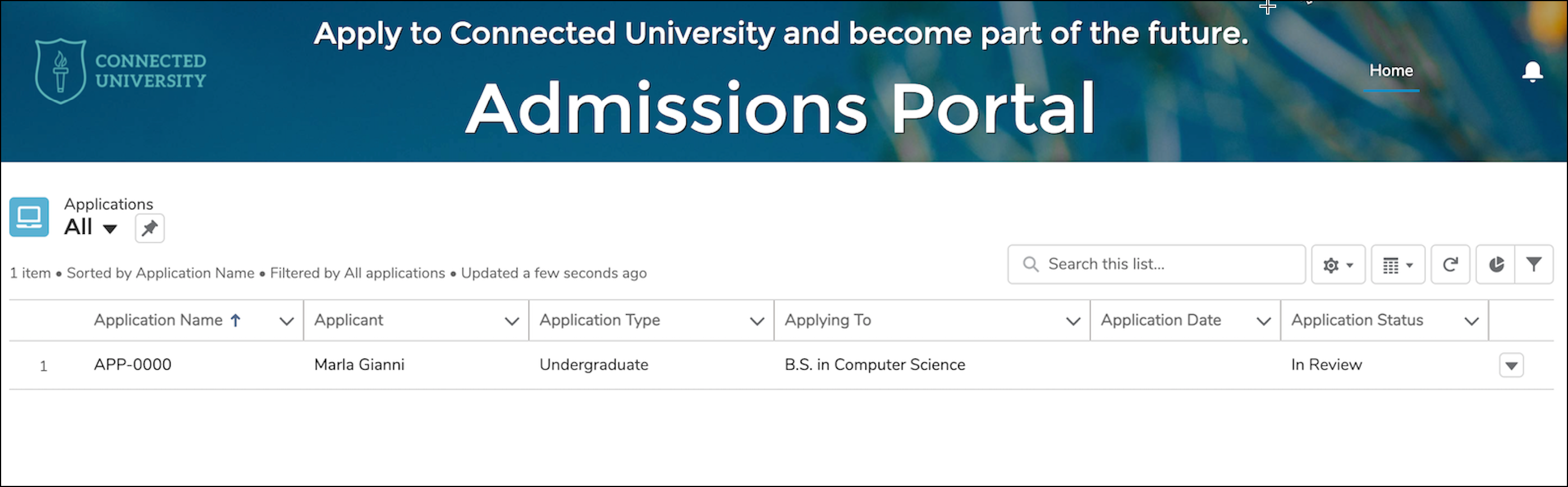
Next, create a page for Applications.
-
Update the Application detail page layout to use the “1 full-width column” layout.
-
In the header region, add the Applicant Application Header component.
-
In the main region, add the Applicant Application Viewer component.
The resulting Application page looks something like this.
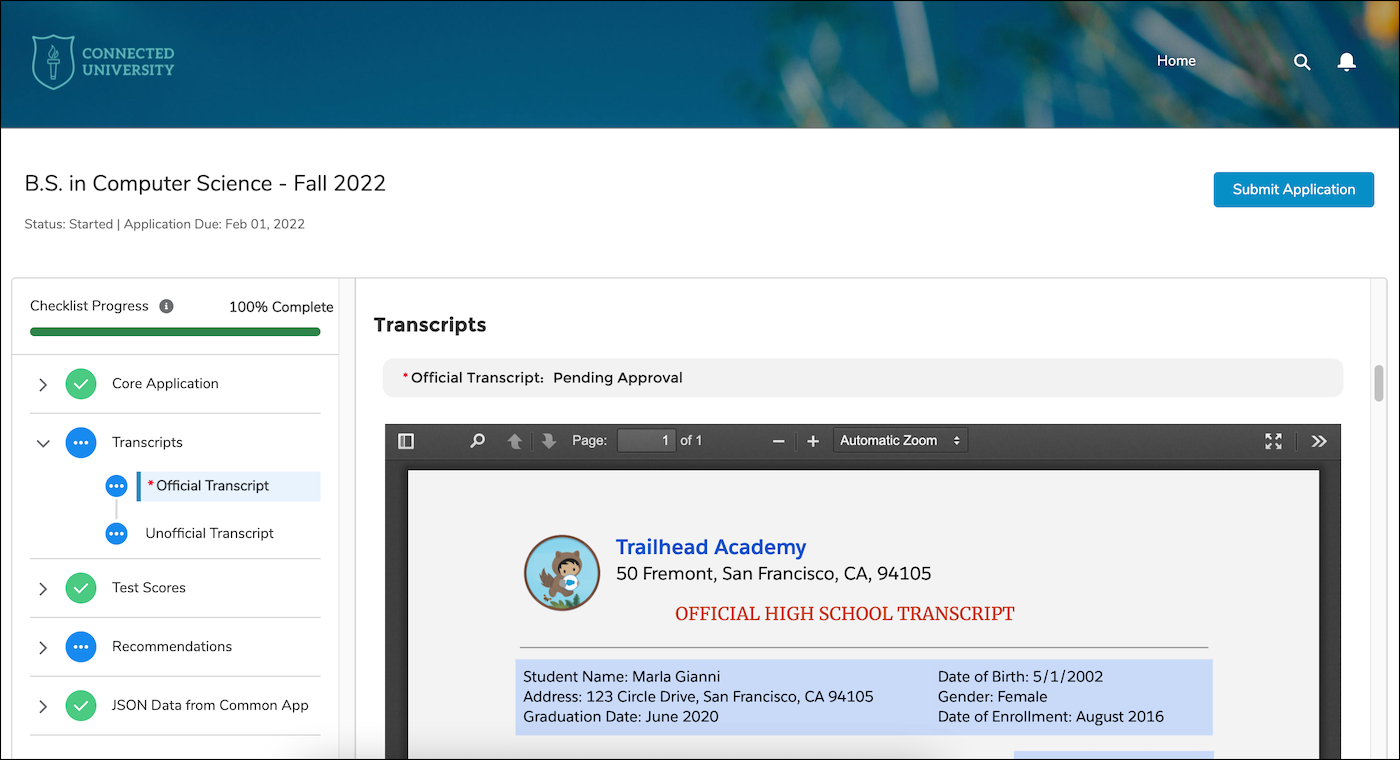
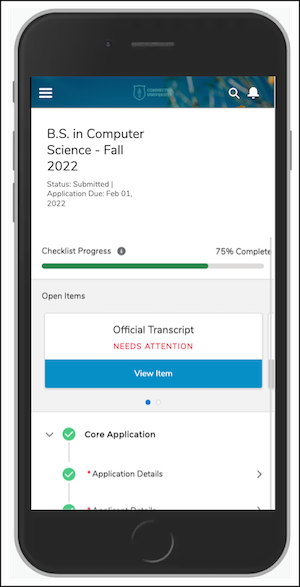
If an applicant accesses the Application page from their mobile phone, the page looks like this:
Remember that what an applicant sees in their Application record is determined by the settings of the Application Material Mapping records for the coordinating Action Plan Templates and Action Plan Template Items and their User permissions. For details about applicant portal settings and security, see Set Up Application Requirements and Action Plans and Set Up Security for an Admissions Connect Portal.
Add Application Reviews to a Reviewer Portal
When adding Application Reviews to a reviewer portal, consider some recommendations.
Set up your Home page to include a list view of Application Reviews. That way, reviewers immediately see what applications are assigned to them.
-
Update the Home page layout to use the “1 full-width column” layout.
-
In the main region, add the Record List component and configure it for Application Reviews.
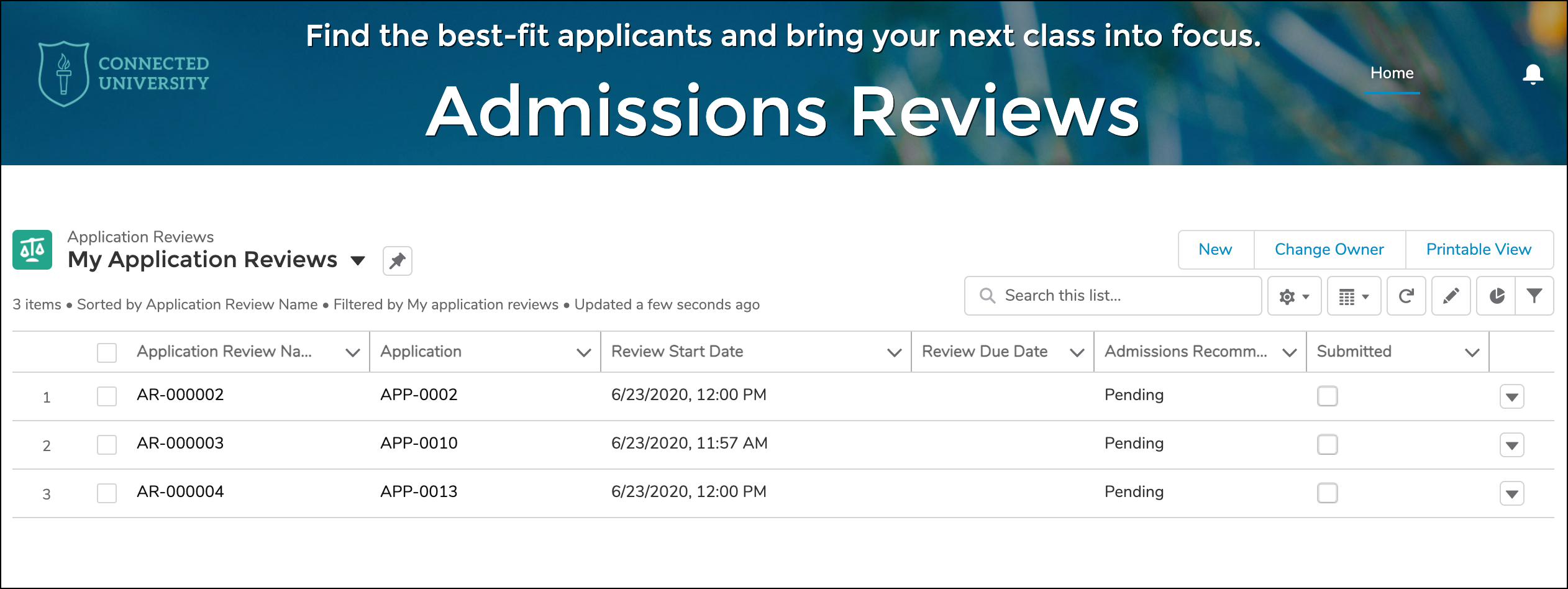
The resulting Home page might look something like this.
Create a page for Application Reviews that looks similar to the default Lightning record page for Application Reviews in the Admissions Connect app.
-
Update the Application Review detail page layout to use the “2 columns, 2:1 ratio” layout.
-
In the header region, add the Record Banner component.
-
In the main region, add the Reviewer Application Reader component.
-
In the right column, add the Reviewer Feedback component.
-
Optionally, add the Record List component under the Reviewer Feedback component and configure it for Application Reviews. That way, reviewers can easily navigate to their next review from the current page.
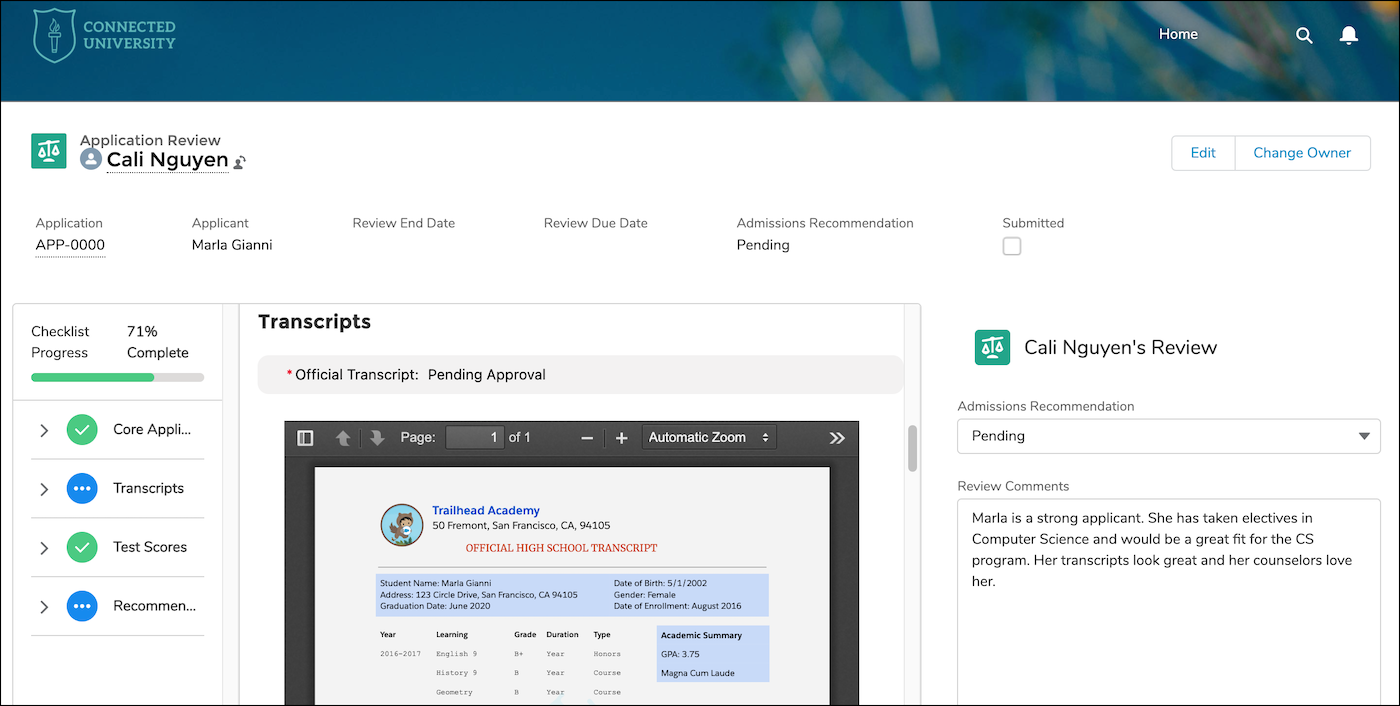
The resulting Application Reviews page might look something like this.
If your external reviewers can assign Application Reviews, consider adding the Reviewer Management component to the portal.
To help your reviewers stay focused and engaged with applications, consider creating page variations for different audiences. For example, you might want reviews to look different for coaches than for alumni. Or you might want to display different review questions to different groups of reviewers.
See Also:
Personalization Using Audience Targeting in Salesforce Help
