
You are here:
Work with a List View for Rapid Reviews, Queue Pickup, and More
List views are your starting point for application verifications and reviews. List views help you keep track of what needs to be verified or reviewed.
You can create your own list view or use one created by your admissions team.
Let’s look at the My Application Reviews list.
-
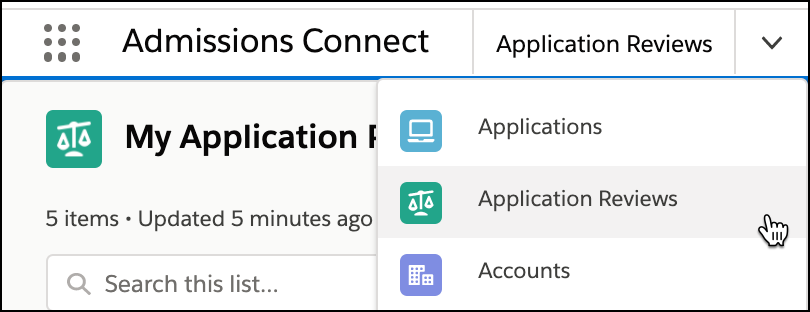
From the Admissions Connect app, select Application Reviews from the navigation menu.
-
In the list view drop down, select My Application Reviews.
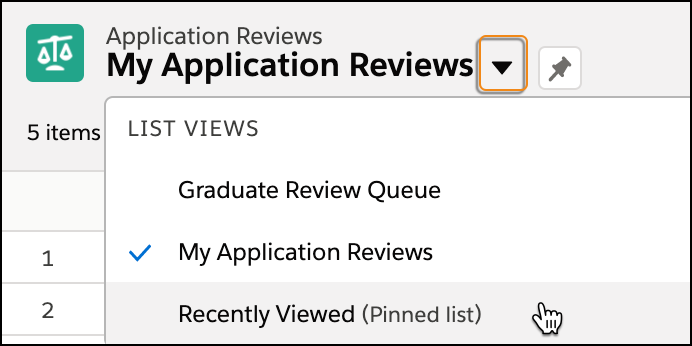
From here, you can access the reviews that are assigned to you. You can sort any column and even edit the list view to show different fields.
If you're a member of an Application Review queue, a list view set up for the queue is a quick way to pick up reviews. From the list view, open an Application Review record and click Change Owner to assign the review to yourself. Or you can use the drop-down action menu from the list view to change the owner.
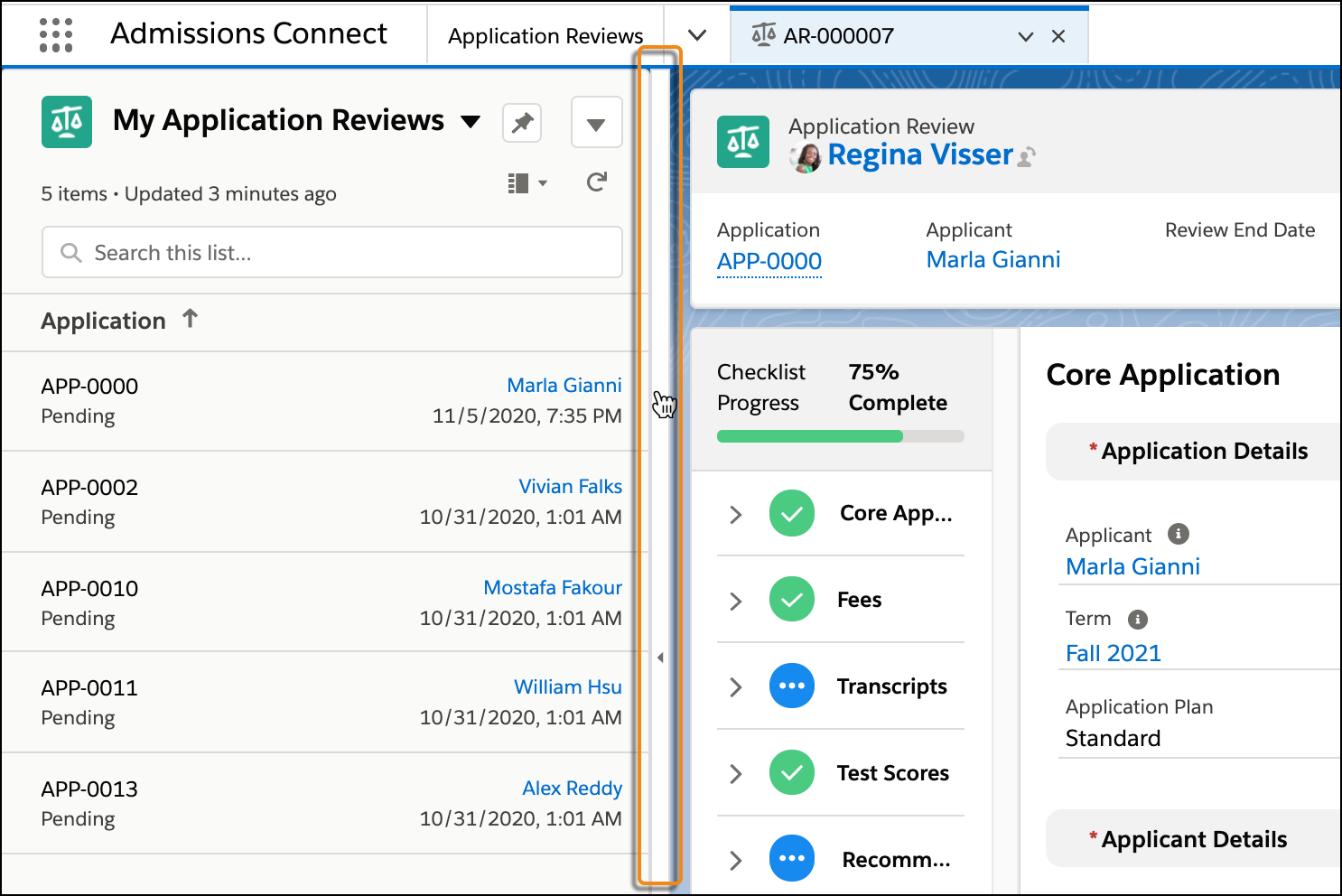
When you view a record, like an Application Review, you can still access your list by using split view. Just click the vertical bar at the left of the page to open or close the list. When you're done with your review, open split view to access your next record for review.
See Also:
Work with List Views in Lightning Experience in Salesforce Help
