You are here:
Set Up Territory Management for Recruiting
Enable Enterprise Territory Management and set up default access, territories, Account assignment rules, and assign Users on your recruiting team.
- Prepare Prospect Records for Territory Management
Learn about why a prospect’s Account record is important and how to get your prospect data ready to use with Enterprise Territory Management. - Enable Territory Management for Admissions Connect
To enable Enterprise Territory Management and customize default settings, users need Customize Application permission. - Create Recruiting Territory Types
Territory types help you organize territories based on key characteristics, such as Geographic, State, City, Geocode, or First-Gen. Create types that make sense for your recruiting team. These types can later be used in reports. - Create a Recruiting Territory Model and Individual Territories
A territory model connects all the moving parts—individual territories, Account assignment rules, and user assignments. We recommend planning out your model before entering it into Salesforce. Write down the territories you want to create and the Account criteria that each territory will use. - Create Recruiting Territory Assignment Rules for Account Criteria
Territory assignment rules define the Account criteria that are used to assign the territory. - Assign Territories to Recruiting Staff
With your territories and Account assignment rules in place, it’s time to assign your recruiters to territories. Don't overload recruiters with too many Accounts. Typically, most institutions know the regions or focus areas that have the biggest groups of prospects. Review and adjust your user assignments as your prospect pool changes or when you adjust your territory hierarchy. - Set Up Recruiting Territories for Opportunities
If your institution is using Opportunities, you can assign territories to them. To set this up, you create and deploy an Apex class (Salesforce provides sample code that you can use as is) and enable the Opportunity assignment filter in Territory Settings. After your model is active, you run the filter to assign the territories based on date ranges, the status of the Opportunity, or you can set it up to run every time an opportunity is created. Alternatively, you can manually assign a territory to an Opportunity. - Activate Your Territory Model and Run Assignment Rules
When you’re happy with your territories, Account rules, and assigned Users, activate your model and run assignment rules.
Prepare Prospect Records for Territory Management
Learn about why a prospect’s Account record is important and how to get your prospect data ready to use with Enterprise Territory Management.
Enable Territory Management for Admissions Connect
To enable Enterprise Territory Management and customize default settings, users need Customize Application permission.
-
From Setup, search for and then select Territory Settings.
-
Click Enable Enterprise Territory Management.
-
Define the Default Access Levels for your institution.
We recommend these settings.
-
Account Access: View and edit accounts assigned to the territory
-
Contact Access: View and edit all contacts associated with accounts in the territory
-
Opportunity Access: View all opportunities associated with accounts in the territory
-
Case Access: View all cases associated with accounts in the territory
-
-
Optionally, if you’re using Opportunities, define Opportunity Access for Parent Territories and specify an Assignment Filter.
-
Save your changes.
For more information about these settings, see Enable Features for Enterprise Territory Management in Salesforce Help.
Create Recruiting Territory Types
Territory types help you organize territories based on key characteristics, such as Geographic, State, City, Geocode, or First-Gen. Create types that make sense for your recruiting team. These types can later be used in reports.
For details and required permissions, see Create Territory Types in Salesforce Help.
Create a Recruiting Territory Model and Individual Territories
A territory model connects all the moving parts—individual territories, Account assignment rules, and user assignments. We recommend planning out your model before entering it into Salesforce. Write down the territories you want to create and the Account criteria that each territory will use.
Here’s what a sample territory model looks like.
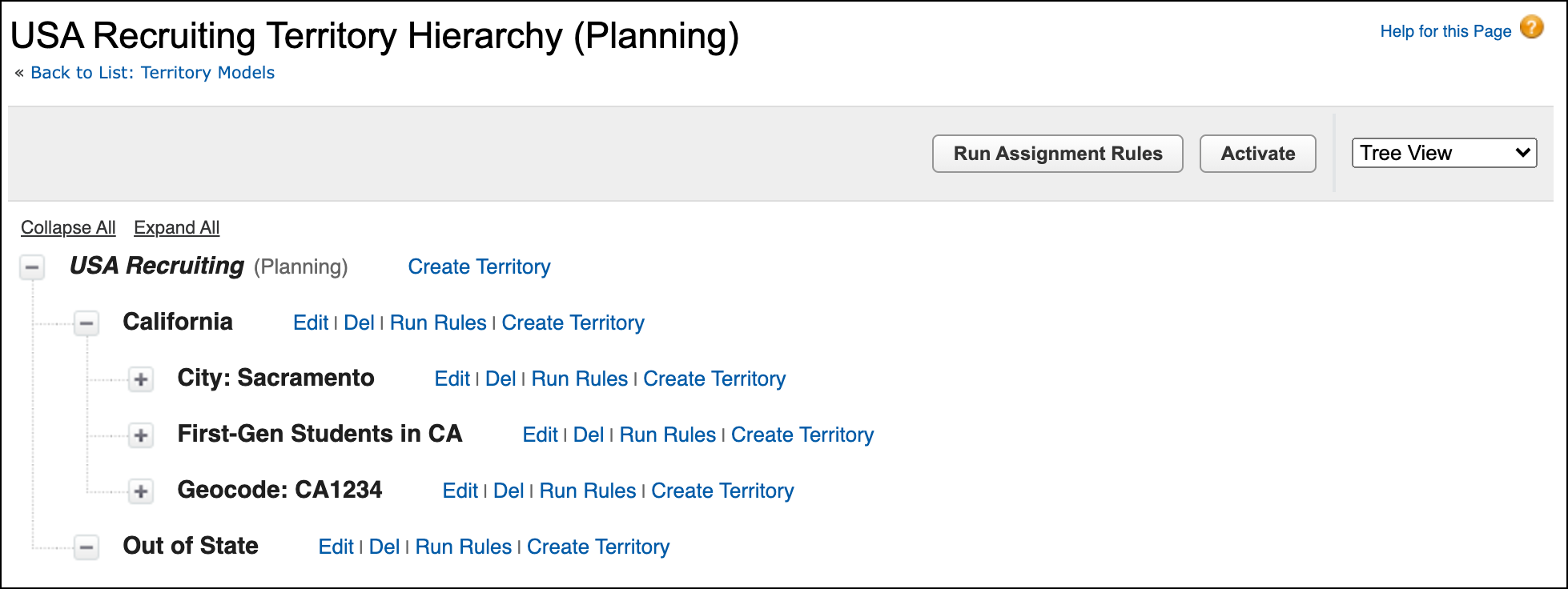
For details and required permissions, see Create a Territory Model Record and Create Territories in Salesforce Help.
Create Recruiting Territory Assignment Rules for Account Criteria
Territory assignment rules define the Account criteria that are used to assign the territory.
For example, a rule for the territory called City: Sacramento has the
following criteria: (Account: Billing
City EQUALS Sacramento) AND (Account: Billing State/Province EQUALS California). The state is specified
as an AND operator so that only Accounts from Sacramento, California, are included and
not Accounts from other states with the same city. It’s common to adjust your rules as
you work with more prospect data.

For details and required permissions, see Create Rules to Assign Accounts to Territories in Salesforce Help.
Assign Territories to Recruiting Staff
With your territories and Account assignment rules in place, it’s time to assign your recruiters to territories. Don't overload recruiters with too many Accounts. Typically, most institutions know the regions or focus areas that have the biggest groups of prospects. Review and adjust your user assignments as your prospect pool changes or when you adjust your territory hierarchy.
For details and required permissions, see Assign Users to Territories in Salesforce Help.
Set Up Recruiting Territories for Opportunities
If your institution is using Opportunities, you can assign territories to them. To set this up, you create and deploy an Apex class (Salesforce provides sample code that you can use as is) and enable the Opportunity assignment filter in Territory Settings. After your model is active, you run the filter to assign the territories based on date ranges, the status of the Opportunity, or you can set it up to run every time an opportunity is created. Alternatively, you can manually assign a territory to an Opportunity.
For details, see the Enterprise Territory Management Implementation Guide and look at these topics.
-
How Does Filter-Based Opportunity Territory Assignment Work?
-
Set Up and Deploy Filter-Based Opportunity Territory Assignment
-
Assign a Territory Manually to an Opportunity
To copy the sample Apex class, see OpportunityTerritory2AssignmentFilter Global Interface in the Apex Reference Guide .
Activate Your Territory Model and Run Assignment Rules
When you’re happy with your territories, Account rules, and assigned Users, activate your model and run assignment rules.
-
Preview your Account assignments while they're in the planning stage. From the hierarchy view, click Run Assignment Rules.
-
When you activate your model, Accounts are shared and assigned to Users based on your assignment rules. From the hierarchy view, click Activate.
-
Run Account assignment rules.
You can run assignment rules for the whole model or for individual territories. To run the assignment rules for the whole model, from the hierarchy view, click Run Assignment Rules. To run the assignment rule for a single territory, see Run Assignment Rules for a Territory in the Salesforce Help.
-
Optionally, run the Opportunity assignment filter.
If you've enabled the Opportunity assignment filter, you can run the filter from the hierarchy view.