
You are here:
Configure an Accounting Set for Revenue Cloud
For organizations with complex product catalogs and pricing structures, activities like generating quotes, billing customers, and collecting payments are critical. Regardless of their industry, these organizations manage many different types of records in Salesforce as they book, approve, and receive large volumes of transactions.
| Available in: Lightning Experience |
| Available in: Enterprise, Performance, Unlimited, and Developer Editions with Accounting Subledger |
| User Permissions Needed | |
|---|---|
| To set up accounting sets: | Manage Accounting Subledger |
Clarissa is the Director of Sales at Ursa Major Solar. As her sales reps nurture prospective customers toward purchase commitments, she uses Salesforce to record sales quotes and invoices as they convert into recognized revenue. Accounting Subledger helps her track the flow of money accurately so that Ursa Major's accounting department has all the information needed to reconcile the books at the end of the quarter. Follow Clarissa as she configures an accounting set to generate financial records for these revenue-generating records.
- Requirement
-
- The Invoice, Order, or Payment object included with Salesforce CPQ or Salesforce Billing.
- Plan your accounting set field mapping by filling out this table.
 Note Clarissa mapped the fields based on the objects in Revenue Cloud, but you can map any standard or custom object that you use to track revenue-generating records.
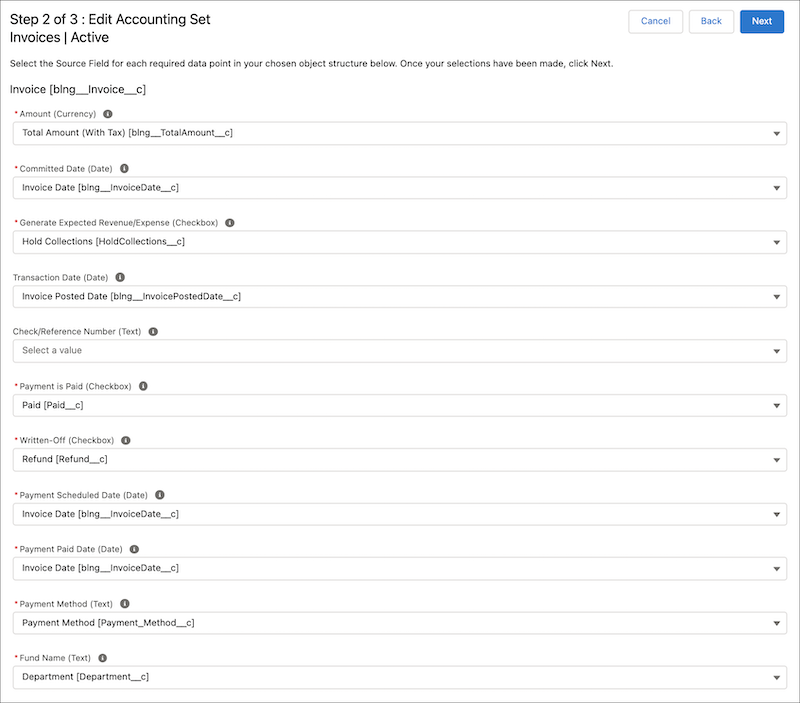
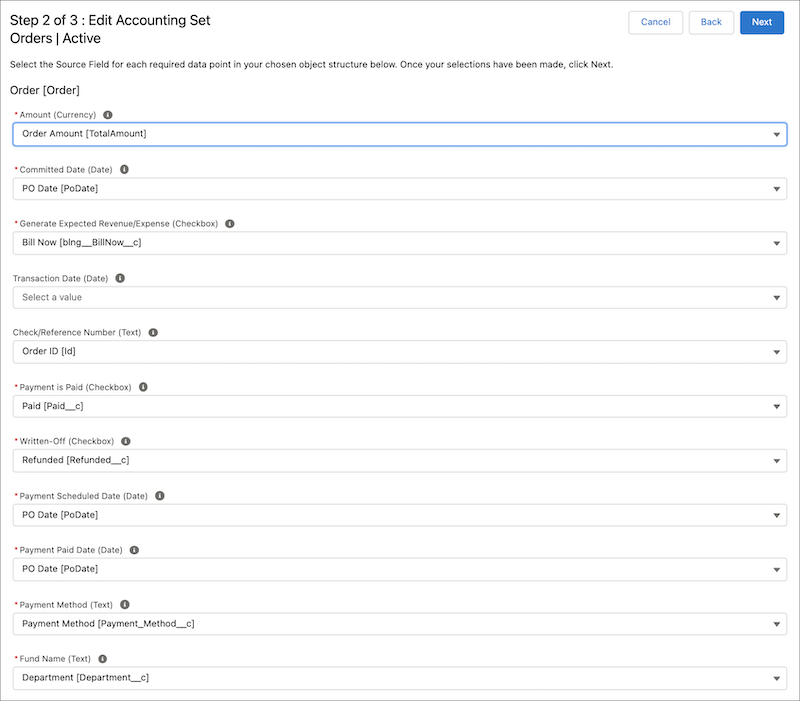
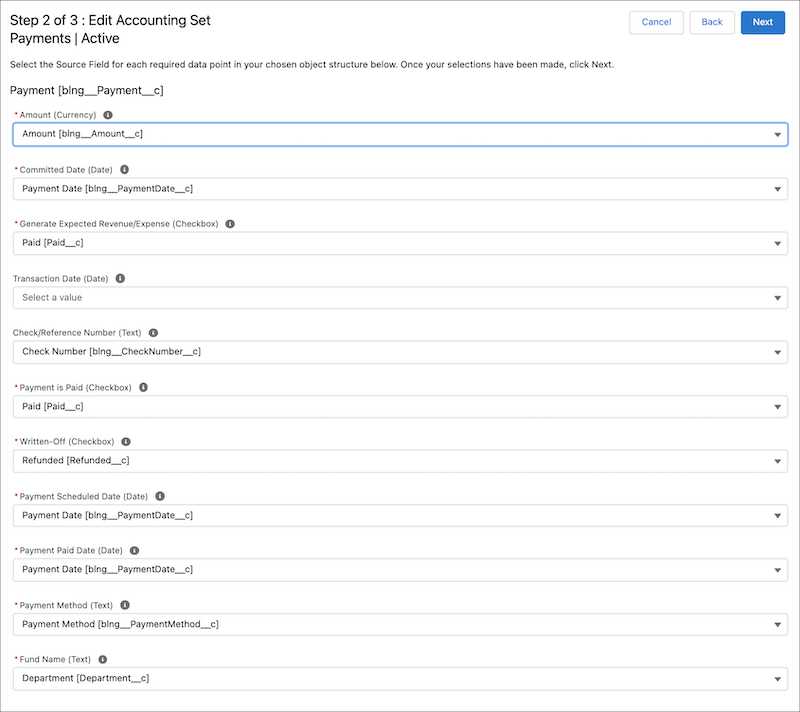
Transaction Journal Field Type Invoice Field Order Field Payment Field Your Field Amount Currency Total Amount (With Tax) Order Amount Amount Committed Date Date Invoice Date PO Date Payment Date Generate Expected Revenue/Expense Checkbox Hold Collections Bill Now Paid Transaction Date Date Invoice Posted Date — — Check/Reference Number Text — Order ID Check Number Payment is Paid Checkbox Paid Paid Paid Written-Off Checkbox Refund Refunded Refunded Payment Scheduled Date Date Invoice Date PO Date Payment Date Payment Paid Date Date Invoice Date PO Date Payment Date Payment Method Text Payment Method Payment Method Payment Method Fund Name Text Department Department Department - From the management settings for the object with the fields to map to transaction journal records, go to Fields & Relationships.
- For each field in the previous table, confirm that your custom object has a field of a type that matches the corresponding transaction journal field. For example, the field to map to Committed Date must be a date field.
- If your custom object is missing a required field or has a field of a different type, create a custom field. See Manage Custom Objects.
- From Setup, in the Quick Find box, enter Accounting Sets, and then select Accounting Sets.
- Click New.
- Fill out these fields, and then click Next.
Field Value Name Enter the name of your accounting set. In this setup, Clarissa calls it Invoices. Number of Objects Select 1 Object Model. Primary Object Select a fee object. In this setup, Clarissa uses the Invoice, Order, or Payment object. - Using the table you filled out in step 1, select values on the New Accounting Set page, and then click Next. Here's what Clarissa's mappings look like for each object.
- Fill out these fields, and then save your changes.
Field Value Accounting Set Type Select Revenue. Accounting Record Start Date Select the earliest date from which you want Accounting Subledger to process records. Default Accrued Account Code Enter the name of the fund to use for future payments. Default Write Off Account Code Enter the name of the fund to use for refunds. - On the Accounting Sets page, next to the accounting set that you created, click
 , and then select Activate.
