You are here:
Track Your Work with Activities and Calendar
Learn how to use standard Salesforce activities and calendar functionality in your case management work.
- Log a Call
It's important to log all interactions with a client, including calls. For example, after you call a client's mother to schedule an appointment, log the call on the client’s Contact record. - Create an Event
Set up appointments using standard Salesforce Events. Events appear on the Calendar View, which you access by clicking the Calendar tab. In addition, Events can sync with Outlook or Google calendars, so all your calendars can align. - Create a Task
Use tasks to set reminders for important items you need to take action on. - Calendar View
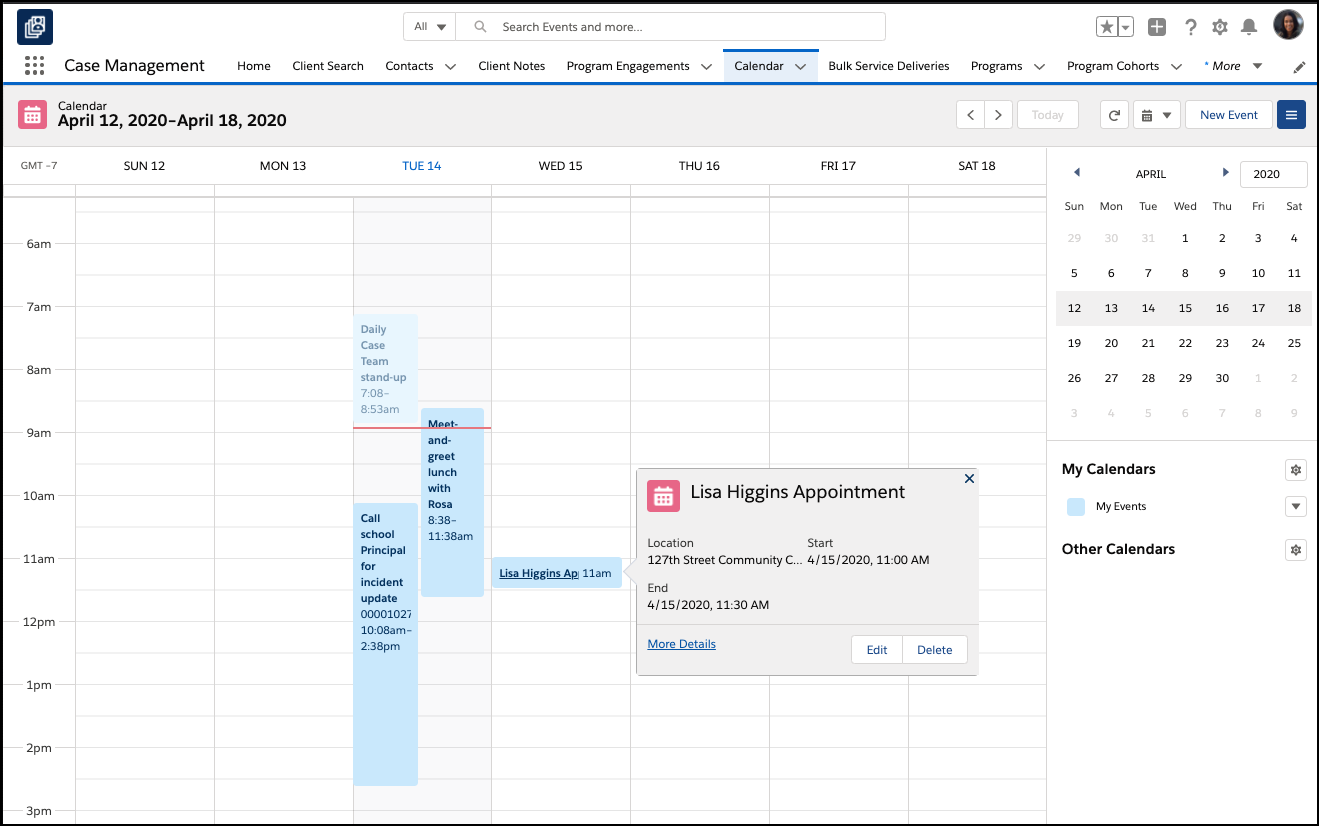
Go to the Calendar tab to see your appointments and events.
Log a Call
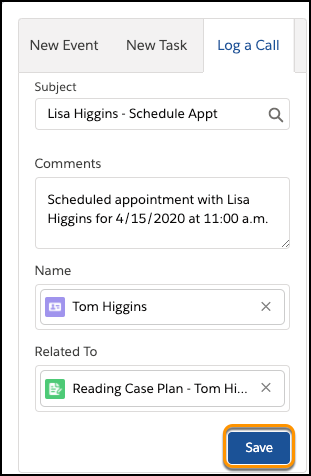
It's important to log all interactions with a client, including calls. For example, after you call a client's mother to schedule an appointment, log the call on the client’s Contact record.
-
Navigate to the Client’s Contact record.
-
Scroll to the Activity Panel and click Log A Call.
-
Enter a subject that describes the nature of the call. For example, Schedule appointment.
-
Relate the Task to a client record object (such as Case Plan) by clicking the down arrow in the Related To field and selecting the kind of record you want to relate. Then, search for and select the appropriate record.
-
Click Save.
Create an Event
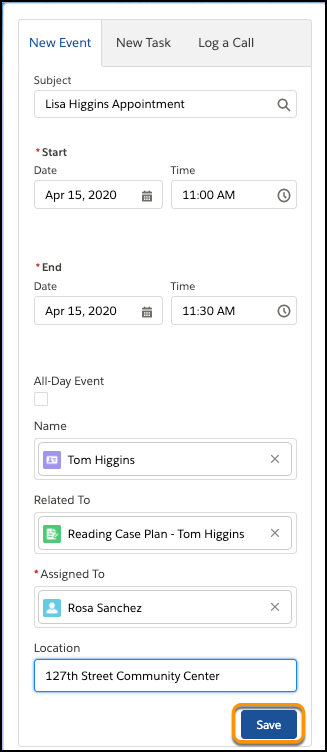
Set up appointments using standard Salesforce Events. Events appear on the Calendar View, which you access by clicking the Calendar tab. In addition, Events can sync with Outlook or Google calendars, so all your calendars can align.
-
Navigate to the client's Contact record.
-
Scroll to the Activity Panel and click New Event.
-
Enter a subject that describes the nature of the event. For example, Client appointment.
-
Select when the event starts and ends.
-
Relate the Event to a client record object (such as Case Plan) by clicking the down arrow in the Related To field and selecting the kind of record you want to relate. Then, search for and select the appropriate record.
-
Assign the Event to yourself.
-
Optionally, enter a Location.
-
Click Save.
Create a Task
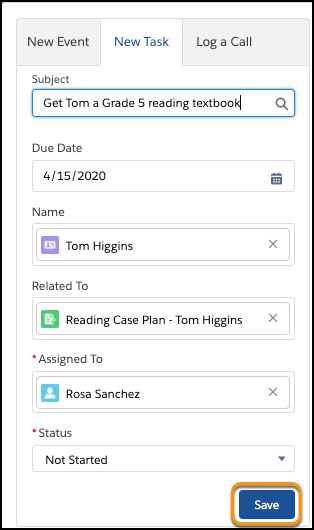
Use tasks to set reminders for important items you need to take action on.
-
Navigate to the client's Contact record.
-
Scroll to the Activity Panel on the lower right and select New Task.
-
Enter a Subject that will help you remember what the task is for.
-
Set a due date.
-
Relate the Task to a client record object (such as Case Plan) by clicking the down arrow in the Related To field and selecting the kind of record you want to relate. Then, search for and select the appropriate record.
-
Assign the task to a user.
-
Choose a Status.
-
Click Save.