
You are here:
Manage Assessments
Use assessments, assessment scores, and charts to track your clients' progress.
- Overview
Assessments are numeric measurements of characteristics related to a client's care, such as English language proficiency or a financial literacy score. - Enter Assessment Scores
Use assessment scores and charts to track your clients' progress. - Add Threshold Markers to Assessment Charts
Add horizontal threshold lines to your Assessment Charts and quickly see your client's progress towards the goals you set. You decide the number of thresholds, their values, line colors, and labels.
Overview
Assessments are numeric measurements of characteristics related to a client's care, such as English language proficiency or a financial literacy score.
Case Managers can track their clients’ Assessment scores over time and see a chart of those scores. Your admin will configure the available Assessment scores and Assessment types.

Enter Assessment Scores
Use assessment scores and charts to track your clients' progress.
To record Assessment Scores for a client:
-
Navigate to the client's Contact record.
-
Click the Assessments related list, then click New.
-
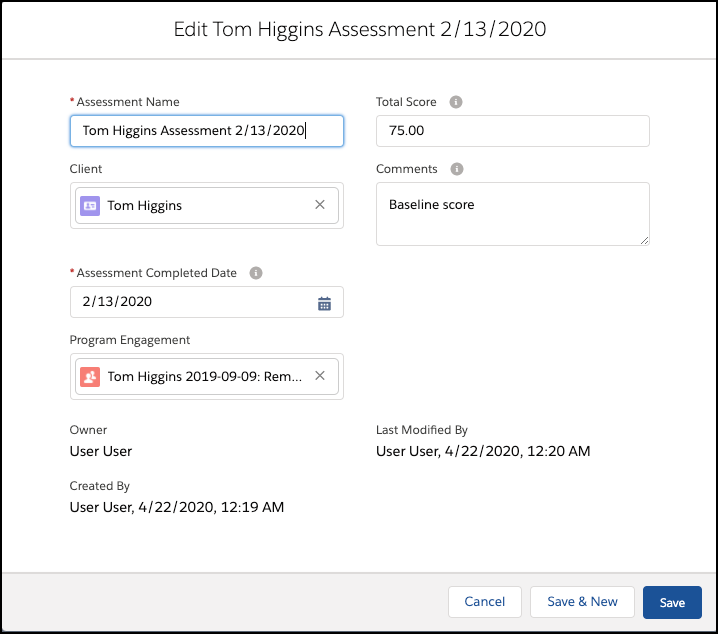
Enter the Assessment Name. We recommend using a standardized naming convention, such as: Client Name, Assessment type, Date.
-
Enter the Assessment Completed Date.
-
Optionally, add a Program Engagement.
-
Enter the Assessment score. It must be a numeric value.
-
Optionally, add comments.
-
Click Save.
-
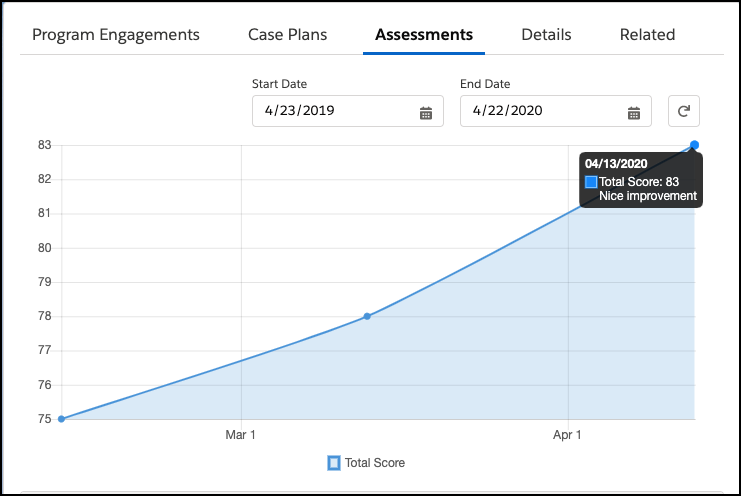
Click Refresh to see your Assessment scores on the Assessment Chart. Note that clicking a score name in the legend toggles that score on and off. Also, hovering over the score displays the comment.
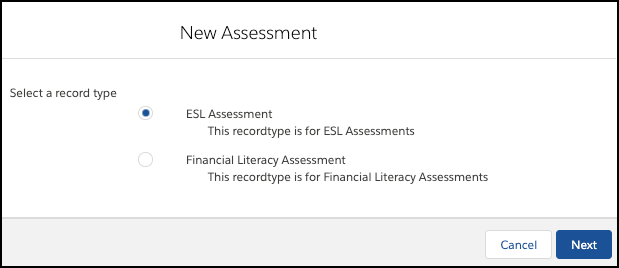
If your org has configured multiple Assessment types, choose the record type and click Next to enter Assessment scores.
To select from multiple Assessment types on the Assessment Chart, select the Assessment Record Type from the Record Type dropdown.
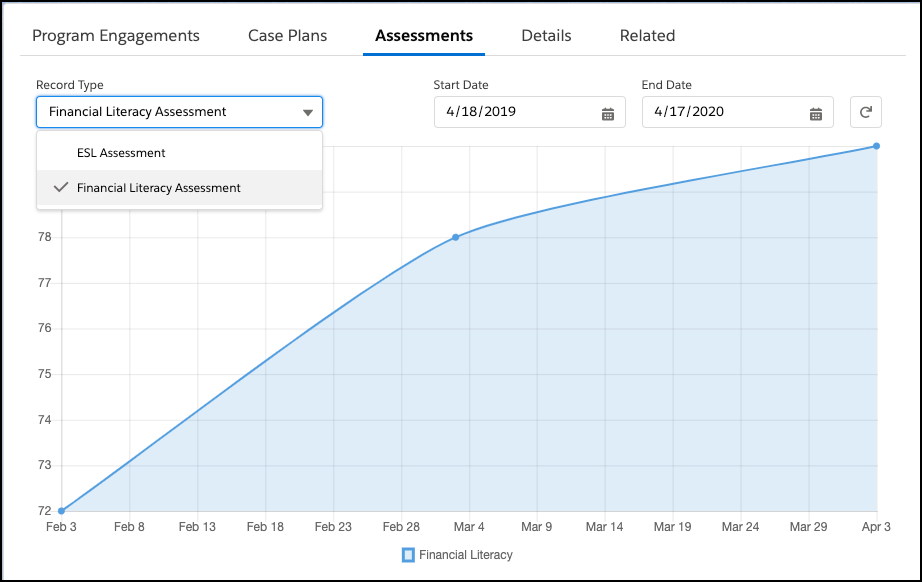
You can also control the display by filtering on Start and End Dates.
Add Threshold Markers to Assessment Charts
Add horizontal threshold lines to your Assessment Charts and quickly see your client's progress towards the goals you set. You decide the number of thresholds, their values, line colors, and labels.
For example, you have an assessment for measuring where a client is in terms of financial literacy. You could set threshold lines of Basic with a blue line at 20, Average with a yellow line at 40, and Advanced with a green line at 80.
Create thresholds in Custom Metadata Types:
-
In Setup, enter Custom Metadata Types in Quick Find, and then click Custom Metadata Types.
-
Next to Assessment Thresholds, click Manage Records.
-
Click New.
-
Enter your threshold details. Label is what you use internally to identify the threshold and Title is the display name.
-
Save your threshold.
