
You are here:
Customize Assessments
Customize assessment scores and create multiple assessment types.
- Customize Assessment Scores
Customize assessment scores by adding custom fields on the Contact, Listening Comprehension, and Vocabulary Assessment Score objects and showing them on an Assessments tab on Contact records. - Create Multiple Assessment Types
Create Assessment types for Programs that have different scoring systems.
Customize Assessment Scores
Customize assessment scores by adding custom fields on the Contact, Listening Comprehension, and Vocabulary Assessment Score objects and showing them on an Assessments tab on Contact records.
An Assessment Chart can display up to eight separate Assessment Scores. Since each organization works with Assessments in different ways, we made Assessment Score fields flexible. You can continue using the scoring systems you already have in place—whether your score is on a scale of 1-10, or 1-100. As long as Assessment Scores use numeric values, Case Management can store and render them on the Assessment Chart.
Out-of-the-box, Case Management has a single default score field called Total Score. You may want to create custom fields for Assessment Scores to display on an Assessment Chart.
For example, let's say you have an ESL Program that includes an English Proficiency Assessment with three scores: Reading Comprehension, Listening Comprehension, and Vocabulary.
First, add the custom fields on the Contact object:
-
Click
 , then click Setup.
 -
Click the Object Manager tab.
-
In the list of objects, click Assessment.
-
Click Fields & Relationships.
-
Click New to create a new custom field.
-
Select Number. Assessments fields must use the Number field type.
-
Click Next.
-
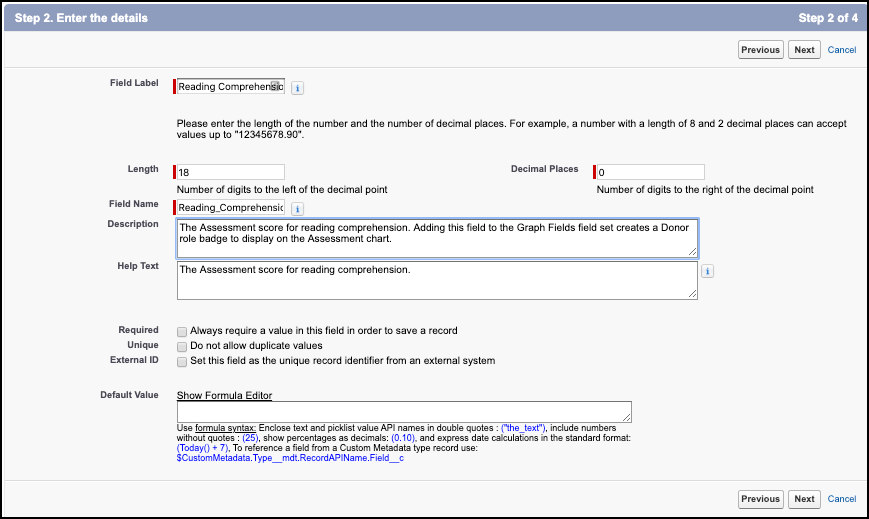
Enter the following values:
-
Enter a Description and Help Text.
-
Click Next.
-
Select Visible for the appropriate profiles.
-
Click Next.
-
Add the field to the Assessment Layout.
-
Click Save.
Repeat these steps for the Listening Comprehension and Vocabulary Assessment Scores.
Next, place the custom field on the Assessment page layout:
-
Click Page Layouts.
-
Click Assessment Layout.
-
Find the Reading Comprehension field.
-
Drag the Reading Comprehension field onto the page layout and place it before the Total Score field.
-
Click Save.
Repeat these steps for the Listening Comprehension and Vocabulary fields.
Last, add the field to the Graph Fields field set:
-
Click Field Sets.
-
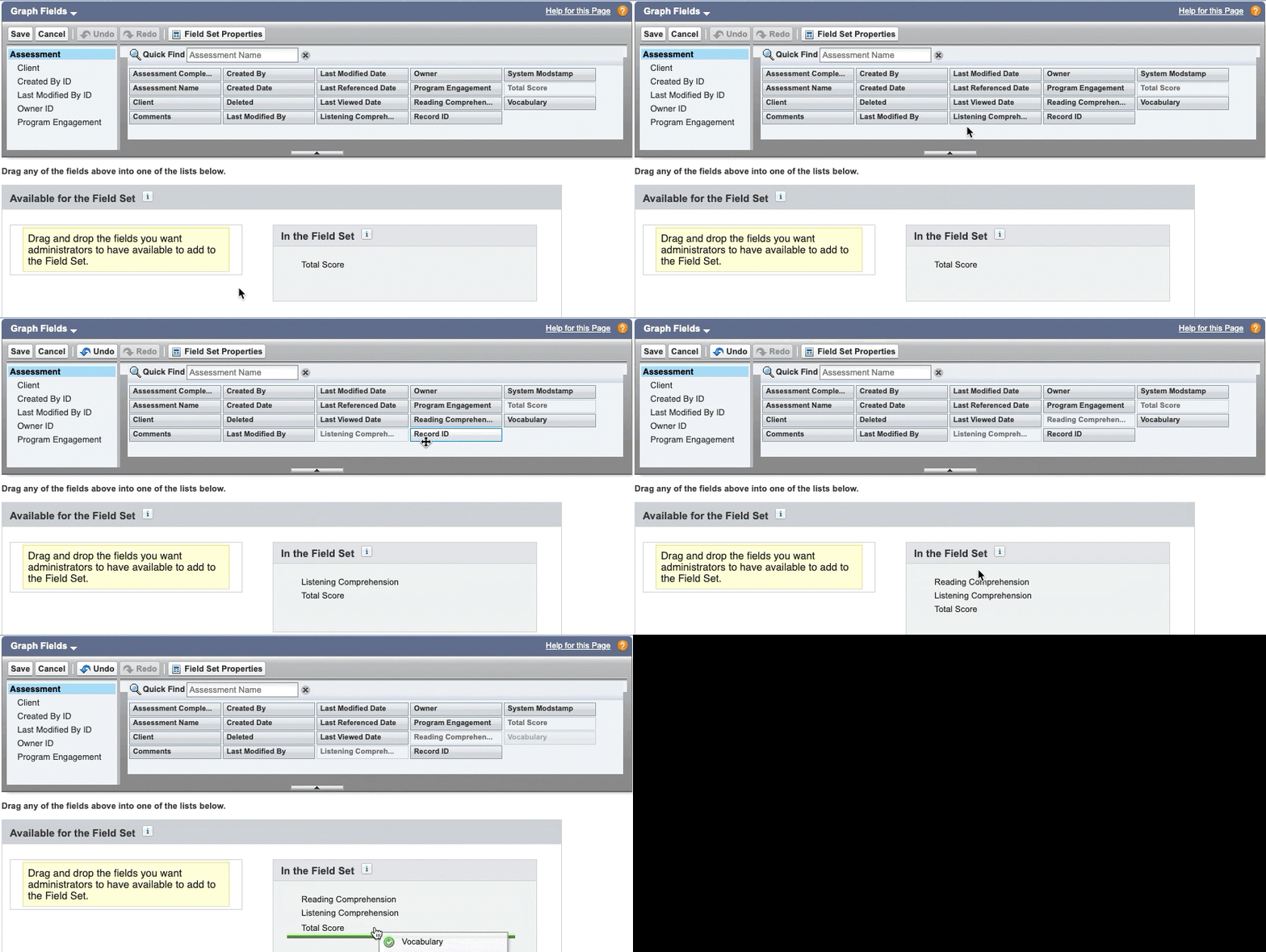
Click Graph Fields.
-
Drag the Reading Comprehension field into the field set and drop it before Total Score.
-
Repeat this for the Listening Comprehension and Vocabulary fields.
-
Remove the Total Score field if you don’t want it on your Assessment Chart.
- Click Save.
Verify that your new Assessment Scores are configured properly by viewing the Assessments tab on a Contact record.
See the Add Custom Fields unit in Trailhead for more information on creating custom fields.
Create Multiple Assessment Types
Create Assessment types for Programs that have different scoring systems.
If you run Programs that have different scoring systems or Assessments, you may need to create separate types of Assessments. For example, if you run an ESL course and a financial literacy program, you might use two different Assessments to track progress. In this case, create a separate page layout and record type for each Assessment type. Then create the custom Assessment score fields for all Assessments and assign each score to the corresponding Assessment page layout. Finally, add each custom Assessment score field to the Graph Fields field set.
Let's walk through an example where we create two Assessments: one for an ESL course, and one for a financial literacy program. In the end, a user will be able to filter the Assessment Chart by record type. See link to Manage Assessments for more information.
First, we'll create an ESL Assessment page layout.
-
Click
, then click Setup. -
Click the Object Manager tab.
-
In the list of objects, click Assessment.
-
Click Page Layouts.
-
Click New.
-
In the Existing Page Layout field, select Assessment Layout.
-
Enter a Page Layout Name. For our example, we’ll use ESL Assessment Layout.
-
Click Save.
-
Add the fields you created in Customize Assessments to the new layout.
-
Click Save.
Next, create a record type:
-
Click Record Types.
-
Click New.
-
In the Existing Record Type field, select Master.
-
Enter a Record Type Label. For our example, we’ll use ESL Assessment.
-
The Record Type Name is automatically populated.
-
Enter a Description.
-
Select Active.
-
Enable for all appropriate profiles including: Case Manager: Salesforce, Case Manager: Salesforce Platform, and System Administrator.
-
Click Next.
-
Assign page Layouts to all needed profiles. We suggest Case Manager: Salesforce, Case Manager: Salesforce Platform, and System Administrator.
-
Click Save.
Now we repeat the steps above to create a Financial Literacy Assessment custom score. Last, add the ESL Assessment and Financial Literacy fields to the Graph Fields field set. This will display the fields on the Financial Literacy Assessment Chart.
-
Click Field Sets.
-
Select Graph Fields.
-
Click Save.
-
Drag your custom fields into the field set.
-
Click Save.
Now when you return to the Assessment chart, you will be able to select Financial Literacy Assessment or ESL Assessment from the Record Type filter and see the appropriate scores display.
Learn more about configuring page layouts and record types.
