
You are here:
Create Goal and Action Item Templates
Learn about when to use these templates and learn how to create them.
- What are Goal and Action Item Templates?
Program Managers can build Goal and Action Item Templates for their Programs as a way to introduce organization-wide best practices into the Case Plan process. Goal and Action Item templates automatically guide a Case Manager to include specific Goals and Action Items in a Program's Case Plan, making Case Plan creation more efficient. If a Program has Goal and Action Item Templates, you can select them in the Case Plan Wizard when creating a Case Plan (related to that Program). - Create Goal Templates
Save time and consistently track goals using Goal Templates. - Create Action Item Templates
Save time and consistently track tasks using Action Item Templates. - Create a Case Plan Using Goal and Action Item Templates
Based on how your Programs are set up, they may have related templates that provide goals and actions items you can apply to your Case Plan.
What are Goal and Action Item Templates?
Program Managers can build Goal and Action Item Templates for their Programs as a way to introduce organization-wide best practices into the Case Plan process. Goal and Action Item templates automatically guide a Case Manager to include specific Goals and Action Items in a Program's Case Plan, making Case Plan creation more efficient. If a Program has Goal and Action Item Templates, you can select them in the Case Plan Wizard when creating a Case Plan (related to that Program).
The fields available on a Goal created from a Goal Template or an Action Item created from an Action Item Template are determined by field sets. By default, new Goals and Action Items use the Case Plan Viewer field set. You can create your own field sets, then apply them to your Goal or Action Item Templates as needed. For instructions, see Customize Case Plan Goals and Action Items.
Create Goal Templates
Save time and consistently track goals using Goal Templates.

-
From the App Launcher (
 ), find and select Goal Templates.
 -
Click New in the Program Goals Template section.
-
Enter a Goal Template Name.
-
Select a Program to relate the Goal Template to.
-
Optionally, select a field set for this Goal Template. By default, new Goals use the Case Plan Viewer field set.
-
Select Required to make the Goal required for Case Plans created for clients who have active Program Engagements for the associated Program. Required Goals are pre-selected when you create a Case Plan and you can’t remove them.
-
Enter Case Plan Action Item Instructions. Instructions help the Case Manager decide which action items, related to this goal, to choose when creating a new Case Plan.
-
Click Save.
Create Action Item Templates
Save time and consistently track tasks using Action Item Templates.
-
From the App Launcher (
), find and select Goal Templates. -
From the Recently Viewed Goal Templates list, click the Name of the Goal template for which you are building the Action Item template.
-
Click the Related Tab of the selected Goal Template.
-
Click New in the Goal Action Item Templates section.
-
Click + New Action Item Template in the Action Item Template Search box.
-
Provide an Action Item Template Name.
-
Optionally, select a field set. By default, new Action Item Templates use the Case Plan Viewer field set.
-
Click Save.
-
Select Required to make the action item required for this Goal Template. Required action items are pre-selected when you create a Case Plan and you can’t remove them.
-
Click Save.

Create a Case Plan Using Goal and Action Item Templates
Based on how your Programs are set up, they may have related templates that provide goals and actions items you can apply to your Case Plan.
We'll create an example Case Plan for Anthony Hill, who needs support to re-enter the workforce after an extended period of homelessness. Feel free to follow along!
-
Navigate to a client record using Client Search.
-
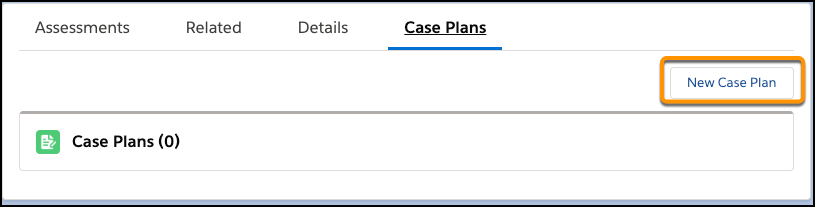
Click the Case Plans tab.
-
Click New Case Plan.
-
Enter a Case Plan Name. For example, Workforce Reentry Plan - Anthony Hill.
-
Enter a description. For example, Plan to get Anthony ready to join the workforce.
-
Click Next. You'll see a list of Program Engagements for the client, unless the client isn't associated with any Programs.
-
Select the Program.
-
Click Next.
-
Select the Goals to include in this Case Plan. These Goals are from the template associated with the selected Program. If the client isn’t associated with any Programs, you see a list of available Goals. You may see instructions that help you choose which Goals to select, and some Goals may be required based on the Program(s) you selected.
-
Click Next.
-
Select the Action Items to include for the Goal. These Action Items are from the template associated with the selected Goals. You may see instructions that help you choose which Action Items to select, and some Action Items may be required based on the Goal(s) you selected.
-
Click Next.
-
Review your Case Plan and click Save.
-
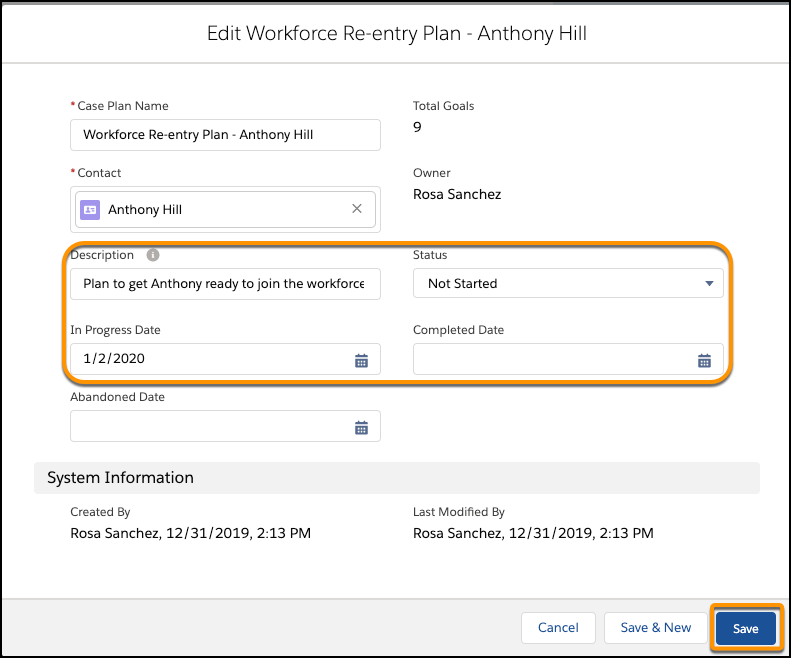
On the Case Plan record, click Edit.
-
Give the Case Plan an overall status of Not Started.
Note The Case Plan Status represents the case manager’s general assessment of the Case Plan as a whole. It is not a rollup of other statuses. -
Set an In Progress Date.
-
Click Save.
