
You are here:
Create and Edit Intakes
Use Intakes to collect information about potential clients so you can evaluate how to best help them.
Intakes track everything from the initial inquiry to assigning a case manager, reviewing forms, conducting assessments, and enrolling in a program. You can also track the result of the Intake, for example, if the applicant was approved to receive services from your organization or referred to another provider for help.
Intakes are a collection of information from Contact, Assessment, Program Engagement, and Case objects. An edit on an Intake also edits the record of that object. For example, changing a client’s phone number on an Intake also changes the phone number on their Contact record.
- Create Intakes
Create Intakes from the Intakes tab or from an Inbound Referral. - Work With Intakes
Intakes include information about potential clients. - Automatically Add Intake Contact Information to Action Plans
Use a flow to automatically add the Contact information from the Intake record directly to the generated Action Plan tasks. After using the flow, the client's name and photo is visible on their intake tasks on the Home page.
Create Intakes
Create Intakes from the Intakes tab or from an Inbound Referral.
Create Intakes
Create a new Intake from the Intakes tab.
-
Click the Intakes tab.
-
Click New.
-
Give the Intake a name. Often, this includes the Intake date and the name of the potential client, but it could be something else depending on your organization's policies.
-
Optionally complete additional details, or you can add this information later.
-
Save your work.
Create Intakes from Inbound Referrals
If your organization uses Inbound Referrals to track potential clients who are referred for services from other organizations or between departments in your organization, you can create an Intake from an Inbound Referral.
An Inbound Referral can only have one associated Intake. Creating an Intake from an Inbound Referral adds the intake information to the Intake field on the Inbound Referral. You won't be able to create another Intake if one already exists.
-
Click the Cases tab.
-
Click the case number of an Inbound Referral.
-
Click Create Intake.
-
The name of the Intake is the name of the associated Contact, if there is one, and the date. To edit the Intake name, click Edit, enter a new name, then click Save.
Work With Intakes
Intakes include information about potential clients.
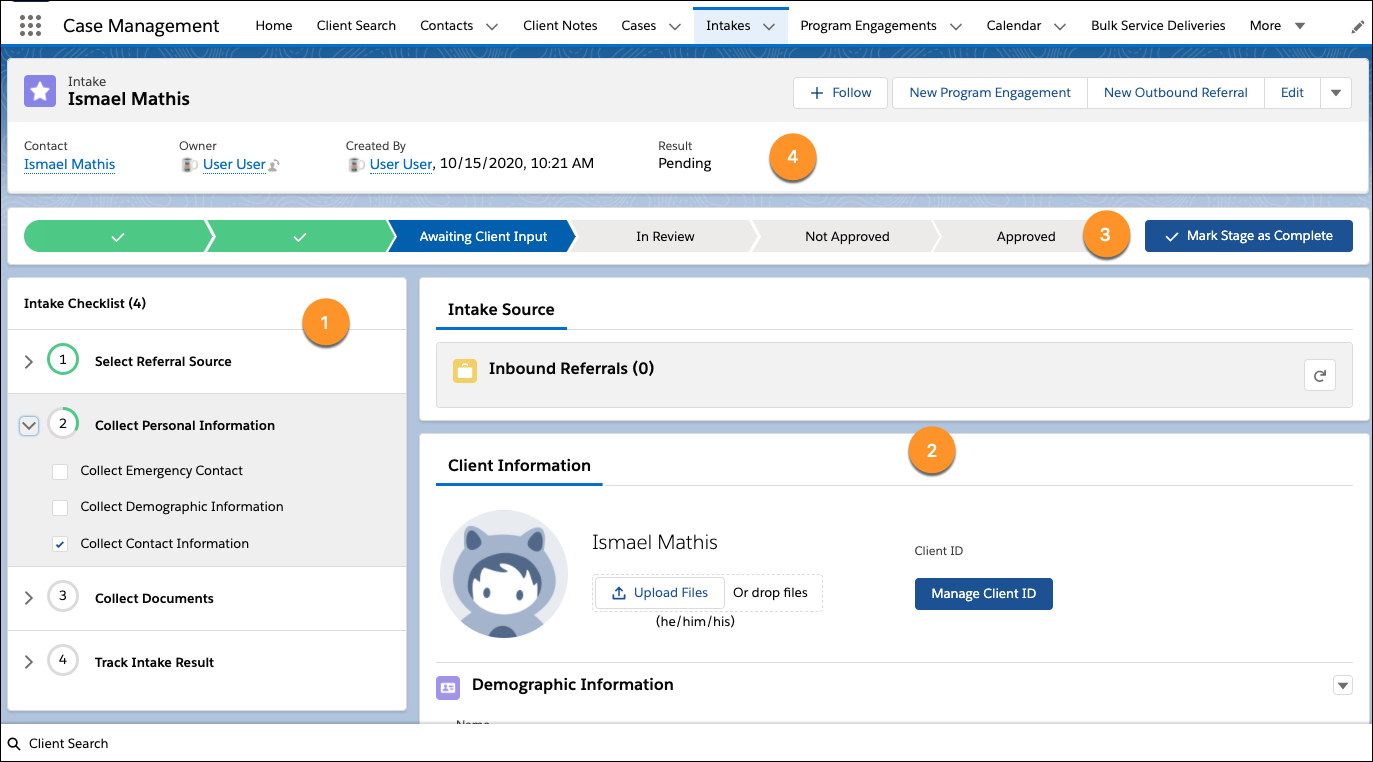
Intakes include an Intake Checklist (1, if configured), Client and other information (2), Intake Stage (3), and Intake Result (4).
Intake Checklist
If configured by your Salesforce admin, the Intake Checklist (1) serves as a guide through the Intake process. It helps you follow the steps required by your organization and saves your progress as you mark items completed. Checklists can also help you navigate through the sections of an Intake.
-
To add an Intake Checklist: In the left sidebar, under Intake Checklist, select a checklist, then click Create Checklist. If you see an error for an inactive template, you can still use the checklist but you may want to let your admin know they need to publish an Action Plan Template.
-
To remove an Intake Checklist so that you can select a new one: Click
 , then click Delete. This deletes all of the tasks and Action Plans associated with the Intake Checklist.
Client and Other Information
If a Contact was added to an Intake, that information appears in the Client Information (2) section of the Intake. Editing Client Information on an Intake also edits the information on the related Contact record.
You can also add files and add or update related records.
- To add a Contact, in the Client Information section, search for a Contact by name, Client ID, or by birth date. The search includes all Contacts, not just Contacts who are also Clients. For example, you may see Contacts who are volunteers and donors, not just Clients. Select the Contact you want, then click Select Existing Contact.
-
To create a new Contact, click Create New Contact. The Contact fields are the same as when you create a Contact from the Contact tab but appear in a slightly different order.
- If the Contact has a photo, it appears automatically. To add a photo, under Client Information, click Upload Files or drag a file.
-
If the Contact has a Client ID, it appears automatically. To add a Client ID, click Manage Client ID. Enter an ID or click Generate Random Client ID, then click Update. Your admin can configure the Client ID generator to meet your organization's needs.
-
Add or update demographic, contact, and emergency information.
-
Add files:
-
To add files to the Intake record only: Click Intake Files, then click Add Files or Upload Files. This is for files needed only during the Intake process.
-
To add files to the Intake record and the associated Contact record: Click Client Files, then click Add Files or Upload Files. This is for files needed throughout the client's service period.
-
-
Add or update related records:
-
Assessments: Add or edit Assessments that need to be completed as part of the intake process.
-
Program Engagements: Add or edit Program Engagements.
-
Outbound Referrals: Add or edit Outbound Referrals.
-
Intake Stage and Result
Intake Stages (3) are the stages of the intake process, from the initial inquiry to a final decision. Use Intake Stages to track the progress of Intakes. New Intakes default to the Not Started stage. You can manually change the stage of an Intake to In Progress, Awaiting Client Input, or In Review, all of which are considered open stages. To close an Intake, change the stage to Approved or Not Approved.
Intake Results (4) capture your organization's decision to provide services to an applicant, to decline services, or to refer them to another provider. Your Salesforce admin can edit the Intake Result options, but the default options are: Pending, Approved, Not Approved: Client Declined Services, Not Approved: Referred Elsewhere, Not Approved: Rejected.
Intake Stages operate independently of Intake Results. For example, changing the Intake Stage won't change the Intake Results.
-
To change the Intake Stage:
-
If the currently-selected stage is complete and you want to progress to the next stage, click Mark Stage as Complete.
- To select a different stage, click the stage name, then click Mark as Current Stage.
-
-
To change the Intake Result:
-
Under Intake Result, select a Result. For example, select Approved if you will offer the client services through your organization.
-
Add a close date.
-
Optionally provide information about the outcome of the Intake. For example, describe why the client was approved or not approved.
-
Click Save.
-
Optionally complete one of these follow-up steps depending on the Intake Result:
-
If the client is approved to receive services, click New Program Engagement to add the client to a Program.
-
If you will refer the client to another service provider, click New Outbound Referral to create an Outbound Referral for the client.
-
-
Automatically Add Intake Contact Information to Action Plans
Use a flow to automatically add the Contact information from the Intake record directly to the generated Action Plan tasks. After using the flow, the client's name and photo is visible on their intake tasks on the Home page.
Before you get started, make a copy of the flow so you can modify it without overwriting the original. Here’s how:
-
In Setup, enter Process Automation in the Quick Find box and click Flows
-
Click Action Plan After Insert Template.
-
Click Save As.
-
Give your new flow a name.
-
Enter a description for your flow.
-
Save.
That takes care of the basics. Here are some recommended optional configurations of your new flow.
-
Set up the Fault Path to determine what you want the flow to do if the tasks fail.
-
Add additional objects to copy from.
-
Edit the Check Target Object condition and add another possible outcome.
-
Add a New Get Record step to get the Contact from the Object.
-
Connect the two steps to the Has Who Id Check.
-
-
Save.
-
Activate the flow.
Want to learn more about flows? Check out Flow Builder and the related Trailhead.
