
You are here:
Course Search and Registration
Provide students with a simplified way to find and enroll in courses. Students search for courses and view details of course sections on a search results page. Students with the right permissions can add courses from the search results directly to a cart. They can review course availability and their own eligibility, and register for courses from the cart.
Required Editions
| Available in: Lightning Experience |
| Course Search is available in: Enterprise, Unlimited, and Developer Editions with Education Cloud |
| Course Registration is available in: Enterprise, Unlimited, and Developer Editions with Education Cloud and Education Cloud Advanced Academic Operations for Experience Cloud add-on |
From the course schedule search page (1), a student can add sections to the cart. In the cart, the student can view details of each added section, including section information, meeting times, instructor name, and the current enrollment number (2). The student can also remove selections from the cart.
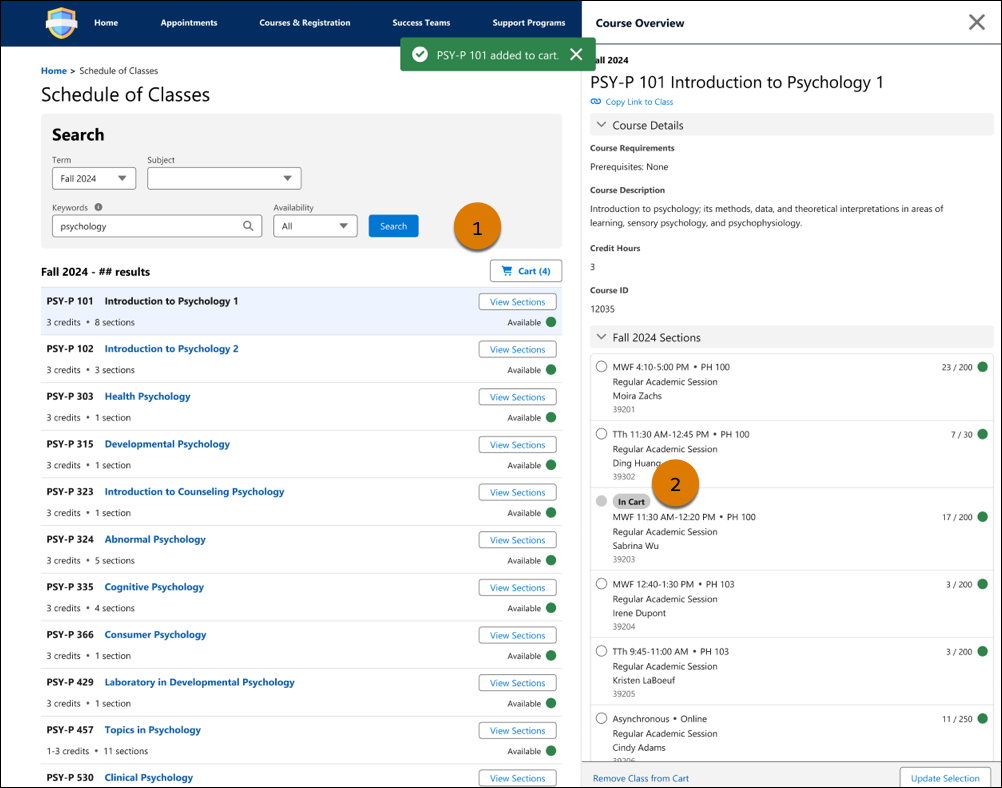
During the registration process, Education Cloud verifies whether the sections added to the cart are available, whether there are scheduling conflicts, and whether the student is eligible for each course. When their registration window opens, the student can submit their final selections for registration from the cart directly.
The student can see details of their registered sections in their academic records on the student portal. They can unenroll from a course section by removing it from their schedule, and easily manage and track their course enrollment.
After the student completes their registration, Education Cloud creates an enrollment record that's automatically updated whenever the student updates their enrollment details, making sure that enrollment data is accurate, up-to-date, and without duplicates.
Course Registration Considerations
- Course Registration automatically blocks students who have active holds from registering for courses. To make sure that Course Registration finds holds with the right restrictions, see Create Records for Restrictions in Prepare the Data for Holds.
- If there are holds on a student, or if a student is missing a prerequisite or corequisite for a course, Education Cloud keeps the affected course sections in the cart but prevents the student from enrolling in them.
- Your custom validation rules, record-triggered flows, or Apex rules on course offerings can prevent students from enrolling in courses. The error messages for the enrollment errors caused by these rules sometimes don’t specify the reasons for the error.
- Course Registration automatically checks for scheduling conflicts in the registration cart. A student receives alerts if there are time conflicts among their selected sections and waitlists in the cart, enrolled sections, and waitlists on their schedule. Automatic time conflict warnings don’t prevent the student from registering for overlapping sections.
- If you turn on time conflict enforcement, Course Registration blocks registration for overlapping sections. Time conflict enforcement is optional and reversible. See Enforce Time Conflict Validation for Registration.
