
You are here:
Model Faculty, Staff, Students, and Alumni
Use the Person Account object to model faculty, staff, students, and alumni.
| Available in: Lightning Experience |
| Available in: Enterprise, Performance, Unlimited, and Developer Editions with Education Cloud |
| User Permissions Needed | |
|---|---|
| To model faculty, staff, and students: | Education Cloud Full Access |
Faculty, staff, administrators, students, and alumni are modeled with the Person Account object, which is a standard Salesforce object. The Contact Profile object is associated with the Contact object, and allows you to track a person's biographic and demographic information such as birth date, ethnicity, first-generation student status, and other details.

When you've built your model and populated it with data, you can weave together biographic and demographic data from the Person Account object with selected data from related objects, such as the contact profile. The result is a unified student record that helps you see, understand, and serve the whole person behind the data.

Person Account Lifecycle Management
Use the Constituent Role object to record information related to a person's role.
Educational institutions serve individuals in a variety of different roles — suspects, prospects, applicants, students, faculty, staff, alumni, donors, parents, and so on. Understanding the current and past relationships that a constituent has with the institution is key to serving them properly.
The Constituent Role object is associated with the Account and Contact objects, and records information related to a person's role, so you can track and manage their association with the institution over time.
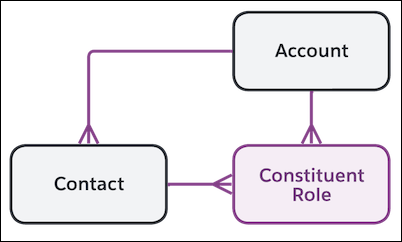
You can segment person accounts by role for reporting, record sharing, and communication purposes.
Create a Constituent Role
Use the Constituent Role object to record details about a person's role with the institution.
- From the App Launcher, find and select Constituent Roles.
- Click New.
- Select the person type, and select the person to associate with the role.
- Select the role type and status.
- Add other relevant information, and save your changes.

