
You are here:
Set Up Academic Year Record Page
Configure the record page for the academic year object in Education Cloud.
| Available in: Lightning Experience |
| Available in: Enterprise, Performance, Unlimited, and Developer Editions with Education Cloud |
| User Permissions Needed | |
|---|---|
| To set up the academic year record page: | Education Cloud Full Access |
- Create a Record Page
Create a record page for the academic year object in Lightning App Builder. - Add Components to the Record Page
Add components to the academic year record page to show details, related lists, and activity. - Finish Page Setup
Finish configuring the record page, and then activate it.
Add Components to the Record Page
Add components to the academic year record page to show details, related lists, and activity.
Add the components as shown in this template.
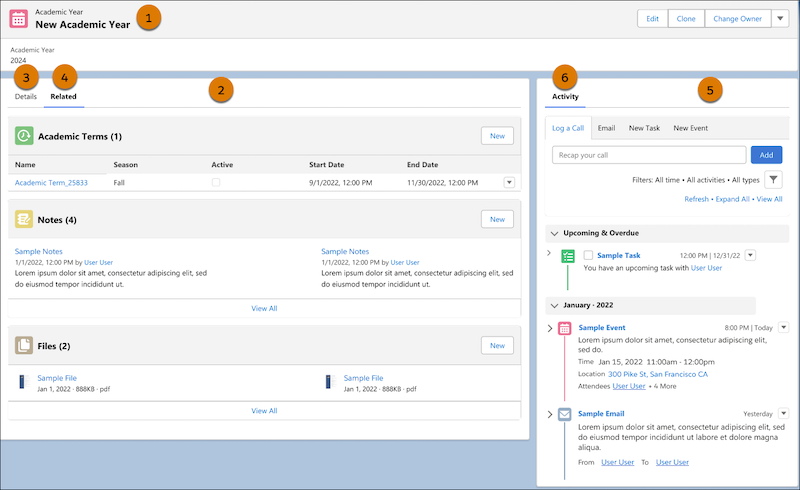
Drag the Highlights Panel component to the top section (1).
Drag the Tabs component to the left column (2).
Click Details and add the Record Detail component (3).
Click Related and add the Related Lists component (4).
Drag the Tabs component to the right column. Remove one of the tabs and change the remaining tab name to Activity (5).
Click Activity and add the Activities component (6).
After you add the components, save your changes and move on to the next section.
Finish Page Setup
Finish configuring the record page, and then activate it.
Activate the Record Page
After you configure your page, make it visible to your users. See Activate Lightning Experience Record Pages.
Edit Page Layout
To prevent duplication, we recommend that you remove Notes & Attachments from the Related Lists component.
-
From Setup, click Object Manager.
-
Select Academic Year.
-
Click Page Layouts and click Academic Year Layout.
-
Click Related Lists and remove Notes & Attachments.
-
Save your changes.
