You are here:
Create a List of Alumni
In this common use case doc, we'll show you how to identify alumni who meet certain criteria.
- Introduction
In this article, we walk you through a use case about connecting with your school's former football (the kind with hands, not feet) athletes. - Football Alumni Data: Affiliations
Let's get back to basics first. - Create a Contact & Accounts Report
Let's create our report using a standard Salesforce report, Contacts & Accounts. - Create a Cross Filter for Football Affiliations
The out-of-the-box report gives us Contacts with Accounts. - Narrow Results to Alumni Only
To narrow our list to alumni only, we simply edit the cross filter to add one more criteria. - Post Script . . .
On the eve of the publication of this article, we learned that our dear friend and colleague, Dave Perry, passed away suddenly.
Introduction
In this article, we walk you through a use case about connecting with your school's former football (the kind with hands, not feet) athletes.
We're kicking off a team fundraiser to coincide with the season's home opener, which is just a few weeks from now. We'll identify alumni who are likely supporters, based on their past participation in our beloved football team (go Panthers!). See how the head coach uses Salesforce and the Education Data Architecture (EDA) to drum up support for the team.
What you're looking for:
- A list of alumni
- Who were affiliated with the football team
To arrive at our list, we'll briefly review the use of Accounts and Affiliations in the data architecture. Then we'll set up cross filters on a Contacts & Accounts report to filter for our alumni.

Football Alumni Data: Affiliations
Let's get back to basics first.
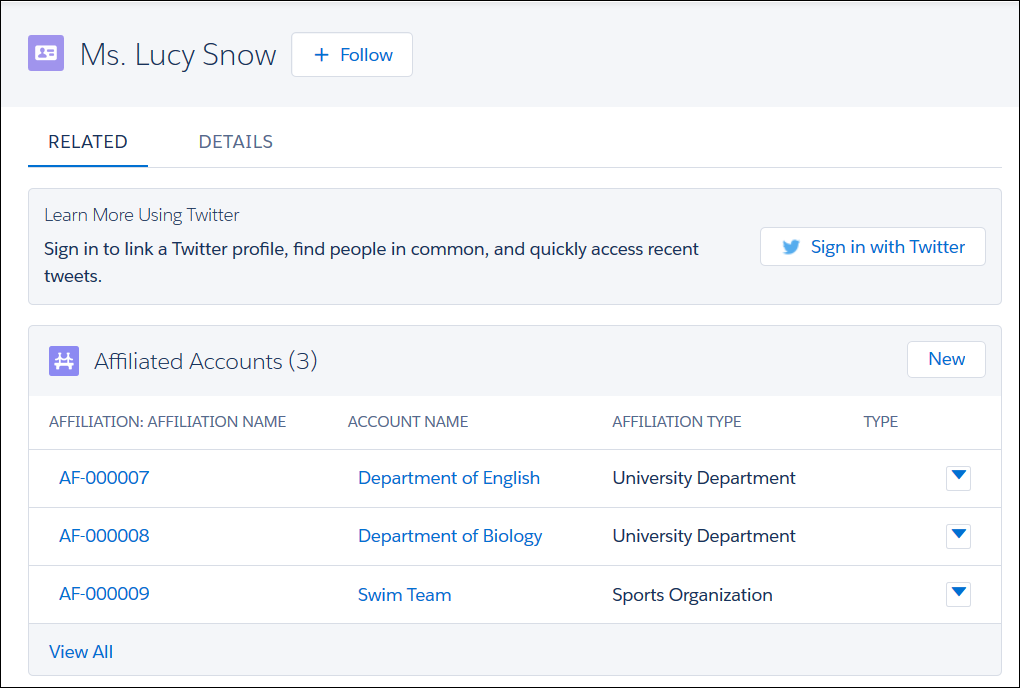
EDA represents students as Contacts, and organizations (such as academic departments, sports organizations, and even the university itself) as Accounts. An Account is connected to a Contact through an Affiliation. For example, this type of connection tells you that a student is an athlete on the swim team.
On the student's Contact record, the summary of Affiliated Accounts looks something like this:
Affiliations are a powerful organizing concept and are central to this use case. You're about to see how the Panthers' coach uses affiliations and Salesforce reports to create the list of football alumni. If you want to follow along, you'll need to first create some sample data in your org for current students, alumni, and their affiliations with the football team. For maximum efficiency, we recommend creating records in this order.
- If you previously created sample data for the Create a List of Current Students use case, you can reuse those student records. If not, create a half dozen Contact records to represent current students (you just need first and last names), and then continue with the steps here.
- Create another half dozen Contact records to represent alumni. You just need first and last names. If you want to see Contacts' addresses and email addresses in the resulting report—which you'd of course want for an actual fundraising campaign—you can also fill out those fields for a more realistic experience. You'll get the gist even if you don't.
- Create an Account record to represent the football team. Choose the Sports Organization record type.
- For at least a few of the current students, create an Affiliated Account record with Organization as the football team and Status as Current.
- For at least half of the alumni, create an Affiliated Account record with Organization as the football team and Status as Alumni.
 Note In the real world, you would likely also set the Role field to Athlete, so that you could later filter on this field to distinguish athletes from other types of team affiliations (such as coaching staff or mascots). In this use case, to save you a few clicks, we assume that Contact records that have the football team affiliation are either current or former team athletes.
Setting up this sample data is optional. If you'd rather skip the data entry, now's a great time to take a seat in the bleachers, get cozy under your stadium blanket, and spectate while our head coach gets to work identifying alumni.
Create a Contact & Accounts Report
Let's create our report using a standard Salesforce report, Contacts & Accounts.
- Click the Reports tab. (If you don't see the Reports tab, from
 , find and select Reports.)
 - Click New Report.
- Expand the Accounts & Contacts folder and select the Contacts & Accounts report type.
- Click Create. As you can see from the preview, this report works well for our purposes. It's already set up with address and other contact information that we'll need for a fundraising campaign.

Create a Cross Filter for Football Affiliations
The out-of-the-box report gives us Contacts with Accounts.
We're interested in EDA-specific Affiliated Accounts, because we're honing in on our alumni's affiliations with the football team. Adding a Cross Filter lets us narrow the list from all Contacts to our football-faithful Contacts.
- In the new, unsaved report, click the Filters drop down menu, and add a new Cross Filter.
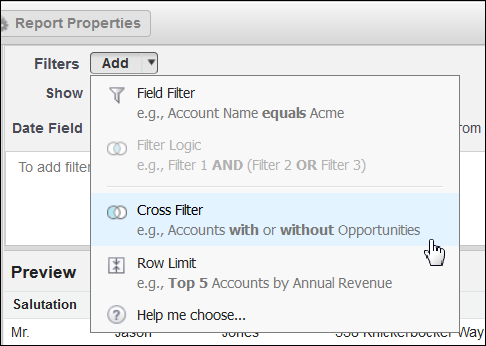
- Set the new Cross Filter to Contacts with Affiliated Accounts.
- Click Add Affiliated Accounts Filter, and add the following filters:
- Affiliation Type equals
Sports Organization - Organization equals
Football Team
- Affiliation Type equals
- Click OK. Check your filtered results in the Preview pane. Only footballers should display. Note Make sure that the report options under Filters aren't restricting your data. For example, make sure that the Show menu is set to All accounts, and the Contact: Created Date date range is set to All Time, so that your report includes all possible results, regardless of who created the records, or when.
The report shows all students who have a football affiliation, which includes past, present, and even future students (our head coach recruits high school students and transfer students to maintain a healthy pipeline of Panther prospects). For our upcoming fundraising campaign, we want to contact alumni only. So, let's narrow the results further.
Narrow Results to Alumni Only
To narrow our list to alumni only, we simply edit the cross filter to add one more criteria.
- Hover over the cross filter that you just created, and click Edit.

- Click Add Affiliated Accounts Filter, and add the following filter:
- Status equals
Alumni
- Status equals
- Click OK.
- Check your filtered results in the Preview pane. Now, only the football alumni should display. Way to go, Coach! This report gives us exactly the alumni data that we want. Just a few more yards to go before we're in the end zone.
- Click Save. Save it with a name like “Football Team Alumni” and a description to make it easy to find in a Reports folder.
- Click Save. You can return to this report over and over again, and it will update automatically with any data you add or edit.
- Click Run Report.
All done. The Panthers coach has earned some high fives for creating this football alumni report. (In this example, there are four such alumni.) Coach even made it look easy.
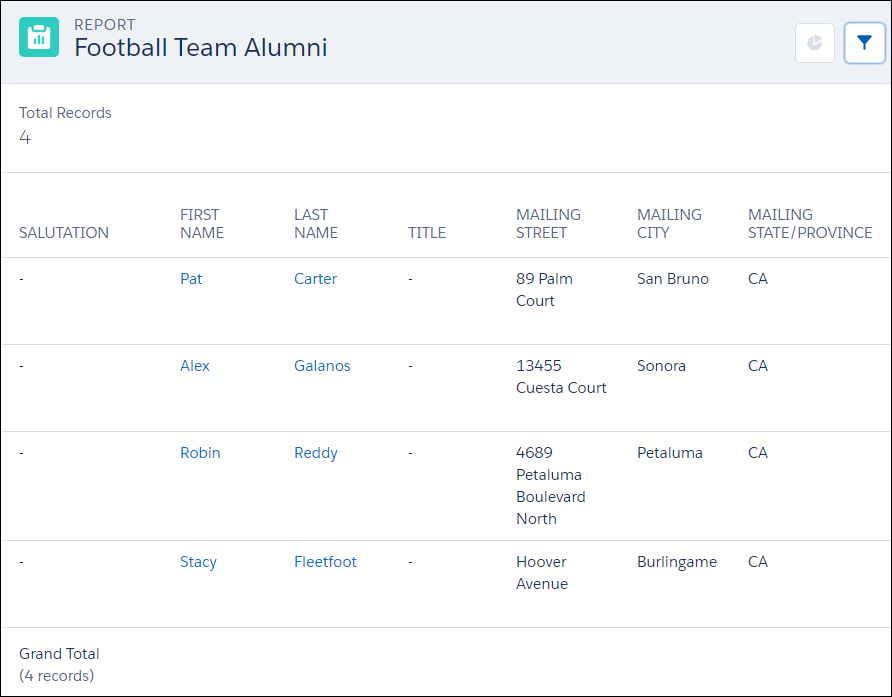
With this report in hand, Coach heads off to enlist the team's help with stuffing envelopes for the fundraising campaign. As you can see, EDA is key to another well-funded season for the Panthers, and key to cultivating connections with your alumni community.
Post Script . . .
On the eve of the publication of this article, we learned that our dear friend and colleague, Dave Perry, passed away suddenly.
Dave was not only instrumental in helping us develop these use cases, but as the Technical Architect for EDA was instrumental in the development of the architecture itself. Dave was a lover of higher ed, a lover of Salesforce, and a lover of how the two together could help make the world a better place. We would like to dedicate this use case series to Dave's memory, and know that he'd appreciate a small tribute in a piece of technical documentation probably better than anything else. Thanks for everything, Dave . . . you will be deeply missed.