You are here:
Relationship
Relationship represents a connection between two Contacts.
- Sample Uses for Relationship
The Relationship object represents Contact-to-Contact relationships. Relationship records are essential for keeping track of who's who, on or off campus, both in the present and in the past. - Configure Relationship
Set up initial Relationship data for your educational institution and learn about the required steps with each Salesforce update. - Create a Relationship Record
Capture connections between Contacts by creating Relationship records. - View Contacts' Relationship Records
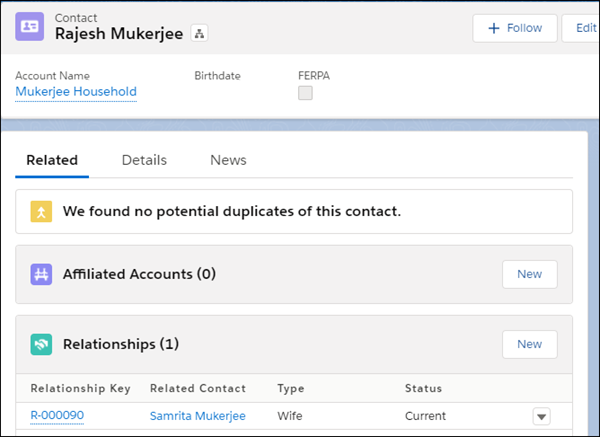
After a Contact's newly created Relationship record is saved, we can view the Contact's record to see the Related Contact in the Relationships related list. In this example, we see on Rajesh Mukerjee's Contact record his relationship with his wife, identified by Relationship record R-000090.
Sample Uses for Relationship
The Relationship object represents Contact-to-Contact relationships. Relationship records are essential for keeping track of who's who, on or off campus, both in the present and in the past.
-
Any educational institution—Track students' immediate and extended family relationships, emergency contacts, friendships, and others within their personal networks. Track their school-based relationships, such as those with advisors or counselors, tutors, and coaches. Track instructors' relationships with other instructors, staff members, administrators, community members, and so on.
-
K-12—Track whether a Contact is allowed to receive information protected by HIPAA, FERPA, or other privacy laws, regulations, and policies.
Configure Relationship
Set up initial Relationship data for your educational institution and learn about the required steps with each Salesforce update.
- Initial Configuration for Relationship
Enabling the use of Relationships requires setting up Reciprocal Relationships to manage the two-sided nature of data about Contacts' relationships with each other. The Reciprocal Relationships feature comes preconfigured with default settings, but it's common for institutions to customize them to track different Contacts' roles in Relationships, or to use a different reciprocal method. - Keep Up with Relationship Updates
Consider these updates, depending on which version of Education Data Architecture you originally installed.
Initial Configuration for Relationship
Enabling the use of Relationships requires setting up Reciprocal Relationships to manage the two-sided nature of data about Contacts' relationships with each other. The Reciprocal Relationships feature comes preconfigured with default settings, but it's common for institutions to customize them to track different Contacts' roles in Relationships, or to use a different reciprocal method.
It's essential to understand how to manage Relationship data and configure related settings. Review these resources to make sure you have the full picture.
-
Various Table-Driven Trigger Management (TDTM) rules control the creation, update, and deletion of Relationship records and related records. Review the classes affecting the Relationship object in Apex Class Descriptions for EDA.
Keep Up with Relationship Updates
Consider these updates, depending on which version of Education Data Architecture you originally installed.
| If Installed Before Version | Configuration Task |
|---|---|
| 1.111 | In the existing Husband and Wife reciprocal settings, change Spouse to Partner.
|
|
Add these picklist values to the Type field, as needed: Guardian, Dependent, Stepfather, Stepmother, Stepparent, Stepdaughter, Stepson, Stepchild, Foster Parent, Foster Daughter, Foster Son, Foster Child. |
Add these picklist values to the Type field, as needed: Parent's Sibling; Niece; Nephew; Sibling's Child.  Note This update is required to avoid Settings Health Check reporting errors for not finding these values. |
Create a Relationship Record
Capture connections between Contacts by creating Relationship records.
-
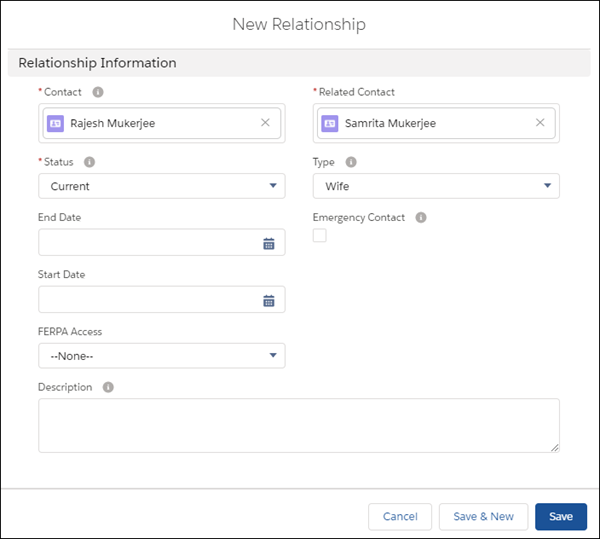
From the Contact record that you're creating the Relationship from, click New in the Relationships related list.
-
Enter relevant details, noting these fields in particular.
-
Contact—Filled in automatically with the name of the Contact whose record you started from.
-
Related Contact—Start typing the name of the person who has a relationship to the Contact, and select it if you see it suggested. If the Contact doesn't exist yet, click New Contact to create their record now.
-
Type—The kind of relationship, as described from the Related Contact's point of view. It can help to think of completing the sentence, <Related Contact> is the <Type> of <Contact>. In this example, Samrita Mukerjee is Rajesh Mukerjee's wife.
-
Status—Current or Former.
-
- Click Save.
View Contacts' Relationship Records
After a Contact's newly created Relationship record is saved, we can view the Contact's record to see the Related Contact in the Relationships related list. In this example, we see on Rajesh Mukerjee's Contact record his relationship with his wife, identified by Relationship record R-000090.
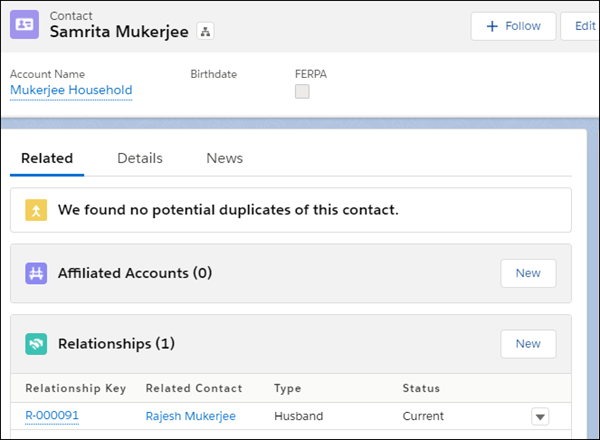
The Reciprocal Relationship is created automatically when the Relationship record is saved. We can view the Contact record of the Related Contact to see the Relationship represented in the other direction. In this example, we see on Samrita's Contact record, in the Relationships related list, that Rajesh is her husband, identified by a different Relationship record R-000091.