
You are here:
Create an Action Plan Template
An Action Plan Template is the blueprint for an Action Plan. Create an Action Plan Template and define Tasks, Document Checklist Items, or a combination of both.
- Create the Template
Create an Action Plan Template to which you can add Tasks and Document Checklist Items. - Add Tasks
Tasks are actions a grantmaker takes, similar to a to do list. For example, collecting supporting documentation about a grantseeker, such as their Form 990s, could be added as a Task. - Add Document Checklist Items
Document Checklist Items allow grantmakers to define what documentation to collect and evaluate as part of the verification process about a grantseeker. - Publish the Action Plan Template
Publish the Action Plan Template so your grantmakers can create an Action Plan using the new template.
Create the Template
Create an Action Plan Template to which you can add Tasks and Document Checklist Items.
-
From the App Launcher (
 ), find and select Action Plan Templates.
 -
Click New.
-
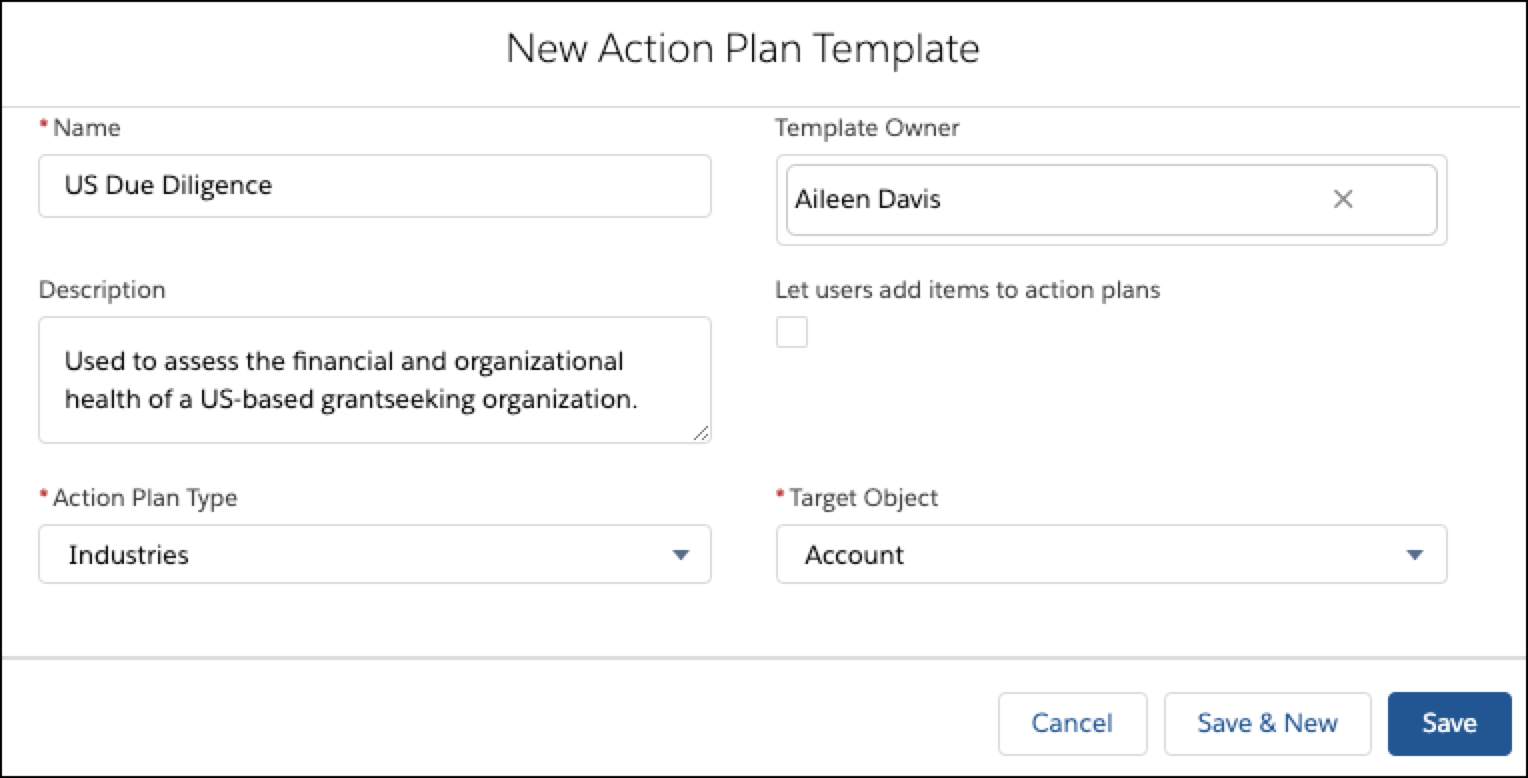
Enter a Name for your template. For example, US Due Diligence.
-
Optionally, enter a Description.
-
Leave Industries selected as the Action Plan Type.
-
Select a Template Owner. This defaults to the creator of the Action Plan Template.
-
If you want users to add their own Tasks and Documentation Checklist items to Action Plans they create, select Let users add items to action plans.
 Note Allow users to delete files from a Document Checklist item by updating Change Item Deletion Settings.
 -
Select a Target Object, which is where the Action Plan will show up. For example, Account.
-
Click Save.
Add Tasks
Tasks are actions a grantmaker takes, similar to a to do list. For example, collecting supporting documentation about a grantseeker, such as their Form 990s, could be added as a Task.
-
From the Action Plan Template, select New Task.
-
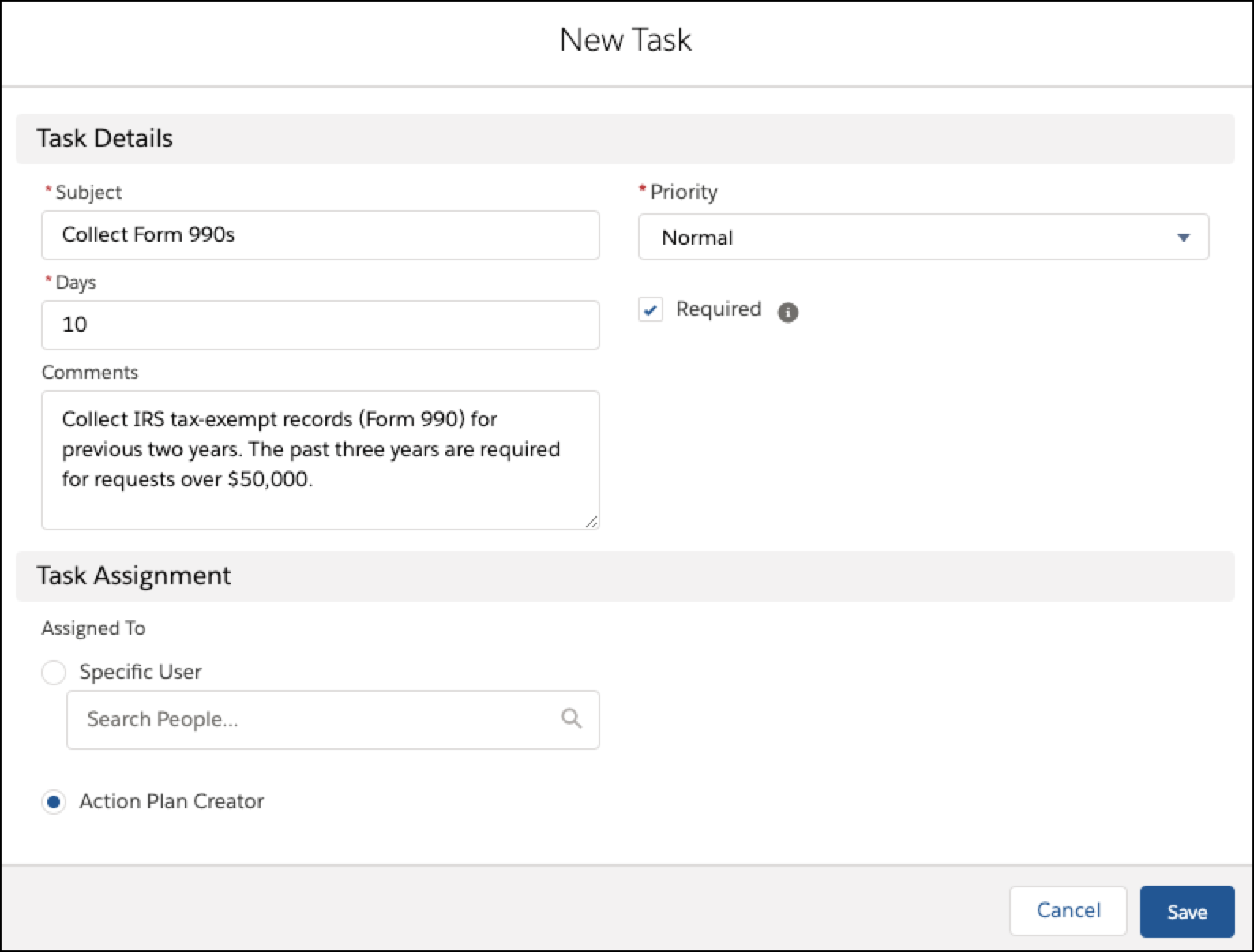
Enter a Subject. For example, Collect IRS tax-exempt records (Form 990) for the previous two years.
-
Enter the number of Days that the Task is to be completed by. For example, 10.
-
Optionally, enter Comments about the Task.
-
Select a Priority. Medium is selected by default.
-
To make this a mandatory task, select Required.
-
Assign the task to either Specific User or the Action Plan Creator. Assigning the Task to a specific user means that the user will always own that Task, even if they didn’t create the Action Plan.
-
Click Save.
-
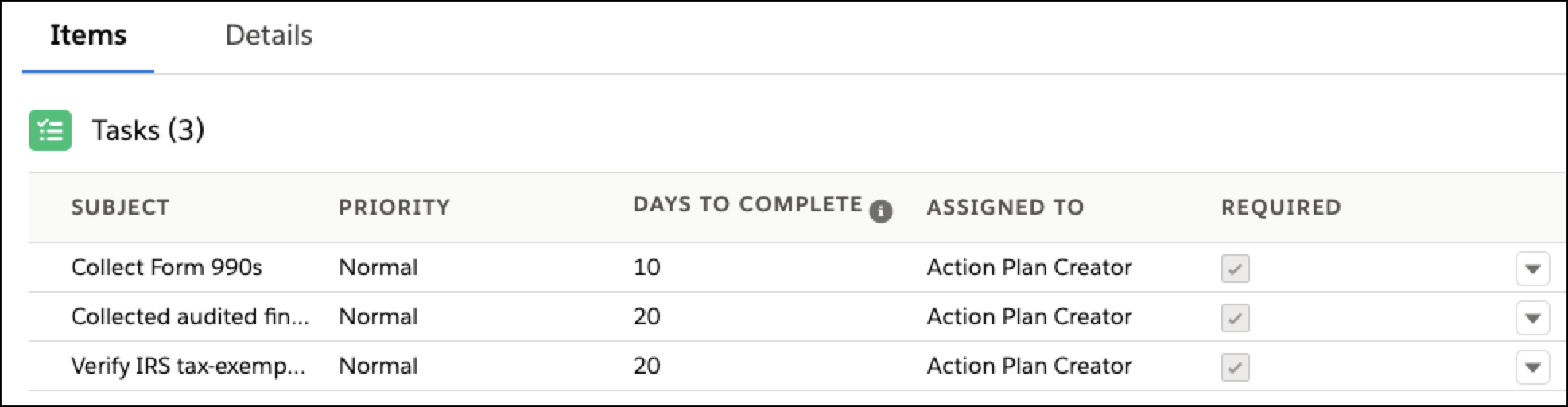
Continue to add as many Tasks as needed.
Add Document Checklist Items
Document Checklist Items allow grantmakers to define what documentation to collect and evaluate as part of the verification process about a grantseeker.
-
From the Action Plan Template, click New Document Checklist Item.
-
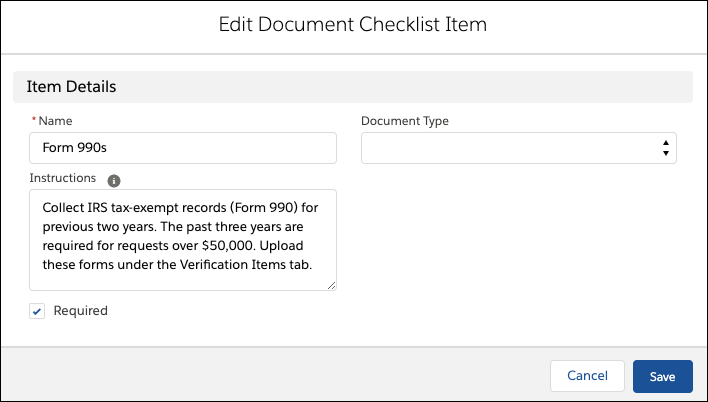
Enter a Name. For example, Form 990s.
-
If you have additional instructions, add them.
-
To make the Document Checklist Item mandatory, select Required.
-
Click Save.
-
Continue to add as many Document Checklist Items as you need.

Publish the Action Plan Template
Publish the Action Plan Template so your grantmakers can create an Action Plan using the new template.
-
From the Action Plan Template, click Publish Template.
-
Click Publish.
