
You are here:
Create or Modify a Flow
Create a flow or modify the Create Application flow to suit your nonprofit organization’s needs.
- Create a New Flow
You may need to create a new flow. The Create Application and Submit Application flows are available as templates, so you can experiment with creating your own flows without making changes to the active flows. - Modify the Flow
provides out-of-the-box flows, but certain steps may need to be added, updated, or removed to fit your process.
Create a New Flow
You may need to create a new flow. The Create Application and Submit Application flows are available as templates, so you can experiment with creating your own flows without making changes to the active flows.
-
Click
 , then click Setup.
 -
Enter Flows in the Quick Find box, then click Flows.
-
Click New Flow.
-
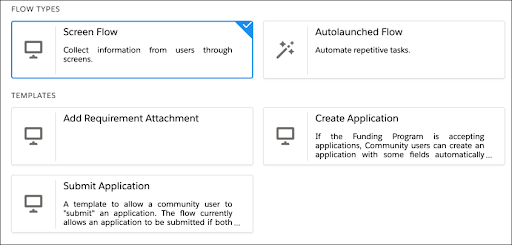
Select a template to use an existing flow or Screen Flow to start a new flow from scratch.
-
Click Create.
From here, build a flow tailored to your organization’s needs. We recommend reviewing Build a Flow in Salesforce Help for details on creating flows.
Modify the Flow
provides out-of-the-box flows, but certain steps may need to be added, updated, or removed to fit your process.
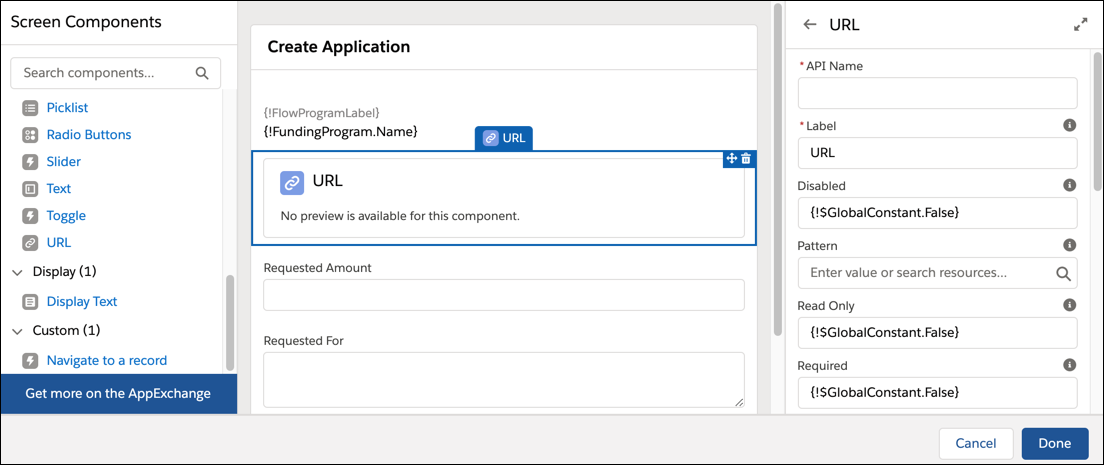
For example, you may need to make a simple change to an existing flow and add a URL to your website on the application screen in the Create Application flow. This is an easy addition to make to the existing flow.
-
Click
, then click Setup. -
Enter Flows in the Quick Find box, then click Flows.
-
Select a Flow. For example, Create Application.
-
Double click Screen: Fill out Application.
-
Select URL from the Screen Components list, then drag it to the Create Application screen.
-
Click Done.
-
Click Save As.
