
You are here:
Invite a Grantseeker to Apply
Ask grantseekers to apply for a Funding Request.
- Update the Email Template
Grants Management has two email templates to invite grantseekers to apply for funding. Both templates are tailored to clearly communicate a different milestone in the funding process. - Invite a Grantseeker
The Six Sides Fund, our fictitious foundation, recently connected with the Portree Arts Council's grant manager, Ali Celik. The Six Sides Fund thinks their Art at Any Age program is a great fit for the Community Impact Funding Program. The Portree Arts Council is a new nonprofit to the Six Sides Fund so this is the first time they will be applying for funding.
Update the Email Template
Grants Management has two email templates to invite grantseekers to apply for funding. Both templates are tailored to clearly communicate a different milestone in the funding process.
These templates are prefilled with fictitious information and should be updated to reflect your organization’s information.
| Template Name | Purpose |
|---|---|
| Applicant Invitation | Communicates to a grantseeker that they are invited to apply to a Funding Program. |
| Submit Application Confirmation | Communicates to a grantseeker their application is submitted for review. |
-
Click
 , then click Setup.
 -
Enter Email in the Quick Find Box, then select Classic Email Templates.
-
Select Grantee Portal from the Folder dropdown.
-
To update the subject line, click Edit next to the email template name. Make your updates, then click Save.
-
To update the body of the template, click the email template name. For example, Applicant Invitation.
-
Click Edit Template.
-
Make updates, then click Save.
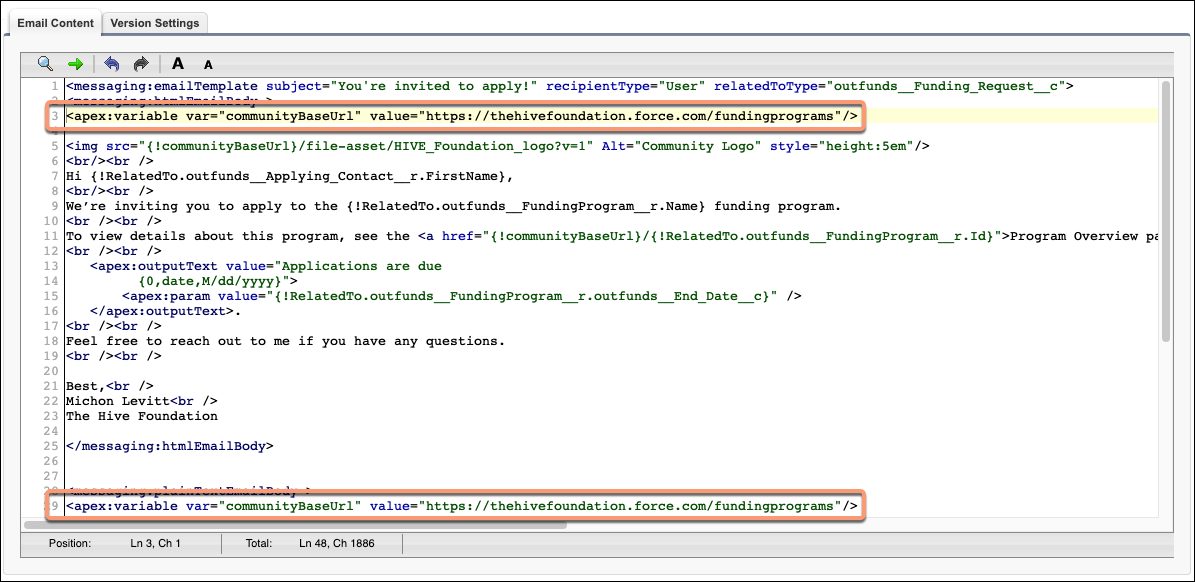
 Note Remember to update the fictitious information in both the HTML email and plain text email text, and make sure to add your site URL to the template.
Invite a Grantseeker
The Six Sides Fund, our fictitious foundation, recently connected with the Portree Arts Council's grant manager, Ali Celik. The Six Sides Fund thinks their Art at Any Age program is a great fit for the Community Impact Funding Program. The Portree Arts Council is a new nonprofit to the Six Sides Fund so this is the first time they will be applying for funding.
A few things need to happen before a grantmaker can invite Ali to apply.
First, a Contact record with an email address needs to exist for the grantseeker as well as an Account record for the organization. Since Ali is a new grantseeker, the grantmaker creates a Contact record for him and an Account record for Portree Arts Council.
Next, a Funding Request needs to be created for the program. The grantmaker creates a Funding Request for the Art at Any Age program. The grantmaker completes all necessary fields, verifies that the site for the invitation has been published and is active, and then selects Ali’s Contact record as the Applying Contact and the Portree Arts Council as the Applying Organization.
Once the Funding Request is created, the Invite Applicant button displays.
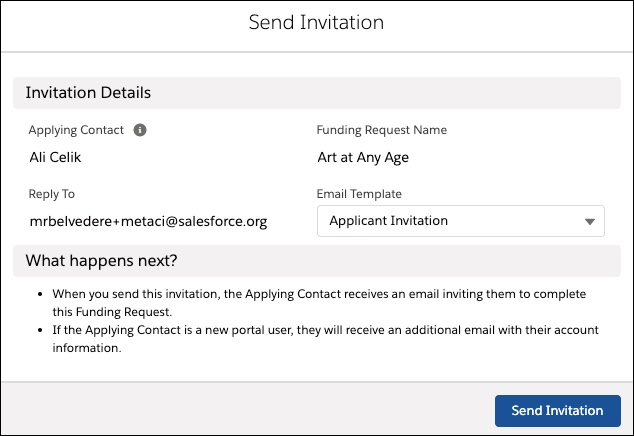
Click Invite Applicant.
Click Send Invitation.
When the invitation is sent, the Funding Request record ownership transfers to Ali, and he receives a community user account log in to the Six Sides Fund's portal. Ali can log in and complete the Funding Request.
