
You are here:
Manage Requirements
Learn how to create and complete requirements in Grant Management.
- Create a Requirement
Requirements allow organizations to track deliverables or milestones on a Funding Request before it’s approved or closed. - Complete a Requirement
Let’s take a look at how a grantee completes a Requirement. After logging in to the grantee portal, the grantee navigates to My Applications and selects the Funding Request she submitted.
Create a Requirement
Requirements allow organizations to track deliverables or milestones on a Funding Request before it’s approved or closed.
For example, you may require quarterly progress reports from grantees to see how awarded funds are being used. You can create these as Requirements. Grantees can provide Requirements updates directly in the portal, which enables grantmakers to easily manage and track these progress reports.
While viewing a Funding Request, click the Requirements related list.
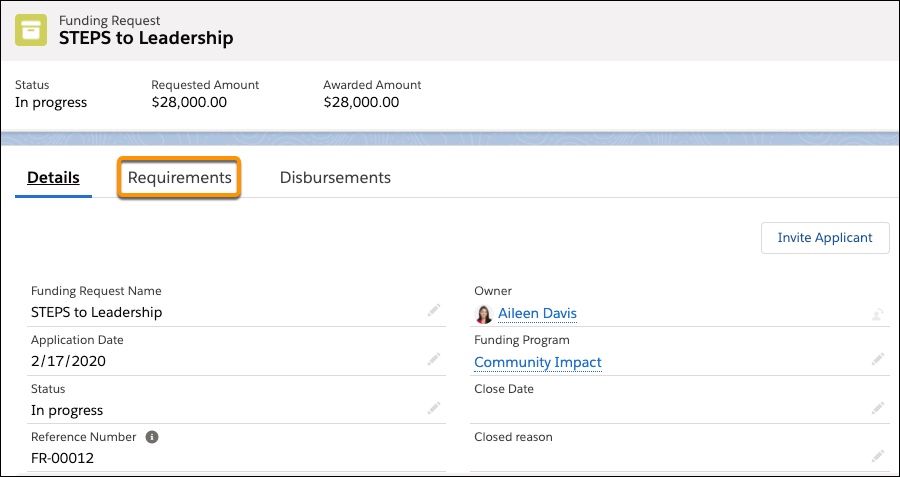
Click New.
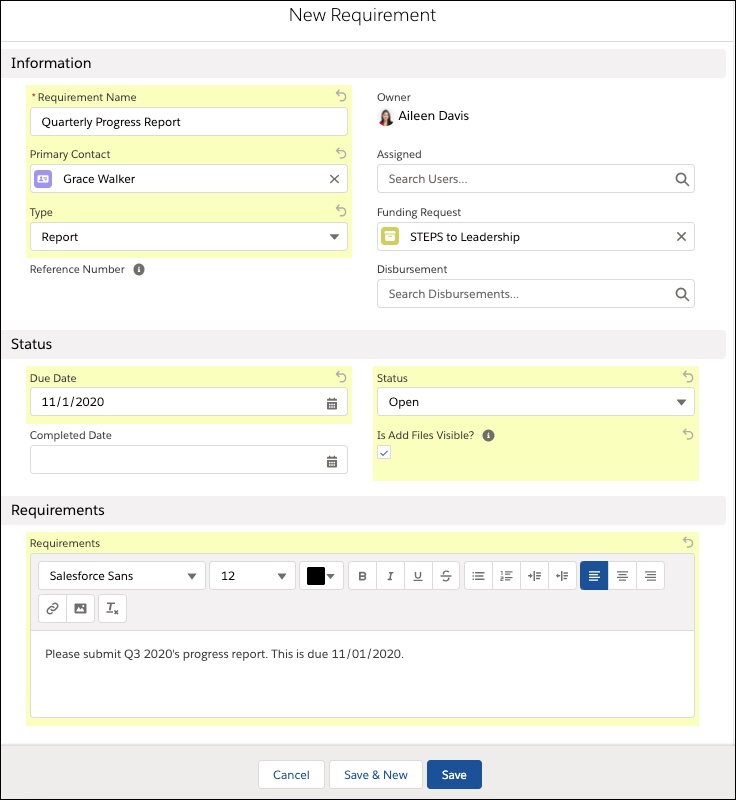
Enter a Requirement Name. For example, Quarterly Progress Report.
Select a Primary Contact.
Select a Type.
Next to Assigned, search for and select the grantseeker user.
If a disbursement has been made, select or add it from Disbursement.
Enter a Due Date. This is when the Primary Contact is required to submit their Requirement information.
If completed, enter a Completed Date.
Select a Status.
Select Is Add Files Visible? to allow a grantseeker to upload files to the Requirement. A grantseeker won’t be able to upload files to the Requirement if this isn’t enabled.
Optionally, enter additional information in Requirements.
Click Save.
Repeat for as many Requirements as needed.
Complete a Requirement
Let’s take a look at how a grantee completes a Requirement. After logging in to the grantee portal, the grantee navigates to My Applications and selects the Funding Request she submitted.
The grantee scrolls down to the Requirements section and clicks Quarterly Progress Report. This is the Requirement that was created in Create a Requirement Record to see how things are going with the grantee's leadership program.
This opens the Requirement record where the grantee can now upload attachments. The grantee clicks Upload Files then selects their progress report file. They made great strides this month, and they are excited to update the foundation. They even add an additional attachment—a group photo from one of the leadership training sessions!
The grantee clicks Submit then Submit to send their report to the foundation. At this point, the grantee is no longer able to make updates to the Requirement.
Back on the Funding Request record, the grantmaker clicks Requirements and sees Quarterly Progress Report is in Complete status. They click Quarterly Progress Report then clicks Files to see the grantee's attachments.

