
You are here:
Configure Contacts' Email Addresses and Phone Numbers
Manage email and phone settings for Contacts in EDA.
- Email Address and Phone Fields—Preconfigured and Custom Options
EDA provides preconfigured email fields and phone fields to track a Contact's email addresses and phone numbers. - How Email and Phone Fields Interact with Standard Contact Fields
Because the standard K-12 Architecture Kit email and phone fields give you finely grained control over managing Contacts' data, the standard Email and Phone fields don't show on K-12 Architecture Kit page layouts. - Configure Preferred Email and Phone Settings
By default, all Contacts must have a Preferred Email and Preferred Phone, but you can change the defaults in EDA Settings from Contact Information under People and Groups. - Configure Translation for Preferred Phone or Preferred Email Picklist Values
If you started using EDA with version 1.89 or later, and Preferred Phone and Preferred Email are enabled in your org, and your Contact page layouts use only the preconfigured Phone and Email fields, then no changes are needed to translate Preferred Phone and Preferred Email picklist values in the languages supported by EDA.
Email Address and Phone Fields—Preconfigured and Custom Options
EDA provides preconfigured email fields and phone fields to track a Contact's email addresses and phone numbers.
-
Email fields
- University Email
- Work Email
- Alternate Email
- Preferred Email—Designates which field is the Contact's preferred address for communications
-
Phone fields
-
Home Phone
-
Work Phone
-
Mobile
-
Other Phone
-
Preferred Phone—Designates which field is the Contact's preferred phone number for communications
-
If you need to track additional data, you can augment these fields with your own custom fields by adding your custom field's Field Label to the Preferred Email field or Preferred Phone field as a picklist value. Also make sure that the picklist value's label and API name match exactly. Any mismatches can cause errors when saving a custom email or phone as the Contact's Preferred Email or Preferred Phone.
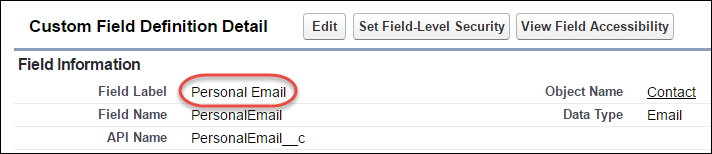
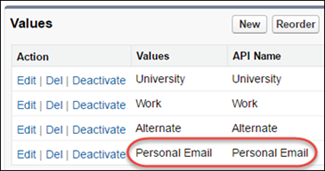
For more information about creating custom fields and picklist values. See Add Custom Fields and Picklist Values.
How Email and Phone Fields Interact with Standard Contact Fields
Because the standard K-12 Architecture Kit email and phone fields give you finely grained control over managing Contacts' data, the standard Email and Phone fields don't show on K-12 Architecture Kit page layouts.
Just because they're hidden, though, doesn't mean that they're not important. You might be using those fields, and the Salesforce platform still relies on them for emailing or calling Contacts. When you install K-12 Architecture Kit, here's how we keep all the email addresses and phone numbers in sync.
- If a Contact's standard Email or Phone field has a value and
custom fields (if any) don't have values, K-12 Architecture Kit copies the value from
the standard field to the Alternate field and sets the Preferred Email to Alternate or sets
the Preferred Phone to Other.
 Note If you've overridden the label of the Alternate email field in the Translation Workbench (for example, changed it to Personal Email), make sure that you also update its corresponding picklist value in the Preferred Email field on Contact. Remember to update both the picklist value label (Personal Email) and the API name (Personal Email) for your newly named Personal Email field, and make sure they match exactly.
 - If a Contact's standard Email or Phone field has a value and one or more custom email or phone fields also have values, K-12 Architecture Kit sets the Preferred Email or Preferred Phone field to the standard setting.
- If a Contact's standard Phone field has no value and one or more custom phone fields do have values, you can select a field for Preferred Phone. In EDA Settings, under , select a value from the Default Preferred Phone picklist.
- If a Contact has a single email or phone value in a field other than standard Email or standard Phone, K-12 Architecture Kit sets that field as the Preferred Email or Preferred Phone and copies the value to the standard field.
- If a Contact's standard Email or Phone field is blank and other email or phone fields are also blank, K-12 Architecture Kit leaves Email or Phone blank. Whenever you add one or more email addresses or phone numbers to a Contact, the Preferred field is required—you must select one of the fields (preconfigured or custom) that has a value. K-12 Architecture Kit then takes your selected Preferred Email or Preferred Phone and copies it to the standard field.
For information about the preconfigured phone fields and other settings, see Configure Preferred Email and Phone Settings.
Configure Preferred Email and Phone Settings
By default, all Contacts must have a Preferred Email and Preferred Phone, but you can change the defaults in EDA Settings from Contact Information under People and Groups.
Enable Preferred Email or Preferred Phone for the First Time
If your org doesn't currently require Contacts to have a Preferred Email or Preferred Phone and you start requiring them, after enabling the requirement, run the Preferred Email and Preferred Phone Apex job from System Tools under System in EDA Settings. The job:
-
Ensures that a standard or custom email address or phone number is set as a Contact's Preferred value.
-
Ensures that when a Contact has only standard Email Address or Phone Number records, those values are copied to the Alternate email or Other phone field and the Preferred Email is set to Alternate or the Preferred Phone is set to Other.
This Apex job works only if:
- Enhanced Preferred Phone Functionality is selected
- Require Preferred Phone is not selected
- The CON_PreferredPhone_TDTM trigger handler is enabled
Update Preferred Email and Phone Field Names and Picklist Values
If you started using K-12 Architecture Kit before version and Preferred Phone and Preferred Email are enabled in your org, your preconfigured Preferred Email and Preferred Phone picklist values won't match the updated versions. In this case, if you want to match your pre-1.89 field labels to the updated versions (for example, to fix failing unit tests or to use translations), add these new picklist values to the Preferred Phone and Preferred Email fields on Contact. If you're not sure which version of K-12 Architecture Kit you started with, see Find the Release Version.
| Pre- Preferred Phone Picklist Name | New Picklist Name |
| Home | Home Phone |
| Work | Work Phone |
| Mobile | Mobile Phone |
| Other | Other Phone |
Pre- Preferred Email Picklist Name |
New Picklist Name |
| University | University Email |
| Work | Work Email |
| Alternate | Alternate Email |
Change Default Syncing Rules
If the default syncing rules aren't compatible with your existing integrations or other business processes, you can change them from Contact Information under People and Groups in EDA Settings.
With the initial release of the Preferred Phone functionality in EDA version 1.82, we also introduced the CON_PreferredPhone_TDTM trigger handler, which ensures that the value in the Preferred Phone field is always synced to the standard Phone field. CON_PreferredPhone_TDTM is enabled by default.

-
To use the Enhanced Preferred Phone Functionality to validate that the field selected for Default Preferred Phone has a value, but to remove the requirement for a Contact to have a Preferred Phone, turn on Enhanced Preferred Phone Functionality and turn off Require Preferred Phone.
- To choose which Phone field syncs with Preferred Phone when the standard Phone field has no value or when more than one Phone field has values, choose from the Default Preferred Phone picklist.
While you can manage the Preferred Phone functionality by disabling this trigger handler, we strongly recommend that you manage Preferred Phone from EDA Settings, instead. Using the Enhanced Preferred Phone Functionality setting ensures that the trigger handler receives future updates, which won't happen if you specify that the trigger handler is user managed.
Configure Translation for Preferred Phone or Preferred Email Picklist Values
If you started using EDA with version 1.89 or later, and Preferred Phone and Preferred Email are enabled in your org, and your Contact page layouts use only the preconfigured Phone and Email fields, then no changes are needed to translate Preferred Phone and Preferred Email picklist values in the languages supported by EDA.
However, if either of the following conditions exist, make the following changes to translate Preferred Phone and Preferred Email picklist values correctly.
-
If you started using EDA before version 1.89 and Preferred Phone and Preferred Email are enabled in your org, update your Preferred Phone and Preferred Email fields and picklist values as described in Update Preferred Email and Phone Field Names and Picklist Values, then configure translation as follows.
-
Regardless of when you started using EDA, if Preferred Phone and Preferred Email are enabled in your org and your Contact page layouts use any fields other than the preconfigured fields (you use custom fields or fields that aren't listed in Configure Contacts' Email Addresses and Phone Numbers ), configure translation for Preferred Phone and Preferred Email picklist values as follows.
- Click
 , then click Setup.
 -
Search for then select Translation Workbench | Translation Language Settings and ensure the chosen language is active. If you need to add a language, do so now.
-
In Translation Workbench, select Translate.
-
Specify the Language you're translating to (in our example, Spanish).
-
From Setup Component, select Picklist Value.
-
From Object, specify Contact.
-
-
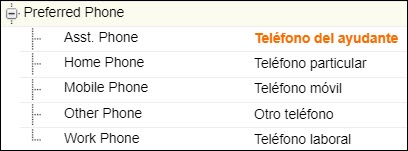
From the page layout that contains the non-standard field in the language to be translated to (in our example, Spanish), copy the label of the field (Teléfono del ayudante).
-
In Translation Workbench, under Picklist Value Label Translation, paste the label of the field and click Save.
-
If you created new fields and picklist values as described in Update Preferred Email and Phone Field Names and Picklist Values, repeat these steps for each new field you created.
