You are here:
Acknowledge Donations by Email
Nonprofit Success Pack lets you send an acknowledgment email to a donor from a specific Opportunity record, or send multiple email acknowledgments simultaneously from the Opportunities tab.

When donations come through and you mark the Opportunities as Closed/Won, it's cause for celebration! After you're done throwing confetti, it's time to thank your donors. Nonprofit Success Pack lets you quickly and easily email your donors a custom thank you message, tracks who has been acknowledged, and the date the acknowledgment was sent.
- Email an Acknowledgment for a Single Opportunity Record
Nonprofit Success Pack makes it easy for you to email an acknowledgment for a single donation (Opportunity record). - Email Acknowledgments for Multiple Opportunity Records
Nonprofit Success Pack also supports sending acknowledgment emails for multiple Opportunity records at once.
Email an Acknowledgment for a Single Opportunity Record
Nonprofit Success Pack makes it easy for you to email an acknowledgment for a single donation (Opportunity record).
-
Navigate to the Opportunity detail page.
-
Verify that the Primary Contact field lists the Contact you want to thank.
-
Click
 , then select Email Acknowledgment.
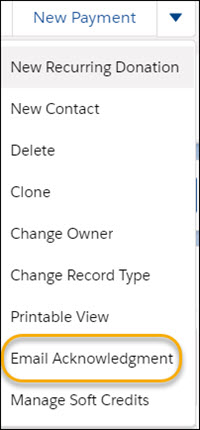
When you select Email Acknowledgment, NPSP takes the following actions:
- Sets the Acknowledgment Status field to Email Acknowledgment Now.
- Triggers the email workflow rule that emails the Primary Contact on Opportunities whose Acknowledgment Status is Email Acknowledgment Now.
- If the email is successfully sent, sets the Acknowledgment Status to Acknowledged and the Acknowledgment Date to the current date.
-
If the email send fails, sets the Acknowledgment Status to Email Acknowledgment Not Sent.
-
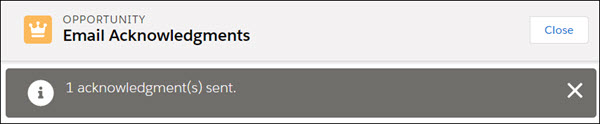
Displays the Email Acknowledgment Results page:
Email Acknowledgments for Multiple Opportunity Records
Nonprofit Success Pack also supports sending acknowledgment emails for multiple Opportunity records at once.
-
Click the Opportunities tab.
-
Select the To Be Acknowledged list view. NPSP displays all Opportunities whose Acknowledgment Status is To Be Acknowledged.
-
From the list view, select the Opportunities you'd like to acknowledge. You can select all by selecting the checkbox on the column header.
Note If you're not able to select any Opportunities, add a list view filter: Opportunity Record Type = Donation. See Edit List View Filters in Lightning Experience for more information. -
Click Email Acknowledgments.

When you click Email Acknowledgments, NPSP takes the following actions:
- Sets the Acknowledgment Status Field to Email Acknowledgment Now for the selected Opportunities.
- Triggers the workflow rule that emails the Primary Contact on Opportunities whose Acknowledgment Status is Email Acknowledgment Now.
- Sets the Acknowledgment Status to Acknowledged and the Acknowledgment Date to the current date for successful acknowledgments.
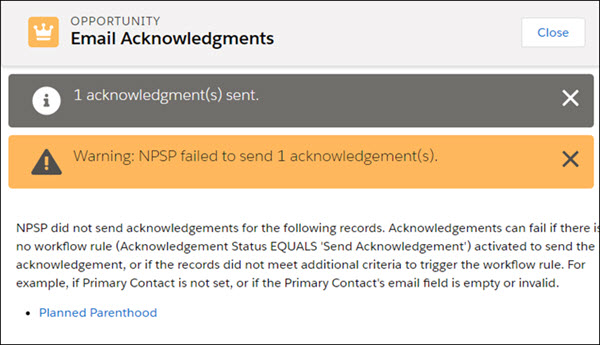
- Sets the Acknowledgment Status to Email Acknowledgment Not Sent for any failed acknowledgments.
-
Displays the Email Acknowledgments Results page: