
You are here:
Create Allocations for Campaigns
Find out more about creating allocations for campaigns.
- Create Allocations
When you specify allocations for a Campaign, NPSP automatically allocates the donation accordingly for every new Opportunity assigned to the Campaign. - Modify Allocations
Change an allocation on a Campaign. - Considerations for Allocations on Campaigns
There are a few important things to remember about GAU Allocations and Campaigns.
Create Allocations
When you specify allocations for a Campaign, NPSP automatically allocates the donation accordingly for every new Opportunity assigned to the Campaign.
Use the Manage Allocations button on a Campaign's GAU Allocations Related tab to create and manage allocations for your Campaigns.
- Open the Campaign for which you want to create allocations.
- Click the Related tab.
- In the GAU Allocations related list, click Manage Allocations.
- Enter the name of the GAU to which you want to assign the
donation.
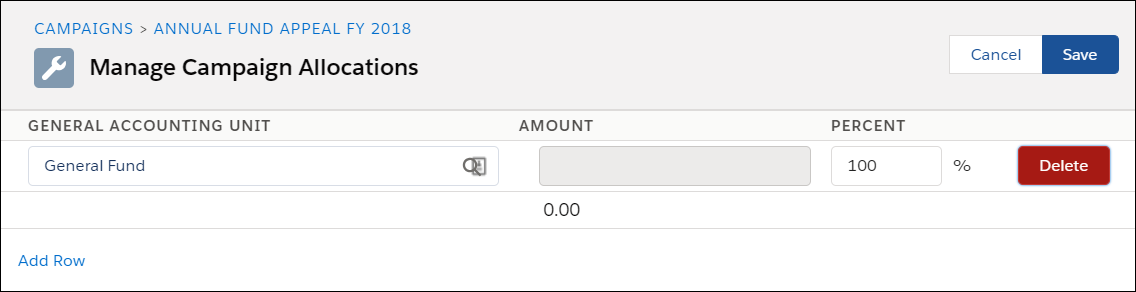
- Enter either the amount or the percent of the donation you want to place in that GAU.
- To allocate the donation into additional GAUs, click Add Row.
- To delete an allocation, click Delete.
- Click Save when done allocating.
See Also:
Modify Allocations
Change an allocation on a Campaign.
- Open the Campaign that contains the allocation you want to change.
- Click the Related tab.
- In the GAU Allocations related list, click Manage Allocations.
- Change the allocation as necessary. You can change the name of the GAU, change the amount being allocated, change from a dollar amount to a percentage of the donation, add additional allocations or delete allocations.
- Click Save when done allocating.
See Also:
Considerations for Allocations on Campaigns
There are a few important things to remember about GAU Allocations and Campaigns.
- New Opportunities assigned to a Campaign with Allocations automatically receive those Allocations.
- Campaigns are NOT automatically allocated to the default General Accounting Unit, but if you enter Opportunities into a Campaign and those Opportunities are for more than the Campaign's defined Allocation, then Salesforce will allocate the unallocated amount to the default GAU. If you've enabled default Allocations and run the Batch Create Default Allocations process, then Salesforce assigns all unallocated amounts in Campaign Opportunities to the default GAU.
- When the amount on an Opportunity with an associated Campaign is updated from null to a value, Allocations are now created based on the Campaign's General Accounting Unit (GAU), instead of the Default Allocation GAU.
- Adding a new, modifying, or deleting an existing Allocation of a Campaign only affects new Opportunities entered into the Campaign. It does NOT change any Opportunities you previously entered.
- You can define both amount and percent-based Allocations for Campaigns. Percent-based Campaign allocations will not calculate an amount, as the amount is based on the amount of the opportunity entered into the campaign.
- If Campaign allocations exceed the amount of the Opportunity, Salesforce only creates percent-based Allocations. For example, if a Campaign has two Allocations, one for $10 and one for 50% of the donation amount, and a new Opportunity is added for $5, Salesforce creates the 50% Allocation but not the $10 Allocation, as creating both would exceed the amount of the Opportunity.
- An Opportunity with both a Campaign and a Recurring Donation will prioritize allocations from the Recurring Donation.
- Assigning a Campaign to or removing a Campaign from an existing Opportunity does NOT modify the Opportunity's allocations.
See Also:
Did this article solve your issue?
Let us know so we can improve!
