
You are here:
Automated Soft Credits
Configure NPSP to create soft credits automatically.
You can assign a soft credit manually, which is great for the occasional one-off situation. But what if you routinely need to assign soft credits for certain types of donations?
Fortunately, you can configure NPSP to create soft credits automatically. The most common example is the Household soft credit. When one member of a household makes a donation, all other members of that household automatically get a soft credit. This gives you a well-rounded picture of each person's contributions to your organization.
Many organizations get by just fine with only Household soft credits. But some organizations have scenarios that require a little more attention. Depending on the kind of organization you work for, you might have to accommodate donor advised funds, memorial gifts, planned giving, board members, major donor portfolios, giving circles, crowdfunding, peer-to-peer fundraising, and much more. In many of these cases, you need to assign soft credits to one or more people, such as a board member, members of a family foundation, or simply relatives who don't live in the same household. Let's look at a few examples.
- Gabriela is a board member with Universal Containers, a large shipping company. She is a vocal proponent of corporate philanthropy and environmental stewardship. She contacts Friends of Buena Vista Bay and makes a commitment that Universal Containers will reduce their non-recycleable waste by 15%. She also pledges a $50,000 corporate sponsorship for Buena Vista Bay's restoration and cleanup projects. The database administrator at Buena Vista Bay enters the sponsorship information, and includes Gabriela as the Primary Contact. This automatically generates a soft credit for Gabriela to recognize her role in coordinating the sponsorship.
- Crystal is a fund development officer with Paws Animal Shelter and is assigned to 10 people to solicit for a new shelter facility. She solicits Rashaad who volunteers at the shelter a couple of times a month. The database administrator at the animal shelter sets up an automated soft credit on a Relationship record so that when a donation from Rashaad comes in, Crystal receives a Solicitor soft credit. The development director can also run a report of all fundraisers who have a Solicitor credit to see who has met their goals.
- Rose, Andy, and Lauren are part of the Murray Family Foundation. The family foundation makes periodic donations to the Conservation Land Trust throughout the year, and the Land Trust wants to make sure that each member of the family foundation is recognized for the contributions. The database administrator at the land trust sets up automated soft credits on an Affiliation record for each family foundation member so that when a donation from the family foundation comes in, each member receives a soft credit.
Getting all of this right is important. Donors with complex needs expect that you represent their family, businesses, associates, and financial institutions correctly, and that your organization credits the right people for the donations they've helped to bring in.
NPSP lets you configure soft credit contact roles in multiple ways to accommodate these different scenarios. And since NPSP creates the soft credits automatically, you can scale your fundraising efforts while continuing to honor the wishes of your donors.
NPSP can create automated soft credits for a Contact when the Contact is a:
- Member of a donor's Household
- Primary Contact on an Organizational Opportunity
- Honoree or Notification Contact on an Opportunity
- Related Contact on a Relationship record with an Individual donor
- Contact on an Affiliation record with an Organizational donor
Matching Gifts is an additional way that NPSP automatically assigns soft credits. Learn more in Work with Matching Gifts.
Since there are many ways to automatically create Opportunity Contact Roles and soft credits in NPSP, you may have situations where more than one automated soft credit rule applies. Fortunately, NPSP applies an order of precedence to avoid creating duplicate Contact Roles. Learn more in NPSP Logic for Creating Opportunity Contact Roles.
- Create Automated Soft Credits for Household Members
Automatically assign soft credits to all members of a Household when one member makes a donation. - Create Automated Soft Credits for the Primary Contact on an Organizational Gift
Sometimes you may need to assign a soft credit to the Primary Contact of an Organizational gift. While you can create an Opportunity Contact Role manually, NPSP can automatically create one for you. - Create Automated Soft Credits for Relationships
NPSP can automatically create soft credits for Individual donations based on Relationship records. - Create Automated Soft Credits for Affiliations
NPSP can automatically create soft credits for Organizational donations based on Affiliation records. - Calculate Soft Credit Totals
The Soft Credit Totals update when the nightly batch jobs run. If you need to recalculate soft credits outside of the nightly batch, your administrator can manually recalculate the entire batch or for a single Account or Contact.
Create Automated Soft Credits for Household Members
Automatically assign soft credits to all members of a Household when one member makes a donation.
With Household soft credits, everyone in the Household receives a soft credit for a donation made by anyone else in the Household. However, soft credits for existing Opportunities aren’t given to new Household Account members unless you merge their existing Household account with the new Household account while adding the new contacts to the household. There are two ways to do perform the merge:
- Merge two or more Contacts, which merge their Household accounts
- Use Manage Household to add an existing contact and merge both households
For more information and examples, see Soft Credits Overview.

Let's try out an example. We'll use example data data values, but feel free to enter your own.
- Find or or create a Contact whose Household contains more than one member.
-
Click New Donation.
-
Enter these values:
-
Close Date = Today's date
-
Stage = Closed Won
-
Amount = $100
-
Leave the remaining fields blank or with their default value.
-
-
Click Save.
-
Click the newly created Opportunity record.
-
Find the Contact Roles related list. It may be in the sidebar, or click Related to find it.
-
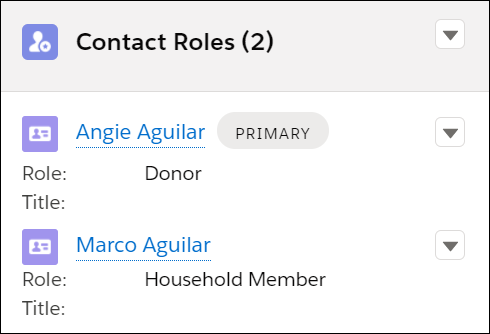
Notice that the donor and every household member has a Contact Role. NPSP assigns the Donor role to the original donor, and the Household Member role to every other household member. The Household Member role represents soft credits.
Create Automated Soft Credits for the Primary Contact on an Organizational Gift
Sometimes you may need to assign a soft credit to the Primary Contact of an Organizational gift. While you can create an Opportunity Contact Role manually, NPSP can automatically create one for you.
Sometimes you may need to assign a soft credit to the Primary Contact of an Organizational gift. While you can create an Opportunity Contact Role manually, NPSP can automatically create one for you. Before you begin, make sure you configured your Contact Roles settings. If you need a refresher, see Configure Soft Credit Rollups.
Let's try out an example. Some data values are from the examples above, but feel free to enter your own.
- Find or create an Organization Account.
- Click the Related tab.
- Find the Opportunities related list and click New.
- Choose the Donation record type.
- Enter these values:
- Amount = $50,000.
- Close Date = Today.
- Stage = Posted (or any Closed/Won stage). NOTE: Our example uses a Closed/Won Opportunity Stage, but NPSP will create a soft credit role for any Opportunity Stage.
- Primary Contact = Any Contact in your system.
- Click Save.
- You may need to click the new Opportunity's name in the confirmation message to view the record.

The resulting Opportunity should look something like this:
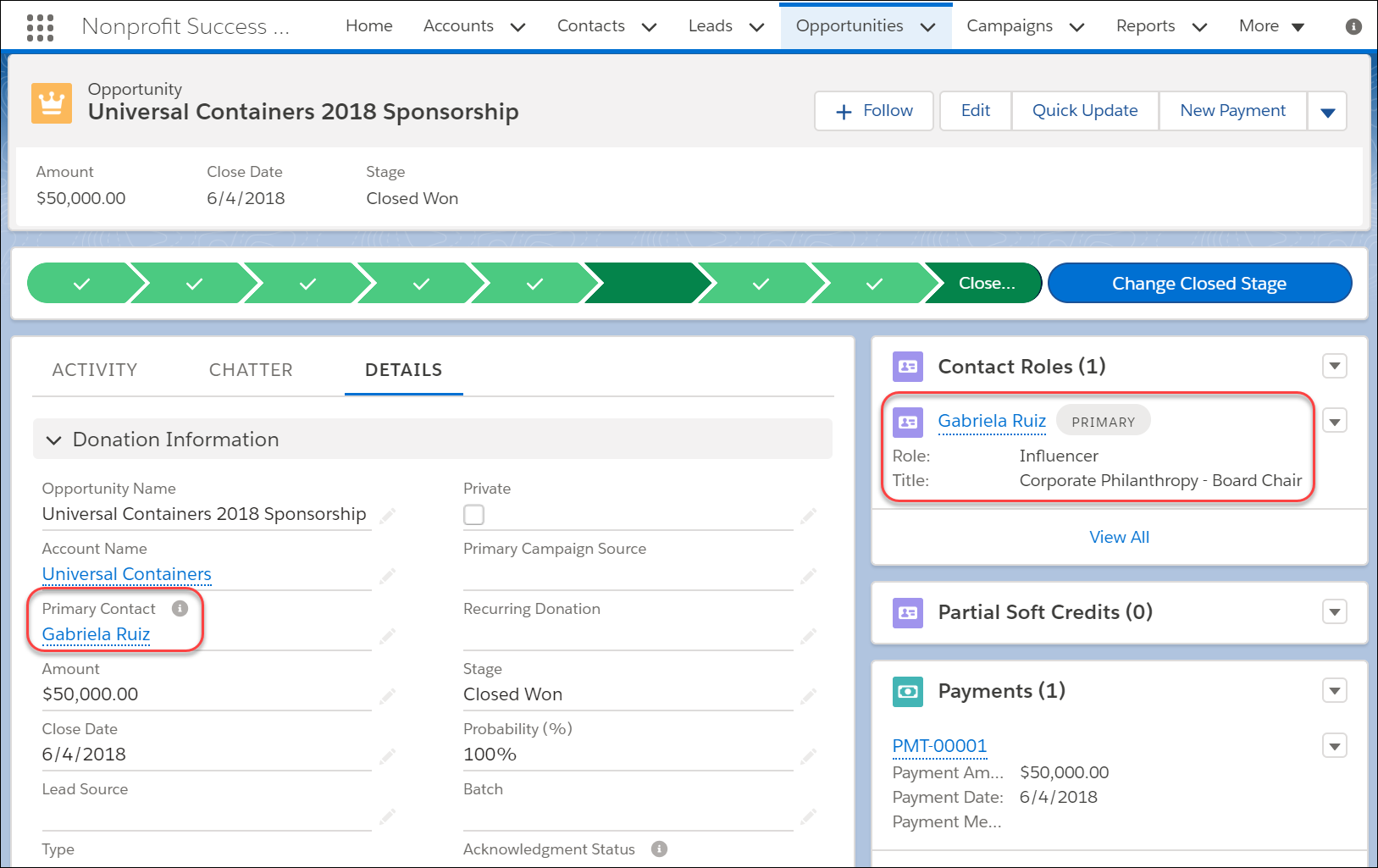
Notice that the Contact you selected for Primary Contact is listed in the Contact Roles section of the Opportunity record with the Influencer role.
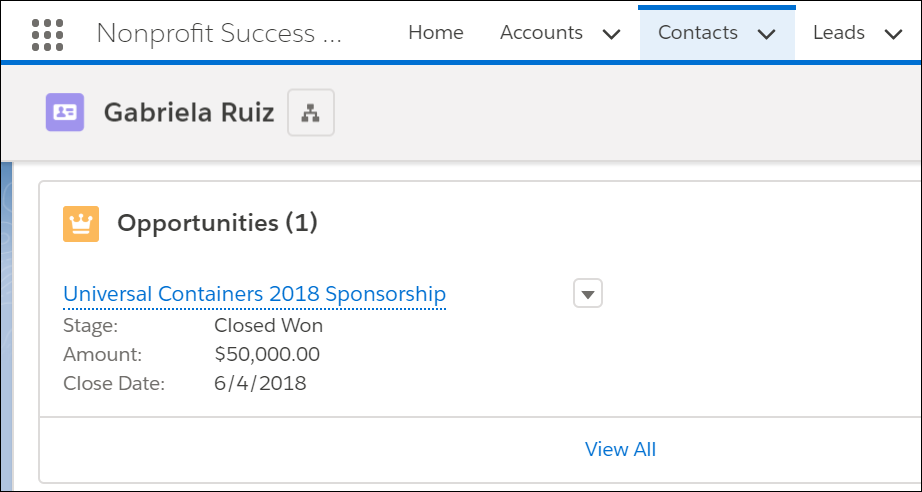
Now, navigate to the Contact record and look at the Related section. You should see the new Opportunity listed there.
Create Automated Soft Credits for Relationships
NPSP can automatically create soft credits for Individual donations based on Relationship records.

NPSP can automatically create soft credits for Individual donations based on Relationship records. For example, a donor may request that for each gift they give, you create a soft credit for a relative who lives in a separate household. Or, you can use Relationship records to track who the solicitor is for a donor, and NPSP soft credits the solicitor when gifts are made.
Use the Related Opportunity Contact Role field to indicate which Contact Role to assign to the Related Contact in the Relationship record.
Let's try out an example. Some data values are from the examples above, but feel free to enter your own.
- Find or create a Relationship record.
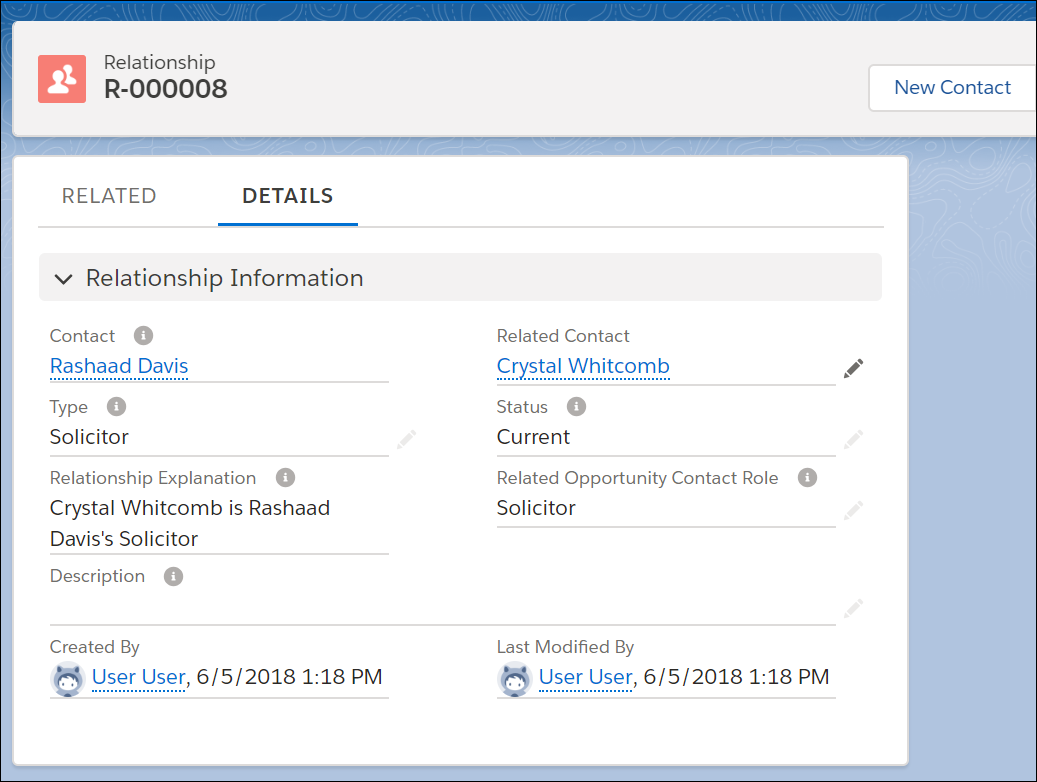
- On the Relationship record, choose a value for Related Opportunity Contact Role. Let's use "Solicitor" for our example.
- We're also using "Solicitor" in the Type field, but you can use whatever value is appropriate (Friend, Family, Employer, etc). Type is only used to describe the nature of the relationship between the two people, and has no bearing on how automated soft credits work.
- Click Save.
- Click the Contact on the Relationship, in this example, Rashaad Davis.
- Click the New Donation button.
- Enter these values:
- Amount = $100.
- Close Date = Today.
- Stage = Posted (Closed/Won).
- Click Save.
- You may need to click the new Opportunity's name in the confirmation message to view
the record.

On the Opportunity record, you should see Contact Roles for both the Primary Donor and the Related Contact. You may also see Household Member credits if there are other Contacts in the donor's Household.
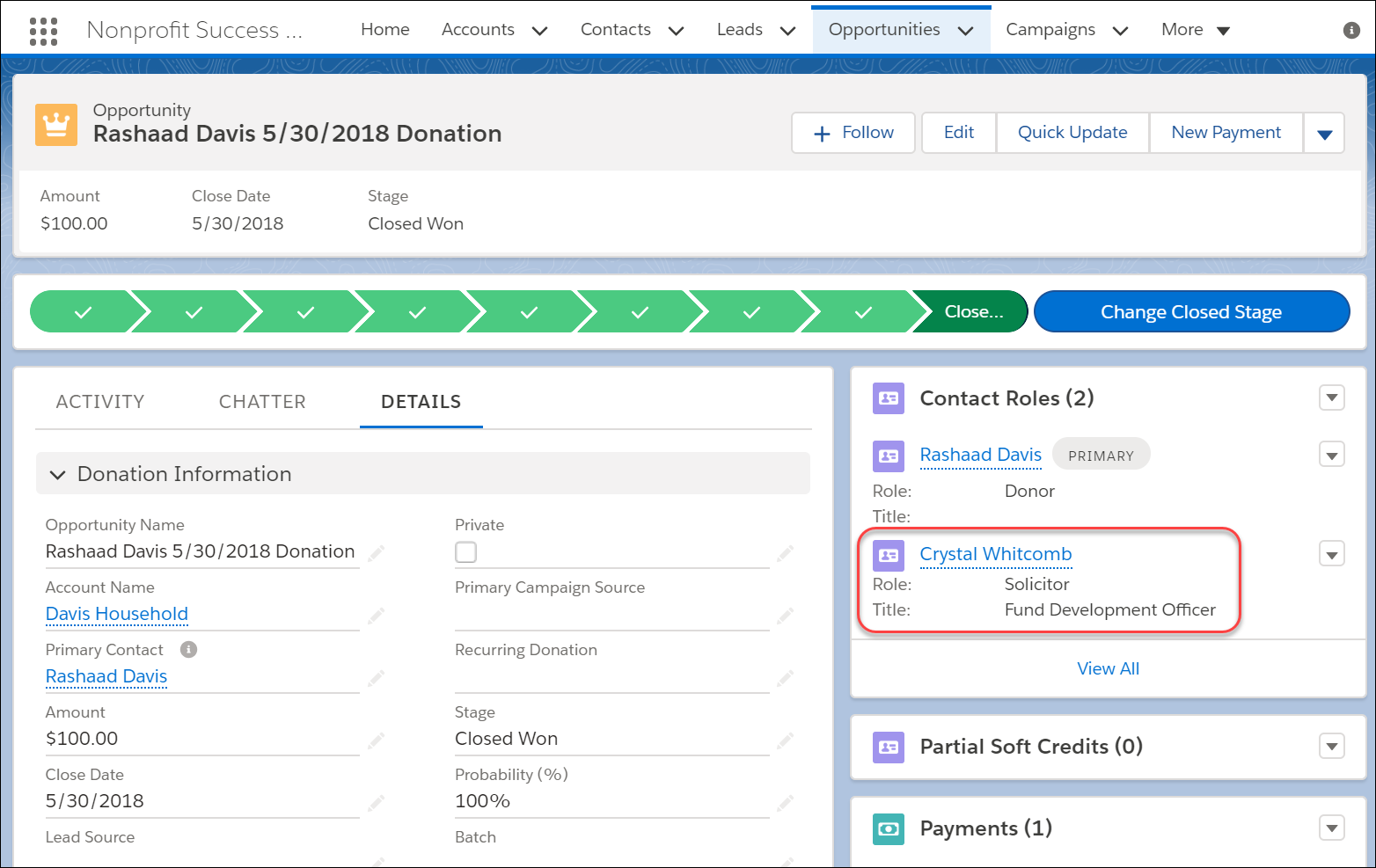
Let's review how automated soft credits for Relationships work. When you create an Opportunity for the Contact (1), NPSP creates a soft credit role for the Related Contact (2).
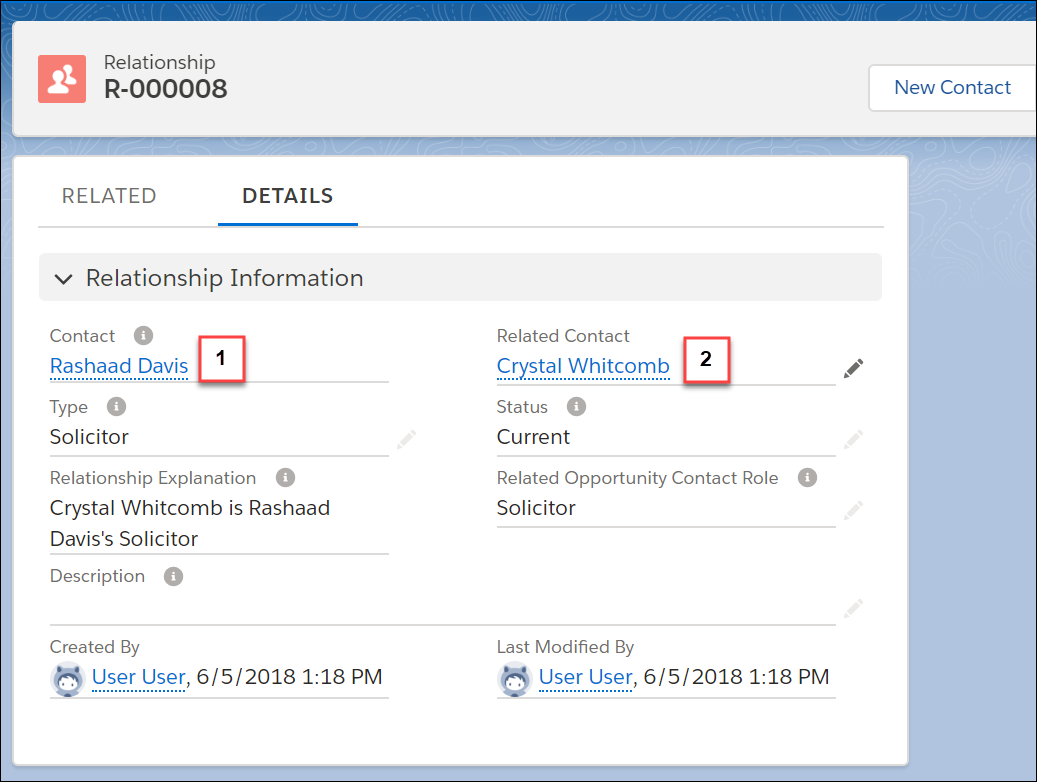
If you create an Opportunity for the person in the Related Contact field of the Relationship record, NPSP will not create a soft credit role for the person in the Contact field. If you want it to work that way, set a Related Opportunity Contact Role for the reciprocal relationship.
If you want NPSP to stop generating automated soft credits for a Relationship, remove the value in the Related Opportunity Contact Role field on the Relationship record and leave it blank. The Status field does not affect automated soft credits; they continue to function regardless of Status field value.
Create Automated Soft Credits for Affiliations
NPSP can automatically create soft credits for Organizational donations based on Affiliation records.
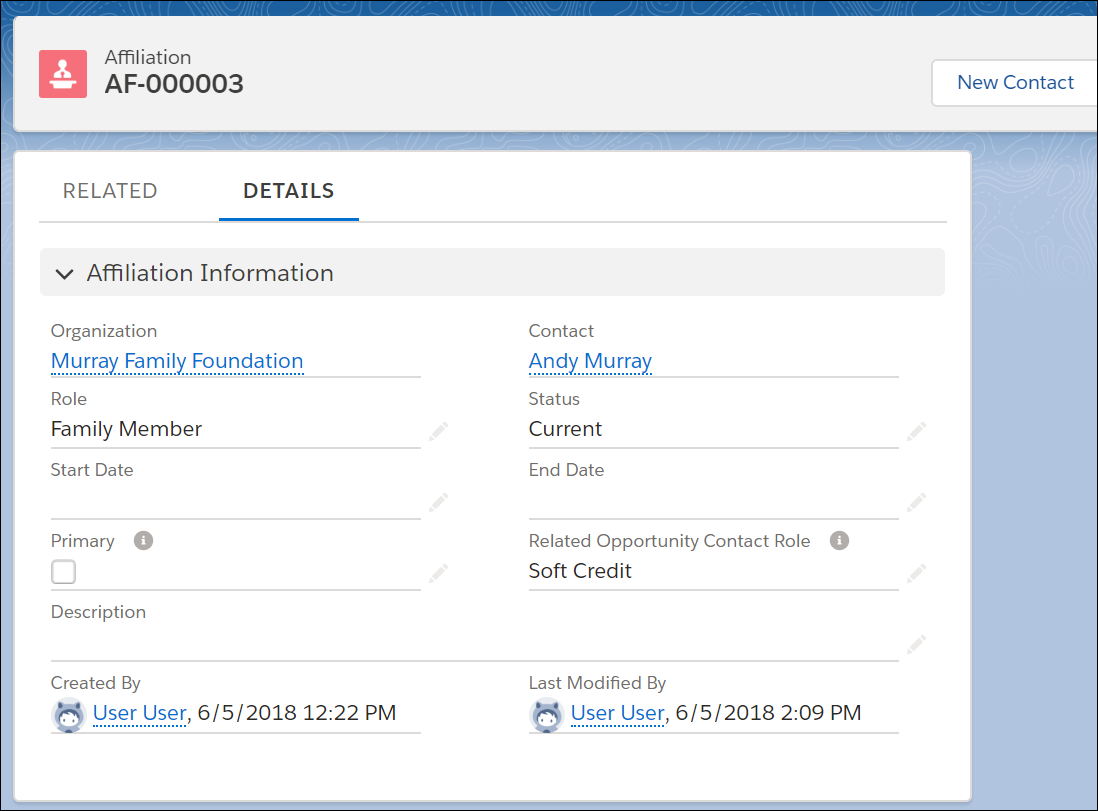
NPSP can automatically create soft credits for Organizational donations based on Affiliation records. For example, perhaps the members of a family foundation want to receive a soft credit for every donation made by their family foundation.
Use the Related Opportunity Contact Role field to indicate which Contact Role to assign to the Contact on the Affiliation record.
Let's try out an example. Some data values are from the examples above, but feel free to enter your own.
- Find or create an Affiliation.
- On the Affiliation record, choose a value for Related Opportunity Contact Role. Let's use "Soft Credit" for our example.
- Click Save.
- Optional: Find or create a few more Affiliations with the same Organization and
choose "Soft Credit" for each Related Opportunity Contact Role field.
- Click the Organization on the Affiliation, in this example, Murray Family Foundation.
- Click the New Donation button.
- Enter these values:
- Amount = $1000.
- Close Date = Today.
- Stage = Posted (Closed/Won). Note: Our example used a Closed/Won Opportunity Stage, but NPSP will create a soft credit role for any Opportunity Stage.
- Click Save.
- You may need to click the new Opportunity's name in the confirmation message to view
the record.

On the Opportunity record, you should see a soft credit Contact Role for each Contact from the Affiliation record or records you set a Related Opportunity Contact Role for.
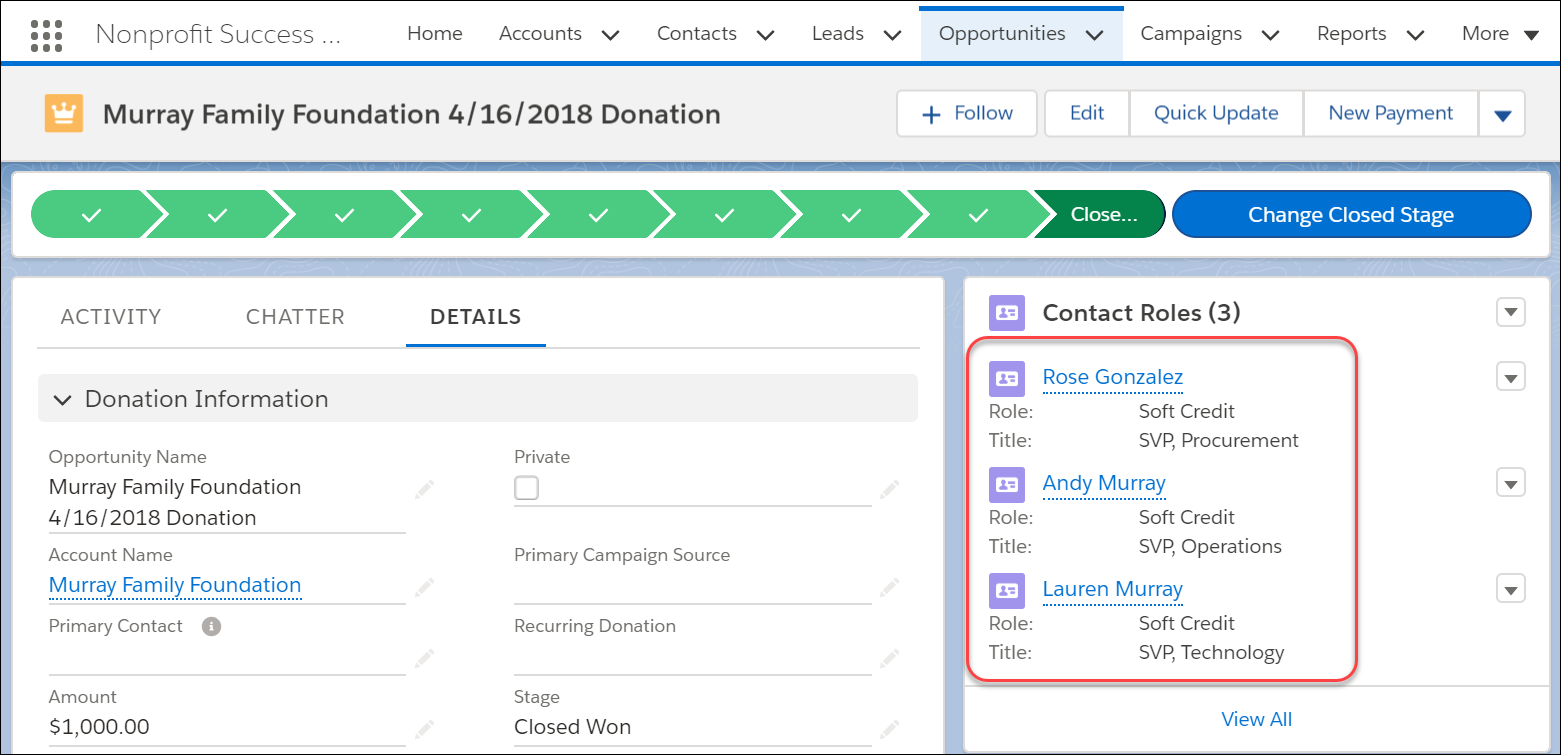
If you want NPSP to stop generating automated soft credits for an Affiliation, remove the value in the Related Opportunity Contact Role field on the Affiliation record and leave it blank. The Status field does not affect automated soft credits; they continue to function regardless of Status field value.
Calculate Soft Credit Totals
The Soft Credit Totals update when the nightly batch jobs run. If you need to recalculate soft credits outside of the nightly batch, your administrator can manually recalculate the entire batch or for a single Account or Contact.
Recalculating rollups updates the Opportunity rollup fields (including the soft credit rollups) on your Contact, Account, and Household records. Learn more in Manually Recalculate Rollups.
