
You are here:
Change, Close, or Delete a Recurring Donation
Learn how to update a Recurring Donation when a donor asks to change their donation amount, or their donation schedule. Also learn how to close (cancel), or delete a Recurring Donation.

- Change an Open-Ended Recurring Donation
Sometimes a donor asks that you change the amount, the day of the month the donation is processed, or perhaps the frequency of their Recurring Donation. - Change a Fixed-Length Recurring Donation
Often a donor chooses to set up a fixed-length donation because they have a target amount or duration that they want to donate for. Sometimes, though, your donor might ask that you change the amount, date, or length of their donation. - Close a Recurring Donation
Sometimes a donor requests that you end their Recurring Donation. Other times, you might lose contact with a donor and can't get current payment information. Here's how to close a Recurring Donation. - Delete a Recurring Donation
When you delete a Recurring Donation, NPSP deletes the associated Opportunities. If there are any associated Closed Won Opportunities, first delete the associated Closed Won Opportunities, then delete the Recurring Donation.
Change an Open-Ended Recurring Donation
Sometimes a donor asks that you change the amount, the day of the month the donation is processed, or perhaps the frequency of their Recurring Donation.
Let's look at an example of changing a Recurring Donation using another monthly donor, Alan Hale.
Alan is a longtime donor who recently started earning more money and is ready to donate more to his favorite charitable causes. Alan asks to increase his monthly giving from $50 to $100, starting on 6/1/2020.
Let's walk through how to make that update.
-
Locate or create a Recurring Donation that you'd like to update. In this example we're going to use Alan's Recurring Donation record.
-
Click Edit.
-
Update these fields:
-
Amount = $100
-
Effective Date = 6/1/2020
-
-
Click Save.
Take a look at the sidebar components on the Recurring Donation detail page.
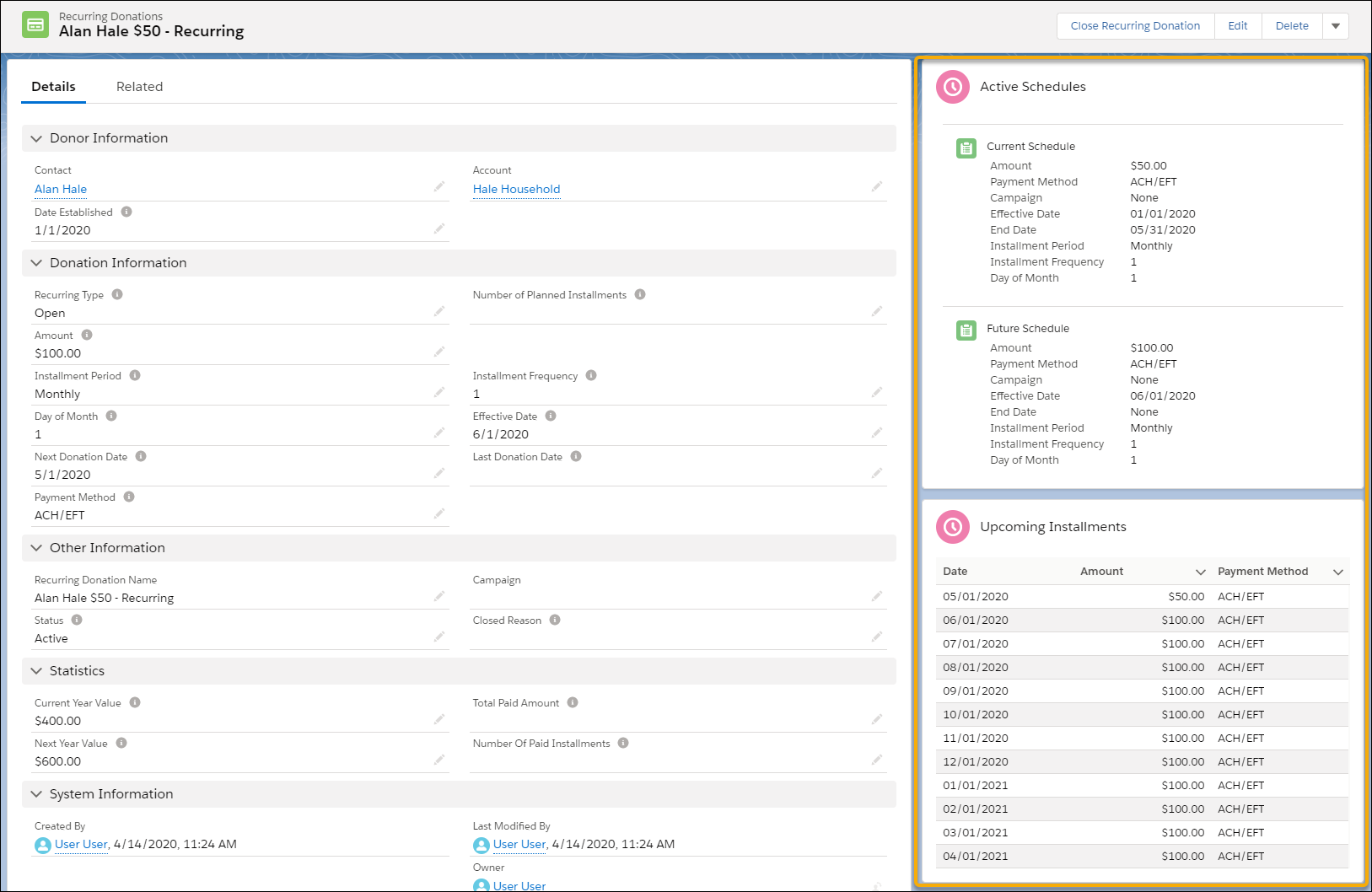
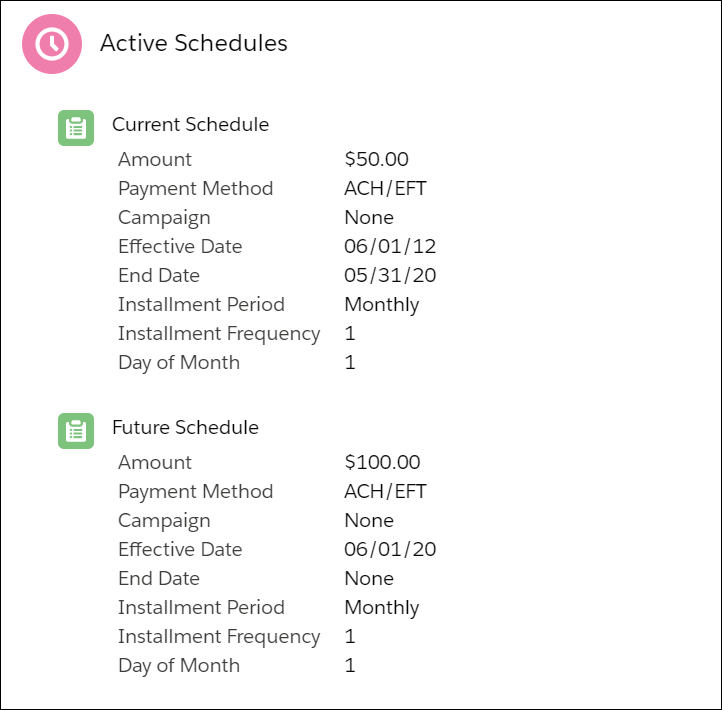
Active Schedules provides details about the current and future schedules. You can see that the Current Schedule is set to end on 5/31/2020, and the Future Schedule starts on 6/1/2020.
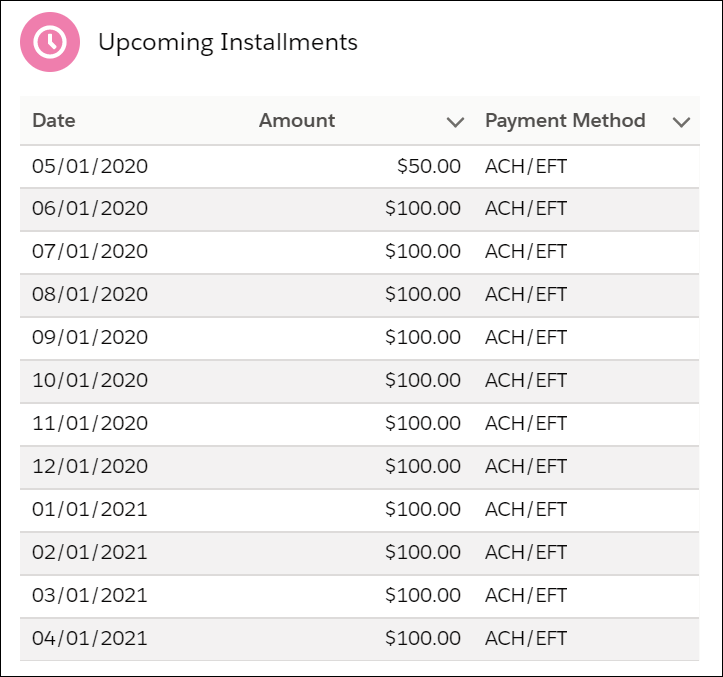
Upcoming Installments displays a list of planned installments. Notice that the current schedule of $50 per month runs until 6/1/2020, when the amount increases to $100 per month.
Change a Fixed-Length Recurring Donation
Often a donor chooses to set up a fixed-length donation because they have a target amount or duration that they want to donate for. Sometimes, though, your donor might ask that you change the amount, date, or length of their donation.
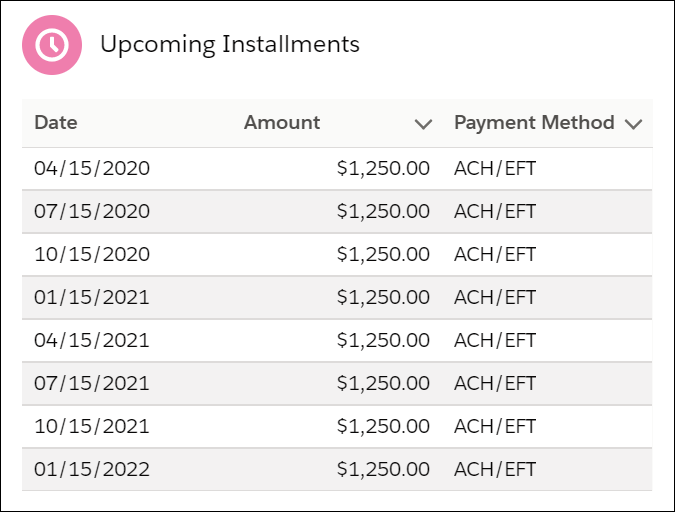
Let's look at an example. Ron Morimura signed up to donate $1250 per quarter for one year (totaling $5000 for the year). However, soon after he initially signed up to donate, he called and asked to extend his giving for a second year.
Let's walk through how to make that update.
-
Locate a Recurring Donation that you'd like to update. In this example we're going to use Ron's Recurring Donation record.
-
Click Edit.
-
Update these fields:
-
Number of Planned Installments = 8 (previously it was 4)
-
Effective Date = 7/1/2020 (or whatever the current date is)
-
-
Click Save.
Before the update, Ron's Recurring Donation showed four Upcoming Installments.
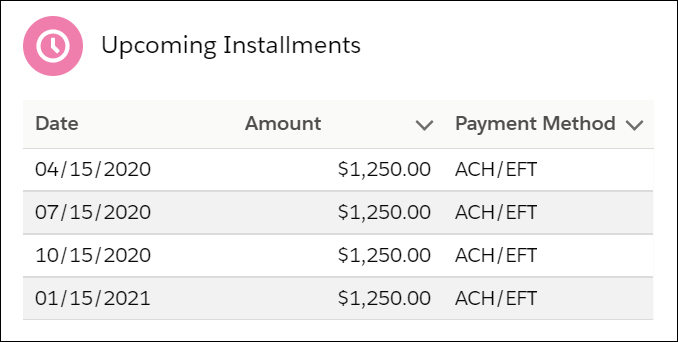
After the update, Ron's Recurring Donation now shows eight Upcoming Installments.
Close a Recurring Donation
Sometimes a donor requests that you end their Recurring Donation. Other times, you might lose contact with a donor and can't get current payment information. Here's how to close a Recurring Donation.
-
Locate the Recurring Donation you wish to close.
-
Click Close Recurring Donation.
- Select a Status Reason and an End Date.
-
Click Save.

Delete a Recurring Donation
When you delete a Recurring Donation, NPSP deletes the associated Opportunities. If there are any associated Closed Won Opportunities, first delete the associated Closed Won Opportunities, then delete the Recurring Donation.
To delete a Recurring Donation, find the record to delete and click Delete.
When you delete a Recurring Donation, NPSP deletes the associated Opportunities. If there are any associated Closed Won Opportunities, you won't be able to delete the Recurring Donation. You must delete the Closed Won Opportunities before you can delete the Recurring Donation.
