
You are here:
Configure Legacy Recurring Donations
Find out more about configuring legacy recurring donations.

- About Legacy Recurring Donations
The NPSP Legacy Recurring Donations feature allows you to track gifts that donors have pledged over a period of time. This feature accommodates both Open-Ended Recurring Donations (no end date set) and Fixed-Length Recurring Donations (end date set). - Review Legacy Recurring Donation Settings
Before you begin using NPSP's Recurring Donations feature, you should review, confirm, and optionally edit your Recurring Donations settings. NPSP provides a set of default values, but you can change these values at any time. - Set Up Additional Recurring Donation Fields
Use the Always use last day of month checkbox and Day of Month picklist fields to further define the Close Date for Recurring Donation Opportunities. These options apply only to Recurring Donations that have Monthly, Quarterly, or custom installment periods using months. - Create Opportunity Stage Picklist Values
NPSP's Recurring Donations feature uses two Opportunity stages in particular to keep track of donations: Pledged and Closed Lost. The Pledged stage is unique to NPSP . - Add a Lightning Action to Contacts
Add a Lightning Action to Contacts to easily create a new Open Recurring Donation from a Contact record. - Automatic Recurring Donations Naming
By default, NPSP names your Recurring Donations automatically.
About Legacy Recurring Donations
The NPSP Legacy Recurring Donations feature allows you to track gifts that donors have pledged over a period of time. This feature accommodates both Open-Ended Recurring Donations (no end date set) and Fixed-Length Recurring Donations (end date set).
NPSP Recurring Donations uses these objects:
- Recurring Donation (custom object): Use Recurring Donation records to track each individual donation that’s part of an ongoing pledge.
- Opportunity (standard object): Used to track future pledged and paid installments.
Review Legacy Recurring Donation Settings
Before you begin using NPSP's Recurring Donations feature, you should review, confirm, and optionally edit your Recurring Donations settings. NPSP provides a set of default values, but you can change these values at any time.
- Click
 , then click NPSP
Settings.
, then click NPSP
Settings.
- Click , then click NPSP
Settings.
- Click .
- Click Edit.
- Make changes as necessary, then click Save.
Set Up Additional Recurring Donation Fields
Use the Always use last day of month checkbox and Day of Month picklist fields to further define the Close Date for Recurring Donation Opportunities. These options apply only to Recurring Donations that have Monthly, Quarterly, or custom installment periods using months.
When you select Always use last day of month, NPSP creates Recurring Donation Opportunities with the Close Date set to the last day of the month. When you select a value in the Day of Month picklist, NPSP creates Recurring Donation Opportunities with the Close Date set to your selected day of the month.
To make the Always use last day of month and Day of Month fields available:
- From Setup, enter Profiles in the Quick Find box, then click Profiles.
- Click the name of the Profile you want to set field-level security for.
- In the Field-Level Security section, click View next to Recurring Donations.
- Make sure Edit Access is checked for the Always use last day of month and Day of Month fields. If not, click Edit and select the checkbox, then click Save.
Now, make sure the fields show up on Recurring Donations by adding them to the page layout:
- From Setup, click the Object Manager tab.
- In the list of objects, click Recurring Donations.
- Click Page Layouts.
- Click Recurring Donation Layout.
- Drag the fields onto the page layout.
- Click Save.
For more information on setting field-level security, see Configure Access to Fields, Objects, Tabs, and Visualforce Pages. For more information on editing page layouts, see Configure Page Layouts.
Create Opportunity Stage Picklist Values
NPSP's Recurring Donations feature uses two Opportunity stages in particular to keep track of donations: Pledged and Closed Lost. The Pledged stage is unique to NPSP .
If you installed NPSP from the Trial, you will already have these picklist values in place.
If you manually installed NPSP on top of Salesforce Enterprise Edition, you may not have one or both of these picklist values in place. If that's the case, you'll need to manually add them to your picklist values in order for Recurring Donations to work.
Add a Lightning Action to Contacts
Add a Lightning Action to Contacts to easily create a new Open Recurring Donation from a Contact record.
- From Setup, click the Object Manager tab.
- In the list of objects, click Contact.
- Click Buttons, Links, and Actions.
- Click New Action.
- Fill in the following details:
- Action Type: Create a Record
- Target Object: Recurring Donations
- Standard Label Type: -None-
- Label: New Open Recurring Donation
- Name: New_Open_Recurring_Donation
- Description: Open Ended Recurring Donation with necessary fields.
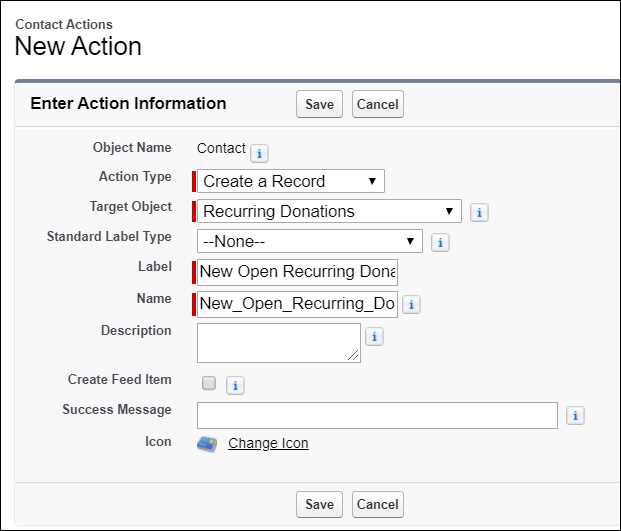
- Optionally select Create Feed Item and enter a Success Message.
- Click Save.
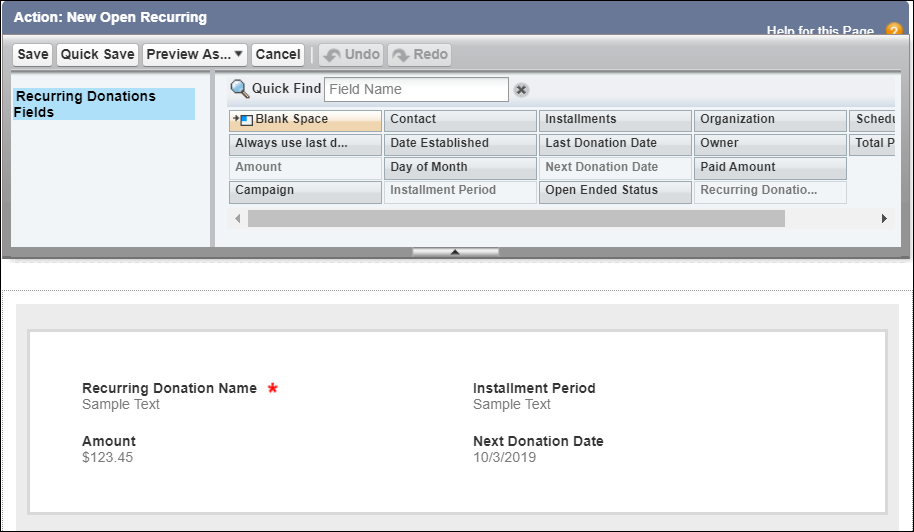
- In the Page Layout editor, add the following fields to the New Open Recurring Donation Quick Action layout:
- Amount
- Installment Period
- Next Donation Date
- Click Quick Save.
- Add any additional fields you’d like to the page layout.
- When you’re done adding fields, click Save.
- To automatically populate fields on the new Recurring Donation that’s created from the action, select New in the Predefined Field Values.
- Enter the following values:
- Field: Recurring Donation Name
- Formula Value: Contact.FirstName & " " & Contact.LastName & " Recurring Donation " & TEXT(MONTH(TODAY())) & "/" & TEXT(DAY(TODAY())) & "/" & TEXT(YEAR(TODAY()))
- Click Save.
- In the Predefined Field Values list, click New.
- Enter the following values:
- Field: Open Ended Status
- Specific Value: Open
- Click Save.
-
In the Predefined Field Values list, click New.
-
Enter the following values:
-
Field: Schedule Type
-
Specific Value: Multiply By
-
-
Click Save.
Finally, add the Lightning Action to the Contact Lightning page layout:
- From Setup, click the Object Manager tab.
- In the list of objects, click Contact.
- Click Page Layouts.
- Click Contact Layout.
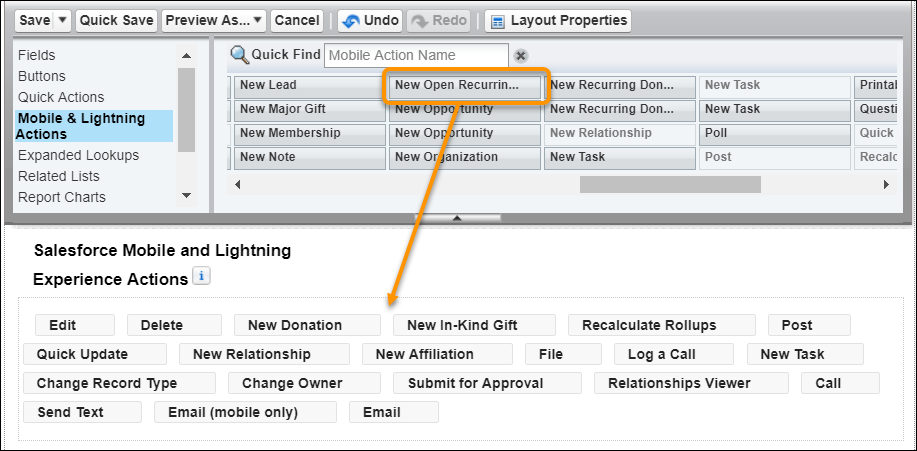
- In the palette, click Mobile & Lightning Actions.
- Drag the New Open Recurring Donation Lightning Action to the Salesforce Mobile and Lightning Experience Actions section of the Page Layout.
- Click Save.
Automatic Recurring Donations Naming
By default, NPSP names your Recurring Donations automatically.
Here's how it works:
-
Go to the Recurring Donations tab and click New.
-
Fill out the required fields (Amount, Donor Type, Recurring Period, etc.).
-
Click Save.
Once you save the record, NPSP updates the Recurring Donation Name using this format:
[DonorName] [Amount] - Recurring
[DonorName] is Contact Name when the Donor Type is Contact, or the Account Name when the Donor Type is Account and the Account is an Organizational Account. Let's look at some examples.
-
If you enter a new $100 Recurring Donation for Barbara Levy, the name becomes:
-
Barbara Levy $100 - Recurring
-
-
If you enter a new $500 Recurring Donation for Universal Containers, the name becomes:
-
Universal Containers $500 - Recurring
-
If you have your own naming convention that you'd rather use, you can disable Automatic Recurring Donation Naming. When you disable naming, users will see the Recurring Donation Name field in the record entry and edit screens.
-
Go to .
-
Find Recurring Donation Name Format and select Disable Auto Naming.
-
Click Save.
