You are here:
Configure the Reports & Dashboards Package
After you download the NPSP Reports package, configure it to meet your needs.
- About the Reports & Dashboards Package
NPSP Reports contains community-contributed reports and dashboards covering donors and giving history, grants, memberships, campaign ROI, and more. This feature includes dozens of reports and several dashboards. - Verify Reports and Dashboards Settings are Enabled
Enable the reports and dashboards setting in Setup if it's not already enabled. - Verify Grant Record Type
In the NPSP reports package, the Grant record type is used in report filters. Make sure the record type you use for grants is named correctly. - Install the Reports Package
Use the link to install the NPSP reports package. - Hide Old NPSP Reports and Folders
If your org has the old NPSP report folders (NPSP 3.0 Donor Management Reports, NPSP 3.0 Grants Management Reports, NPSP 3.0 Membership Management Reports), we recommend that you phase them out by hiding the folders from your users.
About the Reports & Dashboards Package
NPSP Reports contains community-contributed reports and dashboards covering donors and giving history, grants, memberships, campaign ROI, and more. This feature includes dozens of reports and several dashboards.
Verify Reports and Dashboards Settings are Enabled
Enable the reports and dashboards setting in Setup if it's not already enabled.
- Click
 , then click Setup.
 - Enter Reports and Dashboards in the Quick Find box, then click Reports and Dashboards Settings.
- Look for an Enable button. It is typically present in older orgs. If you see the button, click it. If you don't see the button, move to the next step.
Verify Grant Record Type
In the NPSP reports package, the Grant record type is used in report filters. Make sure the record type you use for grants is named correctly.
- From Setup, click the Object Manager tab.
- In the list of objects, click Opportunity.
- Click Record Types.
- Verify that you have a record type named Grant.
- If you don’t see the Grant record type, create one.
-
Record Type Label: Grant
-
Record Type Name: Grant
-
Sales Process: Grant
-
Active: selected
-
-
Select the profiles that should have access to this record type.
-
Click Next.
-
Select the Grant Layout for the appropriate profiles.
-
Click Save.

Install the Reports Package
Use the link to install the NPSP reports package.

- Go to the NPSP Reports and Dashboards Installer.
- Log in with your Salesforce credentials.
- Click Install.
Hide Old NPSP Reports and Folders
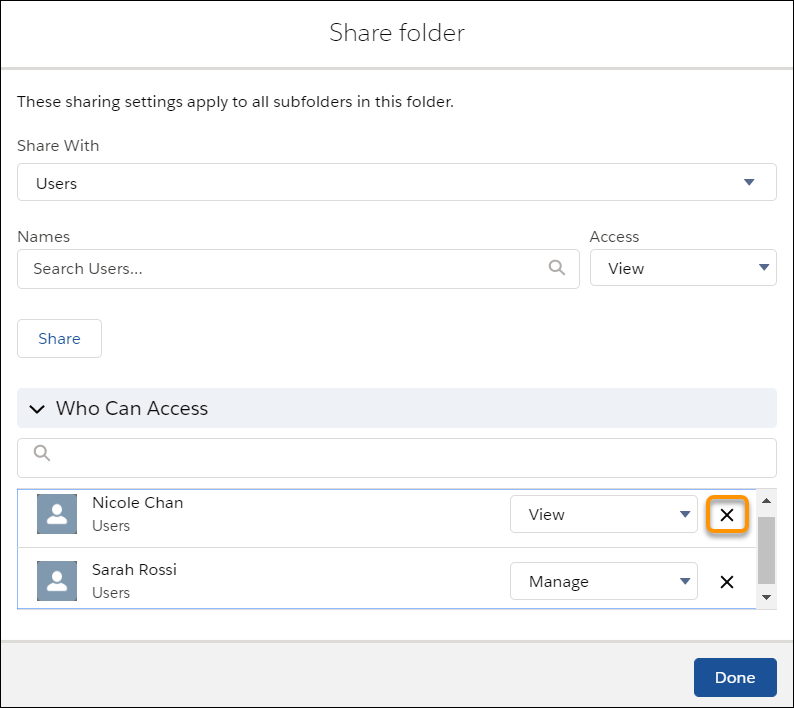
If your org has the old NPSP report folders (NPSP 3.0 Donor Management Reports, NPSP 3.0 Grants Management Reports, NPSP 3.0 Membership Management Reports), we recommend that you phase them out by hiding the folders from your users.
Administrators will still see the old folders. That way, if a user asks for a specific old report, you'll still have access to it. If users don't ask about the old reports for a particular amount of time (defined by you, of course), you can decide if you want to delete the folders and Reports.
To hide the old reports folders from users: