
You are here:
Configure Campaigns
Configure campaigns so that they combine data from different sources and determine the success of the call to action.
- About Campaigns
Campaigns combine several sources of data in one place to make it easier to analyze the results of a call to action. - Customize Campaign Types
Types help you categorize your Campaigns. - Define Record Types
Record types indicate what kind of Campaign you're creating. - Configure Campaign Types for each Record Type
Choose campaign types that correspond with the associated record types and that best serve the activities of your org.
About Campaigns
Campaigns combine several sources of data in one place to make it easier to analyze the results of a call to action.
For example, a Campaign could summarize the number of people targeted in a fundraising appeal, how many responded, and the amount of money raised.

Customize Campaign Types
Types help you categorize your Campaigns.
For example, within a fundraising Campaign, you might have a direct mail appeal, an email appeal, and a gala. The NPSP Trial includes several Campaign types:
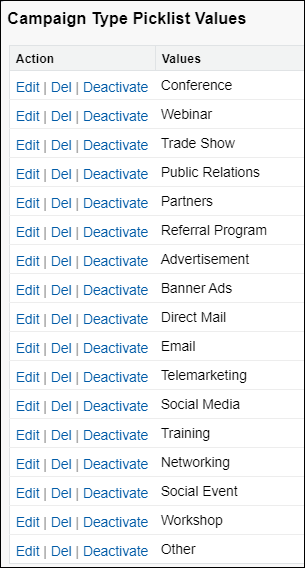
You may choose to add more or remove Campaign types that aren't relevant to your business.
-
Click
 , then click Setup.
 -
Click the Object Manager tab.
-
From the list of objects, click Campaign.
-
Clicks Fields & Relationships.
-
Click the Type field.
-
In the Campaign Type Picklist Values list, click New.
-
Enter new picklist values (one per line).
-
Click Save.
Be sure to associate the Campaign types with the appropriate record types.
Define Record Types
Record types indicate what kind of Campaign you're creating.
For example, you may use Campaigns to track fundraising efforts, events, or volunteer activities. The NPSP trial comes with these Campaign record types.
-
Event
-
Fundraising
-
General
-
Marketing
Feel free to create additional record types that meet the needs of your organization.
-
Click
, then click Setup. -
Click the Object Manager tab.
-
From the list of objects, click Campaign.
-
Click Record Types.
-
Click New.
-
Enter a Record Type Label. For example, Fundraising.
-
Enter a description that will help your users figure out which record type to choose. For example, Use this record type for fundraising activities.
-
Select Active.
-
Choose the profiles who should have access to this record type.
-
Click Next.
-
Choose the layout where this profile should appear.
-
Click Save.
Next, select the Campaign Types associated with this record type.
Configure Campaign Types for each Record Type
Choose campaign types that correspond with the associated record types and that best serve the activities of your org.
NPSP comes with these record types and associated Type picklist values:
We'll use Fundraising as an example of how to select the Type values for your record type.
| Record Type | Type Picklist Values |
|---|---|
| Event | Conference, Networking, Other, Social Event, Training, Webinar, Workshop |
| Fundraising | Direct Mail, Email, Networking, Other, Social Media, Telemarketing |
| General | Email, Other, Social Media, Telemarketing, Training |
| Marketing | Direct Mail, Email, Other, Networking, Social Media, Telemarketing |
-
Click
, then click Setup. -
Click the Object Manager tab.
-
From the list of objects, click Campaign.
-
Click Record Types.
-
Click Fundraising.
-
In the Picklists Available for Editing list, click Edit next to Type.
-
Move these values to the Selected Values list:
-
Direct Mail
-
Email
-
Networking
-
Other
-
Social Media
-
Telemarketing
-
-
Click Save.
