
You are here:
Create and Manage Engagement Plans
Use Engagement Plans to automatically create a series of predefined tasks to support donor prospecting, stewardship, and moves management.

Watch the Nonprofit Salesforce How-To Series videos about Engagement Plans and Levels with Engagement Plans.
- Overview
An Engagement Plan is a set of tasks (literally a "plan") that helps you engage with your constituents. The most common example of an Engagement Plan is one that helps you track engagement activities for Major Gifts. Major donors (that is donors who are giving extremely large amounts of money to your organization) typically require a deeper level of engagement than your average donor. - Plan Ahead
Engagement Plans work best when the organization has a well-defined process with buy-in from individuals who will participate in the execution of the plan. Depending on the plan, this could be an extensive series of actions involving individuals from across the organization. - Create an Engagement Plan Template
The Engagement Plan Template defines the set of tasks for the process. - Edit Tasks on an Engagement Plan Template
If you need to make adjustments to the Engagement Plan Template, visit the Template record and click Edit. - Assign an Engagement Plan to a Record
Associate an Engagement Plan to a record. - Execute the Engagement Plan
With the tasks assigned, your team is ready to execute the carefully crafted process this Engagement Plan supports. Tasks will show up on your team members' Home Page task lists and in reports. As they complete tasks, users should update the Task to a status of Completed. - Delete an Engagement Plan
When you delete an Engagement Plan, the underlying tasks still exist, but task automation is not enforced for dependent tasks (dependent tasks won't be updated or assigned based on parent task completion). You can restore the Engagement Plan from the Recycle Bin, and task automation will resume.
Overview
An Engagement Plan is a set of tasks (literally a "plan") that helps you engage with your constituents. The most common example of an Engagement Plan is one that helps you track engagement activities for Major Gifts. Major donors (that is donors who are giving extremely large amounts of money to your organization) typically require a deeper level of engagement than your average donor.
For example, an Engagement Plan with a major donor might include calling that donor to schedule a lunch, then having the lunch with the donor, then sending a follow-up email to the donor, and so on. You'd set up each of these activities as a task on the Engagement Plan, to be completed by a scheduled date.
Engagement plans can be kicked-off manually by a development officer or automatically when used in conjunction with Levels. If used with Levels, the Engagement Plan starts when a donor reaches a certain Level, such as Platinum Donor. For more information, see Create and Manage Levels.
There are many other use cases for Engagement Plans, including volunteer management, grant-making, client management, and sponsor management. This documentation will showcase a real-world scenario for Major Gifts, but the instructions are applicable for any use case.
See Also:
Plan Ahead
Engagement Plans work best when the organization has a well-defined process with buy-in from individuals who will participate in the execution of the plan. Depending on the plan, this could be an extensive series of actions involving individuals from across the organization.
We recommend answering these questions before you start creating Engagement Plans in Salesforce:
- What result do you want to achieve?
- What series of actions will produce the result?
Once you have a plan with a defined set of tasks and the team involved has given the thumbs up, you're ready to get started. But before you do, we wanted to give you an idea of what a plan might look like. We'll use a Major Donor Stewardship Plan as an example.
- Desired Result: Donor renews gift the following year at the same or higher level.
-
Series of Actions:
- Acknowledgements:
- Day 1: Send Personal Email Acknowledgement
- 7 days later: Phone Call Acknowledgement from Development Director
- Acknowledgments:
- Day 1: Send Personal Email Acknowledgment
- 7 days later: Phone Call Acknowledgment from Development Director
- Day 1: Add Donor to Honor Wall
- Day 10: Handwritten Acknowledgment from the Executive Director
- Day 60: Invitation from the Program manager to learn more or see the program in action
- Day 180: Meeting Invitation extended from the Executive Director
- Day 270: Development Director begins solicitation
- Day 300: E.D. and Dev. Director make an Ask
- Acknowledgements:
There might be further interactions happening outside this plan, such as invitations to exclusive events and spontaneous conversations, but we wanted to illustrate a thoughtful process that was determined to create the best chance of keeping that donor engaged year-to-year.
Create an Engagement Plan Template
The Engagement Plan Template defines the set of tasks for the process.
To apply the process to a particular record, you must assign the Engagement Plan template to the record.
- Click the Engagement Plan Templates tab.
- Click New to create a new Engagement Plan Template.
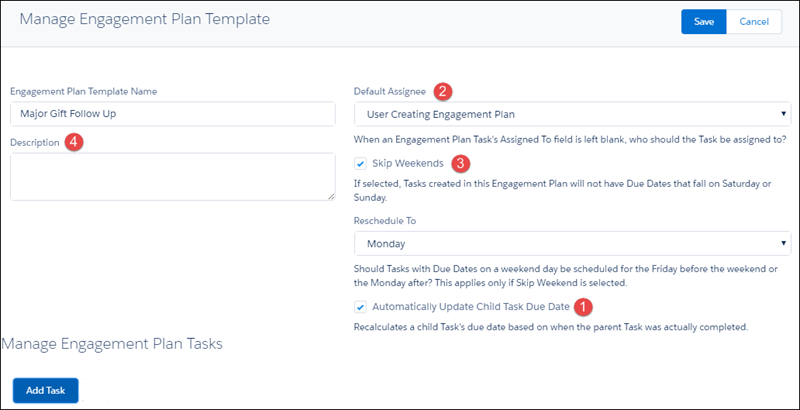
- Give the Template a meaningful name, such as "Major Gift Follow Up".
- Optionally configure additional settings:
- Automatically Update Child Task Due Date (1)
- If selected, dependent tasks will start based on their parent task completion. In our example, we want this option selected because we don't want the follow-up call (dependent task) to happen until after the email (parent task) has been sent. If the major gift officer is delayed in sending the email, the follow up call will happen seven days later (not seven days after the task is created).
- Default Assignee (2)
- If a Task doesn't have a named Assignee, this setting determines who is assigned the Task by default (Salesforce requires that all Tasks be assigned to a user). You can select either the User Creating Engagement Plan or the Owner of the Record that the Engagement Plan is associated with.
- Skip Weekends (3)
- If checked, due dates are automatically adjusted for weekends. For example, a Task completed on a Friday has a follow up Task two days later. Instead of having a due date of Sunday, that Task would be due the following Tuesday.
- Reschedule To (3)
- This is used only in conjunction with Skip Weekends. This would be typically be set to Monday, but if your organization is closed on Mondays, you could select a different day.
- Description (4)
- A meaningful description of the Template's use case.
- Click Add Task to create the first task in the Engagement Plan.
Some important details to remember:
- Days After
- For Task 1 in the process and other tasks that are not dependent, this field value pushes the due date out from the day of creation. For dependent tasks, it pushes the due date out from the due date of the parent task. For both types of tasks, the Days After setting respects the Skip Weekends setting (as described above).
- Send Email
- Enables the standard task notification email that is sent to the assigned user the moment the task is created.
- Reminder
- Enables the standard task reminder setting, which shows a pop-up reminder to the assigned user on the due date of the task
- Reminder Time
- Set the time for the reminder to pop up. Note The reminder time is stored as a number representing "minutes after midnight." For example, a reminder time of "600" translates to 10 am.
- Click Add Task to add another top-level task. Click Add Dependent Task to add a task that is dependent on the previously added task.
- When finished, click Save at the top of the page.
Edit Tasks on an Engagement Plan Template
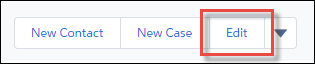
If you need to make adjustments to the Engagement Plan Template, visit the Template record and click Edit.

Assign an Engagement Plan to a Record
Associate an Engagement Plan to a record.
- Navigate to the record where you'd like to create an Engagement Plan. For our example, it's a $50,000 donation that came in that should follow the Major Donor plan.
- Click New Engagement Plan on the Engagement Plan related list.
- The associated record (for our example, the Opportunity) should automatically be populated.
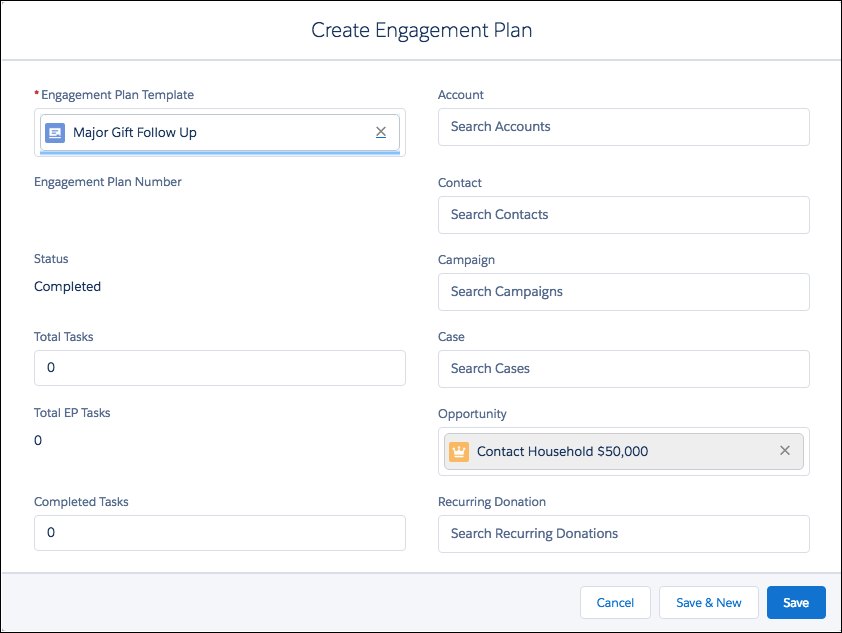 Note You can only associate an Engagement Plan to a single record. If you try to connect an Engagement Plan to multiple records at the same time, such as Opportunity and Contact, you'll get an error message.
 - Click Save. Notice the Tasks from the Template now appear on the Engagement Plan record with the appropriate due dates and assignments. All of which are attached to the associated Opportunity record, so that your team can begin the stewardship plan.
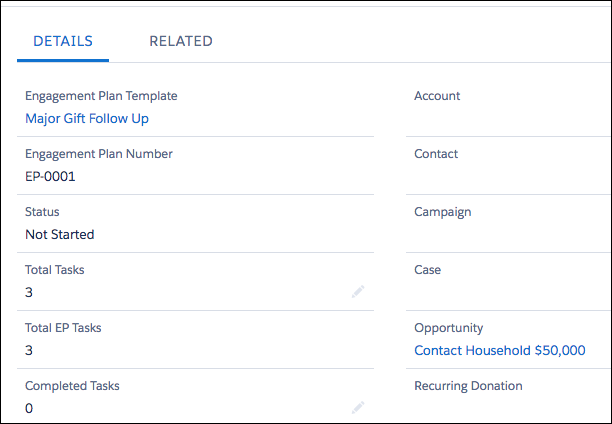
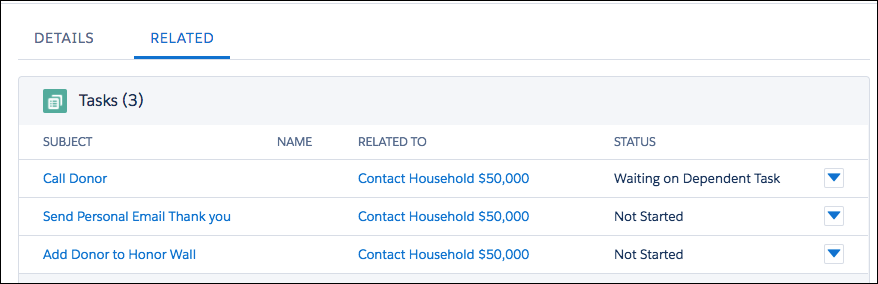
You also see the Engagement Plan listed on the associated record's Engagement Plan related list.
Execute the Engagement Plan
With the tasks assigned, your team is ready to execute the carefully crafted process this Engagement Plan supports. Tasks will show up on your team members' Home Page task lists and in reports. As they complete tasks, users should update the Task to a status of Completed.
To learn more about how Activity and Task records work, see Activities in Salesforce Help & Training.
Dependent Tasks: When you complete a Task with a dependent Task, the dependent Task's status is automatically updated from Waiting on Dependent Task to Not Started.
Engagement Plan: As soon as you complete a single Task, the Status on the Engagement Plan updates from Not Started to In Progress. When the last Task is completed, the Status on the Engagement Plan is updated to Complete.
Delete an Engagement Plan
When you delete an Engagement Plan, the underlying tasks still exist, but task automation is not enforced for dependent tasks (dependent tasks won't be updated or assigned based on parent task completion). You can restore the Engagement Plan from the Recycle Bin, and task automation will resume.
- Navigate to the record that the Engagement Plan is assigned to.
- Scroll to the Engagement Plan related list.
- In the row for the Engagement Plan, click
 , then click Delete.
The Engagement Plan is sent to the Recycle Bin. You can manually delete the tasks if you don't need them or if the Engagement Plan was assigned by mistake.
