
You are here:
Create and Update Campaign Members Through an Opportunity
Configure NPSP to automatically add a Contact to a Campaign when you enter a donation.

- Campaign Members and Opportunities Overview
Nonprofit Success Pack includes many automatic campaign actions triggered by opportunities. For example, campaign member statuses are automatically updated when a related opportunity is closed. - Setup—Before You Begin
To automatically create Campaign Members through an Opportunity, you need to ensure that your org is set up to do so. - Create Campaign Members Through an Opportunity
When you specify a Contact as the Opportunity's Primary Contact, NPSP automatically adds that Contact as a Campaign Member to the Opportunity's related Campaign. - Update Campaign Member Status Through an Opportunity
You can automatically update Campaign Member Status, right from the Opportunity object as well. - Opportunity Stages, Campaign Member Statuses, and Actions on the Campaign
The Opportunity's Stage and the value in the Opportunity's Primary Contact Campaign Member Status field determine the behavior of the Campaign Member record. If the Contact is not already a Member of the Campaign, Salesforce creates a new Campaign Member record. Otherwise, Salesforce updates the existing Campaign Member record for the Contact.
Campaign Members and Opportunities Overview
Nonprofit Success Pack includes many automatic campaign actions triggered by opportunities. For example, campaign member statuses are automatically updated when a related opportunity is closed.
Let's say you want to make an appeal to a bunch of Campaign contacts. Your organization makes the appeal and the donations come in. Wouldn't it be nice to be able to enter those Opportunity donations in Salesforce and have the contacts' Campaign Member Statuses updated automatically, on the Campaign? The Nonprofit Success Pack does that for you, and much more, with actions triggered by the Opportunity Stage, Primary Contact, Primary Campaign Source, and Primary Contact Campaign Member Status fields on the Opportunity object. Great!
Campaigns are related to Opportunities through the Primary Campaign Source field on the Opportunity:
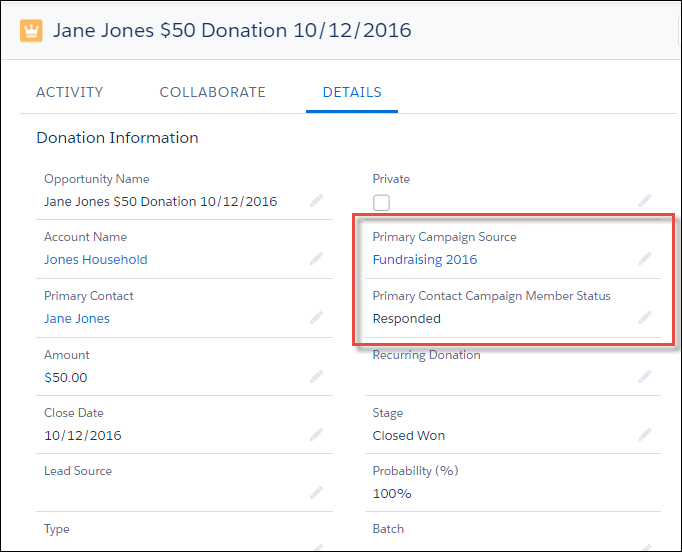
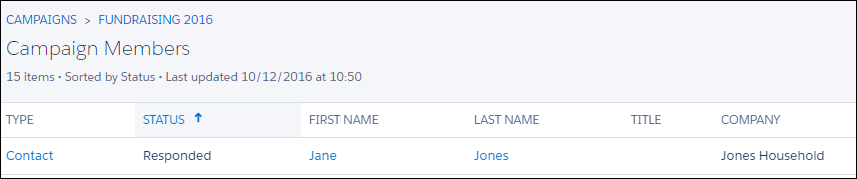
The Primary Contact Campaign Member Status field lets you specify the Member Status for that Contact on that related Campaign. Here's what it looks like on the Campaign's Campaign Members related list:
Setup—Before You Begin
To automatically create Campaign Members through an Opportunity, you need to ensure that your org is set up to do so.
There are three settings in NPSP Settings that control this feature:
- Automatic Campaign Member Management
- Campaign Member Responded Status
- Campaign Member Non Responded Status
To access or change these settings:
-
Click the NPSP Settings tab. If you don't see the tab, find it in the App Launcher (
 ).
). - Click Donations, then click Campaign Members.
- Select Automatic Campaign Member Management.
- Optionally, enter a Campaign Member Responded Status. The value entered is used as the default for ALL Campaign Members that are automatically added or updated through Automatic Campaign Member Management. If you leave this field blank, Salesforce uses the first status marked as "Responded" in your list of Campaign Member Statuses. If you enter a value that doesn't already exist in your list of Statuses, it will be added to the list.
- Optionally, enter a Campaign Member Non Responded Status. The value entered is used as the default for ALL Campaign Members that are automatically added or updated through Automatic Campaign Member Management. If you leave this field blank, Salesforce uses the first status that is NOT marked as "Responded" in your list of Campaign Member Statuses. If you enter a value that doesn't already exist in your list of Statuses, it will be added to the list.
Note If you require different statuses for different Campaigns, we recommend that you leave this field blank and carefully curate the Campaign Member Statuses for each of your Campaigns. To manage Campaign Members Statuses, navigate to your Campaign and click the Campaign Members Statuses related list.
- Click Save.
Create Campaign Members Through an Opportunity
When you specify a Contact as the Opportunity's Primary Contact, NPSP automatically adds that Contact as a Campaign Member to the Opportunity's related Campaign.
- Enter your new Opportunity donation, and specify a Primary Contact.
- Specify the Campaign to which you want to add this contact.
- (Optional) Set the Primary Contact Campaign Member Status if you want to set their status in the Campaign as well. See below for more details.
Update Campaign Member Status Through an Opportunity
You can automatically update Campaign Member Status, right from the Opportunity object as well.
- Locate an existing Opportunity donation with a Primary Contact.
- Set the Primary Contact Campaign Member Status. See below for more details.
Opportunity Stages, Campaign Member Statuses, and Actions on the Campaign
The Opportunity's Stage and the value in the Opportunity's Primary Contact Campaign Member Status field determine the behavior of the Campaign Member record. If the Contact is not already a Member of the Campaign, Salesforce creates a new Campaign Member record. Otherwise, Salesforce updates the existing Campaign Member record for the Contact.
Closing an open Opportunity with a blank Primary Contact Campaign Member Status field will also update the member's status. For example, if the Opportunity Stage is an Open value and the Primary Contact Campaign Member Status field is blank, then Salesforce will assign the first non-Responded value to the Campaign Member. If you later update the Opportunity to a Closed/Won stage, then Salesforce will automatically update the Campaign Member to the first Responded value.
You can use omit in the Primary Contact Campaign Member Status field to leave the Contact's current Campaign Member Status is unchanged.
The following table shows Campaign Member actions as they relate to Opportunity stage types and Primary Contact Campaign Member Status values:
