
You are here:
Create Legacy Recurring Donations
Create either open-ended or fixed-length recurring donations to track a donor's intent to give regularly into the future. These records are named automatically.

- Overview
Nonprofit Success Pack's Recurring Donations feature helps you track gifts that donors have pledged over a period of time. NPSP supports two types of recurring donations: open-ended and fixed-length recurring donations. - Create an Open-Ended Recurring Donation
Open-ended recurring donations have no defined end date. Specify the gift amount and recurrence schedule. - Create a Fixed-Length Recurring Donation
Fixed-length recurring donations have a defined end date. Specify the amount of each gift, a recurrence schedule, and a last gift date. - Create an Open-Ended Recurring Donation from a Contact Action
If you're creating a new Open Ended Recurring Donation, you might find it easier to create it directly from the Contact record using the provided Quick Action. - Automatic Recurring Donations Naming
By default, NPSP names your Recurring Donations automatically. Here's how it works.
Overview
Nonprofit Success Pack's Recurring Donations feature helps you track gifts that donors have pledged over a period of time. NPSP supports two types of recurring donations: open-ended and fixed-length recurring donations.
Open-Ended Recurring Donations are single donation amounts given over and over again, with no ending date defined. For example, John Smith gives your organization $100/month through his work place giving campaign, and has not specified an end date for the donation. The donation will continue until you close the Recurring Donation.
Fixed-Length Recurring Donations are single donation amounts given over and over again, but for a defined period of time. For example John Smith has pledged to give $50 a month for 3 years. Thus, the donation continues for three years, and ends at that point. (This type of donation is similar to a standard Salesforce Opportunity with multiple Payments attached to it. See Legacy Recurring Donations versus Opportunity Payments for more discussion on when to use each of these methods.)
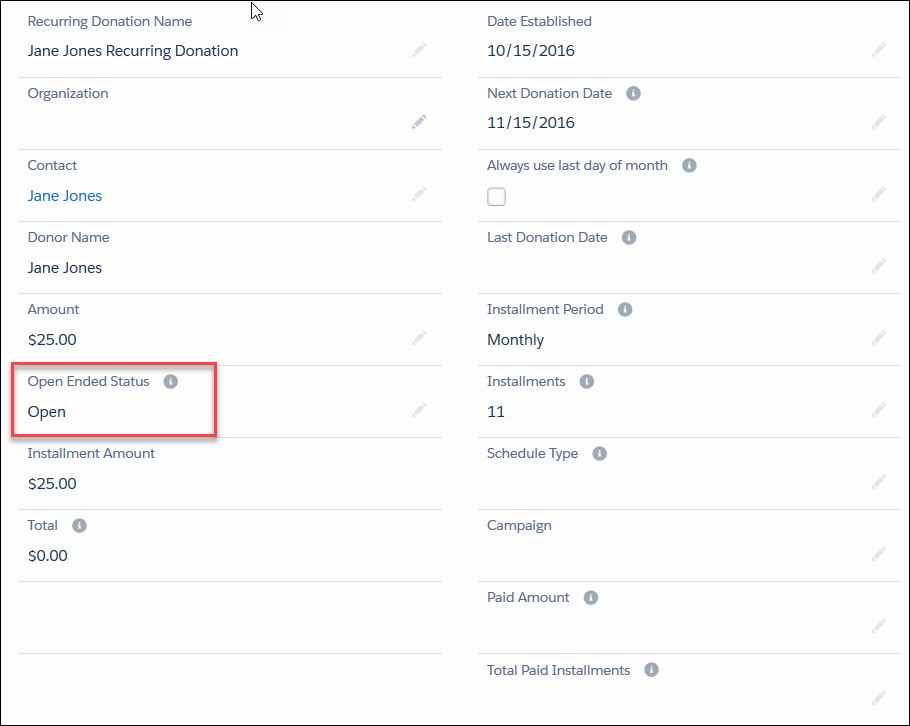
When creating a recurring donation, determine the type by setting the Open Ended Status.
Create an Open-Ended Recurring Donation
Open-ended recurring donations have no defined end date. Specify the gift amount and recurrence schedule.
- In the Nonprofit Success Pack, click the Recurring Donations tab. If you
don't see the Recurring Donations tab, click the App Launcher (
 ), then click All Items.
 - Click New.

- In the Recurring Donation Name field, enter a name for the recurring donation.
- Enter either the Contact name or the Organization name, but not both. You can use the lookup field to locate existing contacts and organizations in Salesforce.
- Enter the Recurring Donation's details:
- Amount – The amount for each child donation.
- Open Ended Status – Select Open. Salesforce creates opportunities based on the Installment Period but instead of doing installments it bases the number of Opportunities on the Forecast Month setting in NPSP Settings.
- Date Established – Date you opened the recurring donation.
- Next Donation Date – The date on which you want the next donation to occur. This date also determines the date of all future donations. For example, if you enter 4/21/18 for the Next Donation Date, and the donation is a monthly installment, then Salesforce creates the first donation for 4/21/18, then 5/21/18 and so on.
- Always use last day of month – When you select this checkbox, NPSP creates monthly and quarterly installment Opportunities with the Close Date set to the last day of the month. When this checkbox is NOT selected and the Next Payment date is the 28th, 29th, or 30th day of the month, NPSP creates new Installment Opportunities with the Close Date set to that specific day. If the Next Payment date is the 31st, the behavior is the same as if this checkbox was selected. This checkbox applies only to Recurring Donations where the Installment Period is Quarterly or Monthly, or any custom Installment Periods where the Time Period Type is Monthly.
-
Day of Month – When you set a value, NPSP creates monthly and quarterly installment Opportunities with the Close Date set to your selected day of the month. This picklist applies only to Recurring Donations where the Installment Period is Quarterly or Monthly, or any custom Installment Periods where the Time Period Type is Monthly.
If the Day of Month value is before Date Established, the first donation appears in the following month.Note If you select Always use last day of month, it takes precedence over any value you choose in the Day of Month picklist. If you want to set the Close Date to a day that is not the last day of the month, make sure that Always use last day of month is not selected.
- Last Donation Date – Do Not Enter. NPSP calculates this value automatically based on the last time a child donation was marked as Posted (for example, it records the date of your most recent child donation).
-
Installment Period – How often you'll receive the donations. Note Changing the installment period for an existing Open-Ended Recurring Donation may result in the loss and re-creation of open opportunities. Any data associated with those opportunities may be lost.
- Installments – Do Not Enter. This option is for Fixed-Length Recurring Donations only. For Open-Ended Recurring Donations, NPSP automatically calculates the installment number based on the Opportunity Forecast Months setting in NPSP Settings.
- Schedule Type – Do Not Enter. For Open-Ended donations, the value is always Multiply.
- Campaign – If you want to attach the Recurring Donation to a campaign, use the lookup field to select the campaign here. For more information on Salesforce Campaigns, see Campaigns in Salesforce Help and Training.
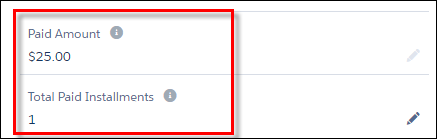
- Paid Amount – Do Not Enter. NPSP calculates this value automatically as the donations are made and marked Posted.
- Total Paid Installments – Do Not Enter. NPSP calculates this value automatically as donations are made and marked Posted.
- Click Save.
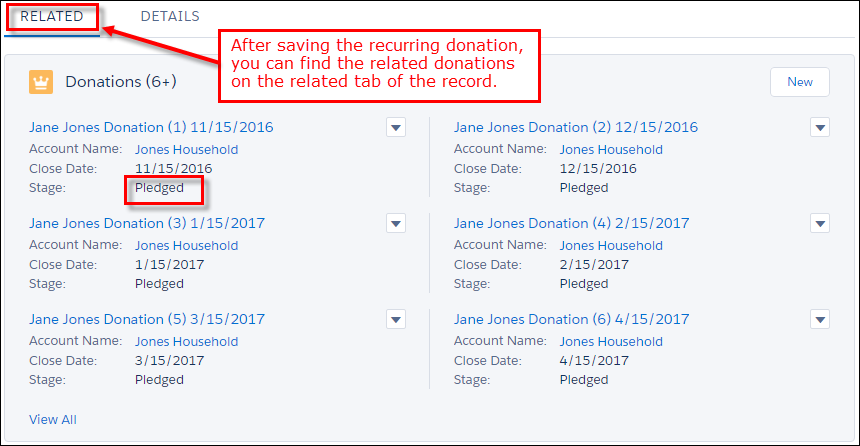
NPSP creates the appropriate number of child donations, and marks each donation with a Pledged staged.
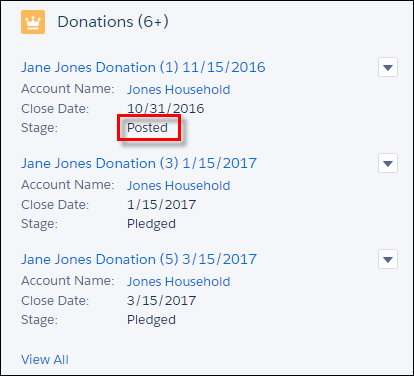
As you change child donation stages from Pledged to Posted, NPSP recalculates some of the fields described above.
Create a Fixed-Length Recurring Donation
Fixed-length recurring donations have a defined end date. Specify the amount of each gift, a recurrence schedule, and a last gift date.
- In the Nonprofit Success Pack, click the Recurring Donations tab. If you don't see the Recurring Donations tab, click the App Launcher (
), then click All Items.
- Click New.
- In the Recurring Donation Name field, enter a name for the recurring donation.
- Enter either the Contact name or the Organization name, but not both. You can use the lookup field to locate existing contacts and organizations in Salesforce.
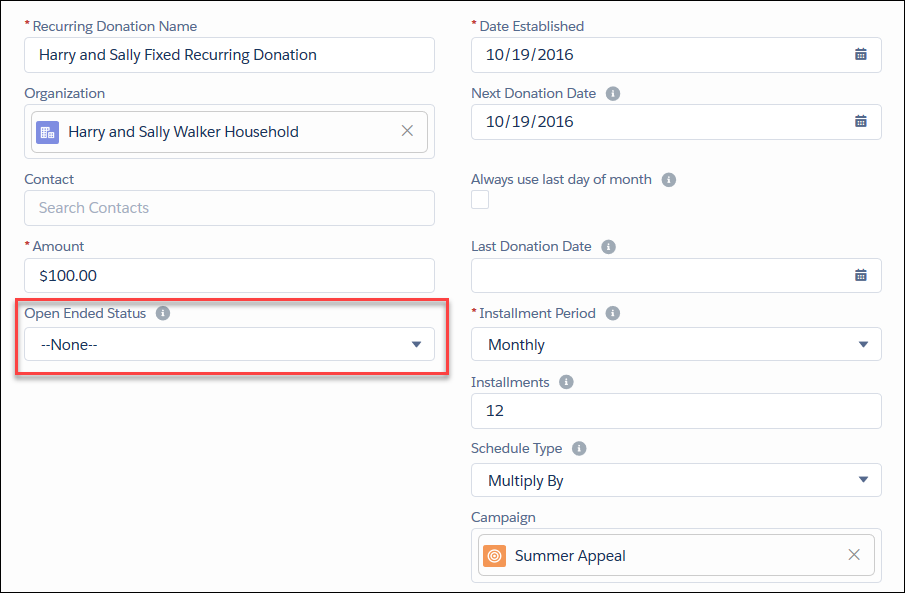
- Enter the details of the recurring donation.
- Amount – Enter the amount for each child donation, or a total amount if you want NPSP to divide installments up for you accordingly.
- Open Ended Status – Select None. Salesforce creates the correct number of installments based on the Installment Period and Schedule Type you choose. New installments aren't added unless the Installments and/or Schedule Type are updated. The same behavior happens when you leave this field blank.
- Date Established – Date you opened the recurring donation.
- Next Donation Date – The date on which you want the next donation to occur. This date also determines the date of all future donations. For example, if you enter 4/21/18 for the Next Donation Date, and the donation is a monthly installment, then Salesforce creates the first donation for 4/21/18, then 5/21/18 and so on.
- Always use last day of month – When you select this checkbox, NPSP creates monthly and quarterly installment Opportunities with the Close Date set to the last day of the month. When this checkbox is NOT selected and the Next Payment date is the 28th, 29th, or 30th day of the month, NPSP creates new Installment Opportunities with the Close Date set to that specific day. If the Next Payment date is the 31st, the behavior is the same as if this checkbox was selected. This checkbox applies only to Recurring Donations where the Installment Period is Quarterly or Monthly, or any custom Installment Periods where the Time Period Type is Monthly.
-
Day of Month – When you set a value, NPSP creates monthly and quarterly installment Opportunities with the Close Date set to your selected day of the month. This picklist applies only to Recurring Donations where the Installment Period is Quarterly or Monthly, or any custom Installment Periods where the Time Period Type is Monthly.
If the Day of Month value is before Date Established, the first donation appears in the following month.Note If you select Always use last day of month, it takes precedence over any value you choose in the Day of Month picklist. If you want to set the Close Date to a day that is not the last day of the month, make sure that Always use last day of month is not selected.
- Last Donation Date – Do not enter. NPSP calculates this value automatically based on the last time a child donation was marked Posted (for example, it records the date of your most recent child donation).
-
Installment Period – How often you'll receive the donations. Note Changing the installment period for an existing Open-Ended Recurring Donation may result in the loss and re-creation of open opportunities. Any data associated with those opportunities may be lost.
- Installments – Enter the number of installments (donations) you expect to receive. You can specify the maximum number of installments in NPSP Settings.
- Schedule Type – Select either Multiply or Divide. The option you choose tells Salesforce how to compute the amount for each child opportunity. Let's say your donor has pledged $100 a month for 12 months. If the number in the Amount field is $100, select Multiply. If the number in the Amount field is $1200, select Divide. NPSP will calculate the donations evenly, taking into account the necessary pennies to meet the total donation amount.
- Campaign – If you want to attach the Recurring Donation to a campaign, use the lookup field to select the campaign here.
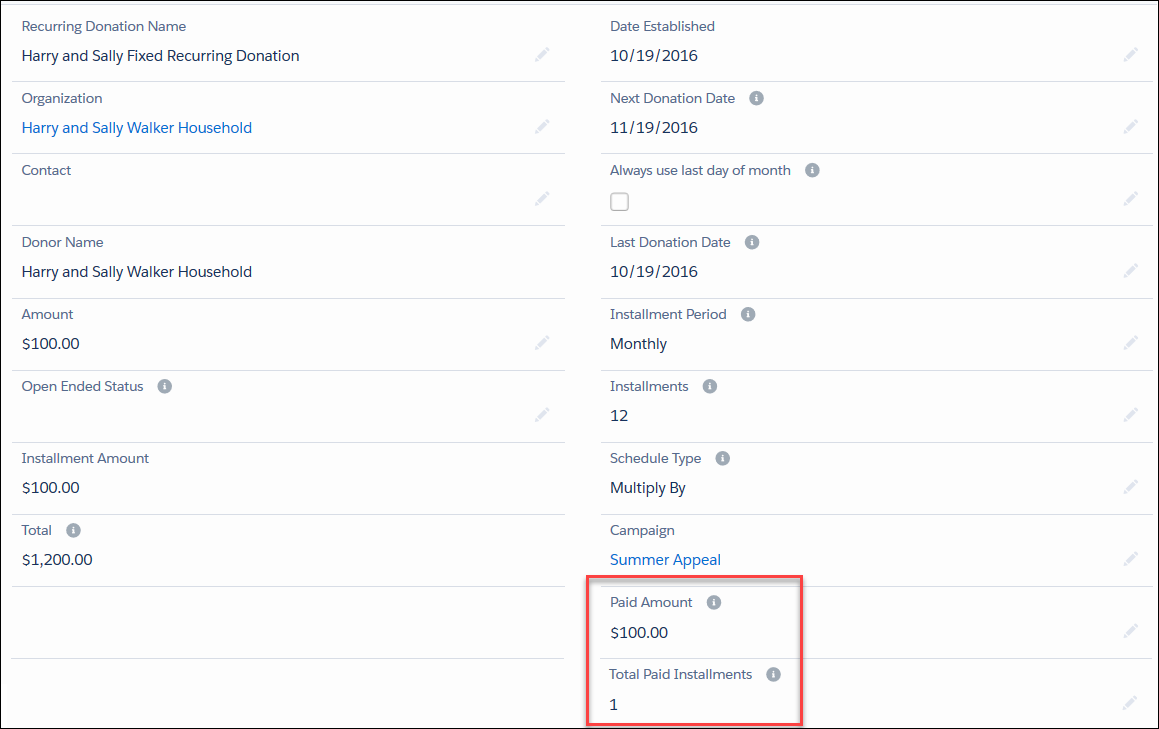
- Paid Amount – Do not enter. NPSP calculates this value automatically as the donations are made and marked Posted.
- Total Paid Installments – Do not enter. NPSP calculates this value automatically as donations are made and marked Posted.
- Click Save.
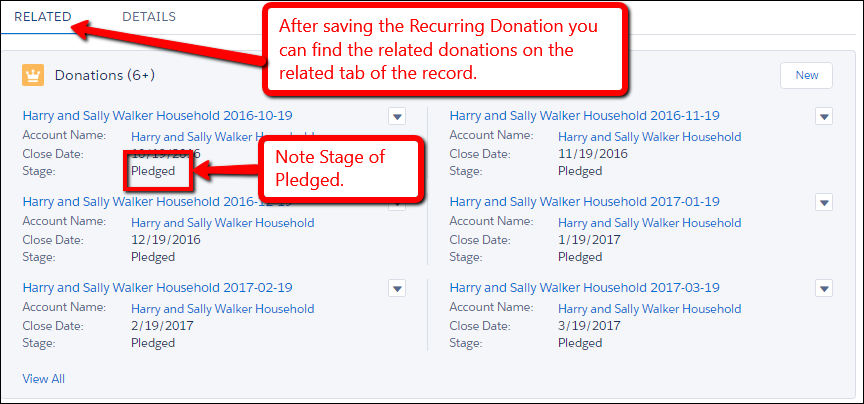
NPSP creates the number of child donation records (installments) and all are marked with a Pledged stage.
As you change child donation stages from Pledged to Posted, NPSP recalculates some of the fields described above.
Create an Open-Ended Recurring Donation from a Contact Action
If you're creating a new Open Ended Recurring Donation, you might find it easier to create it directly from the Contact record using the provided Quick Action.
If you don't see the button on your Contact record, see Add or Edit a New Opportunity Button on Contacts.
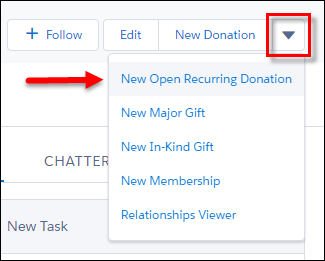
- On the Contact record, click New Open Recurring Donation.
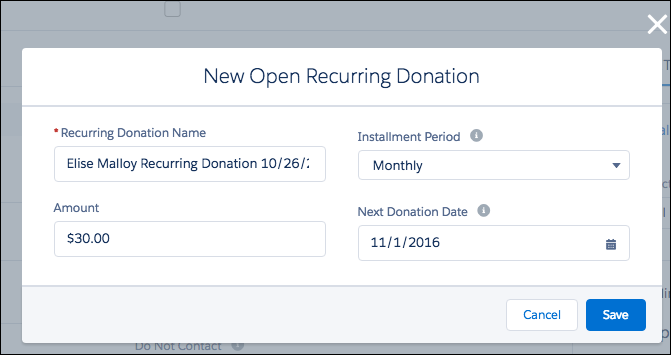
- You only need to populate these fields: Recurring Donation Name, Amount, Installment Period, and Next Donation Date.
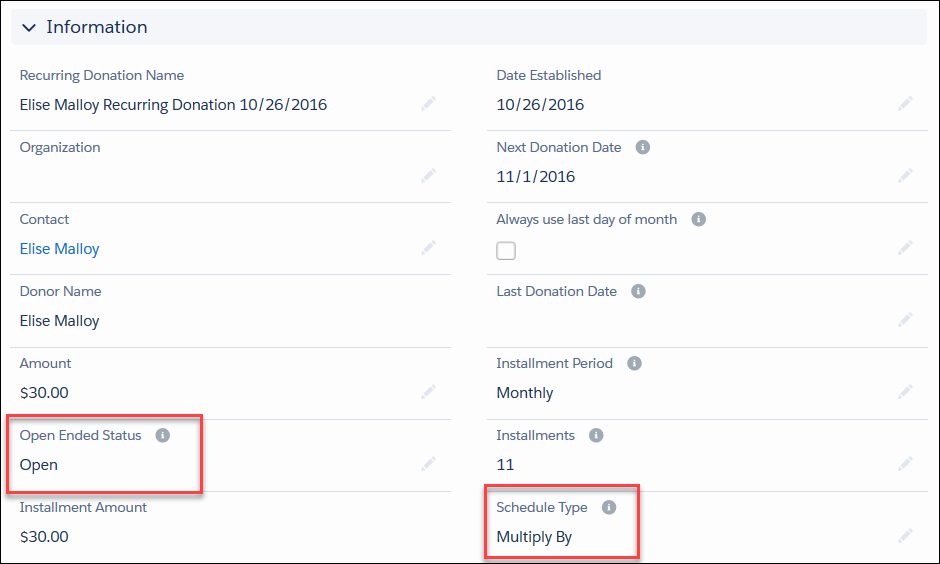
- The necessary Open Ended Status and Schedule Type fields are automatically populated with the correct values when you save the record. Click Edit if you need to change any other fields.
Automatic Recurring Donations Naming
By default, NPSP names your Recurring Donations automatically. Here's how it works.
- Create a new Recurring Donation.
- Enter placeholder text in Recurring Donation Name such as "New Donation".
- Fill out the rest of the fields.
- Click Save.
Once you save the record, NPSP updates the Recurring Donation Name using this format:
[DonorName] [Amount] - Recurring
For example, if you enter a new $100 Recurring Donation for Barbara Levy, the name becomes:
"Barbara Levy $100 - Recurring".
If you have your own naming convention that you'd rather use, you can ask your administrator to disable Automatic Recurring Donation Naming.
