
You are here:
Manually Create Soft Credits
Use the Nonprofit Success Pack to manage full and partial soft credits.
- Full Soft Credits Versus Partial Soft Credits
There are two kinds of soft credits in the Nonprofit Success Pack. A full soft credit is a soft credit for the entire amount of the donation. A partial soft credit is a soft credit for an amount that is only a portion of the larger donation. - Assign Full Soft Credits
Nonprofit Success Pack creates soft credits based on Opportunity Contact Roles, and the settings you've specified. - Assign Partial Soft Credits
Manually assign partial soft credits to Contacts who have a role in donations you receive. - Create Account Soft Credits
Create soft credits for Accounts to track their role in donations you receive. - Create Account Contact Soft Credits
Account Contact Soft Credit rollups aggregate all Household members' soft credits and roll them up to the Household.
Full Soft Credits Versus Partial Soft Credits
There are two kinds of soft credits in the Nonprofit Success Pack. A full soft credit is a soft credit for the entire amount of the donation. A partial soft credit is a soft credit for an amount that is only a portion of the larger donation.
There are two kinds of soft credits in the Nonprofit Success Pack:
A full soft credit is a soft credit for the entire amount of the donation. For example, Mary gives $100, Company Awesome matches $100, Mary gets soft credit for Company Awesome's $100 donation. You can create full soft credits manually, or enable automated soft credits.
A partial soft credit is a soft credit for an amount that is only a portion of the larger donation. For example, organizations like Network for Good and United Way collect donations on behalf of an organization's constituents, and typically share them with nonprofits on a regular basis (monthly or quarterly). The nonprofit creates a single Opportunity record for the larger check received, but needs to soft credit its individual constituents accordingly.

All Soft Credit attributions appear in the Contact Roles related list on an Opportunity. However, if the Opportunity includes partial soft credits, then the Soft Credit attribution also appears in the Opportunity's Partial Soft Credits related list.
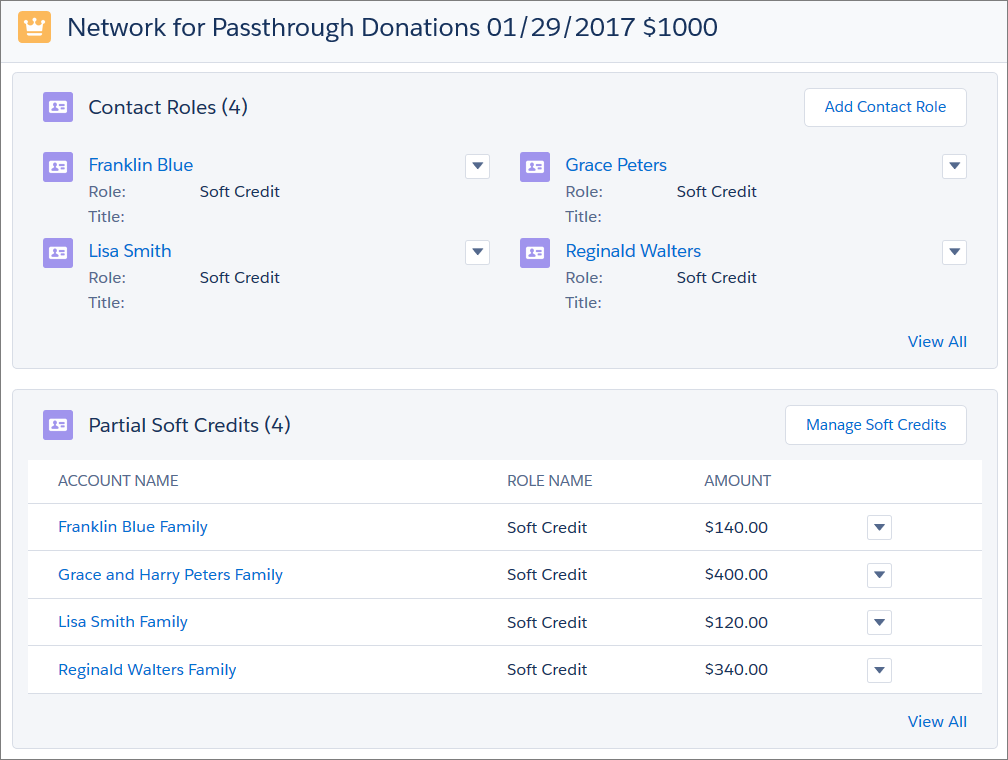
In the above example, we're using the "Soft Credit” Contact Role to track Partial Soft Credits on Opportunities. The screen shot shows a single $1000 donation that's come in from Network for Passthrough, with Soft Credit Contact Roles assigned to the four donors responsible for the aggregate donation. In the Partial Soft Credits related list, you can also see the amount that each individual gave, and thus the amount that will be rolled up to the Soft Credits section of each donor's Contact record.
It's perfectly fine and expected to see the same soft credit listed in both the Contact Role and Partial Soft Credits related lists. Every Partial Soft Credit record should have a corresponding Contact Role record. Not every Contact Role record will have a corresponding Partial Soft Credit record.
Assign Full Soft Credits
Nonprofit Success Pack creates soft credits based on Opportunity Contact Roles, and the settings you've specified.
If you haven't read the Soft Credits Overview, Configure Soft Credit Rollups, and Automated Soft Credits, you should do so before proceeding.

- Navigate to an Opportunity record.
- On the Contact Roles related list, click Edit Contact Roles.
- Enter the Contact to whom you want to assign the soft credit.
- Set the Role to the correct value. It should be a role that's been configured to receive soft credits.
- Click Add Row to add another Contact Role. Once you've selected all Contacts and assigned roles, click Save.
Assign Partial Soft Credits
Manually assign partial soft credits to Contacts who have a role in donations you receive.
The Nonprofit Success Pack creates soft credits based on Opportunity Contact Roles, and the settings you've specified. If you haven't read the Soft Credits Overview and Configure Automated and Manual Soft Credits, you should do so before proceeding.
- Navigate to an Opportunity record.
- In the top right corner of the page, click Manage Soft Credits. You should see all of the Contacts who have Contact Roles already assigned on this Opportunity. You may also see no Contacts listed if no Contact Roles have been assigned.
- Assign Partial Soft Credits by clicking the Partial radio button for the appropriate Contact, and entering the amount for their partial soft credit. Note You MUST have the Partial radio button selected to enter soft credit amounts. Selecting the Full radio button populates the Amount field with 100% of the Opportunity. This amount will not be editable.
- Additionally, you can click Add another soft credit, browse to more Contacts, and assign them partial soft credits as well. Note
When adding new Partial Soft Credits, you'll only be able to select Contact Roles that are eligible for soft credit rollups.
However, if Customizable Rollups is enabled in your org, you'll see all Contact Roles (all the values listed in ). Be sure to select one that you know is included in a Soft Credit Filter Rule. Ask your admin if you are unsure.
- (Optional) Select Allow Soft Credit Amount more than Total Amount if you need to credit Contacts for more than the Opportunity Amount. For example, if you have 2 Contacts who should receive Influencer soft credit for the entire $1000 Amount of the Opportunity, and a third Contact who is only credited for $100, that would bring the total soft credit amount to $2100 on a $1000 gift.
- When you're finished, click Save.
Create Account Soft Credits
Create soft credits for Accounts to track their role in donations you receive.
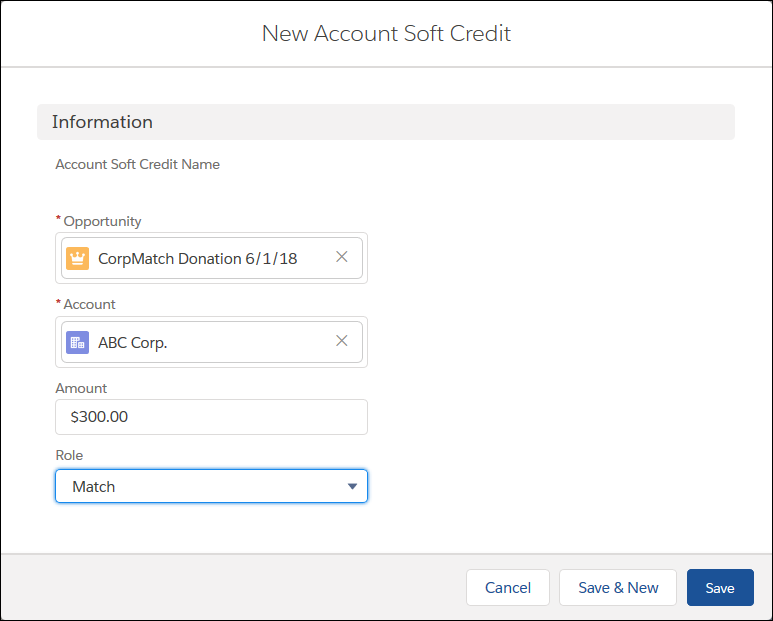
Three Contacts from ABC Corp indicate that they each want a $100 donation taken out of their paycheck and given to a local food pantry. ABC Corp matches those donations. So, CorpMatch sends a check to a local food pantry in the amount of $600. Make sure that ABC Corp gets soft credit for the $300 match using an Account soft credit.
- Enter the Opportunity from CorpMatch in the amount of $600.
- On the Opportunity, go to the Account Soft Credits related list and click New.
- Select the Account to soft credit. For our example, choose ABC Corp.
- Enter the Amount of the soft credit. It can be a partial amount. Since ABC Corp. matched $300 worth of donations, we will enter that amount. Note Enter a soft credit that's less than or equal to the original donation amount. Entering a larger soft credit causes your rollups to show inaccurate amounts.
- Select the Role. Be sure to select a Role that is included in a filter rule applies to your Account Soft Credit rollup(s)!
- Click Save.
- If you have Account Soft Credit rollups configured, you should now see that $300 reflected in Account soft credit rollups on ABC Corp.'s Account.
Create Account Contact Soft Credits
Account Contact Soft Credit rollups aggregate all Household members' soft credits and roll them up to the Household.
If you enable Customizable Rollups, you can create Account Contact Soft Credits. Account Contact Soft Credit rollups aggregate all Household members' soft credits and roll them up to the Household. To take advantage of Account Contact Soft Credits, create a rollup as follows:
- Go to the NPSP Settings tab. If you don't see the tab in your org, you can find it from the App Launcher.
- Click .
- Click Configure Customizable Rollups .
- Click New.
-
Enter the rollup details. We'll provide example values for a Total Soft Credits rollup.
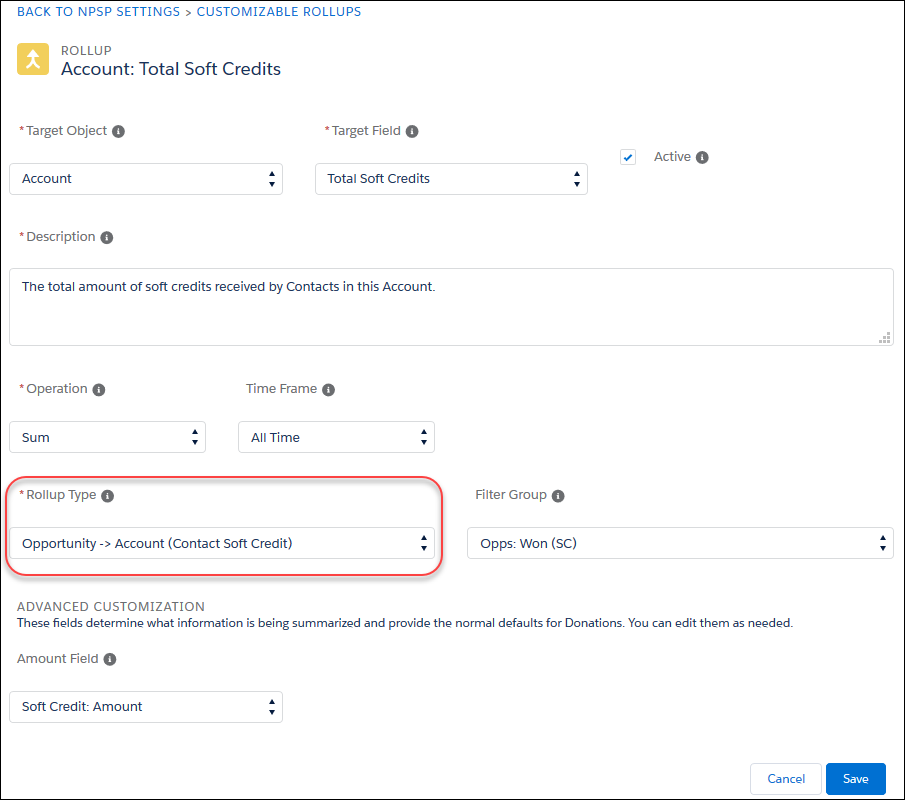
- In the Target Object field, select Account.
- Select a Target Field. For example, you might have a custom field called Total Soft Credits.
- Enter a Description. For example, The total amount of soft credits received by Contacts in this Account.
- Enter an Operation. For example, select Sum.
- Enter a Time Frame. For example, All Time.
- In the Rollup Type field, select Opportunity > Account (Contact Soft Credit).
- (Optional) Select a Filter Group. For example, select Opps: Won (SC).
-
In the Amount Field, under Advanced Customizations, select a value. For example, Soft Credit: Amount.
- Click Save.
