You are here:
Create Tribute Opportunities (Honor and Memorial Donations)
Nonprofit Success Pack enables you to capture important details about donations made in honor or in memory of someone. You can track who the donation was made in honor of, as well as who should be notified about the donation and how best to notify them.

For example, let's say Rafael Costas made a donation in honor of his niece, Sara Costas, who is a volunteer at your organization. Rafael would like you to email Sara's mom, Fiamma Costas, about the donation.
When you create the Opportunity record to track the donation, use the Tribute Information section to capture the details:
-
Select the Tribute Type. For this example, you'd select Honor .
-
Use the Honoree Contact field if the honoree is already a Contact in Salesforce or you want to track them as a Contact going forward. Otherwise, leave this field blank. In this example, since Sara is a volunteer for the organization, she already has a Contact record, so you'd find and select her Contact record here.
-
If you selected an Honoree Contact, leave the Honoree Name field blank, as Salesforce fills it in with the name of the Honoree Contact when you save the record. Otherwise, enter the Honoree Name. For this example, you'd leave the field blank.
-
If you selected an Honoree Contact, leave Honoree Information blank. Otherwise, use this field to capture details about the honoree such as address, phone, and email. For this example, you'd leave the field blank.
-
Select the Notification Preference. In this example, Rafael has asked us to email his niece's mother about his donation, so you'd select Email.
-
In the Notification Recipient Contact field, select the Contact who should be notified of the donation. If that person doesn't have a Contact record and you don't want to track them as a Contact, leave this field blank. For this example, since Fiamma Costas hasn't expressed interest in interacting with your organization, you'd leave the field blank. (You can always create a Contact record for Fiamma later.)
-
If you selected a Notification Recipient, leave the Notification Recipient Name blank, as Salesforce fills it in with the name from the Notification Recipient field when you save the record. Otherwise, enter the Notification Recipient Name. For this example, you'd enter Fiamma Costas.
-
In the Notification Recipient Information and Notification Recipient Email fields, enter any contact information you have about the notification recipient, such as address, phone number, and email. These fields are primarily used when there isn't a Contact record for the Notification Recipient. For this example, you'd enter Fiamma's email address in Notification Recipient Email and leave Notification Recipient Information blank.
-
In the Notification Message field, enter any message from the donor to the notification recipient about the donation.
-
If you'd like to track when you sent the notification, enter details into Tribute Notification Date and Tribute Notification Status.
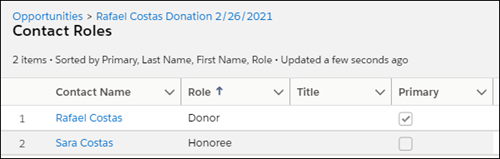
By default, NPSP creates Opportunity Contact Roles for the Honoree Contact and Notification Recipient Contact (along with the donor and any Contact receiving soft credit). In this example, we've populated the Honoree Contact field: