
You are here:
Customize Household Names
Find out more about customizing household names.

- Overview: About Household Naming
Nonprofit Success Pack supports the Household Account model and automatic Household naming. - Customize the Household Name Format
NPSP uses the Household Name Format to determine the Household Account Name. - Customize the Formal Greeting Format
NPSP uses the Formal Greeting Format to determine the Household's Formal Greeting. - Customize the Informal Greeting Format
NPSP uses the Informal Greeting Format field to determine the Household's Informal Greeting. - Customize Name Connector, Name Overrun, and Name Sequence
The name connector, name overrun, and name sequence also affect the appearance of your Household names and greetings. - Other Custom Format Examples
Choosing "other" from the Household Name Format, Formal Greeting Format, or Informal Greeting Format lets you design your own custom format. You can create your own format from scratch, or copy and paste from one of these examples. - Create Your Own Custom Format From Scratch
The key to creating your own custom naming format from scratch is understanding the format components. - Exclude a Name
You can exclude Contact names from Household Names, Formal Greetings, and Informal Greetings. - Refresh All Household Names
Once you've made changes to Household Name formatting, you can refresh the naming for all existing Household names and greetings. - Automatic Household Renaming
There are certain actions that trigger an automatic update of the Household name. For example, if you update the value of a Contact field that's included in the Household Naming formula, NPSP will automatically update the Household Name. - Disable Automatic Household Naming
If you don't want the NPSP to name your Households automatically for you, you can disable the automatic Household Naming feature. - Use Your Own Custom Household Naming
Once you've made changes to Household Name formatting, you can refresh the naming for all existing Household names and greetings. - Household Naming FAQ
Get answers to common questions about household naming. Manually edit the generated name, include custom fields, understand anonymous households, and more.
Overview: About Household Naming
Nonprofit Success Pack supports the Household Account model and automatic Household naming.
This means that when you create a new Contact in Salesforce, NPSP creates a new Household Account record, and generates its name based on the name of the new Contact. For example, when you create the Jamal Jones Contact record, NPSP creates the Jones Household.
By default, automatic household naming functionality:
- Creates the name of the new Household Account based on the last name of the new Contact.
- Creates formal and informal greetings based on the Contact's name.
- Updates Household names and greetings when you update Contact names, or add or remove Contacts from the Household.
The best place to see this in action is in the Account Detail section of the Household Account record:
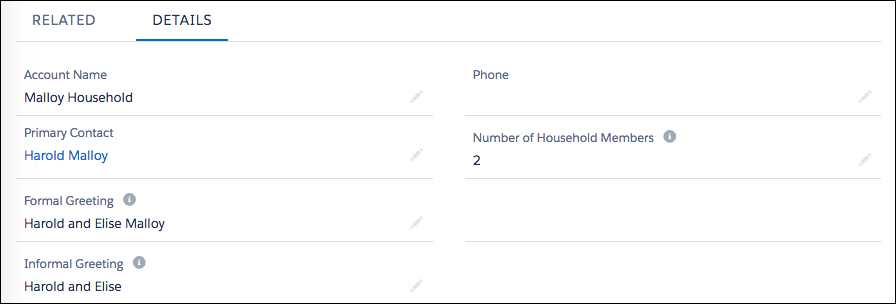
In this example, NPSP displays the default Household Name, Formal Greeting, and Informal Greeting based on the two Contacts in the Household: Harold Malloy and Elise Malloy. But what if you wanted your Formal Greeting to be "Mr. and Mrs. Malloy" instead of the default "Harold and Elise Malloy"? Or what if you wanted to omit a Contact name from one or both of the Greetings?
The rest of this article describes how you can customize automatic Household naming to fit the needs of your organization.
Customize the Household Name Format
NPSP uses the Household Name Format to determine the Household Account Name.
To change the Household name setting:
- In NPSP Settings, click .
- Click Edit.
- Select a format from the Household Name Format field:
- -none- Does not generate a Household Name, leaving it up to the user to assign one.
- {!LastName} Household Generates a Household name such as “Smith Household” or “Smith and Jones Household,” depending on the number of Contacts in the Household.
- {!{!FirstName}} {!LastName} Household Generates a Household name such as “John Smith Household” or “John and Jane Smith Household”.
- {!LastName} ({!{!FirstName}}) Household Generates a Household name such as “Smith (John) Household”, “Smith (John and Jane) Household” or “Smith (John) and Doe (Jane) Household”.
- {!LastName} Family Generates a Household name such as “Smith Family” or “Smith and Jones Family”.
- {!{!FirstName}} {!LastName} Family Generates a Household name such as “John Smith Family” or “John and Jane Smith Family”.
- {!LastName} ({!{!FirstName}}) Family Generates a Household name such as “Smith (John) Family”, “Smith (John and Jane) Family” or “Smith (John) and Doe (Jane) Family”.
- {!{!Salutation}} {!FirstName} {!LastName} Family Generates a Household name such as "Mr. John Smith Family" or "Mr. and Mrs. John Smith Family".
- {!Account.npe01__One2OneContact__r.LastName} Family Generates a Household name such as "Smith Family".
- {!LastName} ({!Account.Billing.City}) Family Generates a Household name such as "Smith (Seattle) Family".
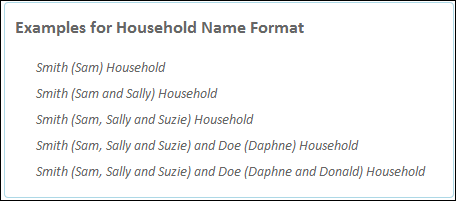
- other Allows you to specify your own naming convention. See Other Custom Format Examples for sample formats you can copy and paste. See Create Your Own Custom Format From Scratch for detailed information on designing your own format. Note The Examples for Household Name Format field further down on the Households Settings page shows a preview of Household Names based on your current selection. The following preview is what's shown when you choose the {!LastName} ({!{!FirstName}}) Household option:
- Click Save.
Customize the Formal Greeting Format
NPSP uses the Formal Greeting Format to determine the Household's Formal Greeting.
To change the formal greeting setting:
- In NPSP Settings, click .
- Click Edit.
- Select an option from the Formal Greeting Format field:Note
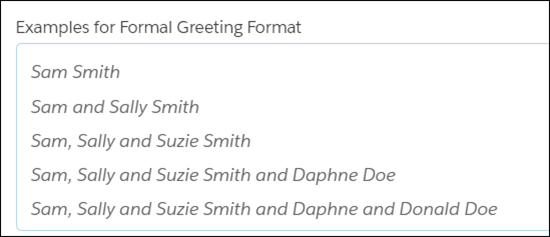
The Examples for Formal Greeting Format field further down on the Households Settings page shows a preview of Formal Greetings based on your current selection. The following preview is what's shown when you choose the {!{!FirstName}} {!LastName} option:
- -none- Does not generate a Formal Name at all. The field will remain blank.
- {!{!FirstName}} {!LastName} Generates a formal greeting such as “John Smith” or “John and Jane Smith”.
- {!{!Salutation} {!FirstName}} {!LastName} Generates a formal greeting such as “Dr. John Smith”, or “Dr. John and Mrs. Jane Smith”.
- {!{!Salutation}} {Firstname} {Lastname} Generates a formal greeting such as "Mr. & Mrs. John Doe".
- other Allows you to specify your own naming convention. See Other Custom Format Examples for sample formats you can copy and paste. See Create Your Own Custom Format From Scratch for detailed information on designing your own format.
- Click Save.
Customize the Informal Greeting Format
NPSP uses the Informal Greeting Format field to determine the Household's Informal Greeting.
To change the Informal Greeting setting:
- In NPSP Settings, click .
- Click Edit.
- Select an option from the Informal Greeting field:
- -none- Does not generate an Informal Name at all. The field will remain blank.
- {!{!FirstName}} Generates an informal greeting such as “John” or “John and Jane”.
- {!{!FirstName}} {!LastName} Generates an informal greeting such as “John Smith” or “John and Jane Smith”.
- other Allows you to specify your own naming convention. See Other Custom Format Examples for sample formats you can copy and paste. See Create Your Own Custom Format From Scratch for detailed information on designing your own format.
Note The Examples for Informal Greeting Format field further down on the Households Settings page shows a preview of Informal Greetings based on your current selection. The following preview is what's shown when you choose the {!{!FirstName}} {!LastName} option: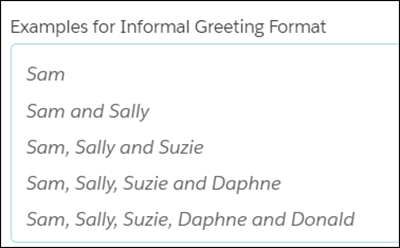
- Click Save.
Customize Name Connector, Name Overrun, and Name Sequence
The name connector, name overrun, and name sequence also affect the appearance of your Household names and greetings.
-
Click the NPSP Settings tab. If you don't see the tab, find it in the App Launcher (
 ).
). - Click .
- Click Edit.
- Use the appropriate editable fields to customize the name connector, name overrun, or name sequence. See below for specific instructions.
- When you're finished, click Save.
- Customize the Name Connector
The Name Connector joins multiple contacts together in the Name, Formal Name, and Informal Name fields. - Customize the Name Overrun
The Name Overrun value is a text value that replaces a long list of names in a Household Name, Formal Greeting, or Informal Greeting. - Customize the Name Sequence
You can change the order of Contact names in Household Names, Formal Greetings, and Informal Greetings
Customize the Name Connector
The Name Connector joins multiple contacts together in the Name, Formal Name, and Informal Name fields.
The default value is “and”, however you can override that value with any value, such as “&” or “y”. (There are no restrictions as to the value.)
Customize the Name Overrun
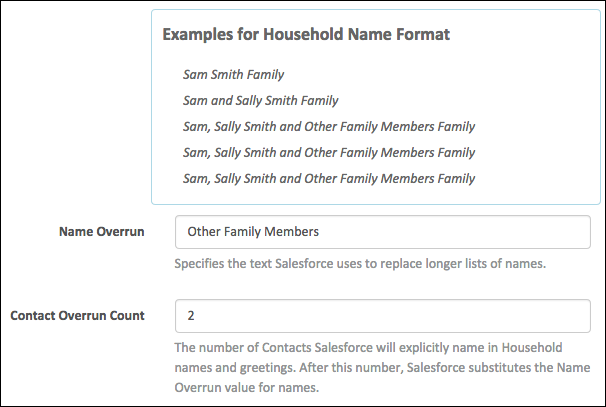
The Name Overrun value is a text value that replaces a long list of names in a Household Name, Formal Greeting, or Informal Greeting.
The Contact Overrun Count is the number that indicates the maximum number of names you want to show. For example, you might have nine members of a Household, but you certainly wouldn't want to list out all of their names in the Household name or a greetings. By setting the Contact Overrun Count to 2, and the Name Overrun value to “Other Family Members,” your Household Name Format would look as follows:
Customize the Name Sequence
You can change the order of Contact names in Household Names, Formal Greetings, and Informal Greetings
- Navigate to the Household Account or Household object record whose Contact names you want to re-order.
- Click Manage Household. Note If you don't see the Manage Household button, you likely have an earlier version of NPSP, and might need to enable the button in Salesforce setup.
- On the Manage Household page, drag the Contact cards from left to right to re-order them. Note If you don't see the Manage Household page, you likely upgraded to Nonprofit Success Pack or later from a previous version. For more information, see Upgrade to Nonprofit Success Pack from a Previous Version of NPSP.
- Click Save.
Other Custom Format Examples
Choosing "other" from the Household Name Format, Formal Greeting Format, or Informal Greeting Format lets you design your own custom format. You can create your own format from scratch, or copy and paste from one of these examples.
For more information on creating your own format, see Create Your Own Custom Format From Scratch.
For the following examples, we're using the Smith Household, with these Household members (listed in this order on the Household record): Justin Smith (Primary Contact), Laila Smith (Spouse), Makayla Smith, Malik Smith.
| If you want the naming convention to look like this: | Use this format: |
|---|---|
| Mr. & Mrs. Smith |
(You must also set Contact Overrun Count to 2 AND leave Name Overrun blank.) |
| Justin, Laila, Makayla and Malik Smith |
{!{!FirstName}} {!Last Name}
|
| Justin, Laila, Makayla and Malik Smith Family (Seattle) |
{!{!FirstName}} {!LastName} Family ({!Account.BillingCity})
|
| Justin Smith, Laila Smith, Makayla Smith and Malik Smith |
{!{!FirstName} {!LastName}}
|
For the following examples, the Pittman Household has these Household members: Angelo Pittman, Robert Andrews, and Grace Andrews.
| If you want the naming convention to look like this: | Use this format: |
|---|---|
| Mr. Pittman and Mr. Andrews |
with the Contact Overrun Count set to 2) |
| Pittman and Andrews Family |
{!LastName} Family
|
| Pittman and Andrews Family (California) |
{!LastName} Family ({!Account.BillingState})
|
| Angelo Pittman and Robert and Grace Andrews |
{!{!FirstName}} {!LastName}
|
| Angelo Pittman, Robert Andrews and Grace Andrews |
{!{!FirstName} {!LastName}}
|
Create Your Own Custom Format From Scratch
The key to creating your own custom naming format from scratch is understanding the format components.
Field References
To reference a field whose values you want to include in the Household Name, use open and closed braces, an exclamation mark, and the API field name. Examples:
{!firstname}
{!mailingcity}
{!lastname}
{!pet_name__c}
{!npsp__Primary_Affiliation__c}
Static Text
You can use static text in your Household Name Format. For example, if you want to append the phrase "Group" to the end of every household name, simply use the text along with any fields you want to include. For example, use the format below to yield Smith Group as the Household Name (for a Household with Contacts Ethan Smith and Jordan Smith).
{!lastname} GroupRepeating Element
If there are fields whose values you want to display from every Contact in the Household, use the repeating element, which starts with an open brace and an exclamation mark, and ends with a closed brace (as highlighted below). For example:
{!{!firstname}} {!lastname}In this example, the first name field is inside the repeating element, so the first name of every Contact in the Household will be displayed: Ethan and Jordan Smith.
If we include the last name field inside the repeating element, like so:
{!{!firstname} {!lastname}}
Our Household Name will be Ethan Smith and Jordan Smith.
You can include as many fields as you want inside the repeating element. But you can only use the repeating element once in your formula:
This works (one repeating element): {!{!salutation} {!firstname} {!lastname} ({!MailingCity}) }
This doesn't work (more than one repeating element): {!{!firstname}} {!{!mailingcity}}
Any field that's outside of the repeating element has its value pulled from the Primary Contact. For example:
{!{!firstname}} ({!mailingcity})In this example, Mailing City is outside of the repeating element, so its value will be pulled from the Primary Contact's mailing city.
Notice the static text parentheses around the mailing city field in the above example. This will result in parentheses around the mailing city in the Household Name: Ethan and Jordan (Shoreline).
Last Name Grouping
NPSP uses the Last Name field to group repeating values.
For example, you have a Household with Contacts Yididya Moore, Hannah Johnson, Diamond Johnson.
And your Household Name Format is this:
{!{!FirstName}} {!LastName} HouseholdIn this case, First Name is the repeating value. Since Hannah and Diamond have the same last name, NPSP groups them together. So your Household Name will be Yididya Moore and Hannah and Diamond Johnson Household.
Exclude a Name
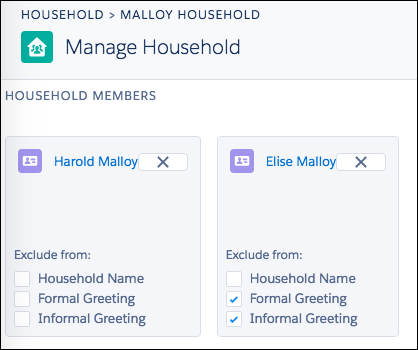
You can exclude Contact names from Household Names, Formal Greetings, and Informal Greetings.
- Navigate to the Household Account or Household object record whose Contact you want to exclude from a Household Name or greeting.
- Click Manage Household. Note If you don't see the Manage Household button, you likely have an earlier version of the NPSP, and might need to enable the button in Salesforce setup.
- On the Manage Household page, choose your exclusions from the Contact cards.
 Note If you don't see the Manage Household page, you likely upgraded to NPSP 3.0 or later from a previous version. For more information, see Upgrade to Nonprofit Success Pack from a Previous Version of NPSP.
 - Click Save.
Refresh All Household Names
Once you've made changes to Household Name formatting, you can refresh the naming for all existing Household names and greetings.
However, name refreshing is an irreversible process, and should not be done without careful consideration.

- In NPSP Settings, click .
- Carefully review the WARNING section before refreshing Household names.
- If you haven't already, disable all custom validation rules. (See below for more information.)
- Click the Refresh All Household Names button to start the process.
Disabling Custom Validation Rules.
Custom validation rules can prevent the automatic Household naming process from properly completing. You should disable all custom validation rules on the Account object (Household Account model) or on the Household object (One-to-One and Individual “Bucket” models) before you begin the refresh process. Once the refresh process is complete, you can re-enable your custom validation rules.

Automatic Household Renaming
There are certain actions that trigger an automatic update of the Household name. For example, if you update the value of a Contact field that's included in the Household Naming formula, NPSP will automatically update the Household Name.
Here's a list of actions that will trigger NPSP to update the Household Name:
- Update to any Contact field that's included in the naming formula
- Adding or removing a Contact from a Household.
- Updates to the npo02__SYSTEM_CUSTOM_NAMING__c field on Household
- Updates to any of the naming fields directly on the Household record
- Removing or deleting the last Contact in a Household and making the Primary Contact field blank. (With these two actions, NPSP will rename the Household “Anonymous”.)
Disable Automatic Household Naming
If you don't want the NPSP to name your Households automatically for you, you can disable the automatic Household Naming feature.
Use Your Own Custom Household Naming
Once you've made changes to Household Name formatting, you can refresh the naming for all existing Household names and greetings.
The new Apex Class must implement all methods specified in the interface, including methods to construct a Household's Name, Formal Greeting, and Informal Greeting.

You can find the Implementing Class field in NPSP Settings, under .

Household Naming FAQ
Get answers to common questions about household naming. Manually edit the generated name, include custom fields, understand anonymous households, and more.
- What happens if I manually edit the Household Name or the Formal/Informal Greetings?
Salesforce will detect that you have manually overridden one of these three fields on the Household Account or (older) Household object, and will exclude that field from future naming. - How do I reset one of the 3 Name fields back to automatic naming?
Enter 'REPLACE' (all-caps, no quotes) in the fields you want to revert to automatic naming and save the Account record. The field will be recalculated immediately, and will be automatically named going forward. - How do I build my own naming format?
You can create your own naming format. - How do I include custom fields in the Household Name?
You can create your own naming format. - How do I prevent validation rules from blocking changes to the Household Name fields?
If your organization has custom validation rules that prevent saving records with missing or invalid data, those rules could block automatic Household Naming. - Why is my Household suddenly named "Anonymous"?
If you remove or delete the last Contact in a Household, and make the Primary Contact field blank, NPSP will rename that Household "Anonymous".
What happens if I manually edit the Household Name or the Formal/Informal Greetings?
Salesforce will detect that you have manually overridden one of these three fields on the Household Account or (older) Household object, and will exclude that field from future naming.
How do I reset one of the 3 Name fields back to automatic naming?
Enter 'REPLACE' (all-caps, no quotes) in the fields you want to revert to automatic naming and save the Account record. The field will be recalculated immediately, and will be automatically named going forward.
How do I build my own naming format?
You can create your own naming format.
See Create Your Own Custom Format From Scratch for detailed information on how to build your own naming format.
How do I include custom fields in the Household Name?
You can create your own naming format.
See Create Your Own Custom Format From Scratch for detailed information on how to build your own naming format, including custom fields.
How do I prevent validation rules from blocking changes to the Household Name fields?
If your organization has custom validation rules that prevent saving records with missing or invalid data, those rules could block automatic Household Naming.
To prevent blocking of automatic Household Naming, add this logic to the validation rules:
&& NOT(OR(ISCHANGED(Name), ISCHANGED(np02_Formal_Greeting__c), ISCHANGED(np02_Informal_Greeting__c)))Adding the above conditions to your Account or Household validation rules forces those validation rules to ignore any modifications you make to Name, Informal_Greeting__c or Formal_Greeting__c.
