
You are here:
Customize Opportunity (Donation) Names
Create your own custom Opportunity Names using any fields from the Opportunity itself or fields from related records.

- Create a Custom Opportunity Name
To use a custom Opportunity name or a a different naming format from default naming convention, create a custom name. - Opportunity Name Examples
When creating your own Opportunity Names, simply add any Opportunity field to the list of field names. - Edit a Custom Opportunity Name
Change a custom Opportunity Name by editing it in NPSP Settings. - Refresh a Single Opportunity Name
Refresh the name of an Opportunity to share the custom formatting of a matching custom Opportunity name. - Refresh all Opportunity Names
Share naming formatting with preexisting, matching Opportunities by refreshing them.
Create a Custom Opportunity Name
To use a custom Opportunity name or a a different naming format from default naming convention, create a custom name.
When you create a new Opportunity from a Quick Action on a Contact or Account record, NPSP names the Opportunity for you. The default naming convention is [Account or Contact Name] [record type name] [date]. For example, "Barnaby Jones Donation 12/12/21."
Set a different naming format by choosing from several options provided by NPSP, or create your own format from scratch. NPSP also provides the ability to specify different formats by Opportunity record type.
To choose from a list of pre-configured name formats, or create your own format:
-
Click the NPSP Settings tab. If you don't see the tab, find it in the App Launcher (
 ).
). - On the Opportunity Names page, click New Opportunity Name.
- On the Opportunity Name Settings page, specify the settings for your custom Opportunity Name:
- Attribution
- Specifies whether you want to apply the custom naming convention to Contact donations (that is, Opportunities associated with Household, 1-to-1, or Individual "Bucket" accounts), Organization donations, or both Contact and Organization donations. NPSP treats any donation that is not a Contact donation as an Organization donation.
- Opportunity Record Types
- Specifies the Opportunity record types to which you want to apply this Opportunity Name. Control or Command click to select more than one record type. "None" applies the new naming to all record types.
- Opportunity Name Format
- Specifies the Opportunity Name format. Select from a number of out-of-the-box naming conventions, or choose "other" to create your own. (See Customize Opportunity (Donation) Names for more information.)
- Date Format
- The format for any Date or DateTime fields you've included in the Opportunity Name. Choose "other" to create your own format, following the Java SimpleDateFormat specification.
- Click Save.
NPSP will use the new custom naming convention for all Opportunities of matching record types going forward. To apply the new naming convention to previously created Opportunities, see Customize Opportunity (Donation) Names and Customize Opportunity (Donation) Names.
Opportunity Name Examples
When creating your own Opportunity Names, simply add any Opportunity field to the list of field names.
For example:
{!Amount} {!CloseDate}
You can also add static text to the custom name:
Received {!Amount} on {!CloseDate}
As well as fields from related records:
Received {!Amount} on {!CloseDate} thanks to {!Campaign.Name}
And if you really want to get fancy, you can even add fields from the Primary Contact associated with the donation:
{!Contact.Name} from {!Contact.MailingCity} gave {!Amount} on {!CloseDate} thanks to {!Campaign.Name}
Note that if a field does not contain a value, its place in the custom name will be left blank. For example, if the mailing city field for the Primary Contact were empty, the above would read: "Nicolas from gave $8 on April 29, 2015 thanks to Save the Whales."
Refresh a Single Opportunity Name
Refresh the name of an Opportunity to share the custom formatting of a matching custom Opportunity name.
When you create a custom Opportunity Name, Salesforce only uses that naming convention for matching Opportunities you create after that. But you can refresh the name of a preexisting, matching Opportunity, once you've specified your settings.
- Navigate to the Opportunity whose name you want to refresh.
- Click
 , then click Refresh Name.
 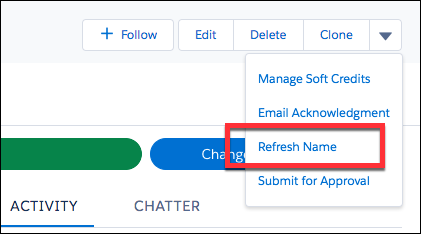 Note If you don't see this button, you'll need to add it to your page layout.
Refresh all Opportunity Names
Share naming formatting with preexisting, matching Opportunities by refreshing them.
When you create a custom Opportunity Name, Salesforce only uses that naming convention for matching Opportunities you create after that. But you can refresh the names of all preexisting, matching Opportunities, once you've specified your settings.

- In the Nonprofit Success Pack, click the NPSP Settings tab, and then click .
- Click Refresh All Opportunity Names.
You can also set up this batch job to automatically run (you determine how often and when) by scheduling the OPP_OpportunityNaming_BATCH Apex Class. For more information, see Edit or Reschedule NPSP Scheduled Jobs.
