
You are here:
Deluxe Custom Reports
Learn how to customize NPSP reports, includes an example report scenario.
- Overview
Learn about what deluxe custom report types are and how they can help your users. - Deluxe Custom Report Types
Create one custom report type that covered almost all use cases for a given object - Example: Analyze Donations from Wolf Rocks Amphitheatre Donors by Age
See how a nonprofit uses deluxe custom report types. - Considerations
Considerations and limitations of deluxe custom report types.
Overview
Learn about what deluxe custom report types are and how they can help your users.
Because there are so many to pick from, finding the right report type can be a challenge for users. As an administrator, you can hide unused report types or create custom report types. But, even with these strategies, your users still need to know which report type to choose for a given scenario.
What if you could create one custom report type that covered almost all use cases for a given object? Let's explore a technique Evan Ponter from the nonprofit user community calls "deluxe" custom report types.
Deluxe Custom Report Types
Create one custom report type that covered almost all use cases for a given object
Consider the reporting requirements for a given object in Salesforce, let's say, reports that include Opportunities. In NPSP, there are many objects that Opportunities relate to and each requires its own report type. For example:
-
Account
-
Primary Contact
-
Matching Gift Account
-
Notification Recipient Contact
-
Primary Campaign Source
And the list goes on.
But by creating a single "deluxe" custom report type for each object and adding fields from related objects that your users will need to report on, you should be able to handle the vast majority of report requests. We'll show you how in an example scenario that you can follow along with in your own org.

Summary of Steps
Creating a deluxe custom report types requires the following tasks:
-
Create custom report type, with just one Primary Object.
-
Using the available lookups in Edit Layout, add the fields you want from related objects.
Example: Analyze Donations from Wolf Rocks Amphitheatre Donors by Age
See how a nonprofit uses deluxe custom report types.
Juan, the solo admin for Wolf Rocks Amphitheatre, is rolling out reporting functionality for the fundraising team. Wolf Rocks is a nonprofit organization that operates a live performance venue supporting a variety of programs.
The fundraising team is excited to see a list of donations grouped by the age of the donor. Understanding the number and total amount of donations for each age will help focus upcoming appeal efforts. Juan knows that the report needs to show a list of Opportunity records and that custom fields like Age from the Primary Contact are not included in the standard Opportunities report type. The fundraising team has more requests for donation reports waiting for Juan and he's feeling a little overwhelmed!
Juan has created reports before, but he's determined to try out a new way of using them. He takes this opportunity (pun intended) to create a single custom report type to facilitate most requests for data involving the Opportunity object. Follow along as Juan creates his first "deluxe" custom report type.
Now, Juan can create a new report using this Opportunities (Deluxe) report type, add the summary columns requested by the fundraising team, group by the Age field from the Primary Contact, and give the fundraising team exactly the report they need to analyze donations by donor age.
-
In Setup, Juan enters Report Types in the Quick Find box, then clicks Report Types.
-
He then clicks New Custom Report Type.
-
Juan sets these values:
-
Primary Object: Opportunities
-
Report Type Label: Opportunities (Deluxe)
-
Report Type Name: Opportunities_Deluxe
-
Description: Every row represents an Opportunity record. Includes fields from the Contact object.
-
Store in Category: Opportunities
-
Deployment Status: Deployed
-
-
Juan clicks Next.
-
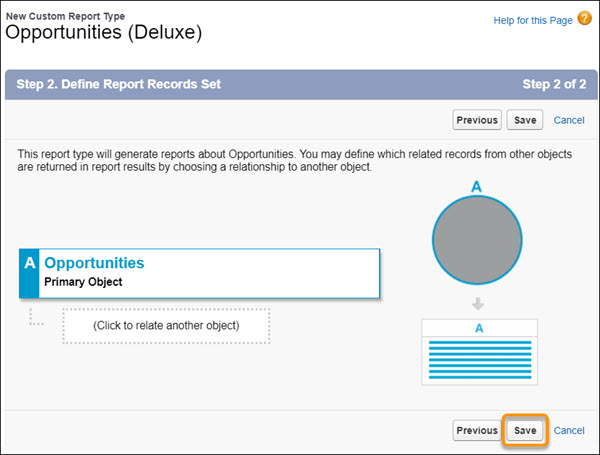
For Define Report Records Set, Juan sees that this report type will generate reports about Opportunities. Perfect! Since he doesn't need to include other objects in the definition for this custom report type, Juan clicks Save.
-
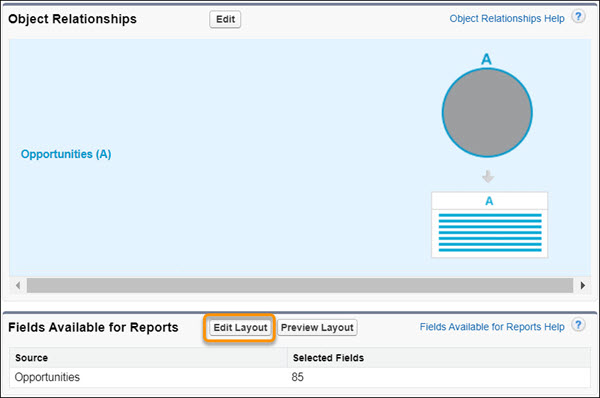
Next, Juan scrolls to the bottom of the newly-created custom report type and clicks Edit Layout to add fields.
-
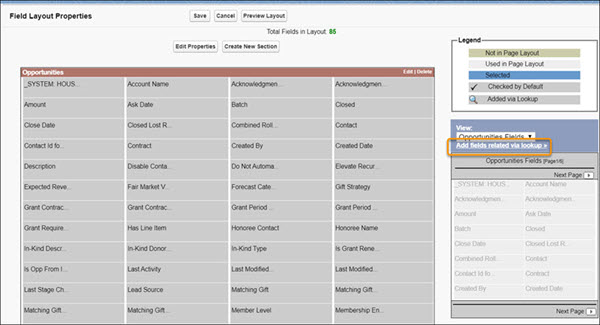
Juan clicks Add related fields via lookup, so that he can select fields from related objects.
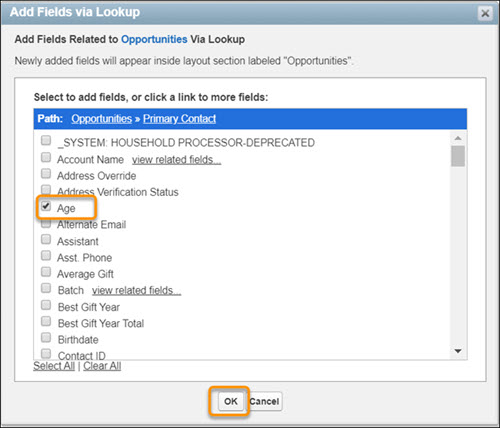
-
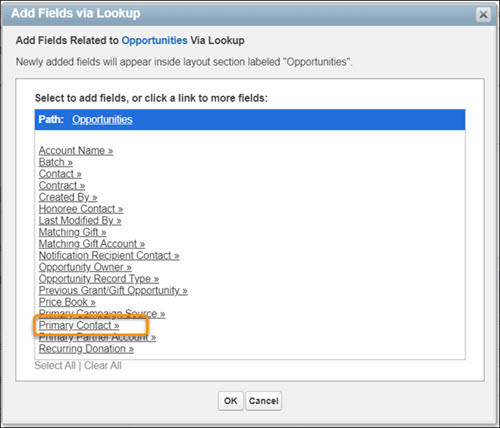
Juan clicks Primary Contact, then selects Age. Age is a custom field in Juan's organization.
-
He clicks OK.
-
(Optional) You can include fields from related records, such as the Primary Contact's Account record, giving you even more flexibility. To access related fields, click View Related Fields next to the related record.
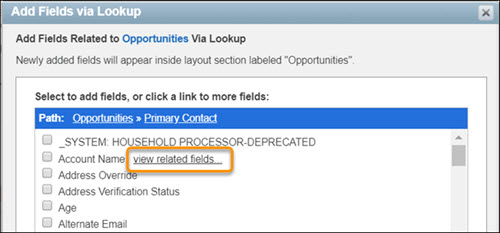
-
Juan keeps the custom report type layout organized by grouping fields into relevant sections—one for each object referenced. He creates a section labeled Primary Contacts and drags the Age field into it.
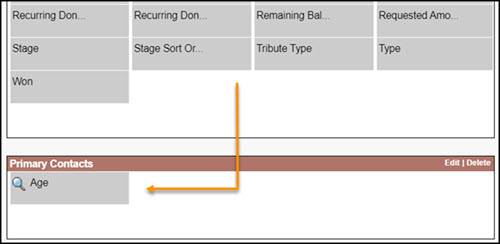 Note Sections are displayed as folder groupings in the report builder. Organize fields in a way that helps your organization understand which object the field came from or what kind of data it represents.
 -
(Optional) Adjust how fields appear in reports by clicking a field, then clicking Edit Properties. You can change the Display As, for example, from Primary Contact: Age to Donor Age. You can also select Checked by Default so that the field displays as a column when you create new reports using this report type.
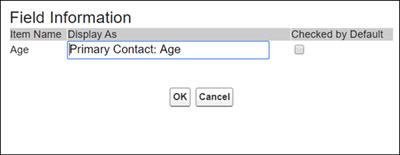
-
Click OK to finish.
-
With the desired fields added to the layout, Juan clicks Save.
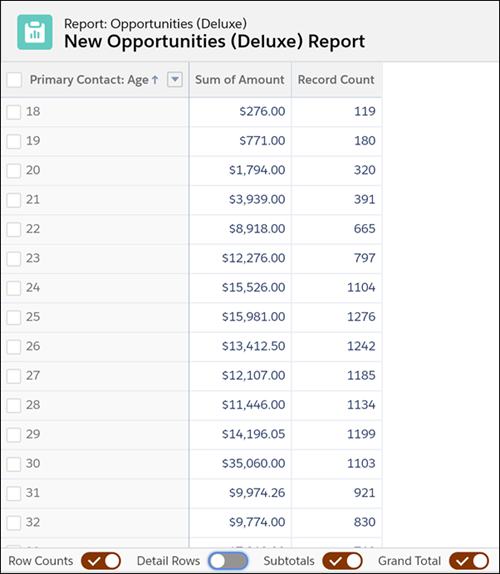
The fundraising team is loving this report type! Now, anytime they need a report that shows Opportunity records with related record details, they use the Opportunities (Deluxe) report type. No more fumbling with various report types to find one that includes the fields they need.
Juan uses this same approach for every report requested by his organization. If the “Deluxe” report type already exists for an object, he adjusts it to include additional relevant fields. For objects that don’t have a “Deluxe” custom report type yet, he creates it and adds the desired fields.
Nice work!
Considerations
Considerations and limitations of deluxe custom report types.
While deluxe custom report types work for most scenarios, there are a few limitations you should be aware of:
-
A custom report type layout can include a maximum of 1000 fields.
-
A custom report type can reference a maximum of 60 unique objects.
-
The “Show Me” ownership filter in the report builder references the Owner field of the primary object specified in the report type.
-
On deluxe custom report types you can include fields from objects that the primary object has a lookup to (for example, for Opportunities: Primary Contact, Account/Organization, etc.). You can't include fields from objects that have a lookup to the primary object records (for example, for Opportunities: Payments, GAU Allocations, Partial Soft Credits, etc.).
