
You are here:
Find and Merge Duplicate Contacts
Use Contact Merge to find and merge duplicate constituent records.

- About Contact Merge
Use Contact Merge in NPSP to easily merge duplicate Contacts into a single record. With Contact Merge, you choose which Contact to keep and what data to preserve from each duplicate. - Merge Duplicate Contacts
Merging Contacts is an irreversible process that combines up to three records into one. One of the merged contacts is the master record and the other records are deleted. We recommend that only System Administrators merge Contacts.
About Contact Merge
Use Contact Merge in NPSP to easily merge duplicate Contacts into a single record. With Contact Merge, you choose which Contact to keep and what data to preserve from each duplicate.
Unlike standard Salesforce merge, NPSP Contact Merge merges Accounts in certain circumstances. For example, if your merge leaves an Account with no Contacts, NPSP Contact Merge merges the two Accounts, re-parents all the related records from the empty Account to the main Contact’s Account, and deletes the empty Account.
From the Contact Merge tab, click Search Contacts to search by Contact name. You can also click See Duplicate Contacts to see a list of duplicate record sets, but you'll need to set up duplicate detection first. For both options, you merge duplicate Contacts manually.
In addition to Contact Merge, we recommend the following best practices for duplicate management and prevention:
-
Train users to search for Contacts before entering new ones. Consider customizing search layouts to give users more information about Contacts, so they can easily see if the Contact already exists.
-
Formulate a plan to identify duplicate Contacts, including which fields to use to determine if a Contact is a duplicate. For example, you may require entering a middle initial for common names, or you may identify a secondary field to determine a duplicate, like an address or email field.

Merge Duplicate Contacts
Merging Contacts is an irreversible process that combines up to three records into one. One of the merged contacts is the master record and the other records are deleted. We recommend that only System Administrators merge Contacts.
Before You Merge
We recommend that only the System Administrator merge Contacts, because the merge process is irreversible. To successfully merge Contacts using NPSP Contact Merge, you must have Create, Edit, and Delete permissions on the Contact object. Additionally, at least one of the following must be true:
- You are the owner of the Accounts and Contacts being merged.
- You are above the owners of the Contacts being merged in the role hierarchy.
- You have the Modify All Records permission on Accounts and Contacts.
Review the following before merging Contacts.
- Examine the Accounts associated with each of the Contacts to merge and determine which one should be the master Account after the merge.
- Review child records from custom objects for duplicates. When you merge Contacts, all related items from each Contact, such as Opportunities and Payments, are moved to the newly-merged Contact so that no data is lost.
- If you delete a Contact who is the last member of a Household Account, the process merges that Contact's Household Account with the winning Contact's Household Account.
Run Duplicate Jobs
If you have Unlimited Edition or Salesforce.org Insights Platform Data Integrity, run a Duplicate Job to find duplicate Contacts based on your Matching Rule.
For more information, see Run Duplicate Jobs in Salesforce Help.

Merge Duplicate Contacts
- Click the Contact Merge tab.
- Choose a method to find duplicate Contacts:
- To search for individual Contacts, click Search Contacts and enter the name of a Contact. You can use an asterisk (*) as a wildcard, for example, L* Jones finds both Larry Jones and Lawrence Jones. Contact merge will look at all searchable fields including custom ones.
-
If you set up Matching Rules and Duplicate Rules or Duplicate Jobs, click See Duplicate Contacts. Select the Duplicate Record Set you want to merge.
- Select up to three Contacts to merge.
- Click Next.
- Select one Contact as the Master Record. The Master Record determines which Account record the Contact will be associated with after the merge. Contact(s) you don't select will be deleted.
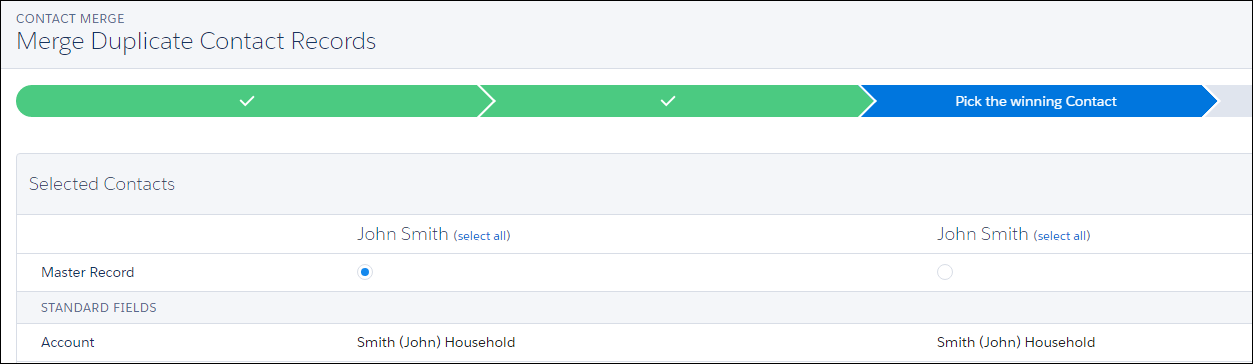
- Select the field values from any record to preserve in the final merged Contact. Unselected fields will be overwritten. For example, if two records have different phone numbers, select the phone number you want to keep.
- Click Merge, then click Merge.
