
You are here:
Merge or Split Households
Merge two different household accounts into one, and split one household into different accounts.

- Merge Households
Have you ever found yourself with two different Household Account records, both of which have the same mailing address? This often occurs during an online form integration where two of your Contacts registered with your organization separately. It can also occur as a result of a data import. - Split a Household
You may also find that you need to separate members of a Household. For example, if a child moves away, or if Household members go through a divorce.
Merge Households
Have you ever found yourself with two different Household Account records, both of which have the same mailing address? This often occurs during an online form integration where two of your Contacts registered with your organization separately. It can also occur as a result of a data import.
In addition to the above scenario, you might find that two of your Contacts who were previously in separate households are now living together.
Luckily, the Nonprofit Success Pack lets you easily merge Household Account records together without losing any data.
To merge two Households:
- Search for the Contact that should be the Primary Contact on the final, merged Household. You can do this by typing the Contact's name in the search box at the top of Salesforce.
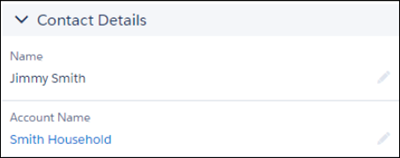
- Once you're on the Contact record, click the Household Name. The Household Name is the same as the Account Name:
- On the Household record, click Manage Household.In the Find a Contact or Add a New Contact to the Household search box, enter the name of the Contact to merge into the Household. Give it a moment to find the right record, and then clickNote If you don't see the Manage Household button, your admin may need to add it to the page. See Enable the Manage Household Button for more information.

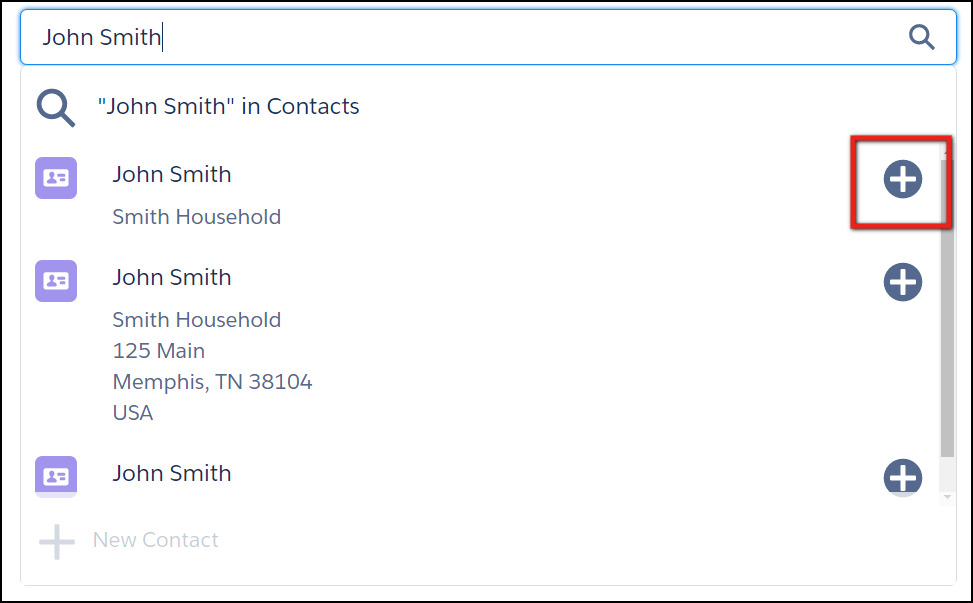 Note The Contact that’s merged into the Household will adopt the Household’s address. Learn more in Override the Default Household Address for a Contact.
 - If the Contact you're merging into the existing Household is part of a Household with more than one Contact, you have the option of adding just that one Contact, or adding all Household members:
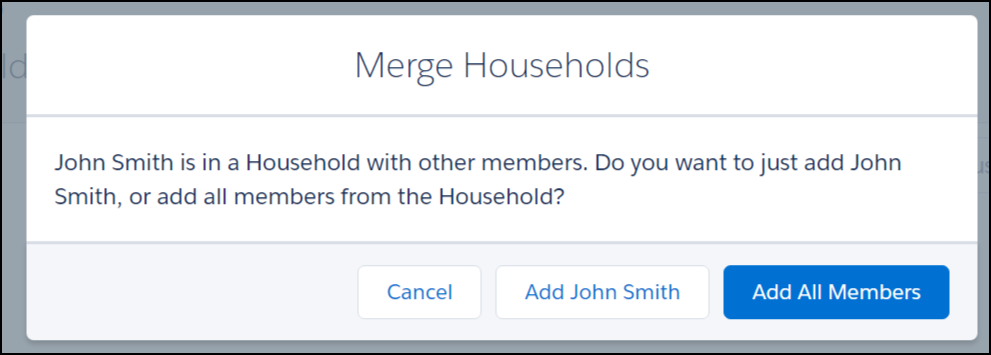
- Add Individual Contact
- This option relocates the Contact to the new Household, but does not copy over any fields from the other Household, and leaves the other Household, as well as the members and Opportunity history of the Household, intact. The option does move over any Opportunities for which the Contact is the primary donor.
- Add All Members
- This option updates the existing Household to include the new members, and deletes the old Household.
- Click Save.
Split a Household
You may also find that you need to separate members of a Household. For example, if a child moves away, or if Household members go through a divorce.
- Navigate to the Household record that currently contains all Household members. (If you're using the Household Account model, this is the Household Account record.)
- Click Manage Household.
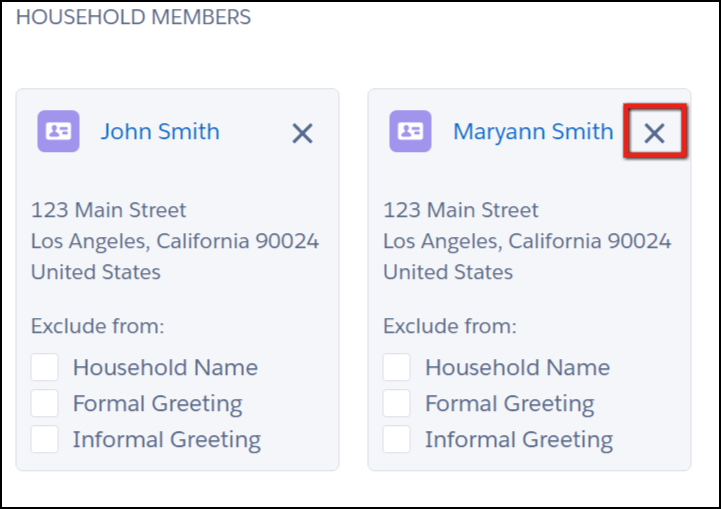
- On the Manage Household page, hover over the Contact card of the Contact you want to remove, and click the Remove (x) icon. When you click the Remove icon, Salesforce moves the Contact to their own separate Household. Note When removing the Primary Contact, select a new Primary Contact or Salesforce will select a new Primary contact by default.
- Click Save.
Depending on Household settings and how you log related records (for example, donations, Cases, Activities), the Contact leaving the Household may no longer be associated with the historical data you're expecting to see.
After splitting a Household, we recommend:
-
Review Account and Contact rollups for both Households
-
Review all related records in both Households to ensure records are associated correctly
