
You are here:
Process an NPSP Data Import Batch
Learn how to process a batch using NPSP Data Importer and what the different batch statuses mean.
- Process Batch
Now that you have records associated with your batch, you can process them so that they're imported into your organization. This is the step that will bring the data from your spreadsheet into NPSP. - A Word About Batch Status
In addition to viewing the status of each record within a batch, you can view the status of the entire batch in the Batch Status field.
Process Batch
Now that you have records associated with your batch, you can process them so that they're imported into your organization. This is the step that will bring the data from your spreadsheet into NPSP.

Keep in mind that when you process a batch, it only processes records for that particular batch. It doesn't process records for any other Data Import Batch.
- In the App Launcher, click NPSP Data Import Batches.
- Find your batch and click the Batch Name.
- Click Process Batch.

- Confirm Configuration Settings. You can click Edit if you need to update the settings. Note If you edit settings while the Batch is selected and save, it updates the default configuration options for that batch.
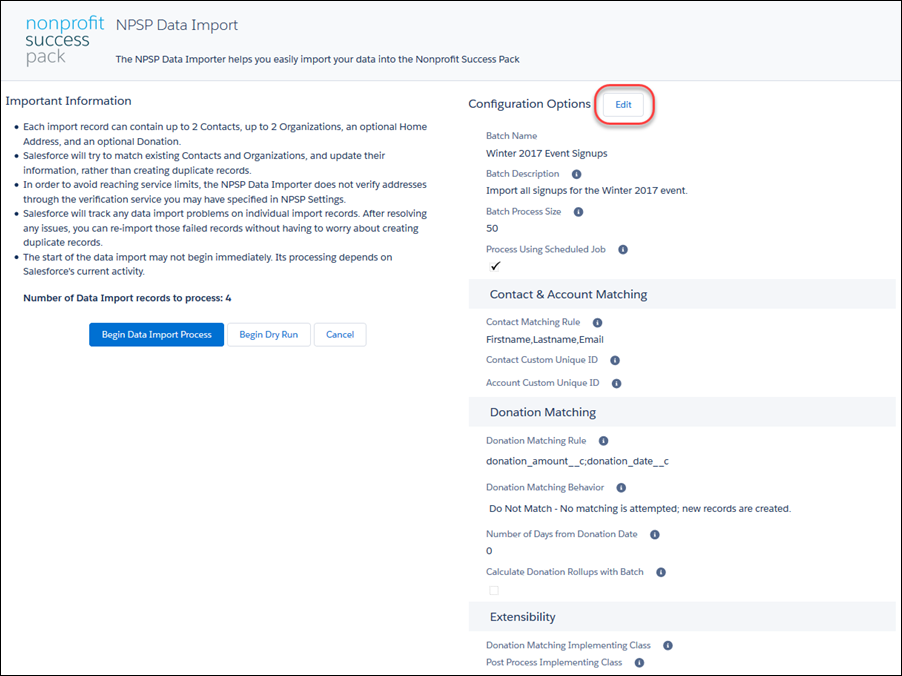
- Click Begin Data Import Process.
- Wait until the confirmation page shows that the import completed successfully.
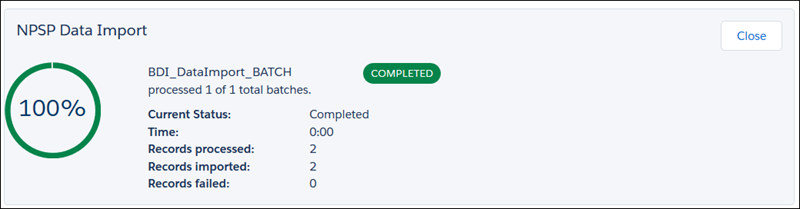
- Close the page to return to the NPSP Data
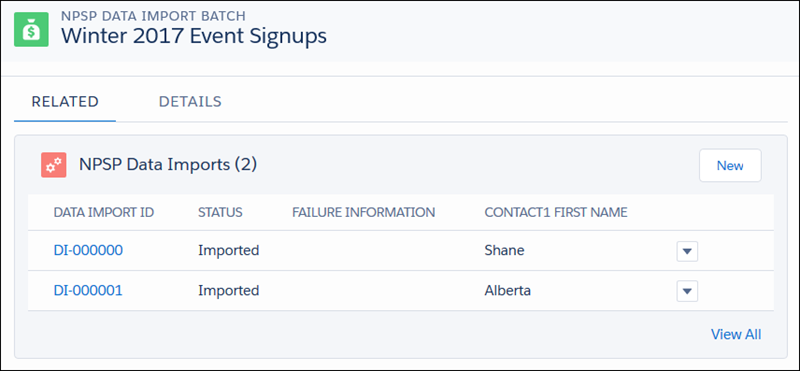
Import Batches tab. Review your imported records on the related list on the batch record.
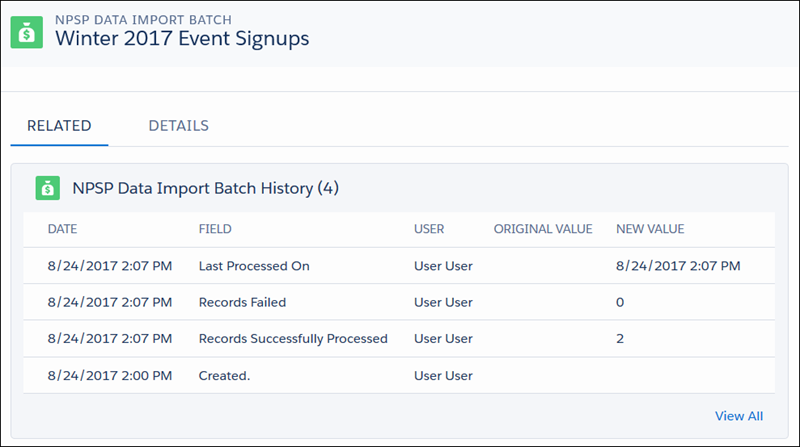
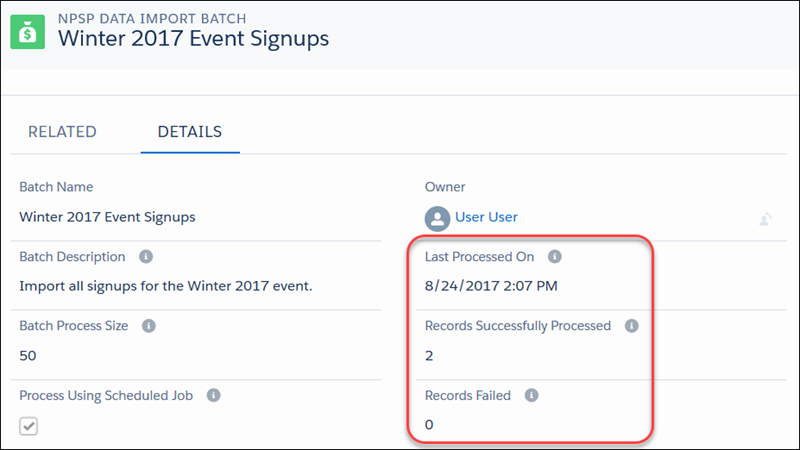
After the records for this batch are processed, the Last Processed On field is updated with the date and time. The Records Successfully Processed and Records Failed fields are also updated accordingly. Each time the batch is processed, these fields are overwritten with the new date/time and record counts. If you set up and activated a batch number format, all Opportunities and Payments associated with this batch will include the batch number in the Batch Number field. Learn more in Configure Batch Numbers for Donations.

If you'd like to run this batch on a recurring basis, see Schedule a Batch.
A Word About Batch Status
In addition to viewing the status of each record within a batch, you can view the status of the entire batch in the Batch Status field.
The Batch Status is based on the Import Status of the records within the batch. The values in Batch Status are:
You can add your own values to the Batch Status picklist. For example, if batches need to be reviewed before processing, you may want values like Ready for Review or Ready to Process. NPSP will overwrite any custom values to Completed or Failed - Needs Review when the batch is processed.
