
You are here:
Process a Collection of Gifts
Test processing your Gift Entry batch and then process the batch to add the gifts to NPSP.

- Test Your Batch with Dry Run
To catch and resolve errors before you process your batch, use the Batch Dry Run. - Process a Batch
After you enter all gifts, process the batch to commit the records into NPSP. Keep in mind that you must resolve all errors first. You may see an error when trying to process the batch if you selected the Required Expected Totals Match checkbox, but either the Total Amount or Total Count fields don't match the expected totals you entered when creating the batch. - A Word About Batch Status
In addition to viewing the status of each record within a batch, you can view the status of the entire batch in the Batch Status field. - Delete Gift Entry Records
Since the Gift Entry records provide a link between the batch in which the gift was entered and the Payment or Opportunity record, we recommend that you do not delete them. Deleting Gift Entry records erases the entry history, which is sometimes needed for accounting or audit purposes.
Test Your Batch with Dry Run
To catch and resolve errors before you process your batch, use the Batch Dry Run.
As you enter gifts, NPSP performs a dry run to make sure they will process correctly. That's great if you enter everything in one sitting and process the batch right away, but often the workday of people entering gifts isn't quite that streamlined. Instead, you might enter some of the gifts today, and return days later to finish entering and processing the whole batch.
And in that time, other Opportunities or Payments may have been entered or modified in NPSP. As a result, when you go to process your batch, some of the older donations might not match up correctly anymore. To catch and resolve pesky errors before you process your batch, click Batch Dry Run.
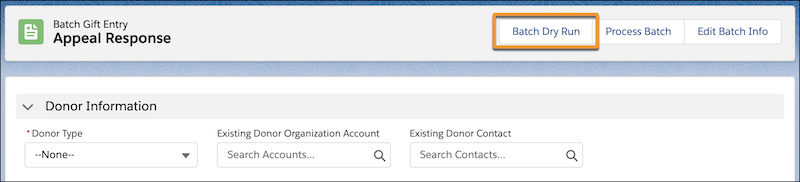
While Batch Dry Run is working, you can't enter or edit gifts. When it's done, you'll be able to add, edit, or process gifts. Any problematic donation line items are flagged with a Dry Run - Error status. You can expand the Error column to see details.

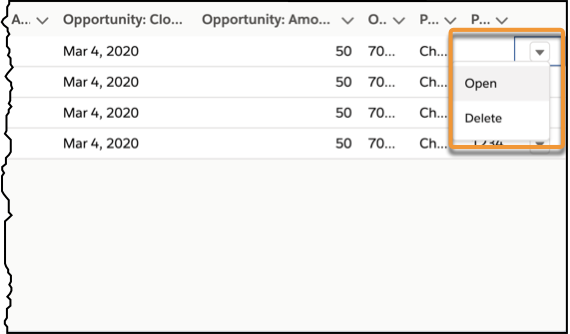
After you've identified the issue, scroll to the right end of the batch list and click  . Select Open to edit the gift in the Gift Entry form or click Delete to remove the gift from the batch.
Now that you've resolved errors, you’re ready to process your batch.
Process a Batch
After you enter all gifts, process the batch to commit the records into NPSP. Keep in mind that you must resolve all errors first. You may see an error when trying to process the batch if you selected the Required Expected Totals Match checkbox, but either the Total Amount or Total Count fields don't match the expected totals you entered when creating the batch.
-
Click Process Batch.
-
When the batch finishes processing, verify the updated Status for each record.
If you set up and activated a batch number format, all Opportunities and Payments associated with this batch will include the batch number in the Batch Number field. Learn more in Configure Batch Numbers for Donations.
A Word About Batch Status
In addition to viewing the status of each record within a batch, you can view the status of the entire batch in the Batch Status field.
The Batch Status is based on the Import Status of the records within the batch. The values in Batch Status are:
You can add your own values to the Batch Status picklist. For example, if batches need to be reviewed before processing, you may want values like Ready for Review or Ready to Process. NPSP will overwrite any custom values to Completed or Failed - Needs Review when the batch is processed.
Delete Gift Entry Records
Since the Gift Entry records provide a link between the batch in which the gift was entered and the Payment or Opportunity record, we recommend that you do not delete them. Deleting Gift Entry records erases the entry history, which is sometimes needed for accounting or audit purposes.
If you absolutely must delete Gift Entry records, these are the two objects where you'll find Gift Entry batch information.
- NPSP Data Import Batches
- These records include Batch Name, Batch Description, or the Form Template used for the batch.
- NPSP Data Imports
-
The Gift Entry records for the donations entered within a batch. The NPSP Data Import records are related to NPSP Data Import Batch records through a lookup field.
If you have a lot of Gift Entry records to delete, use Salesforce Data Loader. For details, see Data Loader and Insert, Update, or Delete Data Using Data Loader. After you delete all of the Gift Entry records in a batch and want to delete the batch itself, go to the NPSP Data Import Batches tab.
